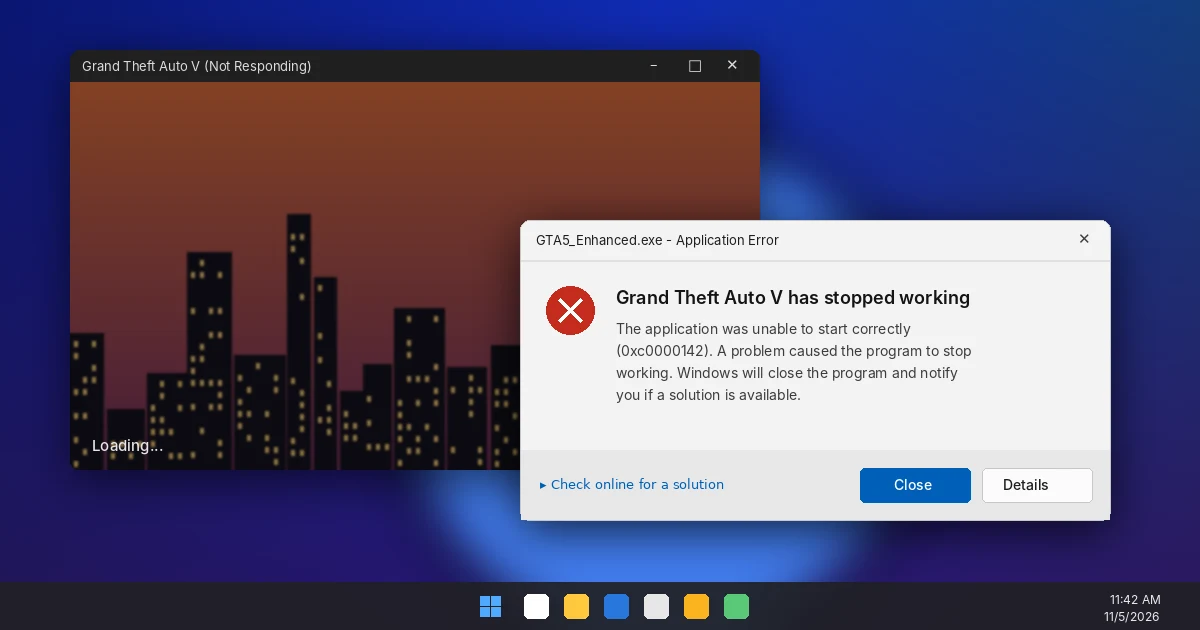
If you’re dealing with GTA 5 crashing on Windows 11, the cause is usually one of five things: an outdated graphics driver, damaged game files, a graphics setting your card can’t handle (ray tracing is the usual suspect), leftover mods, or a broken settings.xml file. Start with Fix 1 and work down the list. Most players are back in Los Santos by Fix 4.
I’ve walked a lot of friends through this exact problem since Rockstar split the PC game into two versions in 2025, and the fix order below is the one that saves the most time. Each fix tells you what it solves, so you can skip what doesn’t match your crash.
Key Takeaways
- GTA 5 Enhanced needs a DirectX 12 graphics card. Older cards should play GTA 5 Legacy instead.
- A clean graphics driver install and a file verification fix most GTA 5 crashing on Windows 11.
- Turning off ray tracing stops many mid-game crashes on 4GB and 6GB cards.
- Resetting settings.xml fixes crashes that start right after you change graphics options.
- Mods, ReShade, and overclocks cause crashes that look random but aren’t.
Why Is GTA 5 Crashing on Windows 11?
Since March 4, 2025, GTA 5 on PC has shipped as two separate games: GTA V Enhanced (DirectX 12, ray tracing, DLSS and FSR) and GTA V Legacy (the original 2015 PC build). They crash for different reasons, so knowing which one you launch matters.
Enhanced is fussier. It needs an SSD, a DirectX 12 card, and more video memory, and it’s far less tolerant of old mods. Legacy runs on older hardware but breaks more often from outdated script mods after a game update.
Here’s a quick way to match your symptom of GTA 5 crashing on Windows 11 to the right fix before you start.
| What happens | Most likely cause | Start with |
|---|---|---|
| Crashes on startup, no error | Damaged files, missing Visual C++ files, compatibility mode | Fix 3, Fix 8, Fix 10 |
| ERR_GFX_D3D_NOD3D12 error | Card or driver lacks DirectX 12 support | Fix 1, Fix 2 |
| Crashes on the loading screen | Corrupt settings.xml, mods, wrong GPU in use | Fix 5, Fix 6, Fix 7 |
| Crashes mid-game or while driving fast | Ray tracing, VRAM limit, overclock, heat | Fix 4, Fix 9 |
| Kicked or crashes when joining GTA Online | BattlEye conflict with mods or overlays | Fix 6 |
Fix 1: Check Your PC Against the GTA 5 Enhanced Requirements
This sounds basic, but it’s the fix people skip most. A lot of GTA 5 crashing on Windows 11 comes from launching Enhanced on hardware that ran Legacy fine. According to Rockstar’s official system requirements page, the Enhanced minimums are:
- OS: Windows 10 (build 1909 or newer). Windows 11 is recommended.
- CPU: Intel Core i7-4770 or AMD FX-9590
- RAM: 8GB (16GB recommended)
- GPU: NVIDIA GeForce GTX 1630 (4GB) or AMD Radeon RX 6400 (4GB)
- Storage: 105GB on an SSD
To check your card, press Win + R, type dxdiag, and open the Display tab. If your GPU is below the minimum or the game sits on a hard drive, switch to GTA 5 Legacy. It’s the same story and the same GTA Online, just without the new visuals.
Fix 2: Do a Clean Graphics Driver Install
Outdated or half-updated drivers are the number one reason behind a GTA 5 Enhanced crash. Don’t rely on Windows Update for GPU drivers, since it often installs an older version that can keep GTA 5 crashing on Windows 11.
- NVIDIA: open the NVIDIA app, go to Drivers, choose the Game Ready driver, and pick Clean Install under the install options. You can also download it from NVIDIA’s official driver page.
- AMD: open AMD Software: Adrenalin Edition, check for updates, and use the Factory Reset option during install.
- Intel Arc: use the Intel Graphics Software app and install the latest driver.
Restart your PC after the install, even if it doesn’t ask. Skipping that restart is a classic reason the problem “comes back.”
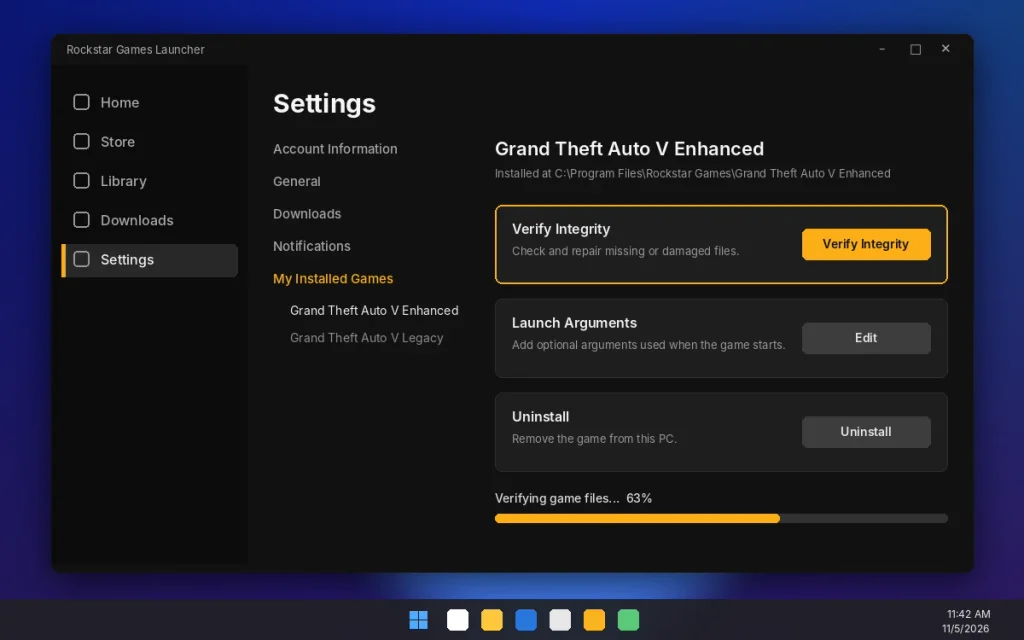
Fix 3: Verify the Game Files
A single damaged file can cause GTA 5 crashing on Windows 11 at launch with no error message at all. Verification compares your install against the official files and replaces anything broken. It’s free and takes about 10 to 20 minutes on an SSD.
- Rockstar Games Launcher: Settings, then My Installed Games, select Grand Theft Auto V Enhanced, then Verify Integrity.
- Steam: right-click the game in your Library, choose Properties, then Installed Files, then Verify integrity of game files.
- Epic Games: Library, click the three dots on the game, choose Manage, then Verify.
Fix 4: Turn Off Ray Tracing and Lower VRAM-Heavy Settings
When GTA 5 keeps crashing on PC mid-game, especially while driving fast through the city, video memory is the usual culprit. In Enhanced, settings that go past your VRAM limit don’t just slow the game down. They crash it, and that’s the most common mid-game version of GTA 5 crashing on Windows 11.
Open Settings, then Graphics, and try this:
- Turn off the Ray Tracing options (reflections, shadows, and global illumination) for a test session.
- Drop Texture Quality one step on 4GB to 6GB cards.
- Watch the VRAM meter at the top of the graphics menu. Keep it below your card’s limit.
- Use DLSS or FSR set to Quality instead of running native 1440p or 4K on a mid-range card.
My rule of thumb: on an 8GB card like an RTX 3060 Ti, keep ray tracing on Low or Off at 1440p if you play long sessions.
Fix 5: Reset settings.xml to Stop a GTA 5 Crash on Startup
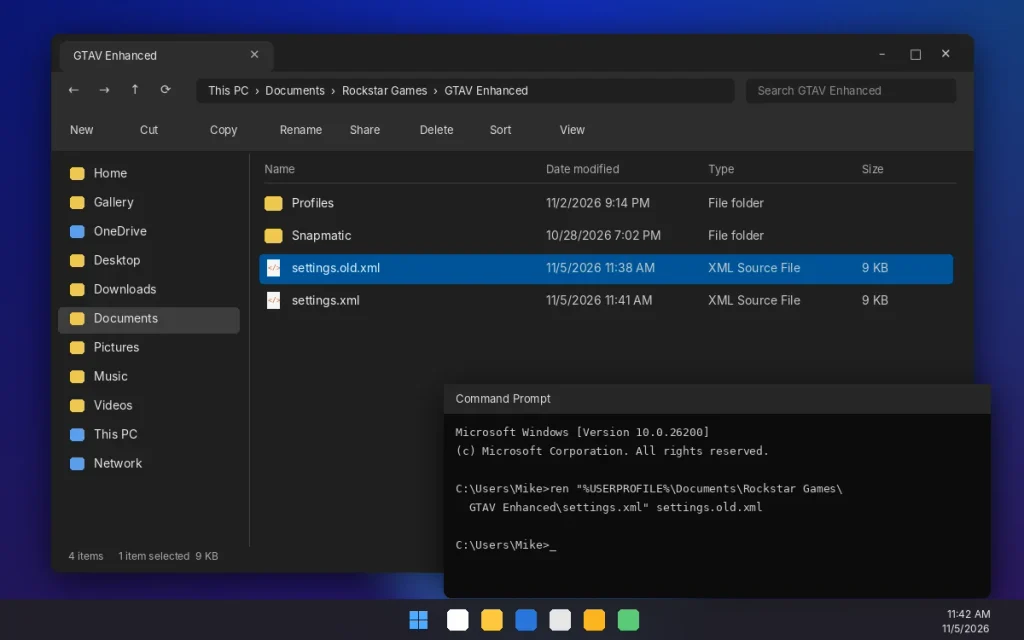
If GTA 5 crashing on Windows 11 started right after you changed graphics options, the settings file is probably broken. Renaming it forces the game to build a fresh one with default settings. Your saves aren’t stored in this file, so they’re safe.
Close the game and the launcher, then open Command Prompt and run this (Enhanced players):
reset-settings.cmd
ren "%USERPROFILE%\Documents\Rockstar Games\GTAV Enhanced\settings.xml" settings.old.xmlLegacy players use the GTA V folder instead of GTAV Enhanced. One Windows 11 catch: if OneDrive backs up your Documents folder, the file lives under %OneDrive%\Documents\Rockstar Games instead. If the command says it can’t find the file, swap %USERPROFILE% for %OneDrive%.
Fix 6: Remove Mods, ReShade, and Overlays
ScriptHookV, ASI loaders, trainers, and ReShade presets are built for specific game versions. After a Rockstar update, an outdated mod can crash the game before the main menu ever shows up. Move these files out of the game folder:
- dinput8.dll, ScriptHookV.dll, and any .asi files
- dxgi.dll or d3d12.dll from ReShade or Special K
- Any mods or scripts folder you added
For GTA Online, BattlEye anti-cheat blocks graphics tools like ReShade, and Rockstar’s BattlEye troubleshooting guide recommends removing graphics mods first. While you’re at it, turn off overlays from Discord, MSI Afterburner, and RivaTuner for one test session. Overlays hook into DirectX 12 and are a common hidden cause of GTA 5 crashing on Windows 11.
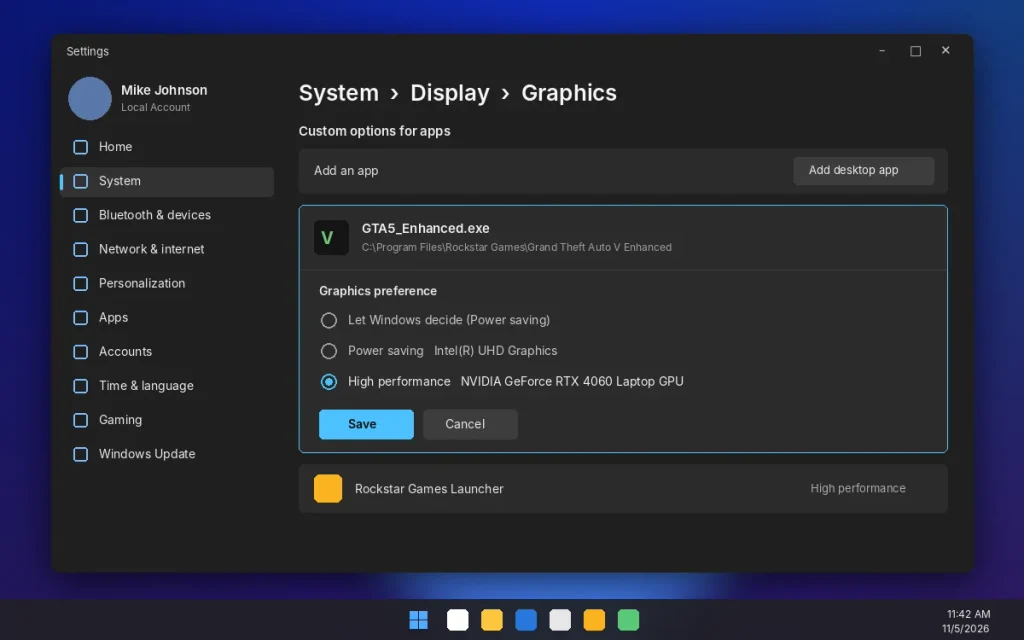
Fix 7: Force Your Dedicated GPU in Windows 11
Gaming laptops sometimes launch the game on the weak integrated graphics chip, which leads straight to a GTA 5 Enhanced crash or a DirectX error. Windows 11 lets you lock the game to your real GPU, which ends this type of GTA 5 crashing on Windows 11 for good.
- Open Settings, then System, then Display, then Graphics.
- Click Add desktop app and browse to GTA5_Enhanced.exe in your game folder.
- Select it, click Options, choose High performance, and save.
Also plug the laptop into the wall. Many laptops cut GPU power on battery, which can trigger crashes in heavy scenes.
Fix 8: Repair Visual C++ Files and Windows System Files
GTA 5 depends on Microsoft Visual C++ runtime files. If they’re missing or damaged, you’ll see GTA 5 crashing on Windows 11 the moment you hit Play. Open Terminal as administrator and install the latest runtime with winget:
install-vcredist.ps1
winget install --id Microsoft.VCRedist.2015+.x64 -eYou can also grab it from Microsoft’s Visual C++ download page. Next, repair Windows itself. Run these two commands one at a time in the same admin window:
repair-windows.cmd
DISM /Online /Cleanup-Image /RestoreHealth
sfc /scannow
Restart when both finish. Then open Settings, then Windows Update, and install anything pending, since newer DirectX 12 components ship through Windows Update.
Fix 9: Remove Overclocks and Check Temperatures
A GPU overclock that’s “stable” in other games can still fail in GTA 5. The open world loads assets constantly, which hits memory clocks hard and shows up as random GTA 5 crashing on Windows 11. If you’ve touched MSI Afterburner, reset everything to default. Same goes for CPU and RAM overclocks, including XMP or EXPO profiles if you’re testing a stubborn crash.
Check temps too. If your GPU sits above 185°F (85°C) or your CPU above 203°F (95°C), clean the dust filters and improve airflow. A frame cap helps here as well. Capping the game at 60 or 120 FPS in the NVIDIA app or AMD Adrenalin keeps heat and power spikes down.
Fix 10: Turn Off Compatibility Mode and Reinstall the Launcher
Some players set compatibility mode years ago and forgot. When GTA 5 crashing on Windows 11 happens right at launch, check this. On Windows 11, that can trigger a false “Windows 7 and 8 support has ended” error or an instant crash. Right-click PlayGTAV.exe and GTA5_Enhanced.exe, choose Properties, open the Compatibility tab, and uncheck everything.
Still stuck? Uninstall the Rockstar Games Launcher from Settings, then Apps, restart, and reinstall it from Rockstar’s website. If GTA 5 keeps crashing on PC after that, a full game reinstall on your fastest SSD is the last step before contacting Rockstar Support.
How to Fix GTA 5 Crashes for Good
Once the game is stable, a few habits prevent GTA 5 crashing on Windows 11 from coming back:
- Update your GPU driver every month or two, not every week. Brand-new drivers occasionally break things.
- Verify game files after every big GTA Online update.
- Back up working mods and wait for mod authors to update before you launch Story Mode after a patch.
- Keep at least 20GB free on the game drive so updates and shader caches have room.
Frequently Asked Questions
Why does GTA 5 keep crashing on my PC?
GTA 5 usually crashes on PC because of an outdated graphics driver, damaged game files, mods, or graphics settings that exceed your video memory. GTA 5 Enhanced also requires a DirectX 12 graphics card, so older GPUs that ran the original version may crash instantly. Update drivers, verify files, and lower settings first.
Does GTA 5 work on Windows 11?
Yes. Rockstar lists Windows 11 as the recommended operating system for GTA 5 Enhanced, and GTA 5 Legacy also runs on it. GTA 5 crashing on Windows 11 usually comes from drivers, mods, or settings, not the operating system itself. Keep Windows Update current so you have the latest DirectX 12 components installed.
How do I fix GTA 5 crashing on startup?
To fix a GTA 5 crash on startup, verify the game files in your launcher, rename the settings.xml file in Documents\Rockstar Games, remove mods from the game folder, and reinstall the Microsoft Visual C++ runtime. Also turn off compatibility mode on the game’s .exe files. These steps solve most startup crashes.
What is the difference between GTA 5 Enhanced and Legacy?
GTA 5 Enhanced launched on PC on March 4, 2025, and adds DirectX 12, ray tracing, DLSS, FSR, and faster SSD loading. GTA 5 Legacy is the original 2015 PC version and runs on older hardware. Both include Story Mode and GTA Online, and you can move your progress to Enhanced once.
Does turning off ray tracing stop GTA 5 crashes?
Often, yes. Ray tracing in GTA 5 Enhanced uses a lot of video memory, and going past your card’s VRAM limit can crash the game instead of just lowering FPS. Turning ray tracing off, or setting it to Low, fixes many mid-game crashes on graphics cards with 4GB to 8GB of memory.
Will verifying game files delete my GTA 5 progress?
No. Verifying game files only checks and replaces the game’s install files. Your Story Mode saves and GTA Online characters are stored separately, either in your Documents folder or on Rockstar’s servers, so they stay untouched. Verification is safe to run anytime and is one of the best first fixes for crashes.
Get Back Into Los Santos
Start with the quick wins: check the requirements, clean install your driver, and verify your files. If GTA 5 crashing on Windows 11 continues, reset settings.xml and strip out mods before you touch anything deeper. Work through the list in order, test after each fix, and you’ll know exactly what solved it. If nothing works, open a ticket with Rockstar Support and include your dxdiag report, which speeds up the reply a lot.
Related reads on Trust Jaguar: how to fix DNS server not responding in Windows 11 (handy if GTA Online won’t connect), laptop turns on but screen is black, and GTA 6 bringing back a Red Dead 2 gameplay feature.