If you’re stuck on a Windows 11 black screen after login, press Windows + Ctrl + Shift + B first to reset the graphics driver. If the screen stays dark, press Ctrl + Alt + Delete, open Task Manager, and start explorer.exe again. Those two moves fix most cases in under a minute.
When they don’t, the culprit is almost always a bad display driver, a buggy Windows update, Fast Startup, or a damaged user profile. Every one of those can be fixed without wiping your files. Below are the fixes in the exact order I’d try them, from 10-second tricks to full recovery options.
Key Takeaways
- A black screen with only a mouse cursor usually means explorer.exe didn’t start. Restart it from Task Manager.
- Windows + Ctrl + Shift + B restarts the graphics driver without closing your apps.
- If the desktop loads fine in Safe Mode, the problem is a driver or startup app, not your hardware.
- Recent updates and Fast Startup are two of the most common triggers. Both are easy to undo.
- If you can’t see the manufacturer logo during boot either, it’s likely a hardware or display issue, not Windows.
Why You Get a Windows 11 Black Screen After Login
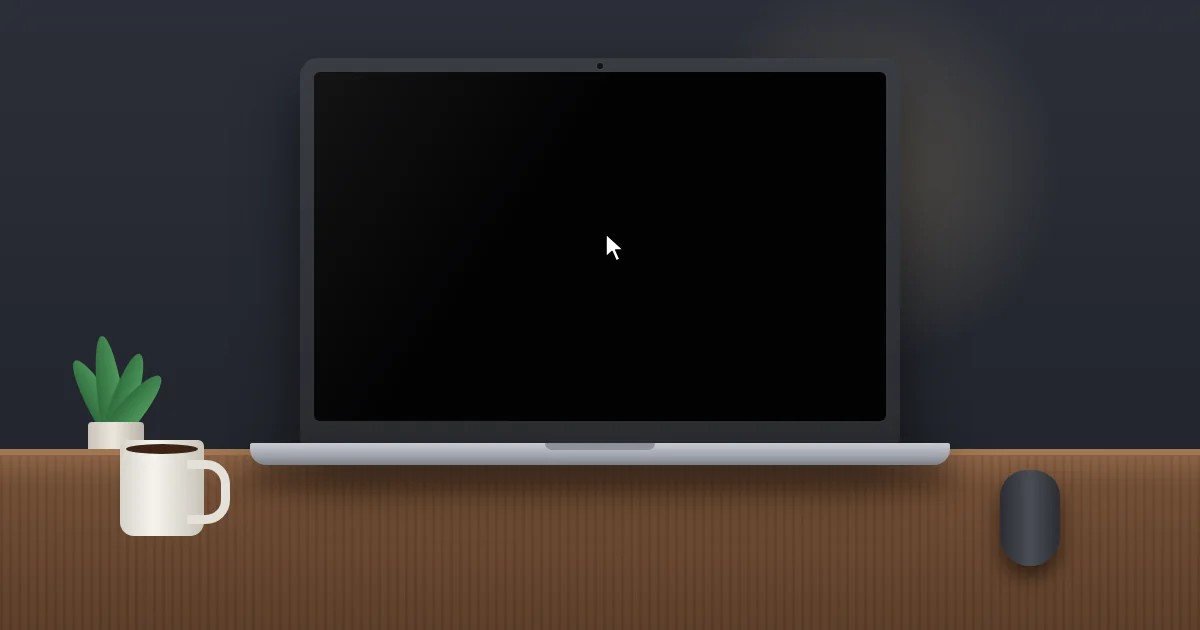
Here’s what happens behind the scenes. After you type your PIN or password, Windows loads your user profile and launches explorer.exe, the process that draws your desktop, taskbar, and Start menu. If that process crashes, hangs, or gets blocked, you’re left staring at a Windows 11 black screen after login, often with a working mouse pointer floating in the middle.
The most common causes I see:
- Explorer.exe failed to launch or crashed during sign-in.
- A display driver glitch, especially right after a driver update or waking from sleep.
- The wrong display output, such as Windows sending the picture to a TV or second monitor that’s turned off.
- A faulty Windows update that conflicts with your graphics driver or security software.
- Fast Startup restoring a broken session instead of booting fresh.
- Corrupted system files or a damaged user profile.
- Malware that hijacks the Windows shell setting in the registry.
Black Screen With Cursor vs. No Cursor at All
What you see on screen tells you where to start. Use this table to skip straight to the right fix.
| What you see | Most likely cause | Start with |
|---|---|---|
| Black screen with a movable cursor | Explorer.exe not running | Fix 2 (Task Manager) |
| Black screen, no cursor, keyboard lights on | Display driver or wrong output | Fix 1, then the projection trick |
| Black screen only after a recent update | Buggy quality update | Fix 6 (uninstall update) |
| Black screen on every boot, even before the login screen | Hardware, cable, or BIOS issue | Hardware section below |
Quick Checks for a Windows 11 Black Screen After Login
These take less than a minute and solve more cases than you’d expect.
- Unplug extra screens and docks. Disconnect any second monitor, HDMI cable to a TV, or USB-C dock, then sign in again.
- Wait two or three minutes after a big update. The first sign-in after a feature update can sit on a black screen while Windows finishes setup. Give it a moment before you force a restart.
- Cycle the projection mode blind. Press Windows + P, wait a second, then press Enter. If nothing changes, press Windows + P, tap the Down arrow once, and press Enter. Repeat until you hit “PC screen only.”
- Check brightness. On laptops, tap the brightness-up key a few times. It sounds silly, but a brightness setting of zero looks exactly like a dead display.
How to Fix Windows 11 Black Screen After Login (Step by Step)
Work through these in order. Stop as soon as your desktop comes back.
1. Reset the Graphics Driver With a Shortcut
Press Windows + Ctrl + Shift + B at the same time. You’ll hear a short beep and the screen will flicker as Windows restarts the graphics driver. It doesn’t close your open apps or sign you out, so it’s always worth trying first for any Windows 11 black screen after login.
2. Restart Explorer.exe From Task Manager
This is the fix for the classic black screen with cursor on Windows 11. Press Ctrl + Alt + Delete and choose Task Manager (or press Ctrl + Shift + Esc to open it directly).
- If you see Windows Explorer in the Processes list, right-click it and choose Restart.
- If it’s not listed, click Run new task, type the command below, check Create this task with administrative privileges, and click OK.
explorer.exe
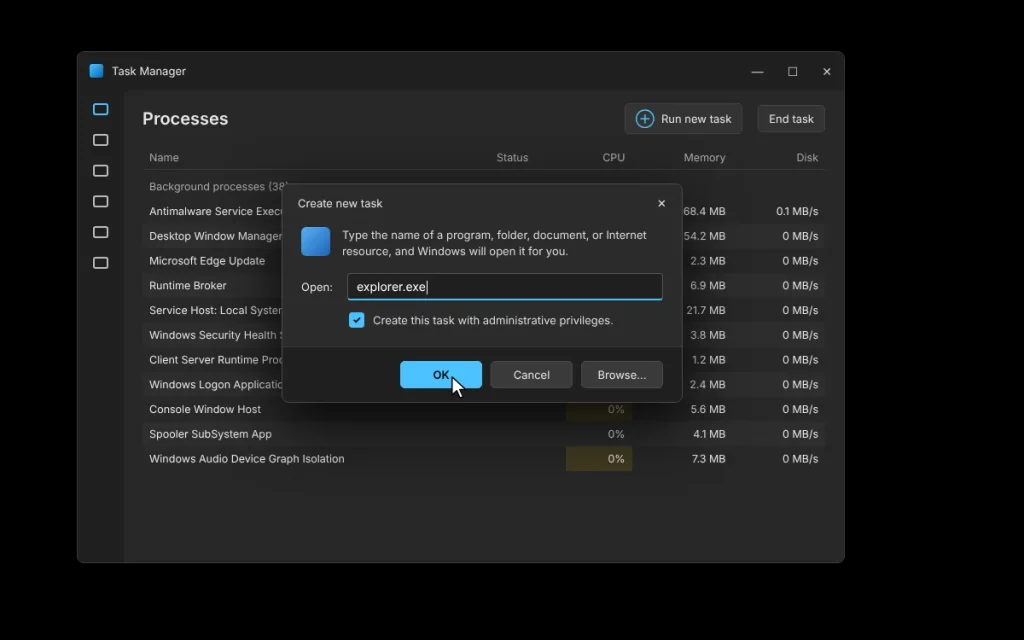
If your taskbar appears, you’re back in business. If the black screen returns on the next restart, keep going, because something is still stopping Explorer from launching on its own.
3. Sign Out or Restart the Right Way
From the Ctrl + Alt + Delete screen, click the power icon in the bottom-right corner and pick Restart. This is cleaner than holding the power button. Only force a shutdown (hold the power button for 10 seconds) if the keyboard doesn’t respond at all.
4. Boot Into Safe Mode
Safe Mode loads Windows with basic drivers only. If your desktop shows up there, your Windows 11 black screen after login is caused by a driver or startup app, which narrows things down a lot.
- On the sign-in screen, hold Shift, click the power icon, and choose Restart.
- If you can’t reach the sign-in screen, turn the PC off while Windows is loading. Do this twice. On the third boot, Windows should open Automatic Repair, then click Advanced options.
- Go to Troubleshoot > Advanced options > Startup Settings > Restart.
- Press 5 or F5 for Safe Mode with Networking.
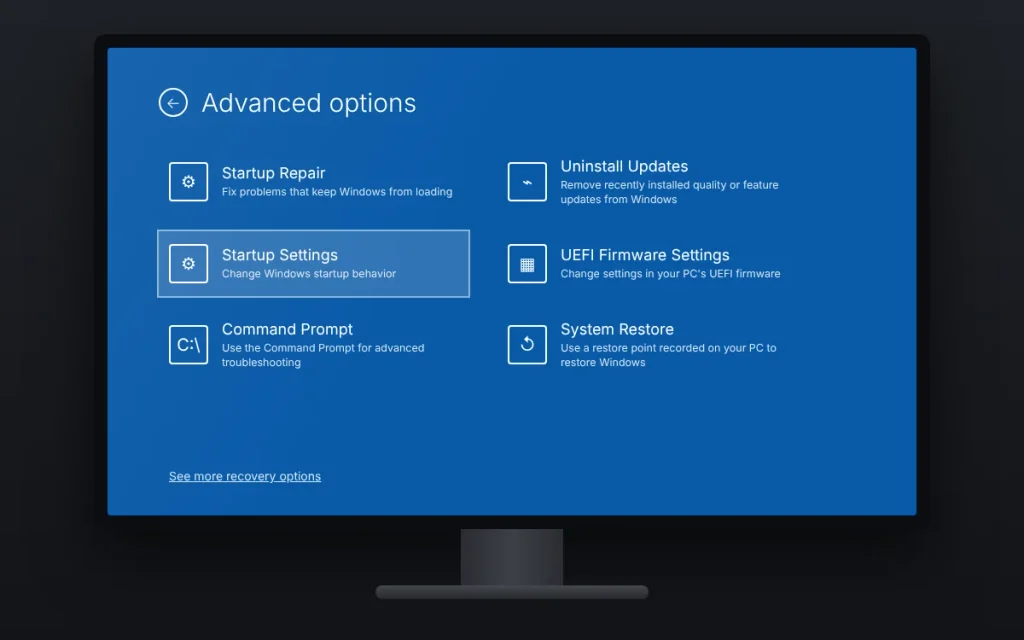
Microsoft’s own guide to starting your PC in Safe Mode shows the same steps with screenshots if you want a second reference.
5. Roll Back or Reinstall the Display Driver
A bad graphics driver is the single most common reason for a Windows 11 black screen after login, especially on gaming laptops with both Intel and NVIDIA or AMD graphics. In Safe Mode:
- Press Windows + X and open Device Manager.
- Expand Display adapters, right-click your graphics card, and choose Properties.
- On the Driver tab, click Roll Back Driver if it’s available.
- If it’s grayed out, right-click the adapter, choose Uninstall device, check Attempt to remove the driver for this device, and restart.
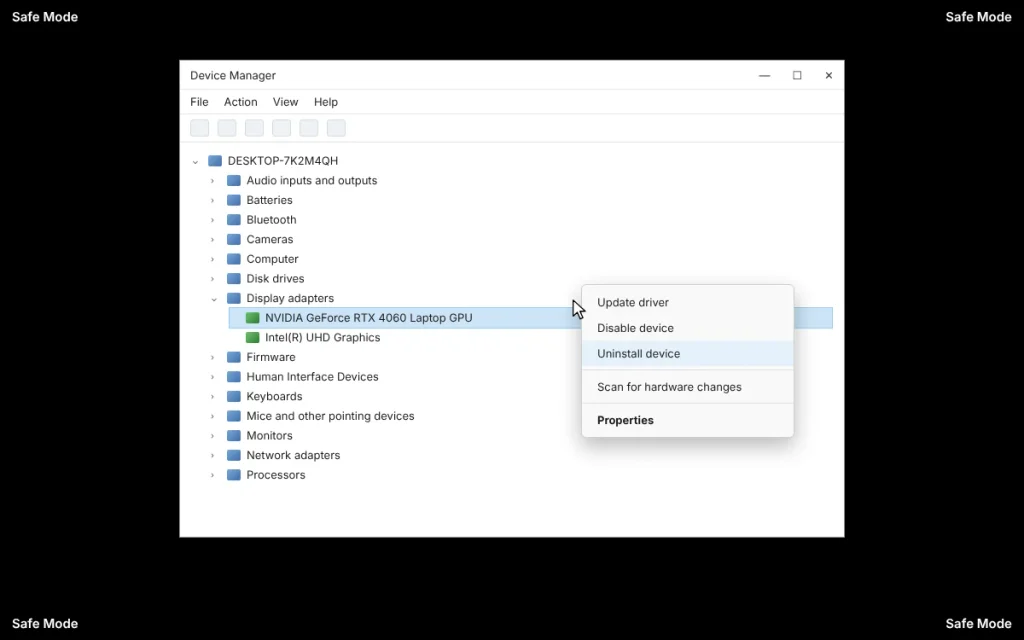
Windows will boot with the Microsoft Basic Display Adapter. Then download the latest driver straight from NVIDIA, AMD, Intel, or your laptop maker (Dell, HP, Lenovo). My advice: on laptops, the manufacturer’s driver is often the safer pick, because it’s tuned for that exact hardware.
6. Uninstall the Latest Windows Update
If your Windows 11 black screen after login started right after Patch Tuesday (the second Tuesday of each month, when Microsoft ships security updates), roll that update back.
- From Safe Mode: open Settings > Windows Update > Update history > Uninstall updates, then remove the newest one.
- From the recovery screen: go to Troubleshoot > Advanced options > Uninstall Updates > Uninstall latest quality update.
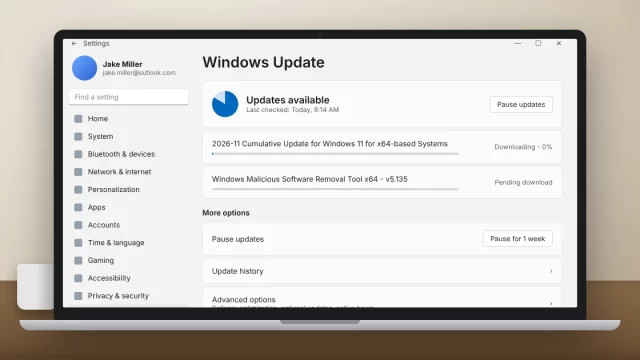
After that, go to Settings > Windows Update and click Pause for 1 week so it doesn’t reinstall overnight while Microsoft or your driver vendor ships a fix.
7. Turn Off Fast Startup
Fast Startup saves part of your session to disk at shutdown so the next boot is quicker. When that saved state is broken, you can hit the same black screen over and over. To turn it off, open Control Panel > Hardware and Sound > Power Options > Choose what the power buttons do, click Change settings that are currently unavailable, uncheck Turn on fast startup, and save.
Prefer the command line? Run this in an admin Terminal. It turns off hibernation, which also turns off Fast Startup.
powercfg /h off
8. Repair System Files With DISM and SFC
Corrupted system files can keep the desktop from loading. Open Terminal (Admin) from the Windows + X menu (or launch cmd from Task Manager’s Run new task with admin rights) and run these two commands, one at a time.
DISM /Online /Cleanup-Image /RestoreHealth
sfc /scannow
Run DISM first. It repairs the image that SFC uses as its source. Together they usually take 10 to 20 minutes, so don’t panic if the progress bar sits still for a while.
9. Check the Winlogon Shell Setting in the Registry
This one gets missed a lot. Windows decides which program to load as your desktop from a single registry value. If malware or a badly written “PC cleaner” changes it, Explorer never starts. Check it with this command:
reg query "HKLM\SOFTWARE\Microsoft\Windows NT\CurrentVersion\Winlogon" /v Shell
The value should read exactly explorer.exe. If it points to anything else, set it back with the command below, then run a full scan with Microsoft Defender Offline from Windows Security > Virus & threat protection > Scan options.
reg add "HKLM\SOFTWARE\Microsoft\Windows NT\CurrentVersion\Winlogon" /v Shell /t REG_SZ /d explorer.exe /f
10. Test With a New User Account
If every other account works but yours gets a Windows 11 black screen after login, your user profile is probably damaged. Create a test admin account from an admin Terminal:
net user TempAdmin /add
net localgroup administrators TempAdmin /add
Sign out, sign in as TempAdmin, and see if the desktop loads. If it does, copy your files from C:\Users\YourOldName into the new account, then set it up as your main profile. Add a password to it right away.
11. Use System Restore or Reset This PC
Still stuck? Go back to the recovery screen and pick Troubleshoot > Advanced options > System Restore. Choose a restore point from before the problem started. It won’t touch your documents or photos.
Your last resort is Troubleshoot > Reset this PC > Keep my files. It reinstalls Windows 11 and removes your apps, but your personal files stay put. Back up anything important to a USB drive or OneDrive first, just in case.
When the Black Screen Is Actually a Hardware Problem
Not every Windows 11 black screen after login is a software issue. If you never see the Dell, HP, Lenovo, or ASUS logo during startup, Windows isn’t the problem. That points to the screen, cable, graphics card, or memory. Plug the PC into an external monitor or TV. If that screen works, the built-in display or its cable is likely failing.
We’ve got a separate guide for that situation: laptop turns on but screen is black. If your device is still under warranty, contact the manufacturer before opening the case, since that can void coverage.
How to Prevent a Windows 11 Black Screen After Login
- Get drivers from official sources only. Use NVIDIA’s app, AMD Software, Intel Driver & Support Assistant, or your laptop maker’s support page. Skip random “driver updater” tools.
- Turn on System Protection so Windows creates restore points before updates. Search “Create a restore point” in Start to check.
- Make a USB recovery drive. Search “Recovery Drive” in Start and use a USB stick of 16 GB or larger. It’s your way back in when nothing else boots.
- Trim startup apps in Task Manager > Startup apps. Fewer apps at sign-in means fewer things that can hang the desktop.
For more background, Microsoft keeps an official page on troubleshooting blank screens in Windows that covers display-specific causes.
Frequently Asked Questions
Why is my screen black after I log in to Windows 11?
A Windows 11 black screen after login usually means explorer.exe, the process that draws your desktop and taskbar, didn’t start. Other common causes include a faulty graphics driver, a recent Windows update, Fast Startup, or the display being sent to the wrong monitor. Restarting Explorer from Task Manager fixes most cases quickly.
How do I fix a black screen with a cursor in Windows 11?
Press Ctrl + Alt + Delete and open Task Manager. If Windows Explorer is listed, right-click it and choose Restart. If it isn’t listed, click Run new task, type explorer.exe, and press OK. If the problem comes back after a reboot, check the Winlogon Shell registry value and repair system files with SFC.
What is the shortcut to fix a black screen on Windows 11?
Press Windows + Ctrl + Shift + B. This shortcut restarts your graphics driver, and you’ll hear a beep while the screen flickers. It doesn’t close your open apps or sign you out. If the screen stays black afterward, try Ctrl + Alt + Delete to open Task Manager and restart explorer.exe.
Can a Windows update cause a black screen after login?
Yes. A monthly quality update can conflict with your graphics driver or security software and cause a Windows 11 black screen after login. Boot into Safe Mode or the recovery screen, uninstall the latest quality update, then pause updates for a week so Microsoft or your hardware maker can release a fix.
Will resetting Windows 11 delete my files?
Not if you choose “Keep my files.” Reset this PC reinstalls Windows 11 and removes installed apps and settings, but your documents, photos, and other personal files stay on the drive. Choosing “Remove everything” erases all of it. Back up important files to a USB drive or OneDrive first, just to be safe.
How long should I wait on a black screen after a Windows 11 update?
Give it about two to three minutes on a normal sign-in, and up to 20 or 30 minutes after a major feature update, especially if the drive light is blinking. If nothing changes after that and the drive is quiet, try Windows + Ctrl + Shift + B, then Task Manager, before forcing a restart.
Still Seeing a Black Screen? Your Next Step
Start simple: Windows + Ctrl + Shift + B, then restart explorer.exe from Task Manager. If the Windows 11 black screen after login keeps coming back, boot into Safe Mode and reinstall your display driver, because that’s the fix that sticks for most people. Bookmark this page so you can pull it up on your phone if your PC goes dark again.