A Windows 11 blue screen almost always traces back to one of four things: a bad driver, a buggy update, corrupted system files, or failing hardware like RAM or a drive. The stop code on the screen tells you which one to chase first. Write it down, then work through the fixes below in order, starting with the quick ones.
Key Takeaways
- The stop code (like CRITICAL_PROCESS_DIED) and the “What failed” file name point straight to the cause.
- Drivers and recent updates cause most crashes. Roll them back before trying anything drastic.
- Run sfc /scannow and DISM to repair corrupted system files.
- Crashes that continue in Safe Mode or after a reset usually mean RAM, storage, or overheating.
- On newer Windows 11 builds, the crash screen is often black instead of blue, but the fixes are the same.
What a Windows 11 Blue Screen Actually Means
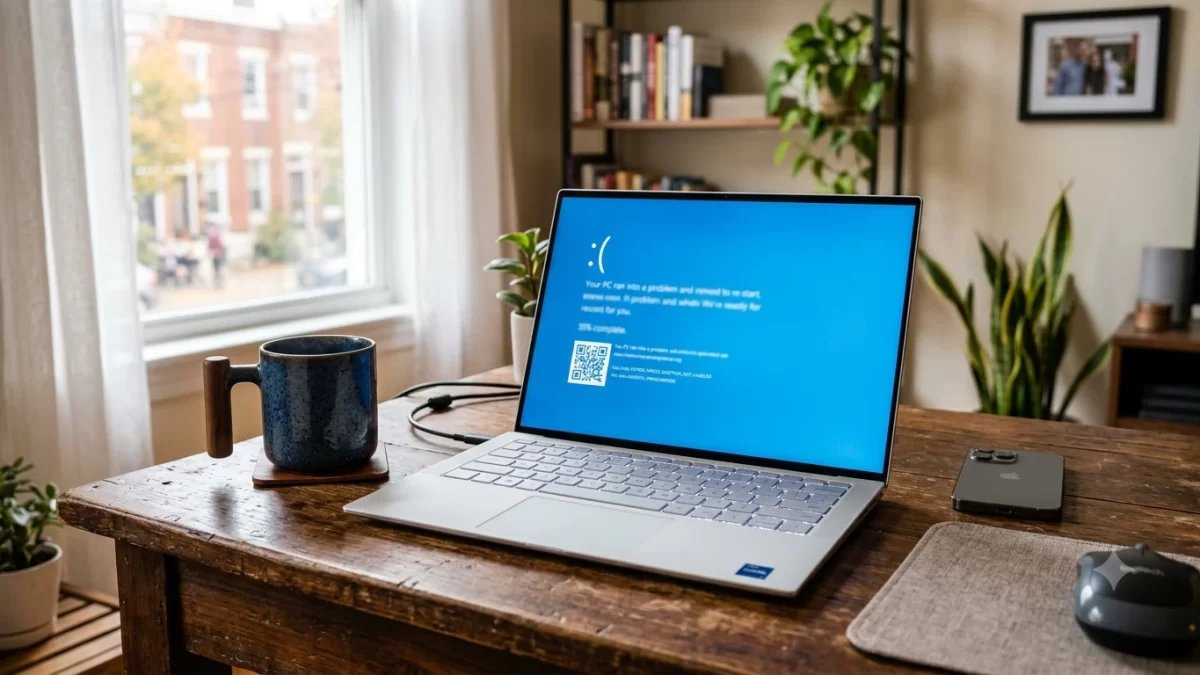
A Windows 11 blue screen of death (BSOD) is Windows shutting itself down on purpose. Microsoft calls these errors bug checks or stop errors. They happen when something running at the deepest level of the system, usually a driver, does something unsafe enough that continuing could corrupt your data.
So a Windows 11 blue screen is really a safety feature. Annoying, sure, but it’s Windows protecting your files. One random Windows 11 blue screen after a year of smooth use isn’t worth losing sleep over. Three in a week is a pattern, and that’s when you start troubleshooting.
Why Your Windows 11 Blue Screen Might Be Black Now
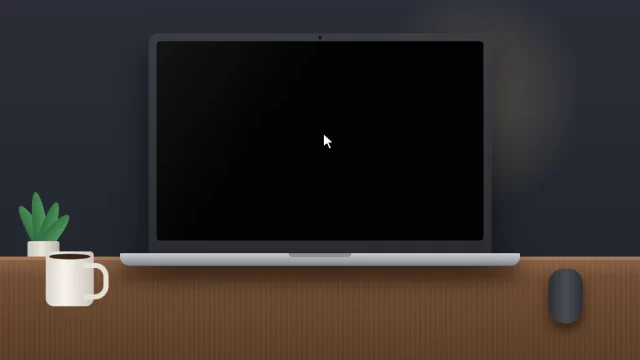
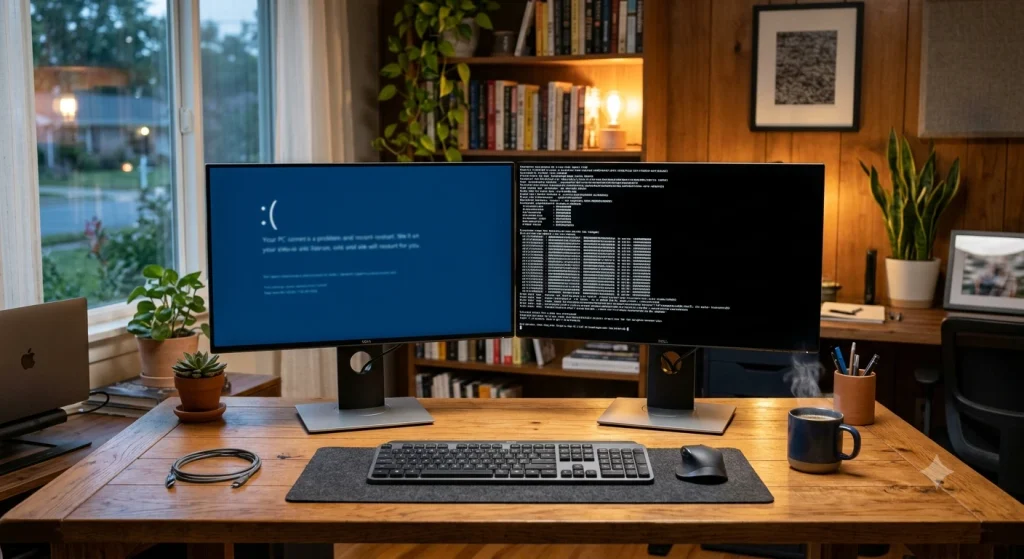
If your PC just crashed and showed a plain black screen, you’re not imagining it. In June 2025, Microsoft announced on its Windows Experience Blog a simplified “unexpected restart” screen for Windows 11 version 24H2. It drops the sad face and QR code, uses a black background, and shows the stop code plus the driver that failed.
Microsoft also sped up crash dump collection so most PCs restart in about two seconds. That’s great for downtime and terrible if you’re trying to read the code. Don’t worry, you can still find it afterward (more on that below).
How to Find Your BSOD Stop Code
Fixing a Windows 11 blue screen starts with the stop code. On the screen, look for Stop code: followed by a name in capital letters, and on newer builds a What failed: line with a file name like nvlddmkm.sys (NVIDIA graphics) or storport.sys (storage). Snap a photo with your phone if you can.
Missed it? Here are three ways to recover it:
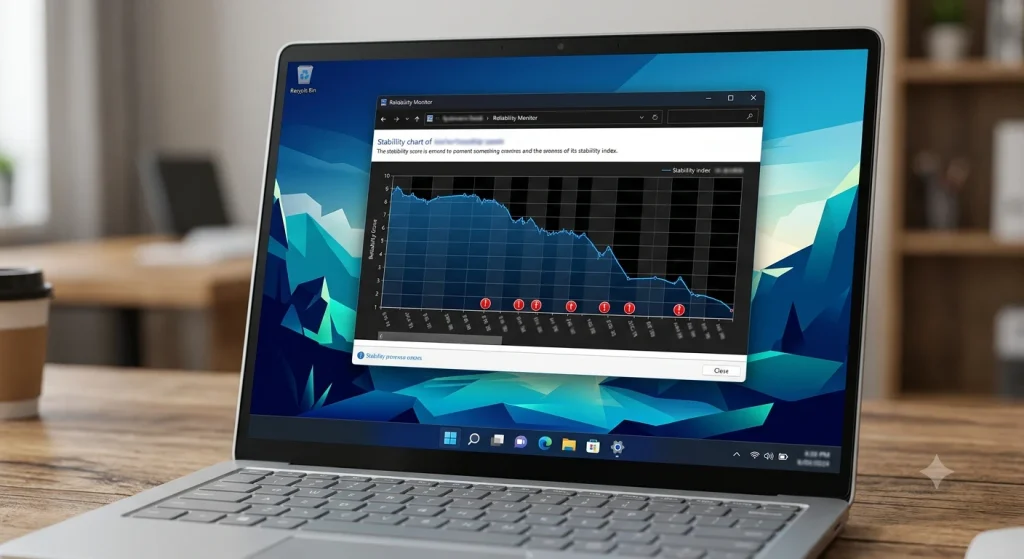
- Reliability Monitor: Type reliability in the Start menu and open View reliability history. Red X icons mark crash days. Click one, then View technical details to see the bug check code.
- Event Viewer: Go to Windows Logs > System and look for Event ID 1001 (source: BugCheck) around the time of the crash.
- Minidump files: Windows saves small crash files in C:\Windows\Minidump. Advanced users can open them with Microsoft’s free WinDbg tool.
If your Windows 11 blue screen flashes by too fast to read, press Windows + R, type sysdm.cpl, open Advanced > Startup and Recovery > Settings, and uncheck Automatically restart. The next crash will stay on screen until you power off.
Common BSOD Stop Codes on Windows 11 and What They Point To
Microsoft keeps a full list in its Bug Check Code Reference, but these are the Windows 11 blue screen codes home users run into most:
| Stop code | Hex value | Most likely cause | Try first |
|---|---|---|---|
| CRITICAL_PROCESS_DIED | 0xEF | Corrupted system files, bad update, failing drive | SFC and DISM, uninstall latest update |
| IRQL_NOT_LESS_OR_EQUAL | 0xA | Faulty driver or bad RAM | Update drivers, test memory |
| DRIVER_IRQL_NOT_LESS_OR_EQUAL | 0xD1 | A specific driver (often network or storage) | Roll back the named driver |
| SYSTEM_SERVICE_EXCEPTION | 0x3B | Graphics driver or antivirus | Update GPU driver, remove third-party antivirus |
| MEMORY_MANAGEMENT | 0x1A | RAM problem or unstable memory overclock | Windows Memory Diagnostic, turn off XMP/EXPO |
| VIDEO_TDR_FAILURE | 0x116 | Graphics driver or overheating GPU | Clean-install GPU driver, check temps |
| WHEA_UNCORRECTABLE_ERROR | 0x124 | Hardware: CPU, overclock, power, or heat | Reset BIOS overclocks, check cooling |
| INACCESSIBLE_BOOT_DEVICE | 0x7B | Storage driver or drive failure | Startup Repair, check drive health |
| DPC_WATCHDOG_VIOLATION | 0x133 | Outdated SSD firmware or storage driver | Update SSD firmware and chipset drivers |
Common Causes of a Windows 11 Blue Screen
After the stop code, the best clue to any Windows 11 blue screen is timing. Ask yourself what changed in the last few days. Usually the answer is one of these:
- Drivers: Graphics, Wi-Fi, audio, and storage drivers run with full system access, so one bad release can take everything down. This is the number one cause.
- Windows updates: A monthly Patch Tuesday update or a driver pushed through Windows Update can clash with your hardware.
- Security software: Third-party antivirus hooks deep into Windows. The CrowdStrike incident on July 19, 2024, which Microsoft said hit about 8.5 million Windows devices, is the most famous example of a security tool causing mass blue screens.
- Corrupted system files: Power outages and forced shutdowns during updates are common culprits.
- Bad RAM or a failing drive: These produce random, changing stop codes.
- Heat and overclocking: Dust-clogged laptop fans or aggressive XMP/EXPO memory profiles can push hardware past stable limits.
- New hardware: A new GPU, RAM stick, USB dock, or even a cheap USB hub can trigger crashes.
How to Fix a Windows 11 Blue Screen Error (Step by Step)
Go in order. The early fixes take minutes and solve most Windows 11 blue screen cases, so there’s no reason to jump to a reset first.
1. Unplug New Hardware and Peripherals
Disconnect everything you don’t need: external drives, docks, printers, game controllers, and USB hubs. If you recently installed RAM or a graphics card, remove it or reseat it. Restart and use the PC normally for a day. If the Windows 11 blue screen stops, add devices back one at a time to find the troublemaker.
2. Run Microsoft’s Blue Screen Troubleshooter
Open the Get Help app, type Troubleshoot BSOD error, and follow the guided walkthrough. It’s basic, but it asks when the crash happened (after an update, while installing something) and points you to the right fix. Microsoft also covers these steps on its official blue screen support page.
3. Boot Into Safe Mode If Windows Won’t Start
When a Windows 11 blue screen loops before you reach the desktop, Windows usually opens the recovery screen on its own after a couple of failed starts. From there, choose Troubleshoot > Advanced options > Startup Settings > Restart, then press 4 for Safe Mode or 5 for Safe Mode with Networking.
Heads up: many Windows 11 laptops, including Windows 11 Home models from Dell, HP, and Lenovo, ship with device encryption on. If Windows asks for a BitLocker recovery key, sign in at aka.ms/myrecoverykey on your phone with the same Microsoft account you use on the PC.
4. Fix a Blue Screen After an Update
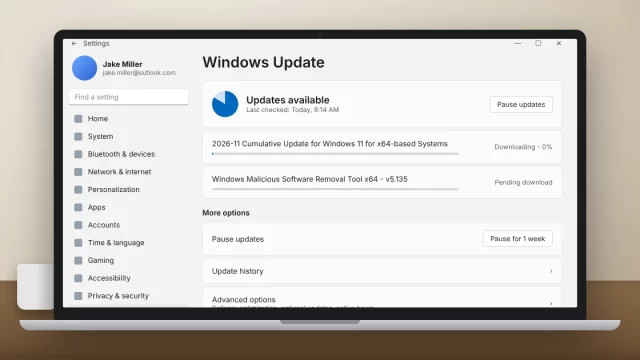
If the Windows 11 blue screen started right after an update, uninstall that update. Go to Settings > Windows Update > Update history > Uninstall updates and remove the newest one. Can’t reach the desktop? Use Troubleshoot > Advanced options > Uninstall Updates from the recovery screen.
Then pause updates for a week or two under Settings > Windows Update. Microsoft often ships a fix fast once a bad update is widely reported. If your update is stuck rather than crashing, see our guide on fixing a Windows 11 update stuck at 0% or 100%.
5. Roll Back or Update Your Drivers
Right-click Start, open Device Manager, and look for yellow warning icons. If the “What failed” file belongs to a device you recently updated, right-click it, choose Properties > Driver > Roll Back Driver.
For outdated drivers, skip the third-party “driver updater” apps. Download directly from NVIDIA, AMD, or Intel for graphics, and from your laptop or motherboard maker’s support page for chipset, Wi-Fi, and storage drivers. A lot of gaming crashes come down to the GPU driver alone; our GTA 5 crashing on Windows 11 guide walks through a clean graphics driver install.
6. Repair System Files With SFC and DISM
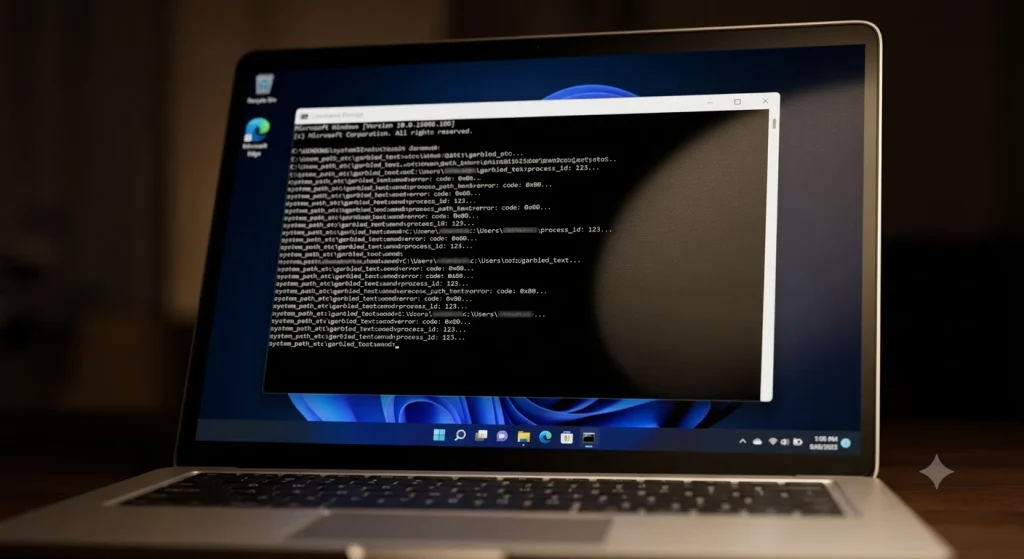
Corrupted system files are a classic Windows 11 blue screen trigger, especially CRITICAL_PROCESS_DIED. Search for Command Prompt, choose Run as administrator, and run these one at a time. DISM repairs the Windows image first, then SFC uses it to fix individual files.
Command Prompt (Admin)
DISM /Online /Cleanup-Image /RestoreHealth
sfc /scannow
Expect DISM to take 10 to 20 minutes and sometimes sit at 62.3% for a while. That’s normal, so leave it alone. When SFC says it found and repaired corrupt files, restart your PC.
7. Test Your RAM With Windows Memory Diagnostic
Bad memory causes a random Windows 11 blue screen with a different stop code every time. Press Windows + R, type the command below, and choose Restart now and check for problems.
Run dialog
mdsched.exeThe test runs before Windows loads. Afterward, open Event Viewer > Windows Logs > System and look for the MemoryDiagnostics-Results entry. If you see errors on a desktop, try one stick at a time to find the bad one. If you’ve enabled XMP or EXPO in the BIOS, turn it off first, since an unstable memory profile looks exactly like failing RAM.
8. Check Your Drive for Errors
A failing drive often shows up as a Windows 11 blue screen with CRITICAL_PROCESS_DIED, INACCESSIBLE_BOOT_DEVICE, or DPC_WATCHDOG_VIOLATION. Run this in an admin Command Prompt, type Y to schedule it, and restart:
Command Prompt (Admin)
chkdsk C: /f /rAlso keep at least 15 to 20 GB free on your C: drive so Windows has room for updates and crash dumps. If your SSD maker offers a tool (Samsung Magician, WD Dashboard, Kingston SSD Manager), use it to check drive health and install firmware updates.
9. Remove Third-Party Antivirus and Undo Overclocks
Uninstall Norton, McAfee, or any other third-party security suite as a test. Microsoft Defender turns on automatically and gives you solid protection in the meantime. Likewise, reset any CPU or GPU overclock (MSI Afterburner, BIOS settings) to stock. If the Windows 11 blue screen stops, you’ve found your cause.
10. Use System Restore or Reset This PC
System Restore rolls system files and drivers back to an earlier point without touching your documents. Search Create a restore point, click System Restore, and pick a date before the crashes began.
If nothing else works, go to Settings > System > Recovery > Reset this PC and choose Keep my files. You’ll need to reinstall your apps, but this clears out nearly any software cause of a Windows 11 blue screen. Back up important files to OneDrive or an external drive first, just in case.
When a Windows 11 Blue Screen Means Hardware Failure
Software fixes won’t stop a Windows 11 blue screen caused by failing hardware. These signs point to a physical problem:
- Crashes keep happening after a clean Reset this PC.
- The PC blue screens even in Safe Mode.
- You see WHEA_UNCORRECTABLE_ERROR repeatedly.
- Stop codes change every time, or crashes happen under load (gaming, video exports) when the laptop runs hot.
- Windows Memory Diagnostic or your SSD tool reports errors.
If your PC is still under warranty, contact the manufacturer before opening anything up. Dell, HP, Lenovo, and Microsoft Surface all offer hardware diagnostics and mail-in or in-person repair. Out of warranty, a local repair shop or Best Buy’s Geek Squad can test RAM, storage, and cooling. For crashes that end in a black screen instead, our guide to the Windows 11 black screen after login covers that problem separately.
How to Prevent a Windows 11 Blue Screen (BSOD)
- Install Windows updates, but wait a few days on big feature updates if your PC is mission-critical.
- Get drivers from NVIDIA, AMD, Intel, or your PC maker, never from random download sites.
- Run only one antivirus at a time.
- Clean laptop vents with compressed air every few months and avoid using the laptop on a bed or couch.
- Keep System Restore turned on so you always have a rollback point.
Frequently Asked Questions
Is a blue screen of death serious?
A single Windows 11 blue screen usually isn’t serious. Windows shuts down to protect your data, then restarts normally. Repeated crashes are different and signal a real problem, most often a driver, a bad update, or failing hardware. Note the stop code each time and start troubleshooting once you see a pattern of two or more crashes.
Can a virus cause a blue screen on Windows 11?
Yes, but it’s rare. Malware that tampers with system files or drivers can trigger a BSOD, though drivers, updates, and hardware cause far more crashes. Run a full scan with Microsoft Defender, or its Offline scan if Windows won’t stay up. If the scan comes back clean, move on to driver and memory checks.
Why does my Windows 11 PC keep crashing with a blue screen?
A recurring Windows 11 blue screen usually comes from an outdated or broken driver, a recent Windows update, corrupted system files, or bad RAM. Check Reliability Monitor for the stop code, roll back recent drivers or updates, then run DISM, SFC, and Windows Memory Diagnostic. Crashes that continue after a reset point to hardware.
Will I lose my files after a blue screen error?
Usually not. A BSOD can wipe out unsaved work in open apps, but your saved documents, photos, and other files stay on the drive. Data loss only becomes a risk if the crash is caused by a failing SSD or hard drive. If you suspect that, back up your files immediately to OneDrive or an external drive.
Why is my Windows 11 blue screen black now?
Microsoft redesigned the crash screen for Windows 11 version 24H2 and later. The new version uses a black background, removes the sad face and QR code, and shows the stop code and the failed driver. It restarts in about two seconds on most PCs. The causes and fixes are exactly the same as the classic blue screen.
Your Next Step If the Blue Screen Comes Back
Start simple: open Reliability Monitor right now and note the stop code from your last crash. Match it to the table above, then work through the fixes in order, rolling back drivers and updates before reaching for a reset. Most Windows 11 blue screen problems are solved by step 6. If you get to step 10 and the crashes keep coming, back up your files today and get the hardware checked while it’s still working.