If you want to know how to create a Minecraft server for friends, you have four real options: open your world to LAN, rent a Minecraft Realm, run the free official server software on your own PC, or use a hosting company. For most groups of 2 to 10 people, Realms is the easiest and a self-hosted server is the cheapest. This guide walks you through each one, step by step.
I’ve run a small private server for friends on a spare desktop for years, so I’ll also point out the snags that trip people up, like the new Java 25 requirement and the whitelist that’s now switched on by default.
Key Takeaways
- Easiest: Minecraft Realms costs $7.99 a month for up to 10 friends and needs zero tech setup.
- Cheapest: the official server software is free, but your PC must stay on and you’ll need to port forward.
- Java 25 is required for current Java Edition servers (version 26.1 and newer).
- New servers start with the whitelist on, so add each friend’s username or nobody can join.
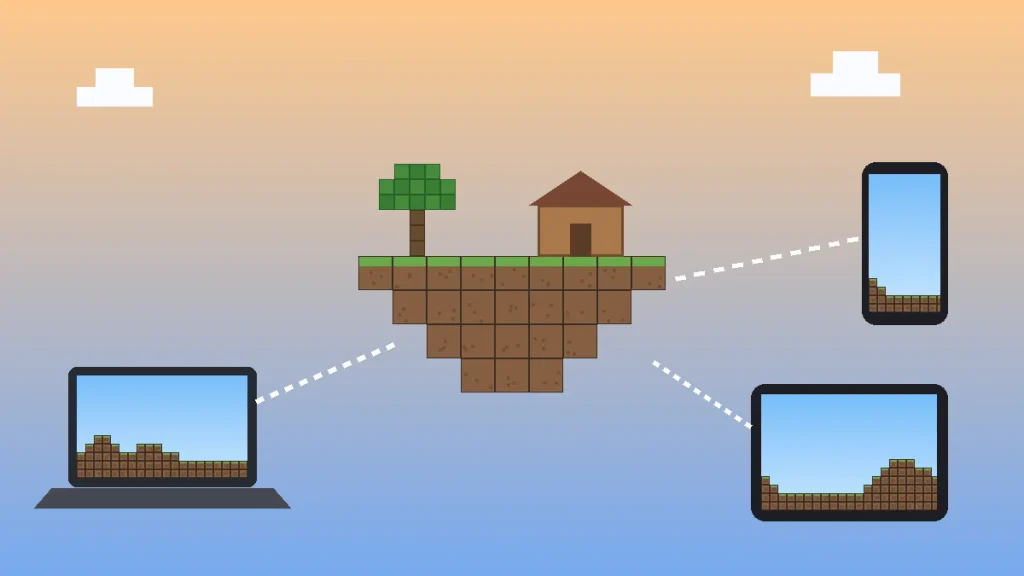
- Java and Bedrock players can’t join each other’s servers without extra plugins.
4 Ways to Make a Minecraft Server for Friends
Before you download anything, pick the Minecraft server setup that fits your group. Here’s how they compare on cost, effort, and who can join.
| Method | Cost | Players | Best for |
|---|---|---|---|
| Open to LAN | Free | Same home network only | Siblings or friends in the same house |
| Minecraft Realms | $3.99 to $7.99/month | Up to 10 friends plus you | Non-technical groups, console players |
| Self-hosted server | Free (plus electricity) | Depends on your PC and internet | Java players who want mods and full control |
| Hosting provider | Free tiers, or roughly $3 to $15/month | Depends on the plan’s RAM | Always-online worlds without a home PC running 24/7 |
My take: if your friends are on Xbox, PlayStation, or Switch, get Realms and save yourself the headache. If everyone plays Java Edition on a computer, self-hosting is a fun, free project and gives you the most freedom.
What You Need Before You Start
First, check which edition your group plays. Java Edition runs on Windows, Mac, and Linux. Bedrock Edition runs on Windows, consoles, phones, and tablets. A Java server only accepts Java players, and a Bedrock server only accepts Bedrock players.
For a self-hosted Minecraft server for friends, plan on:
- A PC with at least 4 GB of free RAM (8 GB total or more is comfortable for 3 to 6 players)
- A wired Ethernet connection to your router, not Wi-Fi, if you can manage it
- Decent upload speed, since every player’s data leaves your house through it
- Access to your router’s admin page or app (Xfinity, Spectrum, AT&T, and Verizon all offer one)
How to Create a Minecraft Server for Friends on Java Edition
This is the classic Minecraft server setup, and it takes about 20 minutes the first time. The steps below use Windows, but Mac and Linux work the same way with a shell script instead of a batch file.
Step 1: Install Java 25
Minecraft switched to year-based version numbers in 2026, and every release from 26.1 onward needs Java 25. The game launcher handles this for players, but a server doesn’t. Download the free Microsoft Build of OpenJDK 25 (or Eclipse Temurin 25), install it, then open Command Prompt and type java -version. If the output doesn’t start with 25, an older Java is still in charge.
Step 2: Download the Official Server File
Grab server.jar from the official Minecraft server download page. Create a new folder, something like Documents\MinecraftServer, and move the file in there. Everything the server creates (your world, settings, logs) will live in this folder, which makes backups easy later.
Step 3: Create a Start Script
Inside the folder, make a new text file, paste the line below, and save it as start.bat. The two numbers set the minimum and maximum RAM. Four gigabytes handles a handful of friends on a vanilla world just fine.
java -Xms2G -Xmx4G -jar server.jar nogui
pause
Double-click start.bat. The server will stop almost right away. That’s normal. It just created its files and is waiting for you to accept the license.
Step 4: Accept the EULA
Open eula.txt in Notepad and change false to true, then save. This confirms you agree to the Minecraft End User License Agreement.
eula=trueRun start.bat again. When the window says Done and suggests typing help, your server is live on your own computer.
Step 5: Set Up server.properties and the Whitelist
Stop the server by typing stop in its window, then open server.properties. These are the settings I change first on every friends-only server:
motd=Friday Night Survival
difficulty=normal
max-players=10
white-list=true
enforce-whitelist=true
view-distance=10
Here’s the big gotcha for 2026. Starting with version 26.3, a brand-new server turns the whitelist on by default, so your friends get kicked with a “not white-listed” message until you add them. Start the server again and type these commands in the server window (no slash needed there):
whitelist add FriendUsername1
whitelist add FriendUsername2
op YourUsername
Honestly, leave the whitelist on. It’s the single best way to keep a private server private.
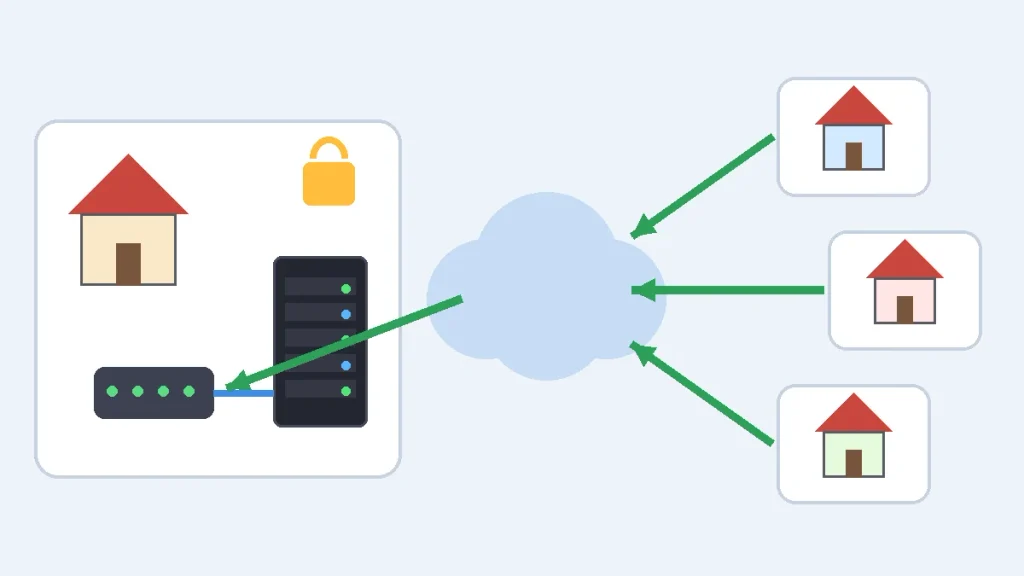
Step 6: Port Forward 25565 (Port Forwarding Minecraft Explained)
Your friends can’t reach your PC until your router knows where to send their connection. That’s what port forwarding Minecraft traffic means. Log in to your router (often 192.168.1.1 or 192.168.0.1, or your ISP’s app), find Port Forwarding, and create a rule:
- Port: 25565 (both internal and external)
- Protocol: TCP
- Device: the PC running the server
Give that PC a reserved (static) local IP in the same router menu, or the rule breaks the next time your router reshuffles addresses. Windows will also ask to allow Java through the firewall the first time you launch. Click Allow for private networks.
One thing most guides skip: some home internet services use carrier-grade NAT, which blocks port forwarding completely. T-Mobile 5G Home Internet and Starlink residential plans are common examples. If you’re on one of them, use a free tunnel service such as playit.gg instead. It gives you a shareable address without touching your router.
Step 7: Share Your Address
Search “what is my IP” on Google to see your public IP address. Send that to your friends privately (a group text, not a public Discord). They open Minecraft, click Multiplayer, then Add Server, and paste it in. If you used a port other than 25565, they add it after a colon, like 203.0.113.25:25570.
Home IPs from most US providers change now and then, so if friends suddenly can’t connect, check whether yours changed before you troubleshoot anything else.
Setting Up a Bedrock Server for Console and Mobile Friends
If your group plays on phones or Windows, you can still run a Minecraft server for friends on Bedrock. Mojang offers a free Bedrock Dedicated Server for Windows and Ubuntu on the same download page. You unzip it, edit its server.properties, and run bedrock_server.exe. It uses UDP port 19132 by default, and recent versions changed how Bedrock connects, so check the server log for the ports it actually opens before you forward anything.
The catch: Xbox, PlayStation, and Switch don’t let players type in a custom server address the way PC and mobile do. If your crew is mostly on consoles, a Realm is the realistic answer.
Minecraft Realms: The Easiest Option
Minecraft Realms is Mojang’s own hosting, the simplest way to get a Minecraft server for friends online, and it’s what I recommend to parents and anyone who doesn’t want to touch a router. The world stays online 24/7, backups are automatic, and your friends play for free once you invite them. US prices on the official Realms page are:
- Realms (Bedrock): $3.99/month for you plus 2 friends at once
- Realms Plus (Bedrock): $7.99/month for up to 10 friends, plus 150+ Marketplace items
- Realms Java: $7.99/month for up to 10 friends
The trade-off is control. Realms doesn’t support Java mods or plugins, and you can’t fine-tune performance. For a casual survival world, though, that rarely matters. Split $7.99 five ways and it’s about $1.60 a person.
Free Minecraft Server Hosting Options
Want a free Minecraft server for friends that doesn’t depend on your computer being on? Aternos is the best-known free host and supports both Java and Bedrock. The catches are a startup queue at busy times and a server that shuts down when the last player leaves, so someone has to start it from the website each session.
Paid hosts like Shockbyte, Apex Hosting, and BisectHosting start around $3 to $5 a month for a small plan. Pay for RAM, not marketing. For 5 to 10 friends on vanilla, 4 GB is plenty. Heavy modpacks can want 8 GB or more. If you go modded, see our guide on how to install Minecraft mods on Windows.
Keeping Your Minecraft Server for Friends Safe and Smooth
- Back up weekly. Stop the server and copy the world folder to a USB drive or cloud storage. Updating to a new version can’t be undone without a backup.
- Keep everyone on the same version. Most “outdated client” errors come from one friend updating before the server.
- Only forward the port you need. Never put your PC in your router’s DMZ just to make Minecraft work.
- Restart once a day. A quick stop and start clears memory and keeps lag down on long-running worlds.
- Kids playing? Keep the whitelist on and pair it with Xbox family settings (Microsoft accounts control Minecraft multiplayer permissions).
New to the game itself? Point friends to our Minecraft for beginners guide so they’re not lost on night one.
Frequently Asked Questions
Is it free to make a Minecraft server for friends?
Yes. Mojang’s official Java and Bedrock server software is free to download, and hosts like Aternos offer free plans. You only pay if you choose Minecraft Realms ($3.99 to $7.99 per month) or a paid hosting plan. Self-hosting costs nothing extra beyond keeping your own computer running while friends play.
How many friends can join a Minecraft server?
Realms allows up to 10 friends online at once on Realms Plus or Realms Java, and 2 on the basic Bedrock Realm. A self-hosted or rented server has no fixed limit. The real cap is your RAM and upload speed, and a typical home PC with 4 GB set aside comfortably handles about 5 to 10 players.
Can friends join my Minecraft world without port forwarding?
Yes. Minecraft Realms, free hosts like Aternos, and tunnel services such as playit.gg all let friends join without changing router settings. Open to LAN also works without port forwarding, but only for players on your home network. Port forwarding is needed only when you self-host and want friends to connect directly over the internet.
Can Java and Bedrock players play on the same server?
Not by default. Java and Bedrock use different server software, so each group can only join its own type. Many server owners add the free Geyser plugin to a Java server, which translates connections so Bedrock players on phones, Windows, and consoles can join. It takes extra setup and works best on a Paper server.
Why can’t my friends join my Minecraft server?
The most common causes are a whitelist that’s on without their names added, a missing or wrong port forward, a Windows firewall block, or mismatched game versions. Starting with version 26.3, new servers enable the whitelist by default, so run whitelist add followed by each friend’s username first, then check the port rule.
Ready to Play? Here’s Your Next Step
Pick your route today. If your group is mostly on consoles or you just want it to work, start a Realm from the Minecraft menu and send invites tonight. If everyone’s on Java, install Java 25, download server.jar, and work through the seven steps above. Your first Minecraft server for friends can be running in under half an hour, and once it’s up, the only hard part is agreeing on where to build the base.