When Windows 11 says “DNS server not responding,” your PC is online but can’t translate website names like google.com into IP addresses. In most homes, you can fix DNS server not responding in Windows 11 in under five minutes by restarting your router, flushing the DNS cache, or switching to a public DNS server like Cloudflare (1.1.1.1) or Google (8.8.8.8).
I’ve worked through this error on dozens of laptops and desktops, and the cause is usually boring: a stuck router, a stale cache, or an ISP resolver having a bad day. Below are the fixes in the order I actually use them, fastest first.
Key Takeaways
- The DNS server not responding error means name lookups are failing, not that your whole connection is dead.
- Restart your modem and router first. It solves a surprising share of cases.
- Run ipconfig /flushdns to clear bad cached records in seconds.
- Switching to Cloudflare 1.1.1.1 or Google 8.8.8.8 is the most reliable long-term fix.
- Network reset is the last resort because it wipes all adapters, VPNs, and saved settings.
What Does “DNS Server Not Responding” Mean in Windows 11?
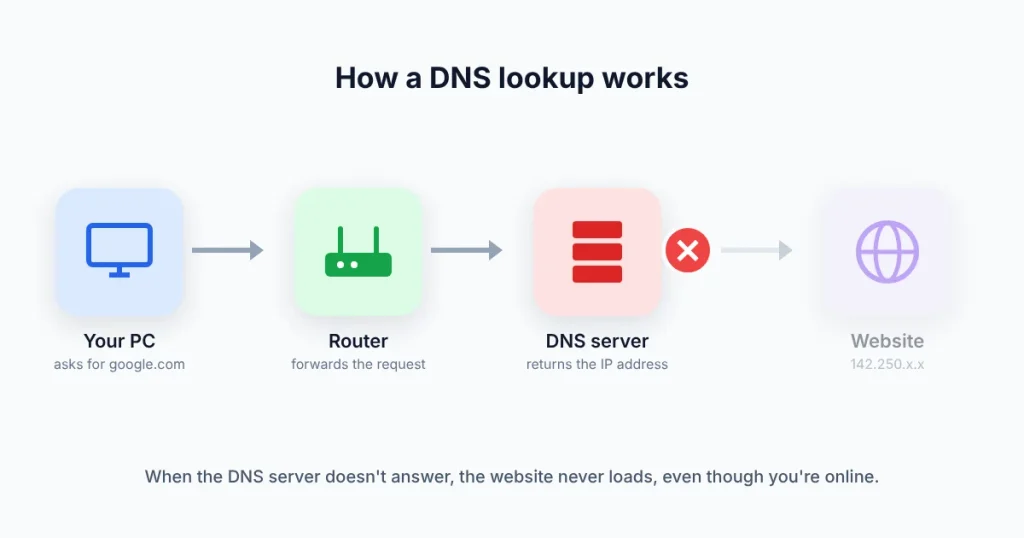
DNS (Domain Name System) works like the internet’s phone book. Every time you type a web address, Windows asks a DNS server for the matching IP address. If that server doesn’t answer, browsers show errors like DNS_PROBE_FINISHED_NO_INTERNET, and the Windows troubleshooter reports that the DNS server isn’t responding.
The DNS server is usually your router, which forwards requests to your internet provider (Xfinity, Spectrum, AT&T, Verizon, and so on). So the failure can sit in three places: your PC, your router, or your ISP.
Quick test: is it really DNS?
Here’s a 20-second check I run before touching any settings. Open Command Prompt and ping an IP address, then ping a name:
Command Prompt
ping 8.8.8.8
ping google.com
If ping 8.8.8.8 gets replies but ping google.com says it could not find the host, you’ve confirmed a DNS problem. If both fail, the issue is your connection itself, and you should start with our guide on Wi-Fi connected but no internet on Windows 11.
Common Causes of the DNS Server Not Responding Error
Most cases of DNS server not responding trace back to one of these five culprits:
- Router or modem glitch: consumer routers run for months without a reboot and their DNS forwarding can hang.
- ISP DNS outage: your provider’s resolvers go down or slow to a crawl.
- Corrupt local DNS cache: Windows holds on to a bad or outdated record.
- VPN, proxy, or security software: these often reroute or filter DNS traffic.
- Outdated network driver or a damaged Winsock/TCP/IP configuration, often after a Windows update.
How to Fix DNS Server Not Responding in Windows 11
Work through these in order. After each one, reload a website. Most people never get past fix number four.
1. Restart your modem and router
Unplug both the modem and router, wait a full 60 seconds, then plug in the modem first. Give it two to three minutes to come fully online before powering the router. If your ISP gave you a single gateway box (common with Xfinity and AT&T), just unplug that one device. A full power cycle clears the DNS server not responding error more often than you’d expect.
Also check a phone on the same Wi-Fi. If it can’t load sites either, the problem isn’t your Windows 11 PC at all.
2. Run the Windows network troubleshooter
Open the Get Help app and run the Network and Internet troubleshooter. According to Microsoft’s Wi-Fi troubleshooting guide, it runs diagnostics and tries to fix common problems automatically. It won’t catch everything, but it often reveals exactly which component failed.
3. Flush DNS cache in Windows 11 and renew your IP
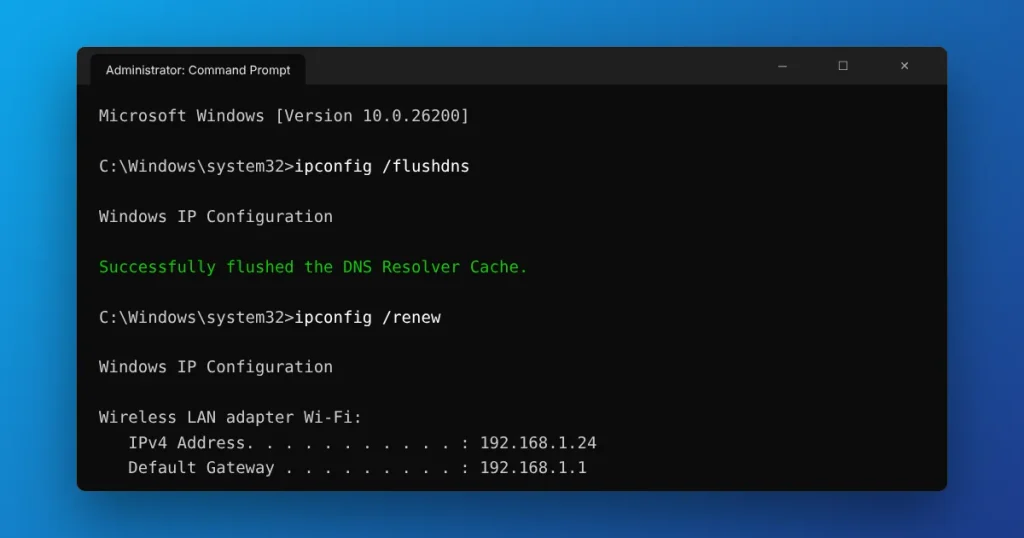
Clearing the cache forces Windows to request fresh records. Right-click Start, choose Terminal (Admin) or search for Command Prompt and select Run as administrator, then run:
Command Prompt (Admin)
ipconfig /flushdns
ipconfig /release
ipconfig /renew
You should see “Successfully flushed the DNS Resolver Cache.” The release and renew steps will drop your connection for a few seconds, which is normal. Reload a site, and if you still see DNS server not responding, move on to the next fix.
4. Change DNS server in Windows 11 (the fix I recommend most)
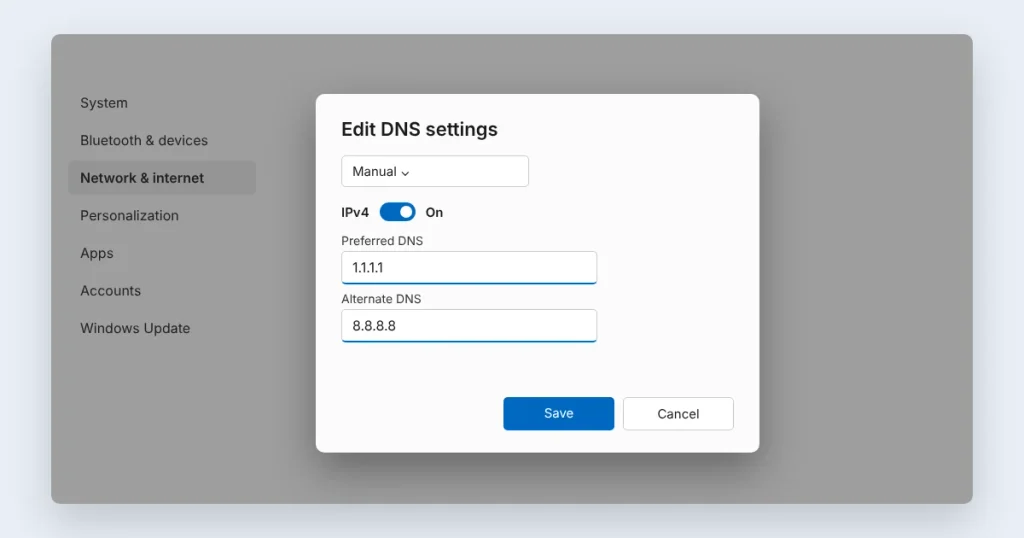
If your ISP’s resolvers are flaky, stop using them. Public DNS services are free, fast, and far more reliable than many ISP defaults. Here’s how to change DNS server settings in Windows 11:
- Press Windows + I to open Settings.
- Go to Network & internet, then click Wi-Fi (or Ethernet).
- Select Hardware properties (on Wi-Fi) or your Ethernet connection.
- Next to DNS server assignment, click Edit.
- Switch from Automatic (DHCP) to Manual, turn on IPv4, and enter a preferred and alternate DNS address from the table below.
- Click Save.
| Provider | Preferred DNS | Alternate DNS | Best for |
|---|---|---|---|
| Cloudflare | 1.1.1.1 | 1.0.0.1 | Speed and privacy |
| Google Public DNS | 8.8.8.8 | 8.8.4.4 | Reliability |
| Quad9 | 9.9.9.9 | 149.112.112.112 | Blocking known malicious sites |
My default pick is Cloudflare as the preferred server with Google as the alternate. Mixing two providers means one outage won’t take you offline. Both companies publish official setup instructions: see Cloudflare’s 1.1.1.1 setup for Windows and Google Public DNS documentation.
One small tip: in the same dialog, Windows 11 offers DNS over HTTPS. Turning it on encrypts your lookups so your ISP can’t read them, and it works with all three providers above.
5. Reset Winsock and the TCP/IP stack
If the DNS server not responding message survives a DNS change, your network stack may be damaged. These are the same commands Microsoft lists in its official troubleshooting steps. Run them in an admin Command Prompt, then restart your PC:
Command Prompt (Admin)
netsh winsock reset
netsh int ip reset
Don’t skip the restart. The reset doesn’t fully apply until Windows reboots.
6. Turn off your VPN, proxy, and third-party antivirus
A VPN is one of the most common hidden causes of DNS server not responding. VPN apps route DNS through their own servers, and when the VPN drops, lookups can fail even after you disconnect. Quit the VPN completely from the system tray. Then check Settings > Network & internet > Proxy and make sure no manual proxy is turned on unless your employer requires one.
Third-party security suites with web filtering (Norton, McAfee, and similar) can also block DNS. Pause protection for a few minutes as a test. If the error disappears, update the suite or adjust its web protection settings rather than leaving it off.
7. Update or reinstall the network adapter driver
Right-click Start and open Device Manager. Expand Network adapters, right-click your Wi-Fi or Ethernet adapter, and choose Update driver. A buggy driver, often installed by a Windows update, can trigger DNS server not responding even when everything else is fine. If Update driver finds nothing, choose Uninstall device and restart. Windows reinstalls the driver automatically on boot.
For the newest drivers, check your PC maker’s support site (Dell, HP, Lenovo) or the chipset maker, such as Intel or Realtek. Download the driver before uninstalling, since you might be offline afterward.
8. Check your router’s DNS settings and your ISP’s status
Log in to your router (usually 192.168.1.1 or 192.168.0.1, or your ISP’s app) and look at the DNS settings under WAN or Internet. If every device at home shows DNS server not responding, the router is the place to fix it. Setting 1.1.1.1 and 8.8.8.8 here fixes DNS for every device in the house, not just your Windows 11 PC.
It’s also worth checking your provider’s outage page or app. Xfinity, Spectrum, AT&T, and Verizon all show local outages for your service address. If there’s an outage in your area, switching DNS may help, but a full line outage won’t be fixed from your PC.
9. Use Network Reset as a last resort
Go to Settings > Network & internet > Advanced network settings > Network reset, click Reset now, and confirm. Your PC restarts and reinstalls every network adapter with default settings.
Microsoft itself calls this the last step to try. You’ll need to re-enter Wi-Fi passwords and may need to reinstall VPN software, so write down your Wi-Fi password before you start.
How to Stop the DNS Server Not Responding Error From Coming Back
- Keep a public DNS (like 1.1.1.1 with 8.8.8.8 as backup) set on your router or PC.
- Reboot your router once a month, or schedule it if your router supports automatic restarts.
- Install Windows updates and router firmware updates when they come out, since they patch network bugs that can cause DNS server not responding.
- Use one VPN or security suite at a time. Two apps filtering DNS will fight each other.
If Chrome is the only app that won’t load pages after all of this, the issue may be the browser, not DNS. Our walkthrough on fixing Chrome not opening on Windows 11 covers that case.
Frequently Asked Questions
How do I fix DNS server not responding in Windows 11?
Start by restarting your modem and router. Then open an admin Command Prompt and run ipconfig /flushdns. If the error continues, change your DNS server to 1.1.1.1 and 8.8.8.8 in Settings under Network & internet. Resetting Winsock and updating your network driver fix most remaining cases.
Is it safe to change my DNS server to 8.8.8.8 or 1.1.1.1?
Yes. Google Public DNS (8.8.8.8) and Cloudflare (1.1.1.1) are free, widely used services run by major US tech companies. Changing DNS only affects how website names are looked up. It doesn’t expose your files, and you can switch back to automatic (DHCP) settings at any time in Windows 11.
Why does my DNS server keep not responding?
Repeated DNS failures usually point to an unreliable ISP resolver, an aging router that needs regular reboots, or a VPN or antivirus app interfering with lookups. Setting a public DNS on your router, updating router firmware, and running only one VPN or security suite usually stops the error from returning.
Does flushing DNS delete anything important?
No. Running ipconfig /flushdns only clears Windows’ temporary list of recently looked-up website addresses. It doesn’t delete files, passwords, browser history, or bookmarks. Windows rebuilds the cache automatically as you browse, so the first visit to each site may take a split second longer.
Can a VPN cause the DNS server not responding error?
Yes. Most VPNs send DNS requests through their own servers. If the VPN disconnects unexpectedly or its app glitches, Windows can be left pointing at a DNS server it can’t reach. Fully quit the VPN, flush DNS, and test again. Reinstalling the VPN app often fixes repeat problems.
Will a network reset delete my files?
No. Network reset in Windows 11 only removes network adapters and their settings, then reinstalls them with defaults. Your documents, photos, and apps stay untouched. You’ll need to reconnect to Wi-Fi with your password, and you may need to reinstall VPN clients or reconfigure virtual network switches.
Your Next Step
Start with the two-minute combo: restart your router and run ipconfig /flushdns. If websites still won’t load, set Cloudflare 1.1.1.1 and Google 8.8.8.8 as your DNS servers, because that single change fixes DNS server not responding in Windows 11 for most people and keeps it from coming back. Bookmark this guide so the remaining fixes are handy next time.