When Windows 11 shows Wi-Fi connected but no internet, your laptop is talking to the router just fine, but traffic isn’t getting past the router to the web. Most of the time the culprit is a DNS glitch, a stale IP address, or a router that needs a reboot, and you can fix it in about 10 minutes without calling your internet provider.
Below are the fixes I use, ordered from fastest to most drastic. Start at the top and stop as soon as pages load again.
Key Takeaways
- If your phone also can’t get online on the same Wi-Fi, the problem is your router or internet provider, not Windows 11.
- Restarting the modem and router (unplug for 30 seconds) clears the majority of cases.
- Four commands (ipconfig /flushdns, ipconfig /renew, netsh winsock reset, netsh int ip reset) fix most PC-side causes.
- Switching to a public DNS like Cloudflare (1.1.1.1) or Google (8.8.8.8) fixes “connected but can’t load pages” fast.
- Use Network reset only as a last resort, because it wipes saved Wi-Fi passwords and VPN settings.
What “Wi-Fi Connected but No Internet” Means on Windows 11
Your connection has two legs. The first runs from your PC to the router. The second runs from the router out to your internet provider (Comcast Xfinity, Spectrum, AT&T, Verizon Fios and so on). When Windows 11 says you’re connected with no internet, the first leg works and the second one is broken somewhere.
You’ll usually see a small globe icon in place of the Wi-Fi bars in the taskbar, or the words No internet, secured under your network name. Windows decides this by trying to reach a Microsoft test server in the background. If that check fails, you get the warning, even if a few apps still sort of work.
Find Out Where the Problem Is (60-Second Test)
Before changing any settings, figure out which side is broken. Grab your phone, turn off cellular data, and connect it to the same Wi-Fi network. That one test saves a lot of wasted effort.
| What you see | Likely cause | Where to start |
|---|---|---|
| Phone and PC both have no internet | Router, modem, or ISP outage | Fix 1, then check your provider’s outage page |
| Phone works, PC doesn’t | Windows 11 settings, DNS, or driver | Fixes 4 to 11 |
| Hotel, airport, or coffee shop Wi-Fi | Sign-in page hasn’t opened | Fix 3 |
| Some sites load, others don’t | DNS problem | Fixes 5 and 7 |
Want a more precise answer? Open Terminal (right-click Start and choose Terminal) and run these two pings:
ping 8.8.8.8
ping google.com
If the first ping gets replies but the second says it “could not find host,” your internet works and DNS is the problem. Jump to Fix 5. If both fail, keep reading in order.
One more clue: run ipconfig and look at the IPv4 Address line. An address starting with 169.254 means your PC never got a proper IP from the router, which points to Fixes 1, 5, and 11.
Quick Fixes to Try First
1. Restart Your Modem and Router the Right Way
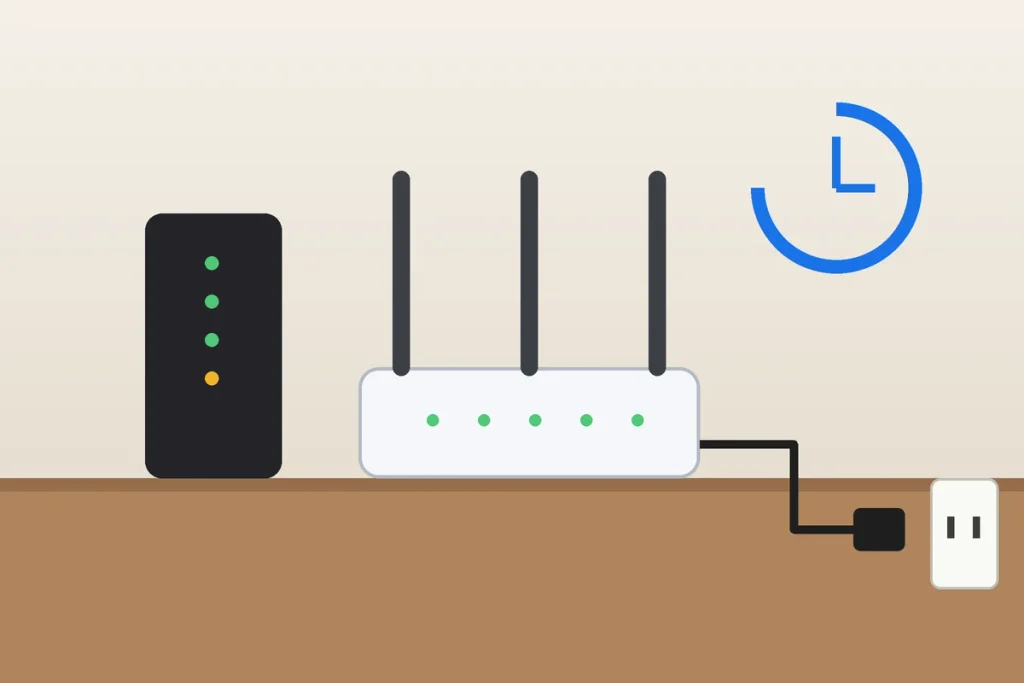
A quick power-button tap doesn’t always do it. Unplug the modem and router from the wall, wait a full 30 seconds, plug the modem back in first, and give it two to three minutes until the online light goes solid. Then power up the router. If you have an all-in-one gateway from your ISP, just unplug that one box.
Restart your PC too while you wait. This clears the Wi-Fi connected but no internet error more often than any other single step.
2. Forget the Network and Reconnect
A corrupted saved profile can cause the Wi-Fi connected but no internet error even when the password is right. Go to Settings > Network & internet > Wi-Fi > Manage known networks, click Forget next to your network, then reconnect and type the password again. Have the password handy first (it’s usually on a sticker on the router).
3. Open the Sign-In Page on Public Wi-Fi
Hotels, airports, and chains like Starbucks use a “captive portal,” a sign-in page you have to accept before the internet opens up. If that page doesn’t pop up on its own, Windows shows the no-internet warning. Open your browser and visit neverssl.com, a plain HTTP site that forces the sign-in page to appear.
4. Turn Off VPN and Proxy Settings
A VPN that disconnected badly, or a leftover proxy from old software, can block all traffic. Disconnect any VPN app first. Then open Settings > Network & internet > Proxy, and if Use a proxy server under Manual proxy setup is turned on (and you didn’t set it on purpose), turn it off. Work laptops are the exception: don’t touch proxy settings your IT department configured.
How to Fix Wi-Fi Connected but No Internet on Windows 11 With Commands
If the quick fixes didn’t help and your phone works fine on the same Wi-Fi, the problem lives inside Windows. These commands reset the networking pieces that most often break. You need an admin window: right-click Start and choose Terminal (Admin), then click Yes.
5. Flush DNS and Renew Your IP Address
This is the first fix I run for Wi-Fi connected but no internet when the phone test points at the PC. It clears out old DNS lookups and asks the router for a fresh IP address. Run each line one at a time:
ipconfig /release
ipconfig /flushdns
ipconfig /renew
Your connection will drop for a few seconds after the first command. That’s normal. Once ipconfig /renew finishes, try a website.
6. Reset Winsock and the TCP/IP Stack
Winsock and TCP/IP are the parts of Windows that actually move internet traffic. Buggy apps, malware cleanups, and some VPNs can scramble them. Resetting both is safe, doesn’t delete your files, and clears a lot of stubborn Wi-Fi connected but no internet cases:
netsh winsock reset
netsh int ip reset
Restart your PC afterward. The reset doesn’t fully apply until you do, and skipping the restart is the most common reason people think this fix “didn’t work.”
7. Change Your DNS Server
Your ISP’s DNS servers translate names like google.com into addresses. When they’re slow or down, you stay connected but nothing loads. Switching to a free public DNS is one of the fastest permanent fixes for Wi-Fi connected but no internet problems.
- Open Settings > Network & internet > Wi-Fi and click Hardware properties.
- Next to DNS server assignment, click Edit and choose Manual.
- Turn on IPv4.
- Enter a preferred and alternate DNS from the table below, then click Save.
| Provider | Preferred DNS | Alternate DNS |
|---|---|---|
| Cloudflare | 1.1.1.1 | 1.0.0.1 |
| Google Public DNS | 8.8.8.8 | 8.8.4.4 |
My pick is Cloudflare for speed, but either one works. Run ipconfig /flushdns again after the change.
Fix Windows 11 Wi-Fi Adapter and Driver Problems
8. Run the Network and Internet Troubleshooter
Microsoft retired the old built-in troubleshooters and moved them into the Get Help app, according to Microsoft’s MSDT deprecation notice. Go to Settings > System > Troubleshoot > Other troubleshooters and click Run next to Network and Internet. It won’t catch everything, but it can reset a stuck adapter in a couple of clicks.
9. Update or Roll Back Your Wi-Fi Driver
If the Windows 11 no internet access problem (Wi-Fi connected but no internet) started right after a Windows update, the Wi-Fi driver is a prime suspect. Right-click Start, open Device Manager, and expand Network adapters. Right-click your wireless adapter (usually Intel, Realtek, Qualcomm, or MediaTek) and choose Properties.
- Roll Back Driver on the Driver tab, if the problem began after an update.
- Update driver, or better, download the latest driver from your laptop maker’s support page (Dell, HP, Lenovo) using a phone hotspot or Ethernet cable.
10. Stop Windows From Turning Off the Adapter
If your Wi-Fi works after a restart but shows Wi-Fi connected but no internet after sleep, power saving is often to blame. In the adapter’s Properties window, open the Power Management tab and uncheck Allow the computer to turn off this device to save power. Not every adapter shows this tab, so skip it if yours doesn’t.
11. Check Random Hardware Addresses and Router Filters
Windows 11 can hide your device’s real hardware (MAC) address on Wi-Fi. That’s good for privacy, but if your router uses MAC filtering or parental-control device lists, it may let your laptop connect without letting it online. Open Settings > Network & internet > Wi-Fi, click your network’s properties, and set Random hardware addresses to Off, then reconnect.
12. Reset Network Settings on Windows 11 (Last Resort)
When nothing else works, Network reset removes and reinstalls every network adapter and puts all networking settings back to factory defaults. It fixes stubborn cases, especially after upgrading from Windows 10, but it also deletes saved Wi-Fi passwords and VPN connections.
- Go to Settings > Network & internet > Advanced network settings.
- Under More settings, click Network reset.
- Click Reset now, then Yes. Save your work, because the PC restarts on its own a few minutes later.
After the restart, reconnect to Wi-Fi and reinstall any VPN app. If a work account asks you to approve sign-ins again, our guide on how to set up Microsoft Authenticator walks you through it.
When It’s Not Your PC: Router and ISP Problems
If no device in the house can get online after a modem restart, the Wi-Fi connected but no internet message isn’t a Windows problem at all, so stop troubleshooting your PC. Check your provider’s outage map (Xfinity, Spectrum, AT&T, and Verizon all have one in their apps) or a site like Downdetector. Also look at the modem lights: a blinking or red “online” or “internet” light means the modem has lost its signal from the provider.
Other router-side causes worth checking:
- Overdue bill or account issue: some ISPs cut service while the Wi-Fi still broadcasts.
- Too many devices: older routers run out of IP addresses in busy homes, which leaves late joiners stuck.
- Aging hardware: if your router is 5+ years old and drops out weekly, replacing it often costs less than the hours you’ll lose to it.
Microsoft’s own Wi-Fi troubleshooting guide covers a few extra checks if you’re still stuck. And if your browser is the only thing failing while other apps connect, see our guide on how to fix Chrome not opening on Windows 11.
Frequently Asked Questions
Why does my Wi-Fi say connected but no internet on Windows 11?
It means your PC reached the router but can’t get past it to the internet. Common causes are a router that needs restarting, a DNS failure, a bad IP address, a stuck VPN or proxy, or an outdated Wi-Fi driver. Testing another device on the same network tells you whether the PC or the router is at fault.
How do I reset network settings on Windows 11?
Open Settings, go to Network & internet, then Advanced network settings, and click Network reset under More settings. Click Reset now and confirm. Windows reinstalls your network adapters and restarts automatically. You’ll need to reconnect to Wi-Fi with your password and reinstall any VPN software afterward, so keep those details handy.
How do I flush DNS on Windows 11?
Right-click the Start button, choose Terminal (Admin), and type ipconfig /flushdns, then press Enter. You’ll see a message confirming the DNS resolver cache was flushed. This clears outdated website lookups and often fixes pages that won’t load while Wi-Fi shows connected. No restart is required after running it.
Can a Windows update cause no internet access?
Yes. Updates sometimes install a Wi-Fi driver that doesn’t play well with your adapter. If problems began right after an update, open Device Manager, find your wireless adapter under Network adapters, and choose Roll Back Driver. You can also uninstall the latest update from Settings, Windows Update, Update history.
Why does my phone have internet but my laptop doesn’t?
If only the laptop shows Wi-Fi connected but no internet and your phone works on the same Wi-Fi, the router and internet service are fine, so the problem is on the laptop. Check for a VPN, flush DNS, renew your IP address, and reset Winsock. If those don’t help, update the Wi-Fi driver or turn off random hardware addresses.
Is it safe to run netsh winsock reset?
Yes. The netsh winsock reset command restores Windows networking components to their defaults and doesn’t touch your personal files, apps, or saved passwords. Some VPN or security software may need to be reinstalled afterward. Run it from an admin Terminal window, then restart your PC so the change takes full effect.
Still Seeing No Internet? Here’s Your Next Step
Run the phone test first, then work down the list: restart the router, flush DNS and renew your IP, reset Winsock, and switch to Cloudflare or Google DNS. That sequence fixes Wi-Fi connected but no internet for the vast majority of Windows 11 users. If every device in your home is offline after a modem restart, call your internet provider and ask them to check the line, since no setting on your PC will fix an outage on their end.