When your laptop turns on but screen is black, the computer is usually fine and the picture just isn’t reaching the display. Start by pressing the brightness-up key, then press Windows + Ctrl + Shift + B to reset the graphics driver. If that does nothing, unplug the charger and hold the power button for 20 seconds before trying again.
Those three steps clear the problem more often than you’d think. If they don’t, the rest of this guide walks through every fix in the order a repair tech would try them, from free software fixes to the signs that you need a new screen.
Key Takeaways
- A laptop that turns on but screen is black usually has a display signal problem, not a dead motherboard.
- Press Windows + Ctrl + Shift + B first. A beep or flicker means Windows heard you.
- A 20-second power drain with the charger unplugged fixes many startup glitches.
- If an external monitor shows a picture, the problem is the screen, its cable, or the backlight.
- A faint image under a flashlight points to a failed backlight, which is a repair-shop job.
Why a Laptop Turns On but Screen Is Black
Your laptop has to do a lot before anything appears on screen. It powers up, runs a memory check, starts the graphics chip, and sends a signal through a thin cable in the hinge to the panel. A break anywhere in that chain gives you the same symptom: lights and fans, but a dark display.
Here are the usual suspects, roughly from most to least common:
- Brightness turned all the way down or the laptop stuck waking from sleep.
- A frozen graphics driver, often after a Windows update or a new driver install.
- Display output sent to the wrong screen (for example, a TV or monitor you used last night).
- Leftover electrical charge that confuses the startup process.
- A loose or failed RAM stick, which stops the laptop from finishing its power-on check.
- Hardware damage: a dead backlight, a cracked panel, or a worn display cable in the hinge.
First, Figure Out What Your Laptop Is Actually Doing
Spend 30 seconds watching and listening before you start clicking. The clues tell you which fix to try first, and they’ll save you from reinstalling Windows when the real issue is a $0 brightness key.
| What you notice | Most likely cause | Start with |
|---|---|---|
| Fans spin, lights on, no logo ever appears | RAM, BIOS, or display hardware | Hard reset, then external monitor test |
| Logo appears, then the screen goes black | Windows or graphics driver problem | Graphics driver reset, then Safe Mode |
| Black screen with a mouse cursor | Windows Explorer crashed | Restart Explorer from Task Manager |
| Very faint image visible up close | Dead backlight | Flashlight test, then repair shop |
| Caps Lock light blinks in a pattern or the laptop beeps | Hardware error code | Look up the code in your maker’s manual |
| Black after waking from sleep | Graphics driver hang | Windows + Ctrl + Shift + B |
Microsoft’s own blank screen troubleshooting guide breaks the problem down the same way: a cursor on a black screen, a black screen at sign-in, and a black screen after an update each point to different causes.
How to Fix a Laptop That Turns On but Screen Is Black
Work through these in order. Each one takes a few minutes at most, and the early fixes are the ones that solve the problem most of the time.
1. Rule Out Brightness and Sleep
This sounds too simple, but it’s the first thing I check on every laptop that turns on but screen is black. Press the brightness-up key several times. On most Dell, HP, and Lenovo laptops it’s on the F-key row, sometimes requiring Fn as well.
Next, tap a key or close the lid for 10 seconds and open it again. Laptops sometimes get stuck between sleep and wake, and the lid sensor gives them a nudge.
2. Reset the Graphics Driver With Windows + Ctrl + Shift + B
Press Windows + Ctrl + Shift + B all at once. Windows restarts the graphics system without closing your apps. You’ll hear a short beep or see the screen flicker if it worked.
This is the best laptop black screen fix when the problem shows up after waking from sleep or in the middle of a game. If you hear the beep but still see nothing, Windows is running fine and the issue is further down the display chain.
While you’re at it, press Windows + P, then press P again and hit Enter. That cycles through display modes and pulls the picture back if it got stuck on a second screen you no longer have plugged in.
3. Do a Hard Reset (Power Drain)
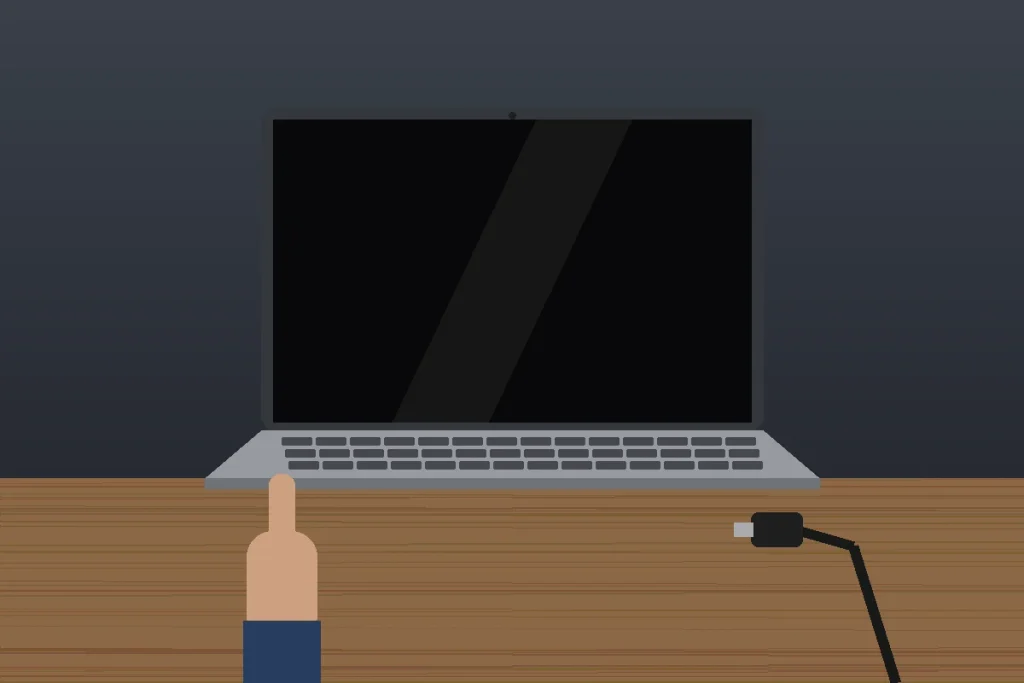
A hard reset clears leftover charge from the motherboard and forces every chip to start fresh. It doesn’t touch your files. Here’s how:
- Unplug the charger and any USB devices.
- If your laptop has a removable battery (common on older models), take it out.
- Hold the power button for 20 seconds, which is the length Microsoft recommends for a forced restart.
- Reconnect the charger (leave the battery out for now if you removed it) and turn the laptop on.
Most modern laptops have a sealed battery, so just skip the removal step. Some models, including many Lenovo ThinkPads, also have a tiny pinhole reset button on the bottom. Your manual will show you where it is.
4. Unplug Every Accessory
Docking stations, USB-C hubs, external drives, and even a cheap USB stick can hang the startup process. I’ve seen a laptop screen not displaying anything because a phone was charging from its USB port. Pull everything out, restart, and add devices back one at a time.
5. Test With an External Monitor
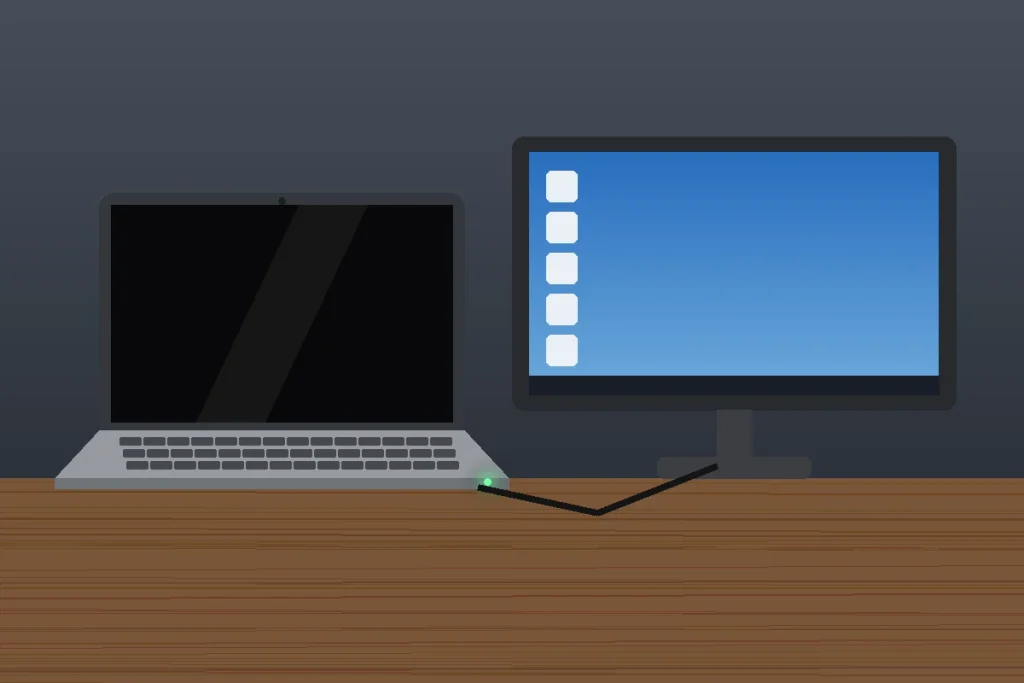
This single test tells you more than any other. Connect your laptop to a TV or monitor with an HDMI or USB-C cable, then press Windows + P and choose Duplicate.
- Picture on the monitor: the laptop is healthy. The built-in screen, its hinge cable, or the backlight has failed.
- Nothing on either screen: the problem is inside the laptop (RAM, graphics, or Windows). Keep going with the fixes below.
The good news if the monitor works? You can back up your files right now, before you hand the laptop to a repair shop.
6. Try the Flashlight Test for a Dead Backlight
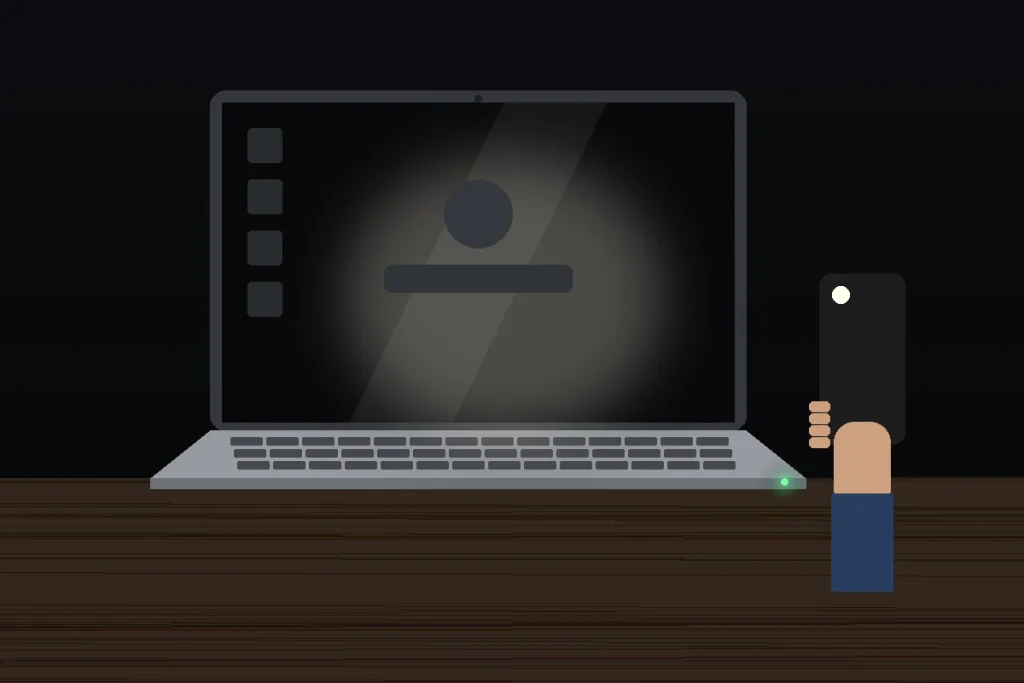
Turn off the room lights and shine a phone flashlight at an angle onto the screen. If you can make out faint icons or a sign-in box, the panel is working but the backlight isn’t lighting it up.
That’s a hardware fault. Sometimes it’s a blown backlight fuse or a loose cable, and sometimes the whole panel needs replacing. Either way, it’s not something a driver update will fix.
7. Restart Windows Explorer (Black Screen With a Cursor)
If you can move a mouse pointer around a black screen, Windows is running but the desktop app crashed. Press Ctrl + Shift + Esc to open Task Manager. Find Windows Explorer, right-click it, and pick Restart.
Don’t see it in the list? Click Run new task (or File > Run new task), type the line below, and press Enter.
8. Boot Into Safe Mode and Roll Back the Display Driver
When a laptop turns on but screen is black right after a Windows update or a new graphics driver, Safe Mode is your way back in. It loads a basic display driver that almost always works.
- Hold the power button for 10 seconds to shut down. Turn it on, and as soon as the maker’s logo appears, hold the power button again. Do this two or three times until Windows opens the recovery screen.
- Choose Troubleshoot > Advanced options > Startup Settings > Restart.
- Press F5 for Safe Mode with Networking.
- Press Windows + X, open Device Manager, expand Display adapters, right-click your graphics card, and pick Properties > Driver > Roll Back Driver.
If Roll Back is grayed out, choose Uninstall device instead and restart. Windows will reinstall a working driver on its own. You can also use System Restore from the same recovery menu to return to a point before the trouble started.
9. Repair Windows System Files
Corrupted system files can leave you with a black screen after sign-in. From Safe Mode, search for cmd, right-click Command Prompt, and choose Run as administrator. Run these two commands one at a time:
Each one can take 10 to 20 minutes. Let them finish, restart normally, and see if the display comes back.
10. Reseat the RAM and Check Blink Codes
If your laptop screen is black but power is on and no logo ever appears, the laptop may be failing its memory check. Many laptops report this with a beep pattern or a blinking Caps Lock or power light. Count the blinks and look them up in your maker’s support pages. Dell, HP, and Lenovo all publish these codes for their models.
If your model has an access panel for the RAM, unplug the laptop, remove the panel, and press each memory stick firmly back into its slot. On laptops with two sticks, try starting with one at a time. Skip this if your laptop has memory soldered to the board (most thin models do) or if opening the case would void your warranty.
MacBook Screen Black but Running? Try This
MacBooks get this problem too, and the fix list is shorter. Apple’s support article on what to do if your Mac starts up to a blank screen recommends this order:
- Hold the power button (Touch ID button) until the Mac shuts off, wait a few seconds, then turn it on again.
- Press the brightness-up key (F2 on most models). Then type your password and press Return, because the login screen may be there but invisible.
- Start up in macOS Recovery and run Disk Utility > First Aid on your startup disk.
- If the screen stays black, reinstall macOS from Recovery. It keeps your files, but back up first if you can.
On older Intel MacBooks, resetting the SMC and NVRAM can also help. If your Mac is just sluggish once it does start, our guide on how to speed up a slow Mac covers the next steps, and these MacBook Pro keyboard shortcuts include the startup key combos.
When a Black Laptop Screen Means Hardware Repair
If your laptop turns on but screen is black after the hard reset, the external monitor test, and Safe Mode, you’re most likely dealing with hardware. Here’s how to read the results:
- External monitor works, laptop screen doesn’t: panel, backlight, or display cable. This is the most common hardware repair.
- Nothing on any screen, no logo, blink codes: RAM, graphics chip, or motherboard.
- Screen works when the lid is at a certain angle: a worn hinge cable. Cheap part, but labor takes time.
Check your warranty before you pay anyone. Most major brands, including Dell, HP, Lenovo, and Apple, include at least a one-year limited warranty on new laptops, and many credit cards extend it. Out-of-warranty screen replacements commonly run a few hundred dollars depending on the model, so get a written quote and compare it with the laptop’s current value. If the repair costs more than half of a replacement, buying new usually makes more sense.
Frequently Asked Questions
Why is my laptop on but the screen is black?
Usually the display isn’t getting a signal. Common causes include brightness turned down, a frozen graphics driver, output set to another screen, or leftover electrical charge. Less often, a dead backlight, loose RAM, or a damaged display cable is to blame. An external monitor test shows whether the problem is the screen itself or the laptop.
How do I fix a black screen on my laptop without restarting?
Press Windows + Ctrl + Shift + B at the same time. This restarts the graphics system without closing your apps, and you’ll hear a beep or see a flicker when it works. You can also press Windows + P to cycle display modes, or Ctrl + Shift + Esc to open Task Manager and restart Windows Explorer.
How do I know if my laptop screen is broken?
Connect the laptop to a TV or monitor with HDMI and press Windows + P, then choose Duplicate. If the desktop shows up on the external screen, your laptop works and the built-in screen, backlight, or display cable has failed. A faint image visible under a flashlight points specifically to a dead backlight.
Can bad RAM cause a black screen on a laptop?
Yes. If the memory fails the power-on check, the laptop runs its fans and lights but never shows the logo. Many models signal this with beeps or a blinking Caps Lock or power light. Reseating the RAM, or testing one stick at a time, often fixes it if your laptop has removable memory.
Is a laptop black screen covered under warranty?
Usually, if the cause is a hardware defect and the laptop is still under its manufacturer’s warranty, which is commonly one year for new laptops. Physical damage like a cracked screen or liquid spills generally isn’t covered unless you bought an accident protection plan. Check your warranty status on the maker’s support site using your serial number.
What to Do Right Now
If your laptop turns on but screen is black, don’t panic and don’t reinstall Windows yet. Start with the three fastest checks: brightness keys, Windows + Ctrl + Shift + B, and a 20-second hard reset. If those fail, borrow a TV or monitor and run the external display test, because that one result tells you whether you need a software fix or a repair shop.
Once your screen is back, it’s worth keeping Windows and your graphics drivers updated so this doesn’t happen again. And if you get the display working but then can’t get online, our guide to fixing Wi-Fi connected but no internet on Windows 11 picks up from there.