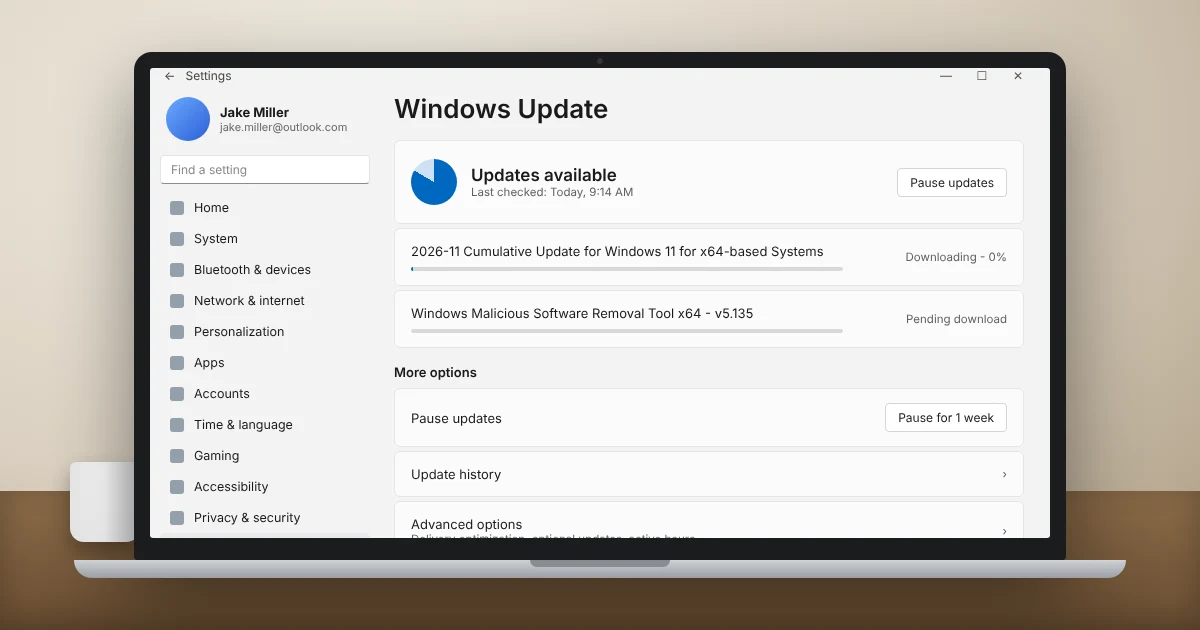
A Windows 11 update stuck at 0% almost always means the download never really started, while one stuck at 100% usually means Windows is still finishing the install in the background. The fix is rarely drastic. Wait a bit, restart, clear the update cache, and only then reach for repair tools.
I’ve walked plenty of people through a Windows 11 update stuck on this exact screen, and most of them were one restart and one cache reset away from a working PC.
Key Takeaways
- A Windows 11 update stuck at 0% is usually a download problem: internet, VPN, metered connection, low storage, or a corrupted update cache.
- A Windows 11 update stuck at 100% is usually an install problem, and it often fixes itself if you give it 1 to 2 more hours.
- Resetting Windows Update components (the SoftwareDistribution and catroot2 folders) fixes most stuck downloads.
- If an update freezes on restart, Windows Recovery lets you uninstall it without losing your files.
- When all else fails, install the update manually from the Microsoft Update Catalog.
Why Is My Windows 11 Update Stuck?
When your Windows 11 update is stuck, the percentage on the screen tells you a lot. At 0%, Windows Update can’t fetch or start the files. At 100%, the files are there, but Windows is busy (or frozen) applying them. Here’s how the two cases usually break down.
| Where it’s stuck | What’s usually happening | Best first fix |
|---|---|---|
| 0% in Settings (Downloading) | Connection, VPN, metered network, or a corrupted update cache | Restart, then reset Windows Update components |
| 0% to 20% (Installing) | Not enough free space or a service that won’t start | Free up storage, run the troubleshooter |
| 100% in Settings | Waiting for a restart or a background step to finish | Restart from the Start menu |
| 100% on a blue “Working on updates” screen | Final install steps, driver conflict, or a stuck USB device | Wait, unplug USB devices, then force restart |
First, Is Your Windows 11 Update Stuck or Just Slow?
Big feature updates (the yearly version upgrades) can sit on one number for a long time, especially on older laptops with spinning hard drives. A monthly security update is usually done in 10 to 30 minutes. A feature update can take an hour or more.
Before you call your Windows 11 update stuck, look for signs of life:
- Drive activity light: if your PC has one and it’s still blinking, Windows is working.
- Fans: steady fan noise usually means the CPU is busy installing.
- Task Manager: press Ctrl + Shift + Esc and check whether “Service Host: Windows Update” or “Windows Modules Installer Worker” is using disk or CPU.
My rule of thumb: if the number hasn’t moved in 2 to 3 hours and there’s no disk activity, it’s truly stuck. Keep laptops plugged in the whole time, because a dead battery mid-install is one of the few ways an update can actually cause damage.
How to Fix a Windows 11 Update Stuck at 0%
For a Windows 11 update stuck at 0%, work through these in order. Check for updates again after each step so you know which one did the trick.
1. Restart and Check for Updates Again
It sounds too simple, but with a Windows 11 update stuck downloading, a normal restart clears a hung download more often than anything else. Go to Start > Power > Restart (not Shut down, since Fast Startup can keep the stuck state alive). Then open Settings > Windows Update and click Check for updates.
Another quick trick is to pause and resume. Click Pause for 1 week, wait a minute, then click Resume updates. That forces Windows Update to start a fresh session.
2. Check Your Internet, VPN, and Metered Connection
A Windows update not downloading is often a network issue in disguise. Turn off any VPN, since some VPN servers block or slow Microsoft’s update servers. Then check whether your Wi-Fi is set as a metered connection: go to Settings > Network & internet > Wi-Fi, open your network’s properties, and turn Metered connection off.
If web pages also load slowly or fail, fix the connection first. A quick router restart (unplug it for 30 seconds) clears more home internet problems than you’d expect.
3. Free Up Disk Space
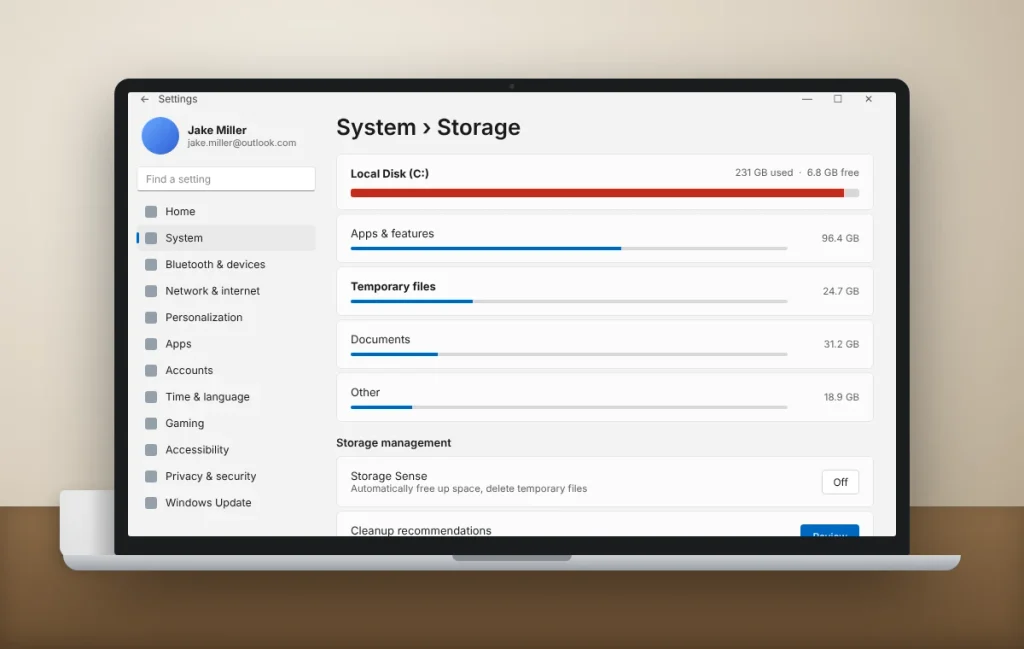
Low storage is a classic cause of a Windows 11 update stuck before it starts. Updates need room to download and unpack. Monthly updates need a few gigabytes, and a full version upgrade needs a lot more. I like to see at least 20 GB free on the C: drive before any feature update.
Open Settings > System > Storage, click Temporary files, and remove things like Delivery Optimization files, old Windows Update cleanup, and the Recycle Bin.
4. Run the Windows Update Troubleshooter
Go to Settings > System > Troubleshoot > Other troubleshooters and click Run next to Windows Update. On newer builds of Windows 11, this opens the Get Help app, which runs the same kind of checks and can reset parts of Windows Update for you.
5. Reset Windows Update Components
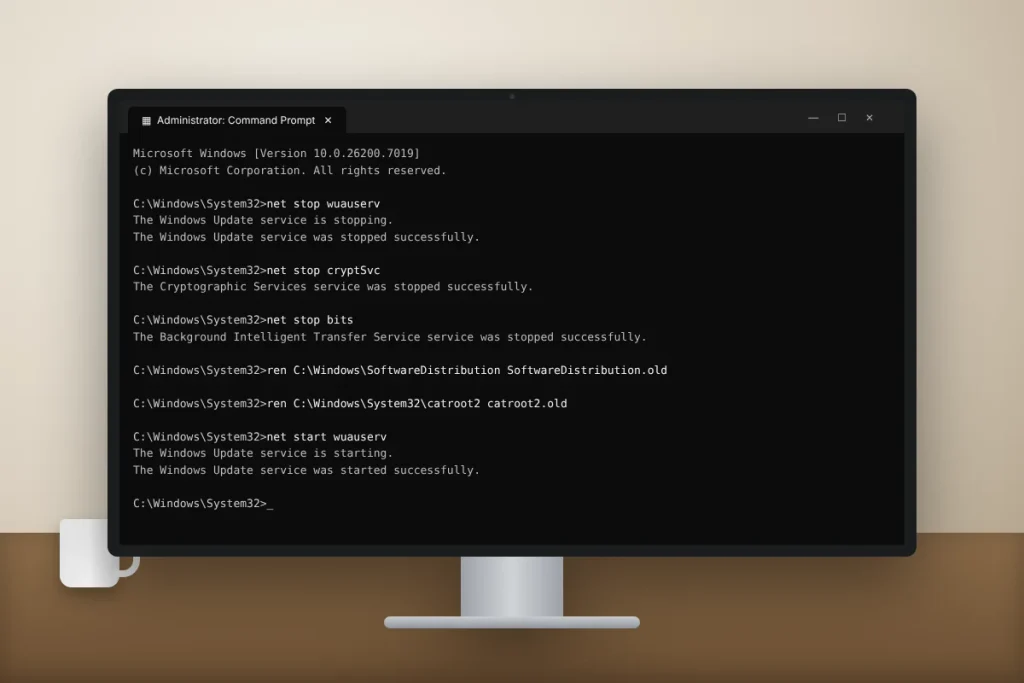
This is the fix that solves most cases of a Windows 11 update stuck at 0%. Windows keeps downloaded update files in the SoftwareDistribution folder and update signatures in catroot2. If either gets corrupted, downloads stall forever. Renaming both folders makes Windows rebuild them from scratch.
Click Start, type cmd, right-click Command Prompt, and choose Run as administrator. Then paste these commands, one block at a time:
net stop wuauserv
net stop cryptSvc
net stop bits
net stop msiserver
ren C:\Windows\SoftwareDistribution SoftwareDistribution.old
ren C:\Windows\System32\catroot2 catroot2.old
net start wuauserv
net start cryptSvc
net start bits
net start msiserver
Restart your PC and check for updates again. If a ren command says “access denied,” a service is still running, so run the matching net stop command again and retry. Microsoft documents this same process in its Windows Update resources guide.
6. Repair System Files With DISM and SFC
If a reset doesn’t fix your Windows 11 update stuck at 0%, the problem may be damaged Windows system files. DISM repairs the Windows image, and SFC then fixes individual files. Run both in an admin Command Prompt, in this order:
DISM /Online /Cleanup-Image /RestoreHealth
sfc /scannow
DISM often pauses at 62% for several minutes. Let it finish, then restart.
How to Fix a Windows 11 Update Stuck at 100%
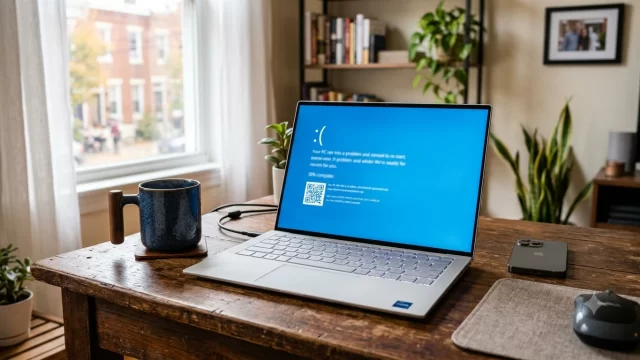
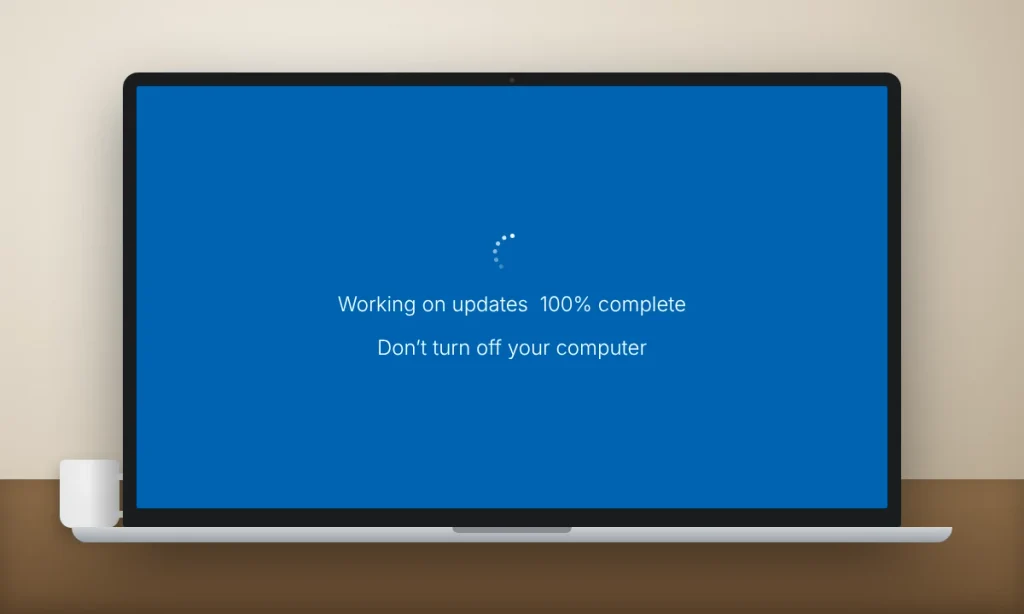
A Windows 11 update stuck at 100% shows up in two places: in Settings, or on the blue “Working on updates, don’t turn off your computer” screen during a restart. The Settings version is easy. Just restart from the Start menu, because the update is waiting for a reboot to finish.
The blue screen version takes more patience.
1. Wait, Then Force a Restart
A Windows 11 update stuck at 100% on this screen often finishes on its own, so give it at least 1 to 2 hours. If nothing changes, press and hold the power button for about 10 seconds until the PC turns off, wait 30 seconds, then turn it back on. In most cases, Windows either finishes the update or rolls it back with a message like “Undoing changes made to your computer.”
2. Unplug USB Devices and Docks
External hard drives, USB hubs, printers, and laptop docking stations can confuse the final install step. Unplug everything except your keyboard, mouse, and power cable, then force a restart. I’ve seen a single cheap USB hub leave a Windows 11 update stuck for hours.
3. Boot Into Safe Mode
Safe Mode is a solid move for a Windows 11 update stuck after a driver or antivirus conflict. It loads Windows with only the basic drivers, which helps if a third-party antivirus or driver is blocking the update. If you can reach the sign-in screen, hold Shift and click Power > Restart. Then choose Troubleshoot > Advanced options > Startup Settings > Restart, and press 4 for Safe Mode. Restart normally after it loads and let the update try again.
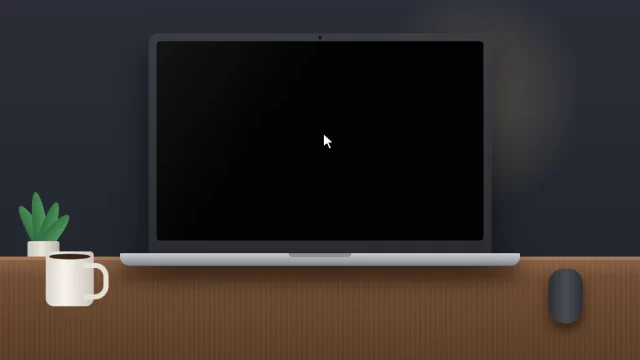
If your PC turns on but shows only a black screen after the update, see our fix for when a laptop turns on but the screen is black.
4. Uninstall the Update From Windows Recovery
If the PC loops back to the same stuck screen, Windows usually opens the recovery menu after two or three failed boots. You can also force it by turning the PC off during startup three times in a row. From there, go to Troubleshoot > Advanced options > Uninstall Updates and pick Uninstall latest quality update (monthly patch) or Uninstall latest feature update (version upgrade). This keeps your personal files.
Windows 11 Update Still Stuck? Install It Manually
When you have a Windows 11 update stuck on one specific patch, skip it and install that update by hand. In Settings > Windows Update > Update history, note the KB number of the update that failed (it looks like “KB” followed by seven digits). Search for it on the Microsoft Update Catalog, download the version that matches your PC (most home PCs are x64), and double-click the file to install it.
For a stuck version upgrade, use the Windows 11 Installation Assistant from Microsoft’s official Windows 11 download page. It upgrades in place and keeps your apps and files. Microsoft’s own Troubleshoot problems updating Windows page lists the same steps if you want the official version.
How to Prevent a Windows 11 Update Stuck Problem Next Time
- Keep 20 GB or more free on your C: drive at all times.
- Set active hours in Settings > Windows Update > Advanced options, so updates install overnight instead of mid-work.
- Restart at least once a week. PCs that only sleep pile up pending updates.
- Update drivers from your PC maker (Dell, HP, Lenovo) before big version upgrades.
- Back up first. Use OneDrive or an external drive before any feature update.
Many people in the US run into a Windows 11 update stuck problem right around Patch Tuesday, the second Tuesday of each month, when Microsoft releases its security updates. Restarting your PC the morning after is a good habit.
Frequently Asked Questions
How long should I wait if my Windows 11 update is stuck?
Wait at least 2 to 3 hours before treating a Windows 11 update stuck on one number as frozen. Monthly security updates usually finish in 10 to 30 minutes, but feature upgrades can take over an hour, especially on older laptops. If there’s no disk light or fan activity after that, force a restart.
Is it safe to turn off my PC during a Windows update?
It’s safe only when the update is clearly frozen. Turning off a PC mid-install can corrupt files, but Windows 11 is built to roll back a failed update on the next boot. If nothing has changed for 2 hours or more, hold the power button for 10 seconds, then turn it back on.
Why is my Windows 11 update stuck at 0% downloading?
A Windows 11 update stuck at 0% downloading usually comes from a corrupted update cache, a VPN, a metered Wi-Fi connection, or low disk space. Turn off the VPN, switch metered connection off, free up 20 GB, and reset the SoftwareDistribution and catroot2 folders from an admin Command Prompt.
Will resetting Windows Update delete my files?
No. Resetting Windows Update components only renames the SoftwareDistribution and catroot2 folders, which hold temporary update files and signatures. Your documents, photos, and apps aren’t touched. Your update history may look empty afterward, and Windows will download any needed updates again, but nothing personal is removed.
How do I uninstall a Windows 11 update that won’t boot?
Turn the PC off during startup three times to open Windows Recovery. Choose Troubleshoot, then Advanced options, then Uninstall Updates. Pick the latest quality update for a monthly patch or the latest feature update for a version upgrade. Your personal files stay safe during this process.
What to Do Next
If your Windows 11 update is stuck right now, start simple: wait, restart, and check for updates again. If it’s stuck at 0%, reset Windows Update components with the commands above. That single fix clears most stalled downloads. If it’s stuck at 100% on restart, unplug USB devices and force a restart, then use Windows Recovery to uninstall the update if it keeps looping.
Still out of luck after all of that? Install the update manually from the Microsoft Update Catalog, or contact Microsoft Support or your PC maker before trying a full reset of Windows.