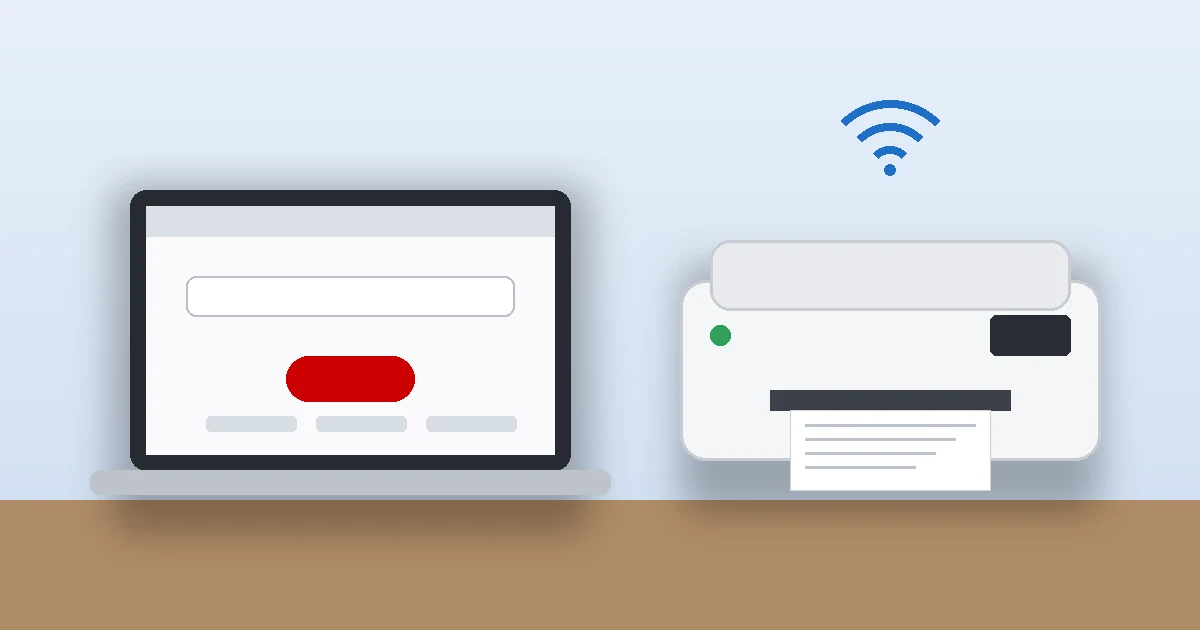
The quickest ij.start.canon setup works like this: type ij.start.canon into your browser’s address bar, click Set Up, enter your printer model, then download and run the installer Canon gives you. That one installer adds the driver and walks you through the Wi-Fi or USB connection. Plan on 10 to 20 minutes, and it costs nothing.
The catch? Plenty of people never reach Canon’s real page. They search, click a look-alike site, and end up on the phone with a “technician” asking for a few hundred dollars. This guide covers the full ij.start.canon setup on Windows, Mac, iPhone, and Android, plus how to tell the official site from the fakes.
Key Takeaways
- ij.start.canon is Canon’s official setup portal for its inkjet printers, and the driver download is free.
- Type the address directly into your browser. Don’t click ads or look-alike search results.
- You’ll need your exact model number, your Wi-Fi name and password, and about 15 minutes.
- On a phone, use the free Canon PRINT app instead of a computer driver.
- Canon never charges for drivers. If a site asks for payment or remote access, close it.
What Is ij.start.canon?
ij.start.canon is Canon Inc.’s official web address for setting up its inkjet printers and scanners, including the PIXMA, MAXIFY, imagePROGRAF, and CanoScan lines. The “ij” stands for inkjet. The “.canon” ending is a top-level domain that Canon itself owns, which is why no third party can run a site at that exact address.
When you type it in, it forwards you to Canon’s manual portal (ij.manual.canon). There you’ll see options to set up a printer, read the online manual, explore useful functions, and troubleshoot problems. For the ij.start.canon setup, you only need the Set Up option.
One thing worth knowing: Canon’s imageCLASS laser printers aren’t really handled here. If you own one, go to Canon USA’s official support page and search your model for drivers.
What You Need Before Starting Your ij.start.canon Setup
Five minutes of prep prevents most ij.start.canon setup headaches. Gather these first:
- Your exact model number. It’s printed on the front or top of the printer (for example, PIXMA TS6420a or PIXMA G3270). Letters matter, so don’t guess.
- Your Wi-Fi network name and password. Check the sticker on your router if you’ve forgotten it.
- A computer or phone on the same network the printer will join.
- A USB cable (optional). Many Canon inkjets don’t ship with one, so buy one only if you want a wired setup.
- About 15 minutes without the printer being unplugged.
Here’s a tip from experience: many Canon inkjets, especially older PIXMA models, only connect on a 2.4 GHz Wi-Fi band. If your router combines 2.4 GHz and 5 GHz under one name, it usually works fine. If your phone or laptop is stuck on a 5 GHz-only network, the printer may never show up. Your printer’s online manual lists the bands it supports.
Step-by-Step ij.start.canon Setup on Windows
These steps cover the ij.start.canon setup on Windows 10 and Windows 11. Screens vary a little by model, but the flow is the same.
Step 1: Finish the Printer’s Hardware Setup
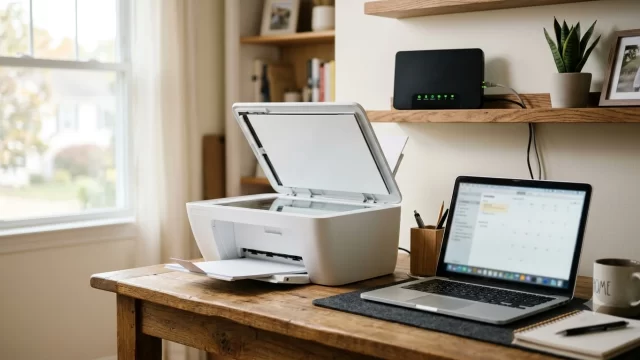
Remove all orange tape and packing material, plug the printer in, and turn it on. Install the ink cartridges or print head, fill the ink tanks if you have a MegaTank (G series) model, and load plain letter-size paper. Let the printer finish its first startup routine. On some MegaTank models, the initial ink charge takes several minutes, so don’t cut the power.
Step 2: Go to ij.start.canon
Open Chrome, Edge, Firefox, or Safari and type ij.start.canon straight into the address bar, then press Enter. Don’t type it into a search box. Searching for the address is exactly how most people land on fake setup sites, because scammers buy ads and build pages with nearly identical names.
Step 3: Click Set Up and Enter Your Model
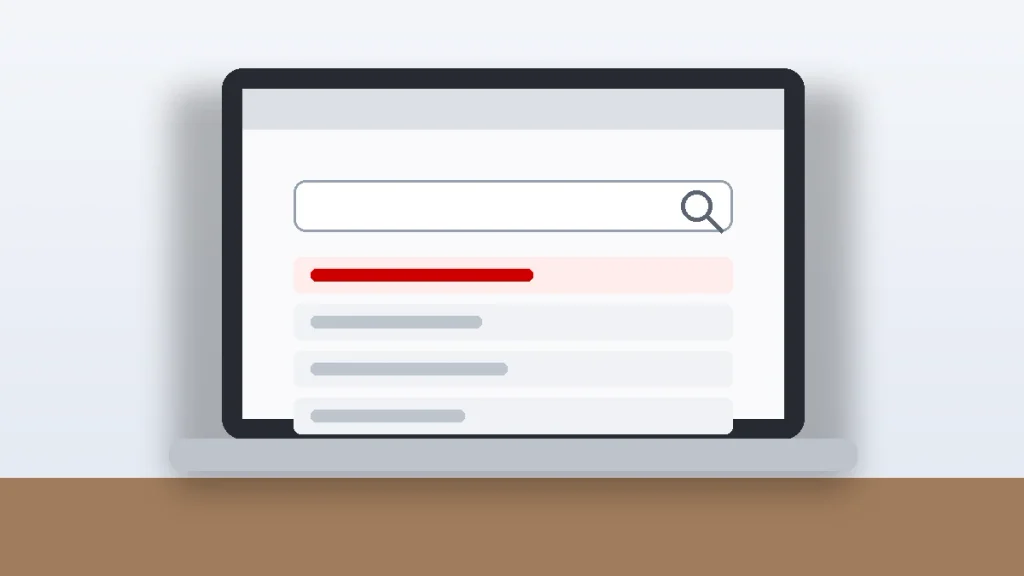
Pick your language if asked, then click Set Up. Type your model name into the search field (for example, “TS6420a”) and select it from the list. If your model doesn’t appear, check that your region is set to the United States and that you typed the series correctly.
Step 4: Download the Canon Printer Driver
Click Start and follow the on-screen pages. When you reach the part about connecting to a computer, choose Windows, then click Download. You’ll get a setup file named after your printer series, usually saved to your Downloads folder.
Step 5: Run the Installer and Pick Wi-Fi or USB
Double-click the file. Windows will ask whether to let the app make changes, so click Yes. Accept the license agreement, then choose your connection type:
- Wireless LAN connection: The installer searches your network. If the printer isn’t on Wi-Fi yet, it walks you through connecting it, which often means pressing and holding the printer’s Wi-Fi button until a lamp flashes, or choosing a setting on the printer’s screen.
- USB connection: Plug in the cable only when the installer tells you to. Plugging it in early can make Windows grab a generic driver first.
The installer then adds the full Canon driver, plus optional extras such as IJ Scan Utility for scanning. Keep the scanning tool if you own an all-in-one; skip the extra photo apps if you won’t use them.
Step 6: Print a Test Page
When the installer finishes, it usually offers a test print. If not, press Windows key + I, go to Bluetooth & devices > Printers & scanners, select your Canon printer, and choose Print test page. A clean page means your ij.start.canon setup is done.
How to Set Up a Canon Printer on a Mac
Mac users have two routes, and both work well.
Route 1: AirPrint (no download). Most current Canon Wi-Fi printers support Apple’s AirPrint. Connect the printer to Wi-Fi first (using its screen or the Canon PRINT app), then open System Settings > Printers & Scanners > Add Printer, Scanner, or Fax. Pick your Canon and click Add. This covers everyday printing.
Route 2: Canon’s software from ij.start.canon. Follow the same Steps 2 through 4 above, but choose macOS before downloading. Open the downloaded file and run the installer. This route makes sense if you want Canon’s scanning tool or deeper settings like borderless photo options on certain models.
My take: start with AirPrint. If it covers what you print, you can skip the full ij.start.canon setup on your Mac.
Canon Printer Setup on iPhone or Android
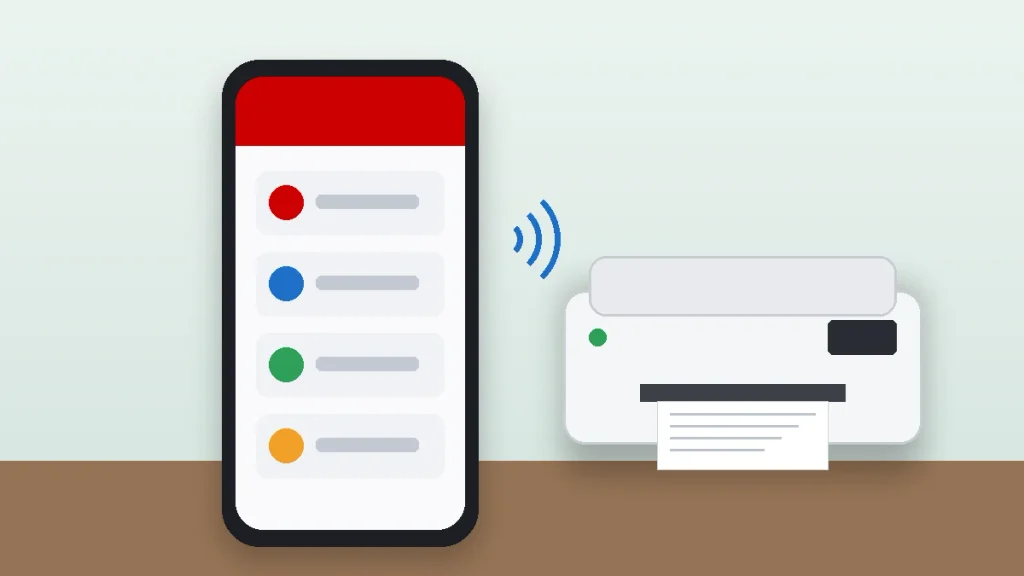
On a phone or tablet, skip the computer driver and use Canon’s free app, Canon PRINT. It was previously called Canon PRINT Inkjet/SELPHY, so older guides may use that name. Canon USA lists support for iOS 16.0 or later and Android 7.0 or later.
- Download Canon PRINT from the App Store or Google Play (publisher: Canon Inc.).
- Open it, allow the permissions it asks for, and tap the option to add or register a printer.
- Follow the prompts to put the printer on your Wi-Fi network.
- Print a photo or document to confirm it works.
Which Canon Driver Option Should You Use?
| Option | Best For | What You Get |
|---|---|---|
| Full driver from ij.start.canon | Windows PCs, all-in-one printers | Every print setting, maintenance tools, scanning software |
| Windows built-in driver | Quick, basic printing | Basic printing; fewer settings and no Canon scan tool |
| AirPrint on Mac | Most Mac users | Easy printing with no download |
| Canon PRINT app | iPhone, iPad, Android | Printing, scanning to your phone, ink level checks |
Fixing Common ij.start.canon Setup Problems
The Installer Can’t Find Your Printer
This is the most common snag. Confirm the printer and computer are on the same network, then turn off any VPN on your computer during setup. Restart the printer and your router, and try again. If the issue looks like your computer’s connection rather than the printer, our guide on Wi-Fi connected but no internet on Windows 11 can help.
The Printer Shows as “Offline”
Open your printer’s queue in Windows and make sure Use Printer Offline isn’t checked. If the printer worked before and suddenly went offline, your router may have handed it a new IP address. Reserving a fixed IP address for the printer in your router settings stops this from happening again.
Your Model Isn’t Listed on ij.start.canon
Double-check the model number on the printer itself, not the box. Some models also have a regional suffix. If it still doesn’t show, look up the model on Canon USA support, which carries drivers for older and business models too.
How to Spot Fake ij.start.canon Sites and Support Scams
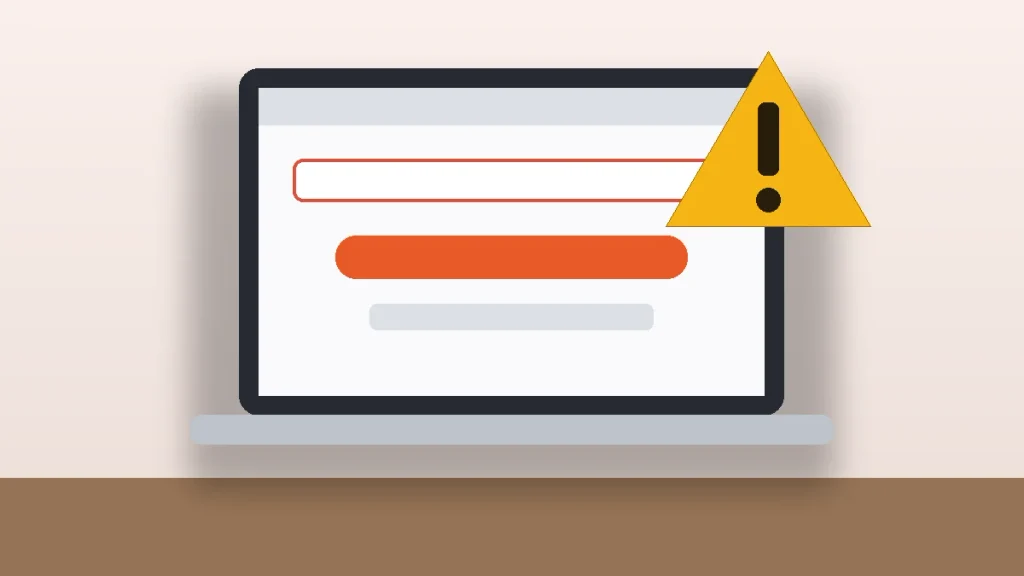
Fake Canon setup sites have been a real problem for years. In 2022, Gizmodo reviewed FTC complaints and found people who lost hundreds or even thousands of dollars to sites posing as Canon. The pattern is almost always the same: a page that looks like Canon pushes a “download” or “live chat” button, then a phone number, then a fee for “setup” or “driver repair.”
Keep these rules in mind:
- Check the address. The official setup site is ij.start.canon. Canon’s US company site is usa.canon.com. Names like “ijstartcanon,” “canon-ij-setup,” or a help desk page on a free platform are not Canon.
- Drivers are always free. Canon doesn’t charge to download a driver or to “activate” a printer.
- Never allow remote access to someone who reached you through a setup site or pop-up.
- Find support numbers yourself on usa.canon.com, not in a search ad or a chat window.
If you already paid or gave someone access, the Federal Trade Commission’s tech support scam guide explains what to do next. Call your credit card company to dispute the charge, run a security scan, change your passwords, and report it at ReportFraud.ftc.gov.
Frequently Asked Questions
Is ij.start.canon legit?
Yes. ij.start.canon is Canon’s official setup website for its inkjet printers and scanners. It forwards you to Canon’s own manual portal, where you can download drivers for free. The risk comes from look-alike sites with similar names, so always type the address directly into your browser instead of clicking search ads.
Is ij.start.canon free?
Yes, the ij.start.canon setup is completely free. Canon doesn’t charge for printer drivers, setup software, manuals, or the Canon PRINT app. If any website or phone agent asks you to pay for a driver, a setup fee, or printer activation, it isn’t Canon. Close the page and don’t share payment details.
Do I need a driver for my Canon printer on Windows 11?
Not always. Windows 11 can install a basic driver automatically for many Canon printers, which handles simple printing. The full Canon driver from ij.start.canon adds advanced print settings, maintenance tools like nozzle checks and cleaning, and scanning software. If you own an all-in-one model, installing the full driver is worth it.
Why can’t my computer find my Canon printer during setup?
Usually the printer and computer are on different networks, or the printer can’t use your Wi-Fi band. Make sure both devices share the same network, turn off any VPN, and restart the printer and router. Many Canon inkjets only connect on 2.4 GHz, so a 5 GHz-only network can block setup.
What app do I use for a Canon printer on my iPhone?
Use Canon PRINT, Canon’s free app on the App Store and Google Play. It used to be called Canon PRINT Inkjet/SELPHY. The app connects your printer to Wi-Fi, prints photos and documents, scans to your phone, and shows ink levels. Your iPhone can also print to most Canon Wi-Fi printers through AirPrint.
Where do I find my Canon printer’s model number?
Look on the front or top of the printer, usually near the Canon logo or the control panel. You’ll see a name like PIXMA TS6420a or MAXIFY GX4020. It’s also on the label on the back or bottom, and on the original box. Enter it exactly when you search on ij.start.canon.
Ready to Print? Your Next Step
Grab your model number and Wi-Fi password, then type ij.start.canon into your browser and click Set Up. Follow the six steps above and you’ll have a test page in your hand in about 15 minutes. Bookmark the official page now, so the next time you need a driver (a new laptop, a Windows reset), you’ll skip the search results and the scam sites entirely.