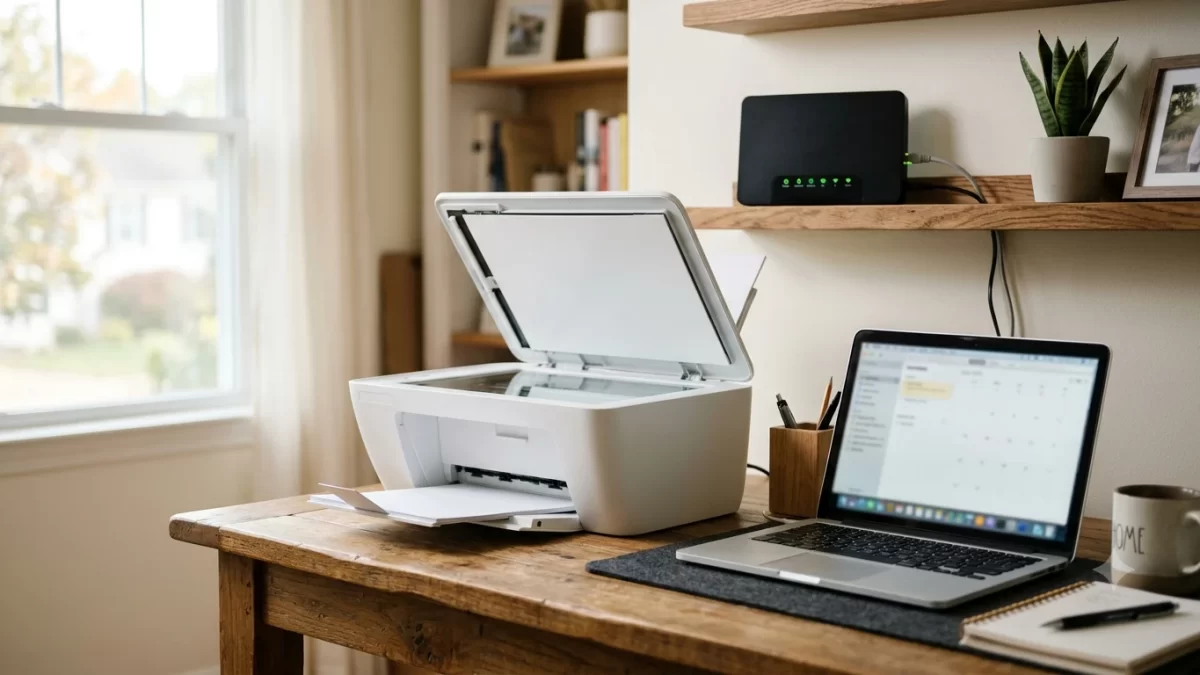
To connect a wireless printer to Wi-Fi, put the printer in setup mode, pick your home network on its screen (or in the maker’s app), and type your Wi-Fi password. Then add the printer on your computer or phone. Most setups take about 10 minutes, and the steps below work for HP, Canon, Epson, and Brother models.
I’ve set up dozens of these in homes and small offices, and the printer itself is rarely the problem. It’s almost always the network: a 5 GHz-only connection, a guest network, or a mistyped password. So this guide shows you how to connect a wireless printer to Wi-Fi the right way, plus what to check when it won’t cooperate.
Key Takeaways
- Have your exact Wi-Fi name and password ready before you start. Passwords are case-sensitive.
- Most home printers only use the 2.4 GHz band, so make sure that band is turned on in your router.
- Pick one of three methods: the printer’s touchscreen, the WPS button, or the manufacturer’s app.
- After the printer joins Wi-Fi, add it in Windows 11 under Settings > Bluetooth & devices > Printers & scanners.
- New router or new password? You’ll need to connect the printer to Wi-Fi again.
What You Need Before You Connect a Wireless Printer to Wi-Fi
Five minutes of prep saves most failed setups. Gather these first, and your wireless printer setup will go much faster:
- Your Wi-Fi network name (SSID) and password. They’re usually printed on a sticker on the bottom of your router if you never changed them. Comcast Xfinity, Spectrum, and AT&T gateways all have this sticker.
- A 2.4 GHz network. Many printers can’t see 5 GHz Wi-Fi at all. If your router combines both bands under one name, that’s usually fine, but some mesh systems need tweaking (more on that below).
- The printer close to the router. During setup, keep it in the same room or within about 15 feet. You can move it after it connects.
- Your main network, not a guest network. Guest networks often block devices from seeing each other, so your laptop won’t find the printer.
- The printer’s model number. It’s on the front or top of the printer. You’ll need it for the app or driver download.
One small tip that saves a lot of frustration: if you’re on a VPN, turn it off during setup. A VPN can hide the printer from your computer even when both are on the same Wi-Fi.
Method 1: Connect a Wireless Printer to Wi-Fi With the Touchscreen
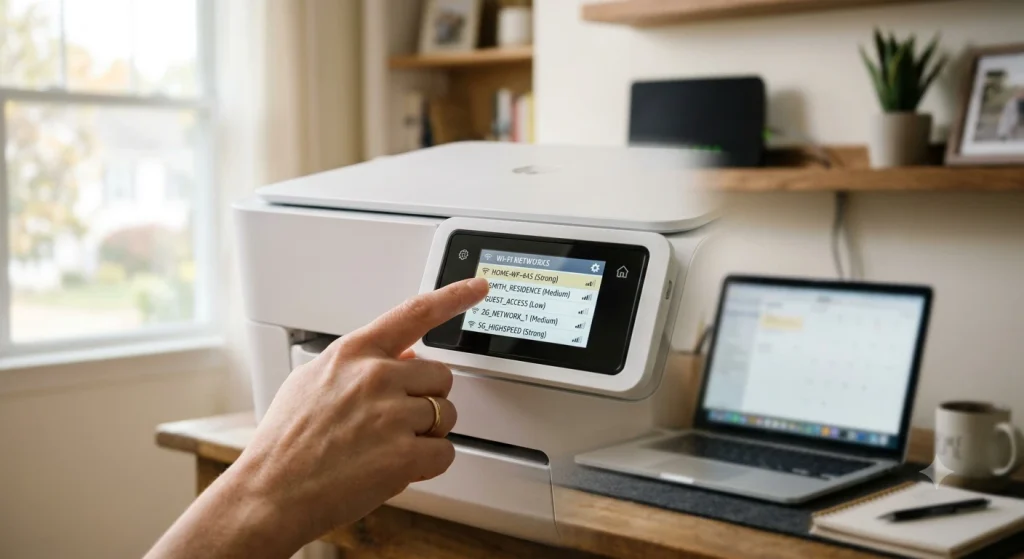
If your printer has a screen, this is the most reliable way to connect a wireless printer to Wi-Fi. You pick the network and type the password right on the printer, so there’s no guessing.
- Turn on the printer and wait until it finishes starting up.
- Tap the Wi-Fi icon or open Settings (sometimes called Setup or Network).
- Select Wireless Setup Wizard (Canon and Epson call it Wi-Fi Setup or Wireless LAN Setup).
- Wait for the list of nearby networks, then tap your network name.
- Enter your Wi-Fi password with the on-screen keyboard and tap OK or Done.
- Wait until the Wi-Fi light stops blinking and stays solid. That means it’s connected.
Typing a long password on a tiny screen is where most mistakes happen. Watch for a capital “O” versus a zero, and a lowercase “l” versus the number one.
Method 2: WPS Printer Setup (No Password Needed)
No screen on your printer? WPS (Wi-Fi Protected Setup) is the quickest way to connect a wireless printer to Wi-Fi, as long as your router has a WPS button. Many routers from Netgear, TP-Link, and ISP gateways do, though some newer models have dropped it.
- Find the WPS button on your router. It often has two curved arrows on it.
- On the printer, press and hold the Wireless button (or choose WPS Push Button in the menu) until the Wi-Fi light starts blinking.
- Within 2 minutes, press the WPS button on your router.
- Wait for the printer’s Wi-Fi light to turn solid.
If the light keeps blinking after a few minutes, WPS probably timed out. Just try again and press the two buttons closer together. If your router has no WPS button, use Method 1 or Method 3 instead.
Method 3: Use the Manufacturer’s App for Wireless Printer Setup
For printers without a screen, the brand’s free phone app is my top pick to connect a wireless printer to Wi-Fi. The app finds the printer, sends it your Wi-Fi details, and installs the right software in one pass. It’s also the method each brand officially recommends.
| Brand | Free App | How to Enter Setup Mode (Common Models) |
|---|---|---|
| HP | HP Smart | On many models, hold Wireless and Cancel together for about 5 seconds until the light blinks |
| Canon | Canon PRINT | Hold the Wi-Fi button until the alarm or power light flashes, then follow the app |
| Epson | Epson Smart Panel | Start setup from the app, or use the Wi-Fi Setup option on the printer screen |
| Brother | Brother Mobile Connect | Use the app’s printer setup flow, or the WLAN menu on the printer |
Button combinations vary by model, so check the quick-start sheet in the box if the tip above doesn’t work for yours.
- Install the app from the Apple App Store or Google Play.
- Turn on Bluetooth and location on your phone. Many apps use them to find a printer in setup mode.
- Put the printer in setup mode using the tip in the table.
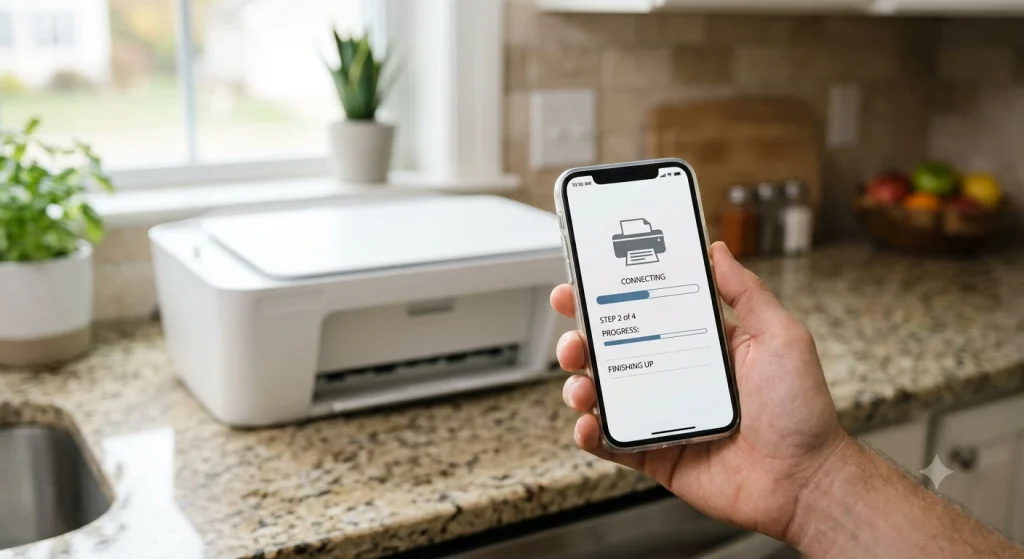
- Open the app, tap Add Printer or Set Up a New Printer, and follow the prompts.
- Choose your home Wi-Fi network and enter the password when asked.
HP lays out every connection option, including Wi-Fi Direct, on its official HP printer Wi-Fi setup guide. Canon owners can also follow our guide on setting up a Canon printer through ij.start.canon.
Add Your Wireless Printer to Windows 11, Mac, iPhone, or Android
When you connect a wireless printer to Wi-Fi, you’ve only done half the job. Each computer or phone that prints still has to add it once.
How to Add a Printer in Windows 11
- Open Settings (press Windows + I).
- Go to Bluetooth & devices > Printers & scanners.
- Click Add device next to “Add a printer or scanner.”
- When your printer shows up, click Add device next to it. Windows installs the driver automatically.
If it doesn’t appear after a minute or two, click Add manually, choose Add a printer using an IP address or hostname, and type the printer’s IP address (you’ll find it on a network configuration page, covered below). Microsoft’s own add a printer or scanner in Windows page walks through the same steps.
How to Add a Printer on a Mac
- Open the Apple menu and choose System Settings.
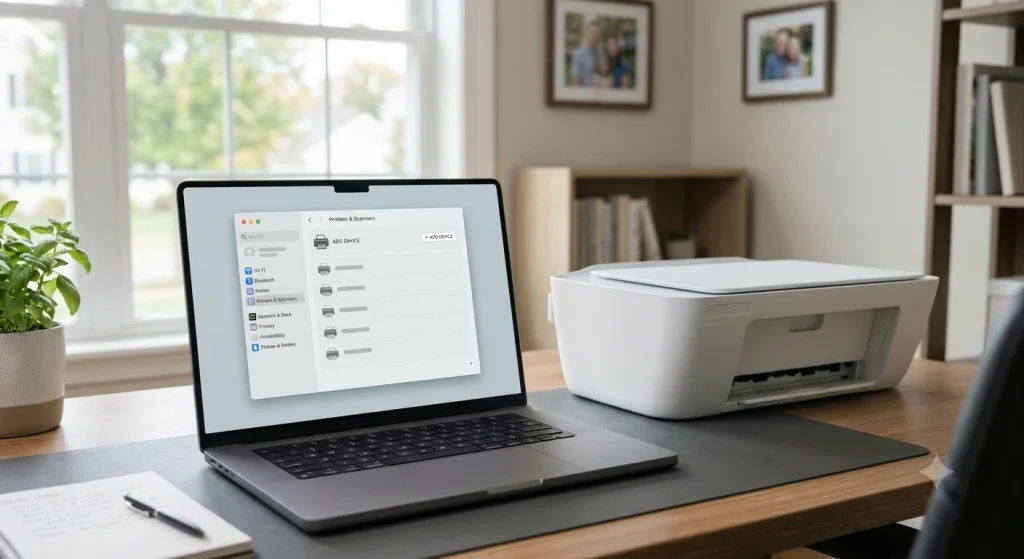
- Click Printers & Scanners in the sidebar.
- Click Add Printer, Scanner, or Fax, select your printer, and click Add.
Most current printers support AirPrint, so macOS usually doesn’t need any extra driver.
iPhone, iPad, and Android
On an iPhone or iPad, open the photo or document, tap the Share button, then tap Print and pick your printer. AirPrint handles everything. On Android, tap the three-dot menu and choose Print. Android’s built-in Default Print Service finds most network printers, and the brand app fills any gaps.
Printer Not Connecting to Wi-Fi? Try These Fixes
If you tried to connect a wireless printer to Wi-Fi and it failed, work through this list in order. The first three fix the majority of cases I see.
- Restart everything in the right order. Turn off the printer, unplug the router for 30 seconds, plug it back in, wait until the internet light is solid, then turn the printer back on.
- Re-enter the password slowly. One wrong character fails silently on many printers.
- Check the band. If your phone is on a network ending in “5G,” the printer can’t join it. Use the 2.4 GHz name instead.
- Split mesh bands for setup. Mesh systems like eero, Google Nest Wifi, and Netgear Orbi combine bands into one name. If the printer won’t join, look for a temporary 2.4 GHz option in the router’s app.
- Reset the printer’s network settings. Look for Restore Network Settings in the printer menu, then run setup again from scratch.
- Print a network configuration page. It shows signal strength, the network the printer is on, and its IP address. Weak signal? Move the printer closer.
- Update the printer’s firmware through the brand app once it’s online. Updates often fix Wi-Fi bugs.
If the printer is online but your PC can’t reach anything, the problem may be your computer’s connection. See our fixes for Wi-Fi connected but no internet on Windows 11 and DNS server not responding in Windows 11.
Reconnect Your Printer After a New Router or Wi-Fi Password
Your printer remembers the old network name and password, so it goes offline the moment either one changes. This trips up a lot of people after switching internet providers, say from Spectrum to AT&T Fiber.
The fix is to connect a wireless printer to Wi-Fi again from scratch. Restore the printer’s network settings, then run any of the three methods above with the new details. After that, remove the old printer entry in Windows or macOS and add it again so your computer doesn’t keep sending jobs to an address that no longer exists.
Frequently Asked Questions
Why is my printer not connecting to Wi-Fi?
The most common reasons are a mistyped password, a 5 GHz network the printer can’t use, a guest network that blocks device connections, or the printer being too far from the router. Restart the printer and router, move the printer closer, confirm you’re on the 2.4 GHz band, and run the wireless setup again.
Can I connect a printer to Wi-Fi without a WPS button?
Yes. WPS is only one option. If your printer has a touchscreen, use its Wireless Setup Wizard to pick your network and type the password. If it has no screen, use the manufacturer’s free app, such as HP Smart or Canon PRINT, which sends your Wi-Fi details to the printer for you.
Do wireless printers work on 5 GHz Wi-Fi?
Many home printers only support 2.4 GHz Wi-Fi, though some newer models handle both bands. Check your printer’s spec sheet to be sure. If your router broadcasts one combined name, the printer will usually join the 2.4 GHz side on its own. Your computer can stay on 5 GHz and still print without trouble.
How do I find my printer’s IP address?
Print a network configuration or wireless test report from the printer’s Settings, Reports, or Network menu. The IP address is listed on that page. On printers with a screen, you can usually tap the Wi-Fi icon to see it. Your router’s app or admin page also lists every connected device’s IP address.
Do I need to reconnect my printer if I change my Wi-Fi password?
Yes. The printer stores the old password and goes offline when it changes. Restore the printer’s network settings, then connect it again with the new password using the touchscreen, WPS, or the brand app. You may also need to remove and re-add the printer on your computer.
Can I print wirelessly without a Wi-Fi network?
Yes, if your printer supports Wi-Fi Direct. Wi-Fi Direct lets your phone or laptop connect straight to the printer without a router. Turn it on in the printer’s network menu, then join the printer’s own network from your device. It’s handy for guests or places without home internet.
Your Next Step: Print a Test Page
Once you connect a wireless printer to Wi-Fi, print a test page from your computer and from your phone to confirm both work. Then print a network configuration page and tape it inside the printer lid. The next time you change routers or passwords, you’ll have the old IP address and settings right there, and the whole reconnection takes about five minutes.