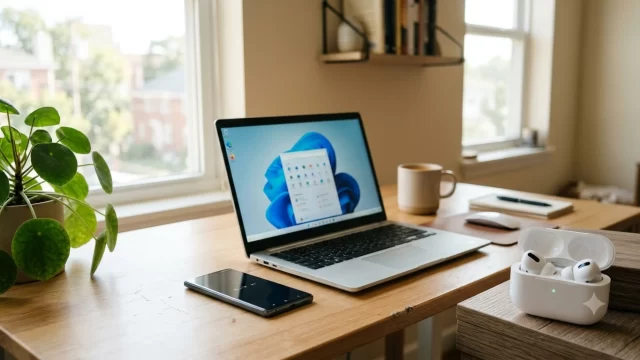
To pair Bluetooth earbuds with a laptop, put the earbuds in pairing mode, turn on Bluetooth on the laptop, and pick the earbuds from the list of nearby devices. On Windows 11 that list lives under Settings > Bluetooth & devices > Add device. On a Mac it’s System Settings > Bluetooth. Once you know where to click, the whole job takes about a minute.
The part that trips most people up isn’t the laptop. It’s getting the earbuds to show up at all, because they’re usually still locked onto your phone. This guide covers every major laptop type, explains earbuds pairing mode for AirPods, Galaxy Buds, Sony, Beats, Bose and Pixel Buds, and fixes the most common connection problems.
Key Takeaways
- Earbuds must be in pairing mode before your laptop can find them. Opening the case alone often isn’t enough.
- Turn off Bluetooth on your phone first so the earbuds don’t jump back to it.
- Windows 11: Settings > Bluetooth & devices > Add device > Bluetooth. Mac: System Settings > Bluetooth > Connect.
- After pairing, pick the earbuds as your sound output, or audio may keep playing through the laptop speakers.
- Most connection failures are fixed by removing the earbuds from the laptop and pairing them again.
What You Need Before You Start
Almost every laptop sold in the US over the last decade has Bluetooth built in, so you’re probably set. Before you pair Bluetooth earbuds with a laptop, run through these quick checks. They’ll save you a frustrating five minutes:
- A laptop with Bluetooth. If yours doesn’t have it (common on older business models), a USB Bluetooth adapter from Best Buy or Amazon usually costs under $20 and works on Windows without extra software.
- Charged earbuds. Many earbuds refuse to enter pairing mode when the case battery is nearly dead. Give them 10 minutes on the charger if you’re unsure.
- Phone Bluetooth off. This is the step people skip. Earbuds reconnect to the last device they used, and your phone wins that race every time.
- Short distance. Keep the earbuds within 3 feet of the laptop while pairing. Bluetooth reaches about 30 feet in open space, but pairing is far more reliable up close.
Step 1: Put Your Earbuds in Pairing Mode
Pairing mode makes your earbuds visible to new devices. Every brand does it a little differently, and this is where most “my laptop can’t find my earbuds” problems start. Here’s how the popular models handle it.
| Earbuds | How to enter pairing mode | What you’ll see or hear |
|---|---|---|
| Apple AirPods and AirPods Pro | Earbuds in the case, lid open. Press and hold the setup button on the back of the case (on AirPods 4, double-tap the front of the case instead). | Status light flashes white |
| Samsung Galaxy Buds | Wear both earbuds, then touch and hold both touchpads for a few seconds. | A tone in both ears |
| Sony WF-1000XM5 | Wear both earbuds and hold both touch sensors for about 5 seconds. | Voice prompt says pairing |
| Beats Studio Buds and Fit Pro | Earbuds in the case, lid open. Hold the system button on the case. | LED blinks |
| Bose QuietComfort Earbuds | Earbuds in the case, lid open. Hold the Bluetooth button on the case. | Light blinks blue |
| Google Pixel Buds | Earbuds in the case, lid open. Hold the button on the back of the case. | LED pulses white |
| JLab, Soundcore, Skullcandy and other budget brands | Usually enter pairing mode automatically the first time you take them out of the case. If not, hold both touch areas for 5 to 10 seconds. | Blinking LED on the earbuds |
Button layouts change between generations, so if your model doesn’t respond, check the quick start card that came in the box or the brand’s support page. Leave the earbuds in pairing mode and move straight to your laptop, since most of them time out after a minute or two.
How to Pair Bluetooth Earbuds With a Windows 11 Laptop
Windows 11 gives you three ways to pair Bluetooth earbuds with a laptop. The Settings app is the most reliable, so start there if this is your first time.
Method 1: Use the Settings App
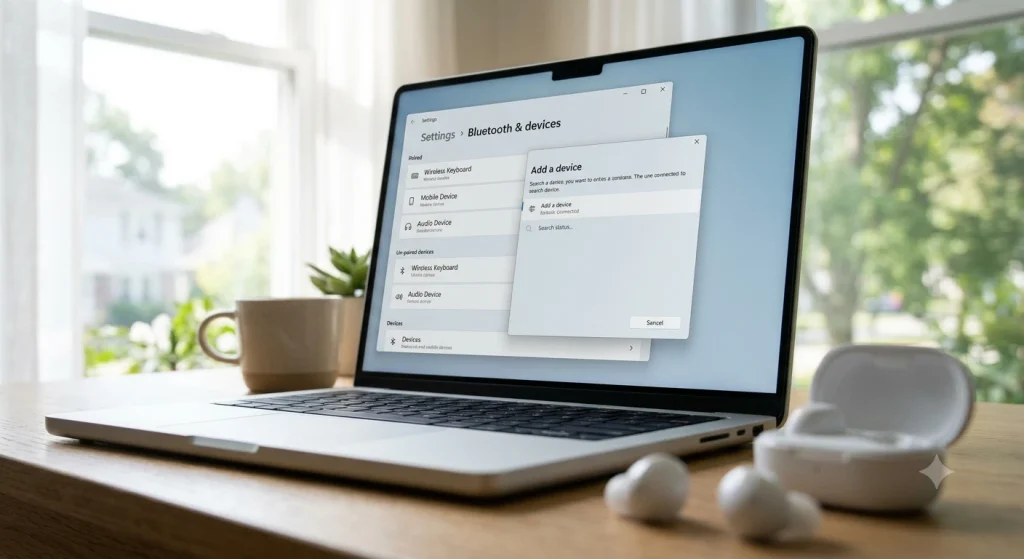
- Open Start > Settings > Bluetooth & devices.
- Make sure the Bluetooth toggle is set to On.
- Click Add device at the top, then choose Bluetooth.
- Wait a few seconds, then click your earbuds when they appear in the list.
- When you see “Your device is ready to go,” click Done.
Some earbuds show up twice, once by name and once as “LE-” plus the name. Pick the plain name first. The LE entry is the low energy version used for features like battery reporting, and Windows usually handles it on its own.
Method 2: Use Quick Settings or Swift Pair
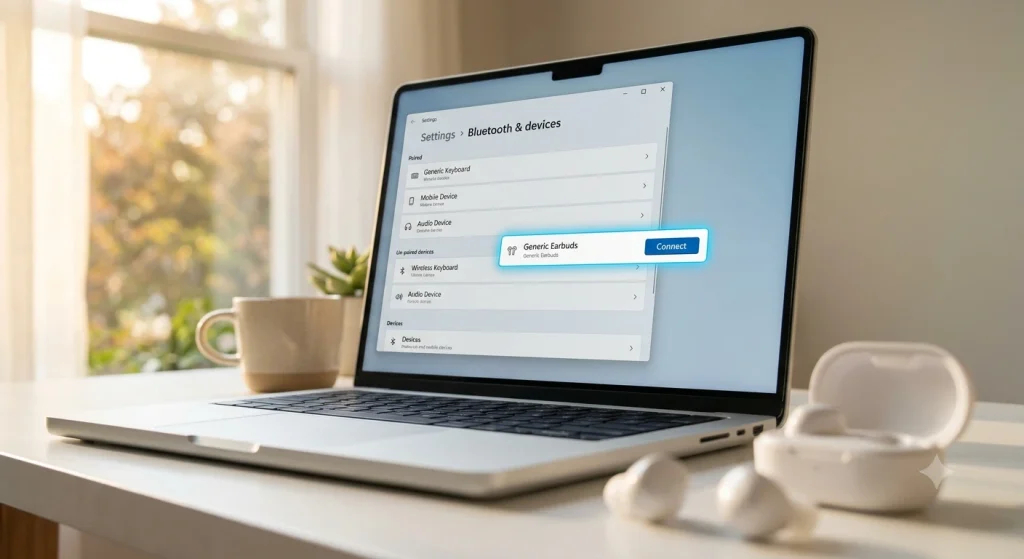
For a faster route, click the network, sound or battery icon next to the clock. Click the small arrow beside the Bluetooth tile and select your earbuds under New devices. If your earbuds support Microsoft’s Swift Pair feature, Windows will skip all of this and show a pop-up in the corner of your screen as soon as the earbuds enter pairing mode. Just click Connect.
You can also jump straight to the Bluetooth page from the Run box. Press Windows + R, paste the command below and press Enter.
ms-settings:bluetoothStill on Windows 10?
The steps are nearly the same. Go to Settings > Devices > Bluetooth & other devices, click Add Bluetooth or other device, choose Bluetooth and select your earbuds. Keep in mind Microsoft ended free security updates for Windows 10 on October 14, 2025, so it’s worth upgrading if your laptop supports Windows 11.
How to Connect Wireless Earbuds to a MacBook
It’s even simpler to pair Bluetooth earbuds with a laptop from Apple, and AirPods get a shortcut that other brands don’t.
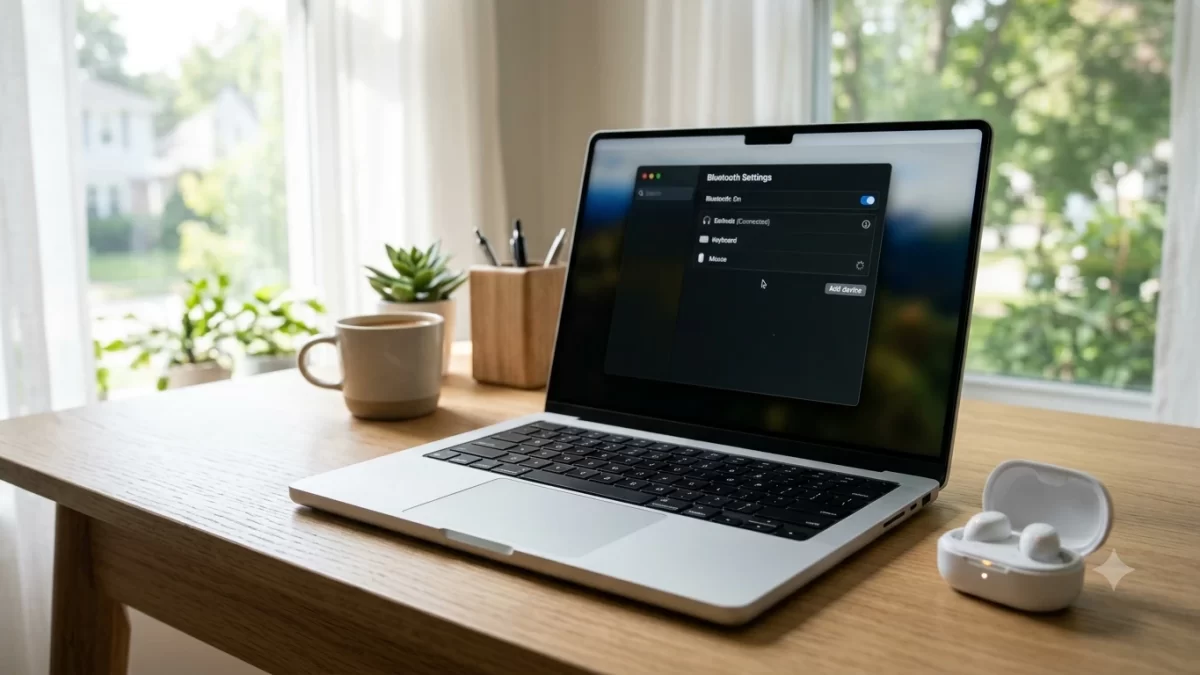
- Click the Apple menu > System Settings, then click Bluetooth in the sidebar.
- Find your earbuds under Nearby Devices.
- Hold your pointer over them and click Connect. If asked, click Accept.
On macOS Monterey or older, the same option lives under System Preferences > Bluetooth. If your AirPods are already set up on an iPhone signed in to the same Apple Account, you don’t need to pair them again. Open the case near your Mac, click the Control Center icon in the menu bar, choose Sound and pick your AirPods.
How to Pair Bluetooth Earbuds With a Chromebook
Chromebooks are popular in US schools, and pairing works the same on student and personal models. Click the clock in the bottom right corner to open Quick Settings, select Bluetooth, make sure it’s turned on, then click Pair new device and choose your earbuds. School-managed Chromebooks sometimes have Bluetooth blocked by the district’s IT admin, so if the option is grayed out, that’s likely why.
Set Your Earbuds as the Sound Output
Once you pair Bluetooth earbuds with a laptop, paired doesn’t always mean playing. If sound still comes from the laptop speakers, switch the output manually.
- Windows 11: Click the speaker icon on the taskbar, click the arrow next to the volume slider and pick your earbuds. You can also use Settings > System > Sound.
- Mac: Go to System Settings > Sound > Output and select your earbuds.
One quirk worth knowing: on many laptops, when Zoom, Teams or Google Meet starts using the earbud microphone, audio switches to a “hands-free” mode that sounds flat, like a phone call from 2005. It’s a Bluetooth limitation, not a broken pair of earbuds. For better sound on calls, set your laptop’s built-in mic as the input and keep the earbuds as the output only.
Bluetooth Earbuds Not Connecting to Laptop? Try These Fixes
If you can’t pair Bluetooth earbuds with a laptop after a couple of tries, work through these fixes in order. The first three solve most cases.
1. Disconnect Them From Your Phone
Turn off Bluetooth on your phone (or put it in another room), put the earbuds back in the case for 10 seconds, then try pairing mode again.
2. Remove and Re-pair the Earbuds
If the earbuds were paired before and now won’t connect, delete the old pairing. On Windows 11, go to Settings > Bluetooth & devices > Devices, click the three dots next to your earbuds and choose Remove device. On a Mac, Control-click the earbuds in Bluetooth settings and choose Forget. Then pair from scratch.
3. Reset the Earbuds
A factory reset clears every old pairing stored inside the earbuds. For AirPods, keep them in the case with the lid open and hold the setup button for about 15 seconds until the light flashes amber, then white. Other brands have their own reset steps in the manual.
4. Turn On Advanced Device Discovery in Windows 11
Windows 11 hides some less common audio devices by default. Go to Settings > Bluetooth & devices > Devices and change Bluetooth devices discovery from Default to Advanced, then search again.
5. Update the Bluetooth Driver
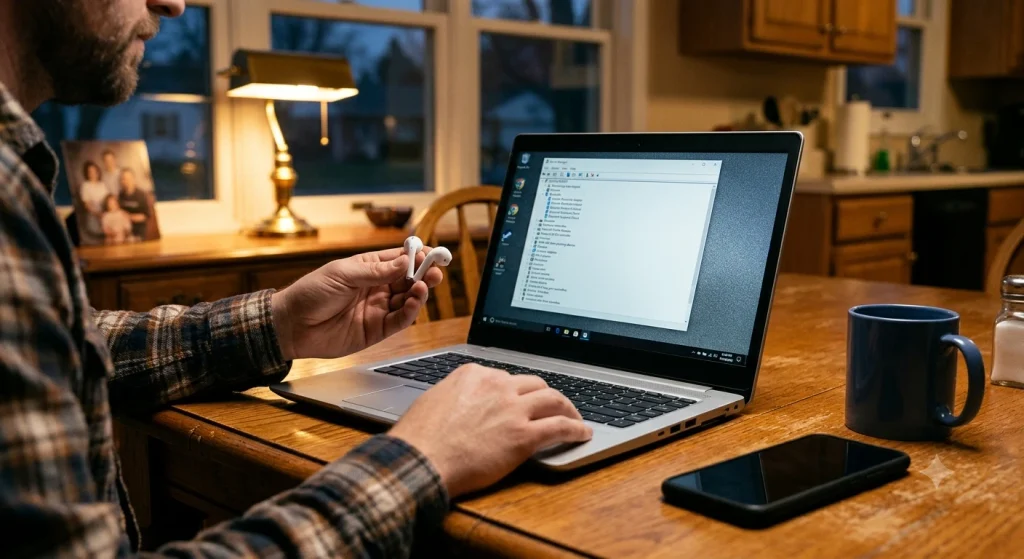
Right-click Start, open Device Manager, expand Bluetooth, right-click your adapter and choose Update driver. Honestly, the laptop maker’s own tool does a better job here. Use Dell SupportAssist, HP Support Assistant or Lenovo Vantage to grab the latest Bluetooth driver for your exact model.
6. Cut Down on Interference
Bluetooth shares the 2.4 GHz band with Wi-Fi routers, cordless phones and microwaves. USB 3.0 hubs and external drives plugged in right next to the Bluetooth antenna can also cause dropouts. Move closer, unplug the hub for a test, and see if the connection steadies.
Which Bluetooth Earbuds Work Best With a Laptop?
If you switch between your phone and laptop all day, my recommendation is simple: buy earbuds with multipoint support. Multipoint lets earbuds stay connected to two devices at once, so a call on your phone interrupts your laptop audio automatically and you never have to re-pair. Sony WF-1000XM5, Google Pixel Buds Pro and many Jabra models support it.
AirPods take a different approach. They switch automatically between iPhone, iPad and Mac on the same Apple Account, which is excellent if you’re all-in on Apple. On a Windows laptop, though, they behave like any regular Bluetooth earbuds, with no automatic switching and no battery readout in the taskbar.
Frequently Asked Questions
Why can’t I pair Bluetooth earbuds with my laptop?
Usually your earbuds aren’t in pairing mode, or they’re still connected to your phone. Turn off Bluetooth on your phone, put the earbuds back in pairing mode using the button or touch method for your model, and search again from your laptop’s Bluetooth settings within a few feet of the earbuds.
Can Bluetooth earbuds connect to a laptop and phone at the same time?
Yes, if your earbuds support multipoint Bluetooth. Models like the Sony WF-1000XM5 and Google Pixel Buds Pro can stay connected to both devices and switch audio automatically. Earbuds without multipoint connect to one device at a time, so you’ll need to disconnect from one before using the other.
How do I connect wireless earbuds to a laptop without Bluetooth?
Plug a USB Bluetooth adapter into your laptop. Most adapters cost under $20, install automatically on Windows 10 and 11, and add full Bluetooth support in a minute or two. After that, put your earbuds in pairing mode and add them through Settings, Bluetooth and devices, the same way as built-in Bluetooth.
Why does my earbud audio sound bad on Zoom calls?
When an app uses your earbud microphone, Bluetooth switches to a hands-free profile with lower audio quality. That’s why voices and music sound flat during calls. To fix it, set your laptop’s built-in microphone as the input device and keep the earbuds as the output only. Audio quality returns to normal instantly.
Do AirPods work with a Windows laptop?
Yes. AirPods pair with Windows laptops like any other Bluetooth earbuds. Open the case, press and hold the setup button until the light flashes white, then add them from Settings, Bluetooth and devices. You’ll get audio and microphone support, but features like automatic device switching and taskbar battery levels are limited to Apple devices.
Your Next Step
Grab your earbuds, turn off Bluetooth on your phone, and follow the steps for your laptop above. That’s genuinely all most people need to pair Bluetooth earbuds with a laptop. If they still won’t connect, remove the old pairing and reset the earbuds before you assume anything’s broken. For more help with your setup, see our guide on how to connect AirPods to Windows 11 PC and Android, our fix for a laptop that turns on but the screen is black, and our steps for Wi-Fi connected but no internet on Windows 11. You can also check Microsoft’s official guide to pairing a Bluetooth device in Windows and Apple’s help page on connecting a Bluetooth device with your Mac.