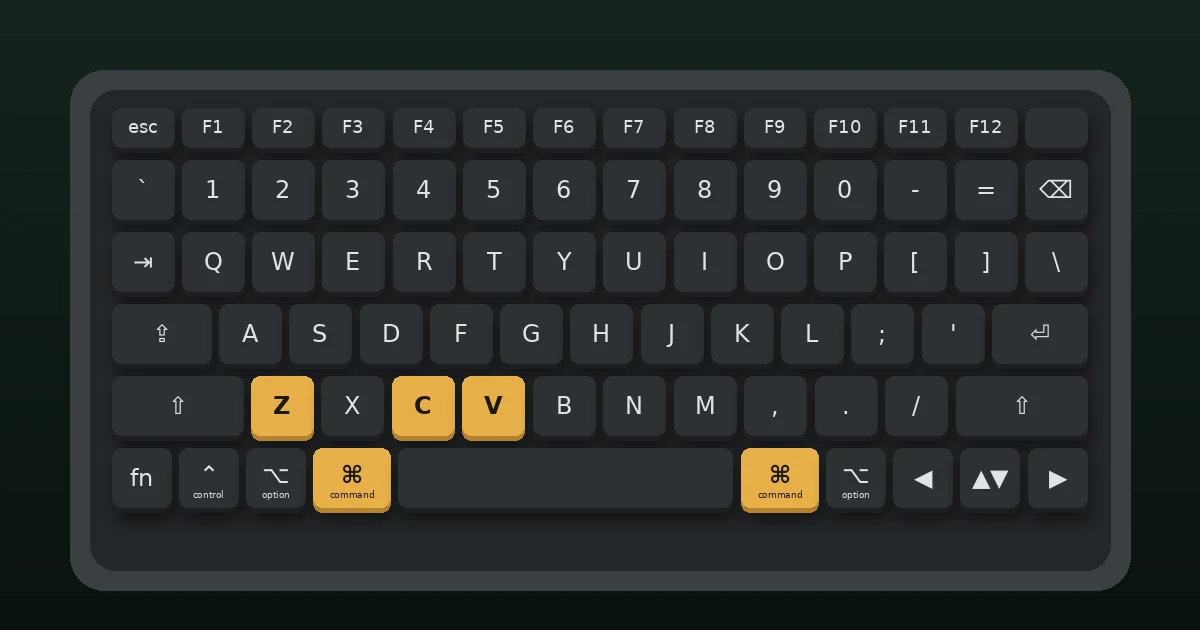
The MacBook Pro keyboard shortcuts you’ll use most are Command + C, V, and Z for copy, paste, and undo, Command + Space for Spotlight search, Shift + Command + 4 for a screenshot, and Option + Command + Esc to force quit a frozen app. Learn those six and you’re already faster than most Mac owners.
Below is the full list, grouped the way you actually work: everyday basics, screenshots, power controls, Finder, text editing, and the Fn (Globe) key. Every shortcut here was checked against Apple’s official Mac keyboard shortcuts page (last revised September 14, 2026) and works on current MacBook Pro models, with notes where an older version of macOS behaves differently.
Key Takeaways
- Command (⌘) is the Mac’s main shortcut key. Coming from Windows? Use it wherever you’d press Ctrl.
- Shift + Command + 5 opens the screenshot and screen recording toolbar on macOS Mojave and later.
- Option + Command + Esc force quits a stuck app without restarting your Mac.
- The Fn/Globe key now runs its own shortcuts, like Fn + C for Control Center and Fn + Q for a Quick Note.
- You can change or create shortcuts in System Settings > Keyboard > Keyboard Shortcuts.
Know the MacBook Pro Modifier Keys First
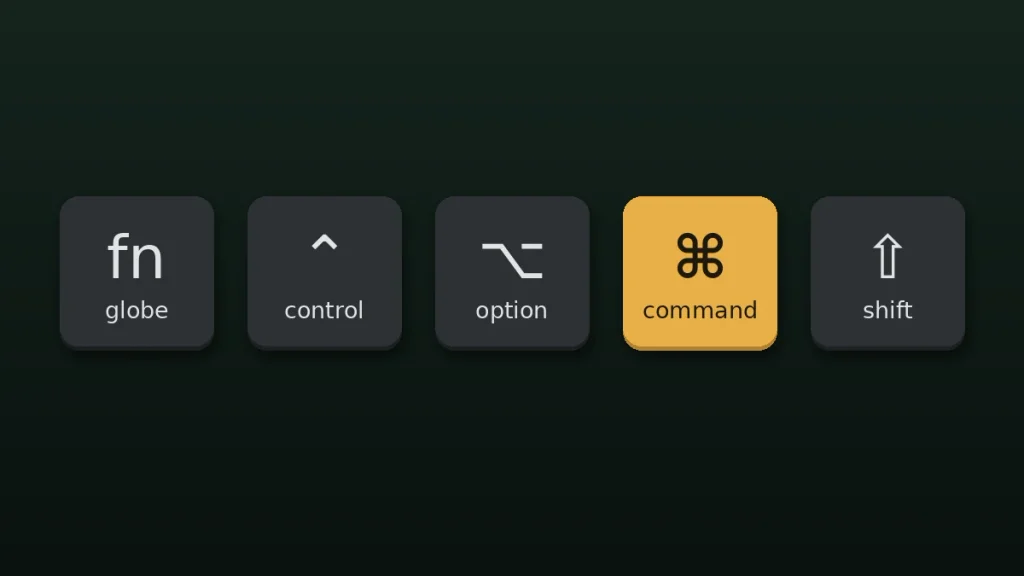
Almost every Mac shortcut starts with one or more modifier keys. Menus show them as symbols, not words, so it helps to recognize them at a glance. To run a shortcut, hold the modifiers, tap the last key, then let go of everything.
| Key | Symbol | Where it sits | Closest Windows key |
|---|---|---|---|
| Command | ⌘ | Both sides of the space bar | Ctrl |
| Option | ⌥ | Next to Command | Alt |
| Control | ⌃ | Bottom row, left side | Ctrl (for a few actions) |
| Shift | ⇧ | Same place as on any keyboard | Shift |
| Fn / Globe | fn 🌐 | Bottom-left corner | None |
One habit that trips up new switchers: Control on a Mac isn’t the copy-paste key. Its most common job is Control-click, which works as a right-click anywhere in macOS.
Everyday Mac Keyboard Shortcuts You’ll Use Every Hour
These Command key shortcuts work in nearly every app, from Safari and Mail to Microsoft Word and Google Chrome.
| Shortcut | What it does |
|---|---|
| ⌘ + C / ⌘ + X / ⌘ + V | Copy, cut, paste |
| ⌘ + Z | Undo (Shift + ⌘ + Z to redo) |
| ⌘ + A | Select all |
| ⌘ + F | Find in a document or page |
| ⌘ + S / ⌘ + P | Save / print |
| ⌘ + T | New tab |
| ⌘ + W | Close the front window (Option + ⌘ + W closes all of that app’s windows) |
| ⌘ + Q | Quit the app |
| ⌘ + Tab | Switch between open apps |
| ⌘ + ` | Switch between windows of the same app (key above Tab) |
| ⌘ + H / ⌘ + M | Hide the app / minimize the window to the Dock |
| ⌘ + , | Open the current app’s settings |
| ⌘ + Space | Open Spotlight search |
| Space bar | Quick Look preview of a selected file |
| Control + ⌘ + F | Enter or leave full screen |
| Control + ⌘ + Space or Fn + E | Open the emoji and symbols viewer |
Here’s the part nobody tells you. Closing a window with ⌘ + W doesn’t quit the app on a Mac. It keeps running in the background (you’ll see a small dot under its Dock icon), so use ⌘ + Q when you’re actually done. A faster trick: hold ⌘, tap Tab until an app is highlighted, then press Q to quit it without ever switching to it.
Mac Screenshot Shortcuts on a MacBook Pro
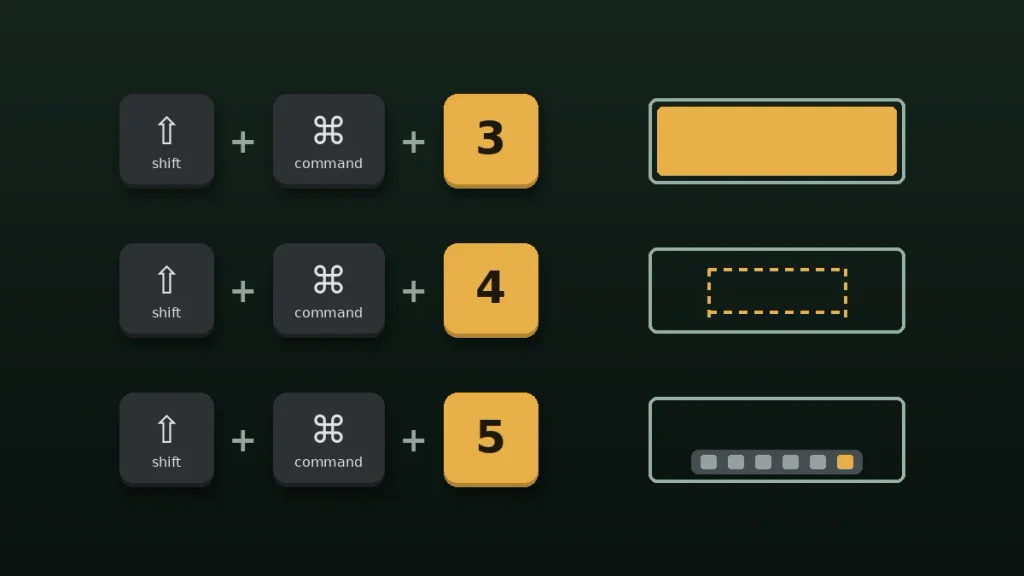
The Mac screenshot shortcut you want depends on how much of the screen you need. All three versions start with Shift + Command.
| Shortcut | What it captures |
|---|---|
| Shift + ⌘ + 3 | The entire screen |
| Shift + ⌘ + 4 | An area you drag to select |
| Shift + ⌘ + 4, then Space | A single window (click the one you want) |
| Shift + ⌘ + 5 | Opens the toolbar for screenshots and screen recordings |
| Add Control to any of the above | Copies the image to the clipboard instead of saving a file |
Screenshots land on your desktop by default. If your desktop is turning into a junk drawer, press Shift + ⌘ + 5, click Options, and pick a different save location like Documents or a dedicated Screenshots folder. Changed your mind mid-capture? Press Esc. Apple covers the extra options in its guide to taking screenshots on Mac.
How to Force Quit on Mac, Lock the Screen, and Log Out
Every current MacBook Pro has a Touch ID button in the top-right corner, and it doubles as the power button. That matters, because a few of Apple’s older power shortcuts only apply to keyboards without Touch ID.
| Shortcut | What it does |
|---|---|
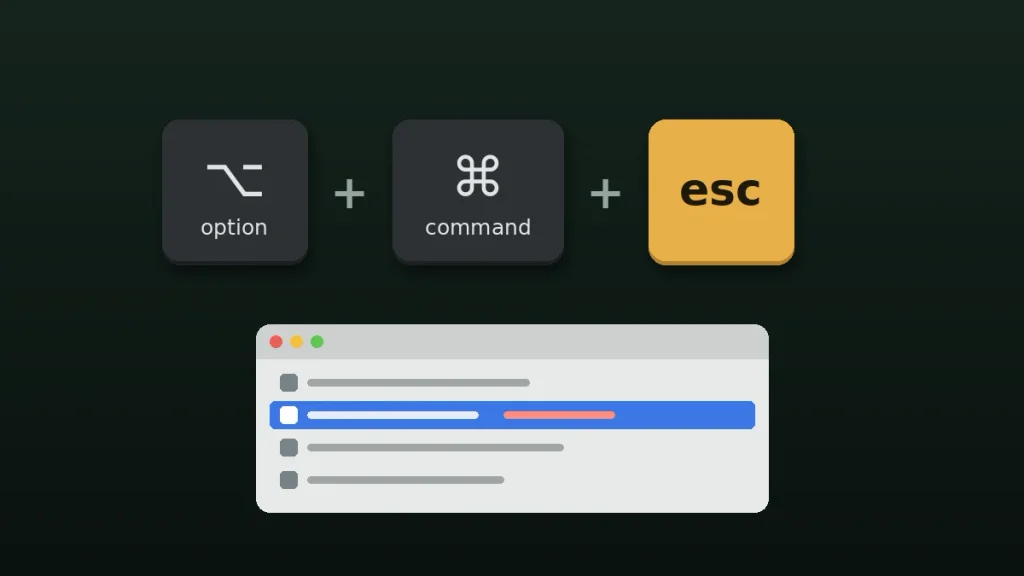
| Option + ⌘ + Esc | Open the Force Quit window |
| Control + ⌘ + Q | Lock your screen |
| Press Touch ID once | Lock your screen |
| Shift + ⌘ + Q | Log out (asks you to confirm) |
| Option + Shift + ⌘ + Q | Log out right away, no confirmation |
| Press and hold Touch ID | Force your Mac to turn off when it won’t respond |
In the Force Quit window, a frozen app usually shows “(Not Responding)” next to its name. Select it and click Force Quit. You’ll lose any unsaved changes in that app, so try ⌘ + S first if the app still reacts at all. Holding the power button is the last resort, not the first move.
Lock your screen with Control + ⌘ + Q every time you walk away, whether that’s at a Starbucks or in an open-plan office. It takes half a second and your Touch ID finger gets you back in.
Finder Shortcuts for Managing Files
Finder is where Mac keyboard shortcuts save the most clicks, especially if you handle a lot of downloads, PDFs, or photos.
| Shortcut | What it does |
|---|---|
| Shift + ⌘ + N | New folder |
| ⌘ + D | Duplicate selected files |
| ⌘ + Delete | Move to Trash |
| Shift + ⌘ + Delete | Empty the Trash |
| ⌘ + I | Get Info (size, dates, permissions) |
| Shift + ⌘ + G | Go to Folder (type any path) |
| Option + ⌘ + L | Open Downloads |
| Shift + ⌘ + R | Open AirDrop |
| ⌘ + 1, 2, 3, 4 | Icon, list, column, or gallery view |
| ⌘ + Up Arrow | Go to the parent folder |
| Shift + ⌘ + . (period) | Show or hide hidden files |
Windows users always ask how to cut and paste a file on a Mac. You don’t cut. Copy the file with ⌘ + C, open the destination folder, then press Option + ⌘ + V. That moves the file instead of making a second copy.
Text Editing Shortcuts That Save Real Time
If you write emails, reports, or blog posts all day, these are worth more than any other section. Most work in Pages, Word, Mail, Notes, and browser text boxes.
| Shortcut | What it does |
|---|---|
| Option + Delete | Delete the whole word to the left |
| Fn + Delete | Forward delete (the Mac has no separate key for it) |
| ⌘ + Left / Right Arrow | Jump to the start or end of the line |
| Option + Left / Right Arrow | Jump one word at a time |
| ⌘ + Up / Down Arrow | Jump to the top or bottom of the document |
| Add Shift to any of the three above | Select text as you move |
| ⌘ + B / I / U | Bold, italic, underline |
| ⌘ + K | Add a link |
| Option + Shift + ⌘ + V | Paste and match style |
| Control + ⌘ + D | Look up the selected word’s definition |
Paste and match style is the one I’d learn first. It strips the fonts and colors you drag in when copying from a website. One catch: Google Docs uses Shift + ⌘ + V for the same job, so the shortcut changes depending on where you’re typing. If you’re deciding which office suite to live in, our Microsoft 365 vs Google Workspace comparison breaks down how each one works on a Mac.
Fn (Globe) Key and System Shortcuts
Apple has quietly turned the Fn key into a second Command key for system features. On newer MacBook Pro models it carries a globe icon too.
- Fn + C: Show or hide Control Center
- Fn + N: Show or hide Notification Center
- Fn + A: Show or hide the Dock
- Fn + Q: Create a Quick Note
- Fn + D: Start or stop dictation
- Fn + H: Show the desktop
- Fn + Shift + A: Open Apps on macOS Tahoe 26 or later (Launchpad on earlier versions)
- Control + Up Arrow: Open Mission Control
- Control + Down Arrow: Show all windows of the current app
- Fn + Control + Left or Right Arrow: Tile the window to the left or right half of the screen (macOS Sequoia or later)
On macOS 27 Golden Gate with Siri AI (Beta) turned on, Shift + ⌘ + Space asks Siri about the window you’re looking at, and Shift + ⌘ + 6 asks about a selected area of the screen.
Make F1 to F12 Work as Standard Function Keys
The top row controls brightness, volume, and media by default. To use a key as a true F1 through F12, hold Fn while pressing it. If you’re a developer or a heavy Excel user who wants that every time, go to System Settings > Keyboard > Keyboard Shortcuts > Function Keys and turn on “Use F1, F2, etc. keys as standard function keys.” Older 13-inch MacBook Pro models with a Touch Bar show the F keys on the Touch Bar when you hold Fn.
How to Create Your Own Mac Keyboard Shortcuts
If an app doesn’t have a shortcut for something you do daily, you can add one yourself. Here’s how:
- Open System Settings > Keyboard and click Keyboard Shortcuts.
- Choose App Shortcuts, then click the + button.
- Pick the app, type the menu command exactly as it appears in the menu bar, and press the key combo you want.
The menu name has to match perfectly, including any “…” at the end. Type “Export to PDF” when the menu says “Export to PDF…” and the shortcut silently won’t work. Also avoid combos the app already uses, or you’ll override something you need.
Using a Windows keyboard with your MacBook Pro at a desk setup? The Alt key acts as Option and the Windows key acts as Command, so every shortcut on this page still works.
Start With Five, Then Add One a Week
Nobody memorizes a whole cheat sheet in one sitting. Pick five you’d use today (Spotlight, screenshot, force quit, lock screen, and paste and match style are a great start), tape them next to your trackpad, and add one new shortcut each week. Within a month, reaching for the mouse will feel slow.
Setting up a new MacBook Pro for work? Once your shortcuts are sorted, take five minutes to set up Microsoft Authenticator so your work and school accounts are protected, and if you live in spreadsheets, try our Google Maps formulas for Google Sheets next.
Frequently Asked Questions
What is the Command key on a MacBook Pro?
The Command key is the ⌘ key on both sides of the space bar. It’s the Mac’s main shortcut key and does the job Ctrl does on Windows. For example, Command + C copies, Command + V pastes, and Command + Q quits an app. Most Mac keyboard shortcuts start with Command.
How do you right-click on a MacBook Pro?
Hold the Control key and click the trackpad to right-click on a MacBook Pro. You can also tap with two fingers on the trackpad, which is the default secondary click. To change how right-click works, open System Settings, choose Trackpad, and adjust the Secondary click option to your preference.
How do I take a screenshot on a MacBook Pro?
Press Shift + Command + 3 to capture the whole screen, or Shift + Command + 4 to drag and capture part of it. Shift + Command + 5 opens a toolbar with screenshot and screen recording options. Screenshots save to the desktop by default. Add the Control key to copy the image to the clipboard instead.
How do you force quit on a MacBook Pro?
Press Option + Command + Esc to open the Force Quit window. Select the frozen app, which often shows “Not Responding,” and click Force Quit. Any unsaved work in that app will be lost. If your whole Mac is frozen, press and hold the Touch ID button until it turns off, then restart.
What is the shortcut to lock a MacBook Pro screen?
Press Control + Command + Q to lock your MacBook Pro screen instantly. On any MacBook Pro with Touch ID, a single press of the Touch ID button also locks the screen. To get back in, place your registered finger on Touch ID or type your login password. It’s a smart habit in public places.
How do I see hidden files on a Mac?
Open a Finder window and press Shift + Command + Period (.) to show hidden files and folders, which appear slightly faded. Press the same shortcut again to hide them. This is handy for finding files like .htaccess or the Library folder, but be careful not to delete or move system files you don’t recognize.