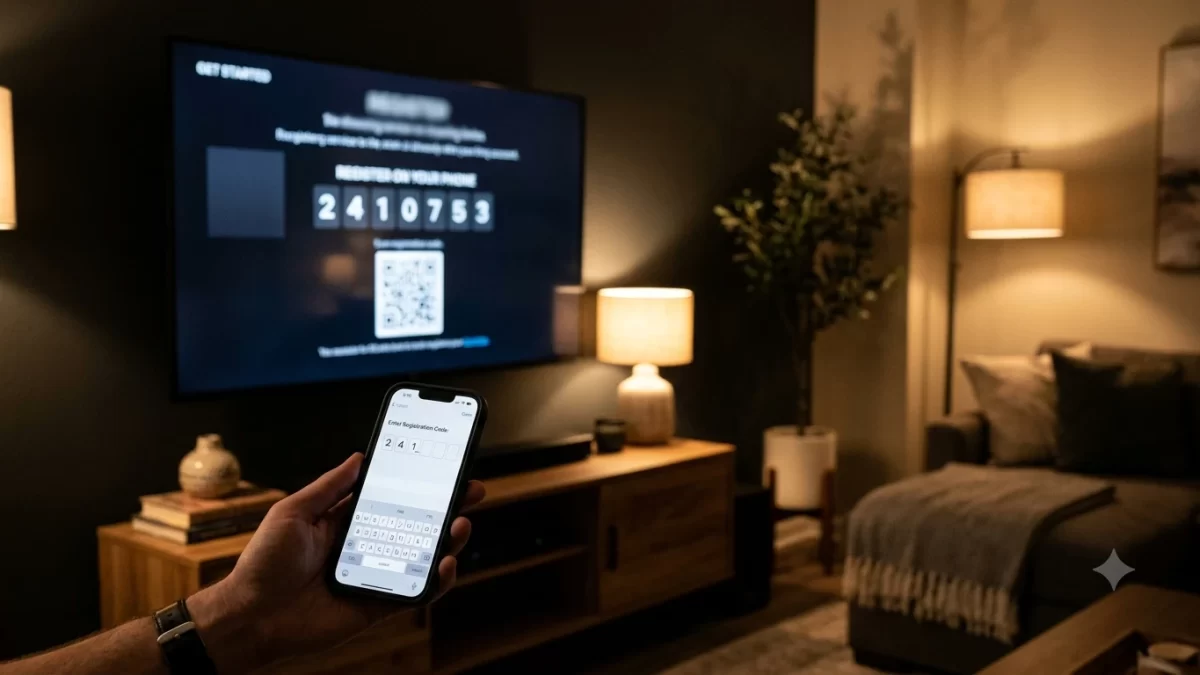
Amazon.com/mytv is Amazon’s official page for linking a TV or streaming device to your Prime Video account. Open the Prime Video app on your TV, pick Register on the website, and a short code appears. Then go to amazon.com/mytv on your phone or laptop, sign in, type the code, and your TV refreshes on its own in a few seconds.
That’s the whole process when it works. Below, I’ll walk through every step, explain what to do when the code gets rejected, and show you how to avoid the fake “Amazon support” sites that clutter search results for this exact term.
Key Takeaways
- Amazon.com/mytv is free to use. Amazon never charges a fee to register a device.
- The code on your TV expires after a short time, so enter it right away or request a new one.
- Sign in to the same Amazon account that holds your Prime or Prime Video subscription.
- Type the address straight into your browser. Don’t click ads or call phone numbers from search results.
- Outside the US, Amazon may send you to primevideo.com/mytv instead. It works the same way.
What Is Amazon.com/mytv?
Think of amazon.com/mytv as a shortcut that saves you from typing your email and password with a TV remote. Your TV shows a one-time registration code, you confirm it on a device that has a real keyboard, and Amazon links the two. Your password never gets typed on the TV at all.
It’s an official Amazon page. The full address you’ll land on is a secure amazon.com URL, and Amazon’s own Prime Video help pages point people there. If the site you’re on asks for a credit card, a “registration fee,” or remote access to your computer, you’re not on Amazon.
Which Devices Use the Amazon MyTV Code?
Most TV-connected devices that can’t easily handle a keyboard use the amazon.com/mytv code. In my experience, these are the ones that send you there most often:
- Smart TVs: Samsung, LG, Sony, Vizio, Hisense and TCL (Google TV models)
- Streaming players: Roku, Apple TV, Chromecast with Google TV, and Google TV Streamer
- Game consoles: PlayStation 5 and Xbox Series X|S
- Some Blu-ray players and older set-top boxes with the Prime Video app
Fire TV devices usually skip this step. If you bought a Fire TV Stick from Amazon, it often arrives already linked to your account. Phones and tablets don’t need it either, since you just sign in inside the Prime Video app.
How to Register Your Device at Amazon.com/mytv
Before you start, grab three things: your TV remote, a phone or computer, and your Amazon login. Make sure the TV is online first. A device that isn’t connected to the internet can’t generate a working code.
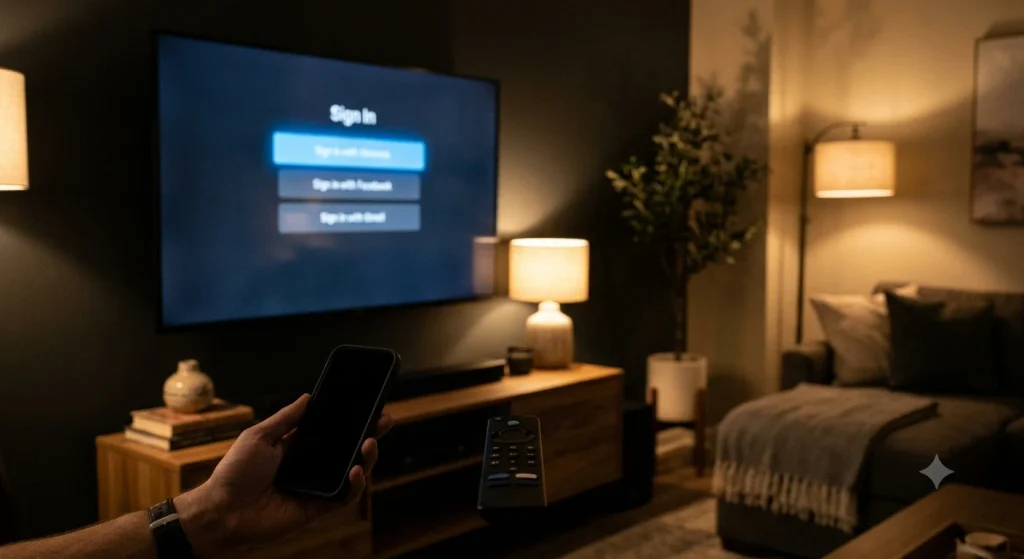
Step 1: Open Prime Video on Your TV
Launch the Prime Video app. If it isn’t installed, get it from your TV’s app store (the Roku Channel Store, Samsung’s Apps panel, LG Content Store, and so on). Updating the app first is smart, because an outdated version is a common reason the code screen won’t load.
Step 2: Choose “Register on the Website”
On the sign-in screen, pick Sign In or Register on the Amazon website. The exact wording changes by device. Your TV will then show a registration code, usually five or six letters and numbers. Some newer TVs also show a QR code you can scan with your phone’s camera, which opens the same page with fewer taps.
Step 3: Go to Amazon.com/mytv on Your Phone or Computer
Open a browser and type amazon.com/mytv directly into the address bar. Don’t search for it. This one habit protects you from almost every scam I’ll mention later. Sign in with your Amazon email or phone number and password, and complete two-step verification if you’ve turned it on.
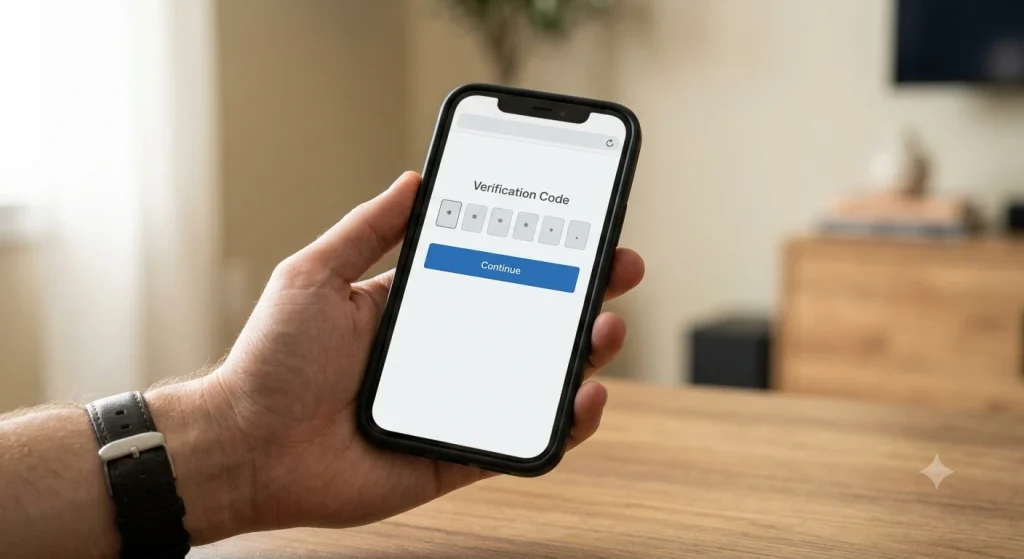
Step 4: Enter the Code and Tap Register Device
Type the code exactly as it appears on the TV, then tap Register Device. Within a few seconds, your TV should leave the code screen and load your Prime Video home page. You don’t need to press anything on the remote. If the TV hasn’t changed after about 30 seconds, back out of the app and reopen it.
Amazon MyTV Code Not Working? Try These Fixes
Most failed registrations come down to one of a handful of problems. Work through these in order, since the first two solve the majority of cases.
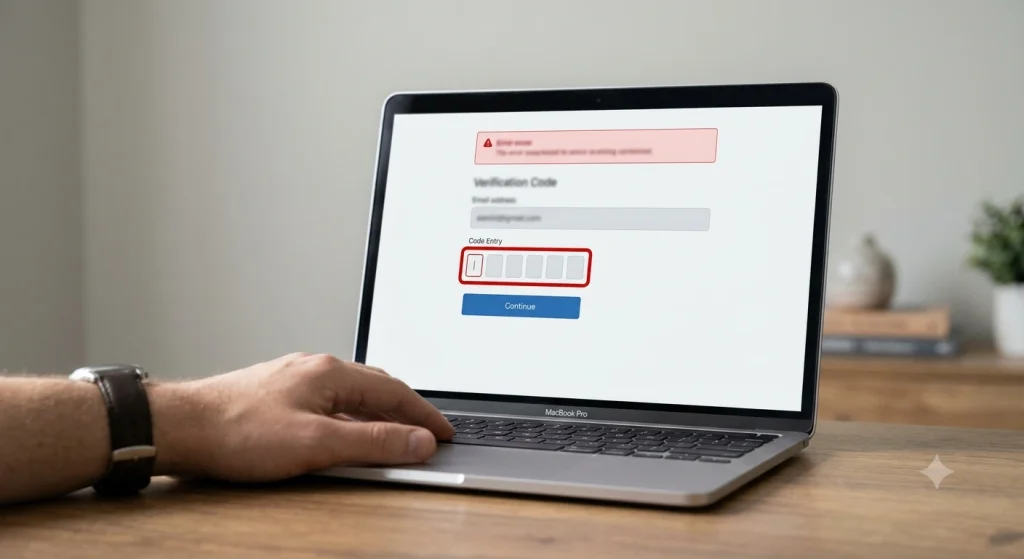
The Code Expired
Registration codes are temporary. If you went looking for your password or made a sandwich between steps, the code has probably expired. Back out of the sign-in screen on your TV, choose Register again, and use the fresh code. Never reuse an old one.
You Mistyped a Similar Character
On a TV screen across the room, certain characters look almost identical. Watch for these pairs:
| Easy to confuse | What to check |
|---|---|
| 0 (zero) and O | Zeros are often narrower on TV fonts |
| 1 (one), I and L | Walk closer to the screen if needed |
| 5 and S, 8 and B | Compare against other letters in the code |
| M and N | Count the points at the top of the letter |
You’re Signed In to the Wrong Amazon Account
This one trips up a lot of households. If your phone browser is logged in to your personal shopping account but Prime is billed to your spouse’s account, the TV will register to the wrong one and show no Prime content. Check the account name at the top of the amazon.com/mytv page before you enter the code.
Your Browser Is Causing Trouble
Ad blockers, aggressive privacy extensions, and old cached logins can break the registration page. Try a private or incognito window, or switch browsers. If you’re on a work laptop, company security software sometimes blocks the page, so use your phone instead.
The TV or App Needs a Reset
If the code screen won’t load at all, the problem is on the TV side. Close the app, unplug the TV or streaming stick for 60 seconds, and plug it back in. Still stuck? Uninstall and reinstall the Prime Video app. Also confirm the TV’s internet works by opening another app like YouTube.
Do You Need Prime to Use Amazon.com/mytv?
You need a Prime Video subscription to watch most content, but you don’t need one just to register a device. A free Amazon account can link a TV and still rent or buy movies, or watch free titles with ads.
As of November 2026, here’s what US viewers typically pay. Prices change, so confirm on Amazon’s site before you subscribe.
| Plan | US price | What you get on TV |
|---|---|---|
| Amazon Prime | $14.99/month or $139/year | Prime Video with ads, plus shipping and other perks |
| Prime Video only | $8.99/month | Prime Video with ads, no shipping perks |
| Prime Video Ultra add-on | $4.99/month or $45.99/year | Ad-free viewing and 4K where available |
Amazon moved its ad-free option to the Prime Video Ultra name on April 10, 2026. If you had the old $2.99 ad-free add-on, check your Prime Video account settings to see which plan you’re on now.
Stay Safe: Amazon.com/mytv Scams to Avoid
Search for “amazon.com/mytv” and you’ll see dozens of lookalike pages, many on free website builders, listing a “Prime support” phone number. Those aren’t Amazon. The goal is to get you on the phone, convince you something is broken, and then charge you for a fix or get remote access to your computer.
Keep these rules in mind:
- Amazon doesn’t charge any fee to register a device.
- Amazon won’t ask for remote access to your computer to activate a TV.
- Gift cards are never a valid payment for “activation” or “support.”
- The real page always lives on amazon.com (or primevideo.com outside the US).
If you’ve already called one of these numbers or paid, the Federal Trade Commission explains how to spot, avoid, and report tech support scams, including how to dispute a credit card charge and report the scam at ReportFraud.ftc.gov.
How to Remove a Device From Your Amazon Account
Selling an old TV, or checking out of an Airbnb where you signed in? Deregister it so nobody else streams on your account. On a computer, open Prime Video, go to Account & Settings, then Your Devices, and select Deregister next to the device. You can also sign out from the TV’s own Prime Video settings menu.
I’d recommend cleaning up this list once a year. It’s surprising how many old hotel TVs and dorm-room sticks pile up, and each one is a door into your account.
Your Next Step
Turn on your TV, open Prime Video, and get a fresh code. Then type amazon.com/mytv into your phone’s browser (not a search box), sign in to the account that pays for Prime, and enter the code within a minute or two. If it fails, request a new code and check the account name before trying again. For more help, see Amazon’s official Prime Video Help page.
Setting up other apps on the same TV? Our guides on how to activate Peacock on Roku, Firestick and smart TV and how to activate Paramount+ on your TV follow the same code-based process. If the TV says it’s online but nothing loads, read Wi-Fi connected but no internet for network fixes.
Frequently Asked Questions
How do I enter my Amazon code on my TV?
You don’t enter it on the TV. Open Prime Video on your TV and choose Register on the website to see the code. Then visit amazon.com/mytv on a phone or computer, sign in to your Amazon account, type the code, and tap Register Device. The TV updates automatically within seconds.
Why is my Amazon MyTV code not working?
The most common reasons are an expired code, a mistyped character such as 0 versus O, or being signed in to the wrong Amazon account. Get a fresh code from your TV, check the account name on the page, and type carefully. If the TV won’t show a code, restart it and update the Prime Video app.
Is amazon.com/mytv a legitimate Amazon website?
Yes. Amazon.com/mytv is Amazon’s official device registration page, and it’s free to use. Always type the address directly into your browser. Be cautious of lookalike sites in search results that show “support” phone numbers, ask for payment, or request remote access, because those are not run by Amazon.
What is the difference between amazon.com/mytv and primevideo.com/mytv?
Both do the same job: they link a TV or streaming device to your Prime Video account using a code. US customers usually use amazon.com/mytv, while viewers in many other countries are directed to primevideo.com/mytv. Use whichever address your TV shows, and sign in with the account that holds your subscription.
How long does an Amazon registration code last?
Amazon doesn’t publish an exact time, but registration codes are short-lived and expire after a few minutes. Enter the code right after it appears. If you see an invalid or expired message, go back on your TV, select Register again to get a new code, and use that one instead.
Can I watch Prime Video on my TV without a code?
Yes, on many devices. You can choose to sign in with your email and password using the remote, scan a QR code if your TV shows one, or use a Fire TV device that’s already linked to your account. The amazon.com/mytv code is simply the fastest option for most smart TVs.