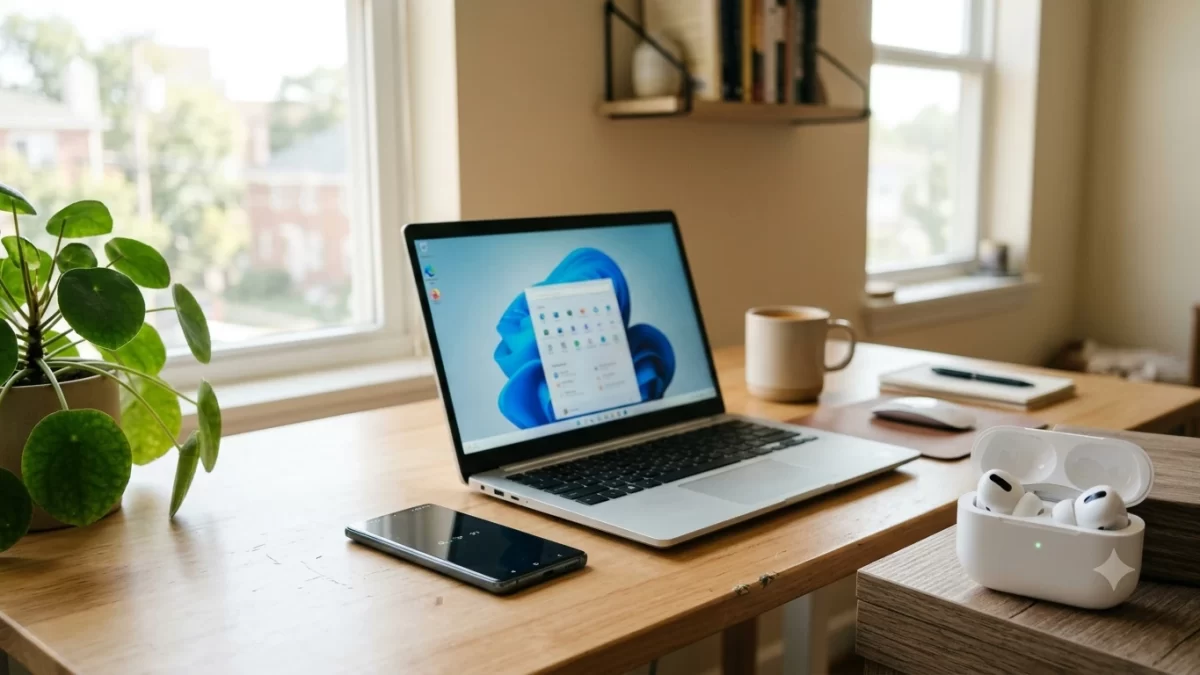
Yes, you can connect AirPods to Windows 11 and to any Android phone. AirPods are standard Bluetooth earbuds, so the whole job takes about a minute: put the case in pairing mode, open your device’s Bluetooth settings, and pick your AirPods from the list. Below you’ll find the exact steps for both, plus fixes for the hiccups people hit most often.
Key Takeaways
- To connect AirPods to Windows 11, go to Settings > Bluetooth & devices > Add device > Bluetooth while the case is in pairing mode.
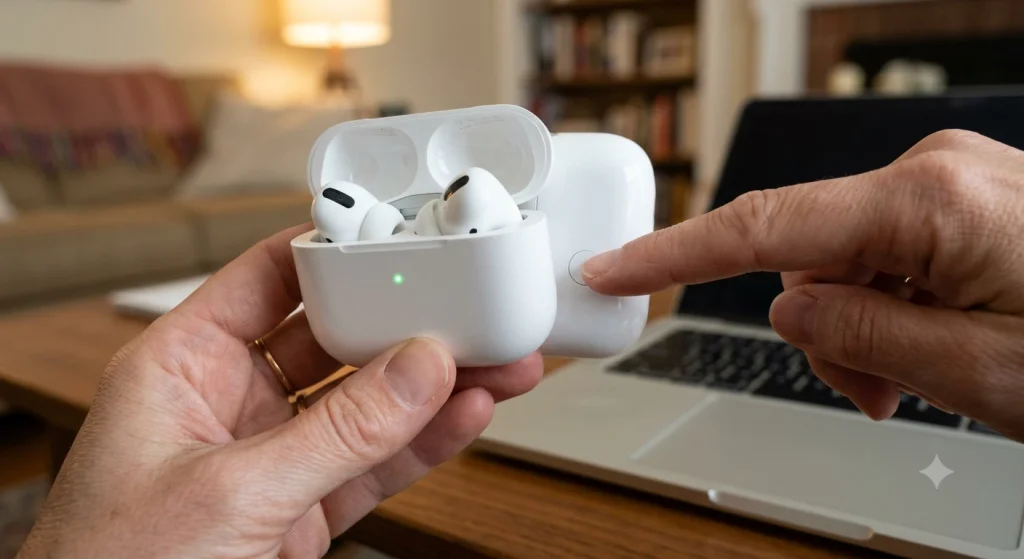
- Pairing mode means a flashing white light. Older cases use the back button; AirPods 4 and AirPods Pro 3 use a double-tap on the front of the case.
- On Android, open Settings > Connected devices > Pair new device (or Connections > Bluetooth on Samsung).
- Calls and music work fine, but Siri, automatic switching, and firmware updates need an Apple device.
- Most connection problems are fixed by removing the AirPods and pairing them again.
What You Need Before You Start
You don’t need any special app to connect AirPods to Windows 11 or Android. Check these four things first and you’ll avoid nine out of ten “it won’t show up” problems:
- Charge: Put both earbuds in the case and make sure the case has some battery. A dead case won’t enter pairing mode.
- Bluetooth on your PC: Most Windows 11 laptops have it built in. Many desktop towers don’t, so you may need a USB Bluetooth adapter (a $15 to $25 one from Best Buy or Amazon works fine).
- Distance: Keep the case within a few feet of the PC or phone while pairing, even though Bluetooth reaches roughly 30 feet once connected.
- Your iPhone nearby: If your AirPods are already linked to an iPhone, they may jump back to it. Turn off Bluetooth on the iPhone for a minute while you pair.
How to Put AirPods in Pairing Mode
This is the step that trips most people up, because the method depends on your model. You’re looking for the status light to flash white. Here’s what Apple’s official AirPods guide says for each one:
| AirPods model | How to enter pairing mode |
|---|---|
| AirPods (1st, 2nd, 3rd gen), AirPods Pro (1st, 2nd gen) | Earbuds in the case, lid open. Press and hold the setup button on the back for about 5 seconds. |
| AirPods 4 and newer, AirPods Pro 3 | Earbuds in the case, lid open. Double-tap the front of the case. |
| AirPods Max | Press and hold the noise control button for about 5 seconds. |
Not sure which you have? If there’s no button on the back of the case, you’ve got one of the newer models. Once the light is pulsing white, leave the lid open and move to your device.
How to Connect AirPods to Windows 11
There are two quick ways to connect AirPods to Windows 11. The Settings app is the most reliable, so start there if this is your first time.
Method 1: Connect AirPods to Windows 11 Through Settings
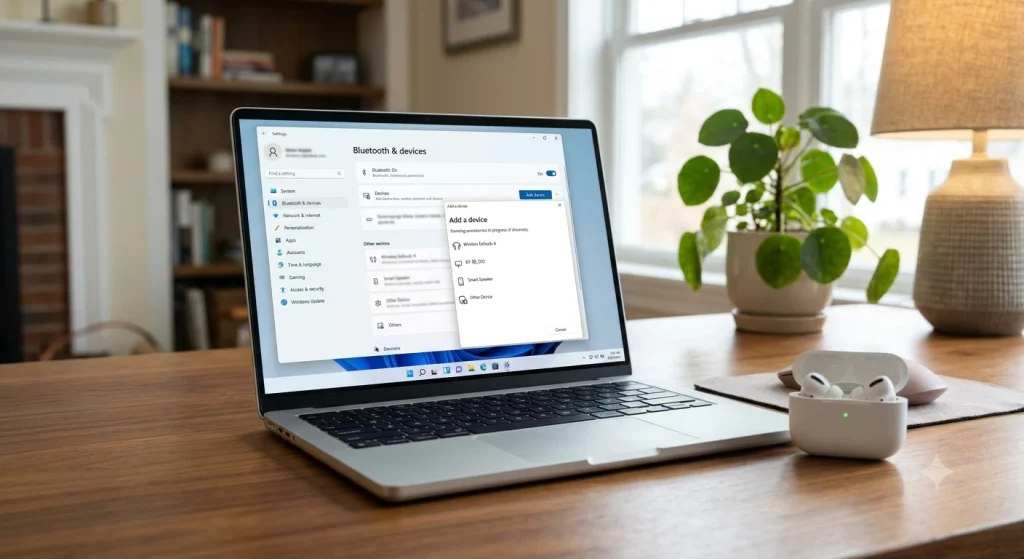
- Press Windows + I to open Settings.
- Click Bluetooth & devices in the left menu and make sure the Bluetooth toggle is On.
- Click Add device, then choose Bluetooth in the pop-up window.
- Put your AirPods in pairing mode (flashing white light).
- Click your AirPods when they appear in the list. They’ll usually show your iPhone name, like “Jake’s AirPods Pro.”
- Wait for “Your device is ready to go,” then click Done.
Method 2: Use Quick Settings or Swift Pair
This is the fastest way to connect AirPods to Windows 11 once you know it. Press Windows + A to open quick settings, click the small arrow next to the Bluetooth tile, and pick your AirPods under new devices. Windows 11 also has a feature called Swift Pair. When a device in pairing mode is nearby, a notification can pop up in the corner of your screen, and you just click Connect. Microsoft’s Bluetooth pairing guide covers both options if you want the official walkthrough.
Pick the Right Audio Output on Your PC
After you connect AirPods to Windows 11, you may see two entries in your sound settings: one labeled with your AirPods name (stereo) and one labeled Headset or “Hands-Free.” That’s normal. The stereo one gives you full quality for music and video. The Headset one turns on the microphone, but Bluetooth drops the audio to lower-quality mono while the mic is active.
My advice for work calls: use the AirPods mic only if you don’t have a better one. If your laptop has a decent built-in mic, set it as the input in Zoom or Teams and keep the AirPods as output. You’ll sound about the same and hear everyone much more clearly.
How to Connect AirPods to Android
The steps to connect AirPods to Android are nearly identical on every phone, from a Pixel to a Galaxy. Menu names change a little between brands, so here are the two most common in the US.
Google Pixel and Most Android Phones
- Open Settings and tap Connected devices.
- Tap Pair new device.
- Put your AirPods in pairing mode.
- Tap your AirPods in the list, then tap Pair to confirm.
Samsung Galaxy Phones
- Open Settings > Connections > Bluetooth and turn it on.
- Put your AirPods in pairing mode.
- Tap your AirPods under Available devices, then tap Pair.
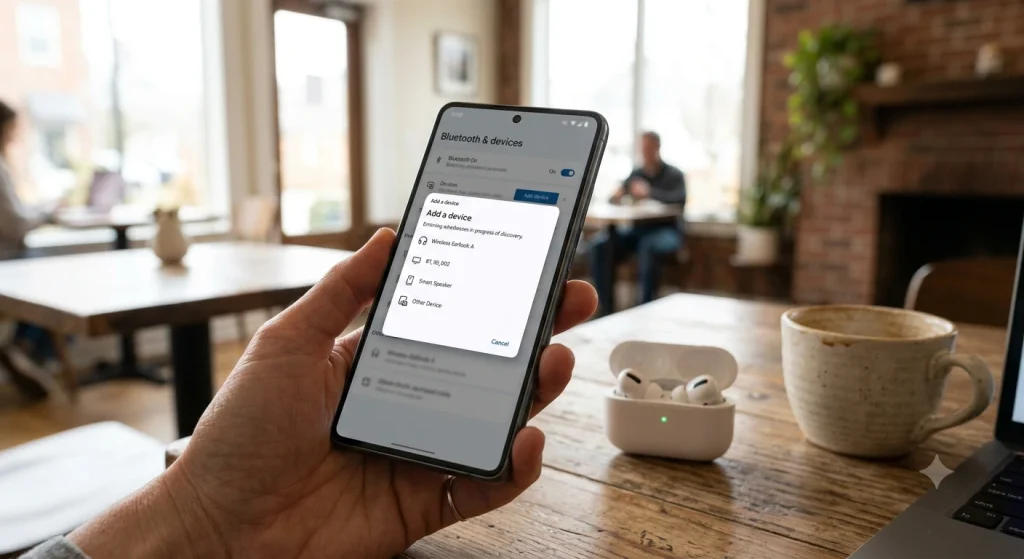
After you connect AirPods to Android once, your phone reconnects automatically whenever you open the case nearby. If you want to see battery levels like you would on an iPhone, free third-party apps such as MaterialPods or AirBattery on the Google Play Store can show them in a pop-up. They’re optional, and they don’t add Apple-only features.
What Works and What Doesn’t Outside the Apple Ecosystem
AirPods act like a regular Bluetooth headset on Windows and Android. Most of the stuff you use daily still works, but a handful of Apple extras don’t come along.
| Feature | Windows 11 | Android |
|---|---|---|
| Music, video, and calls | Yes | Yes |
| Stem or tap controls (play, pause, skip) | Yes | Yes |
| Switching noise cancellation and Transparency (Pro models, using the stem) | Yes | Yes |
| Siri | No | No |
| Automatic switching between devices | No | No |
| Spatial audio with head tracking | No | No |
| Customizing controls and firmware updates | No (needs iPhone, iPad, or Mac) | No (needs iPhone, iPad, or Mac) |
One practical tip: if you own an iPhone and also connect AirPods to Windows 11 for work, update the firmware through the iPhone now and then. Newer firmware often improves connection stability on every device, not just Apple ones.
AirPods Not Connecting to PC or Android? Try These Fixes
If you can’t connect AirPods to Windows 11 or your phone, or they keep dropping, work through these in order. Each one takes under two minutes.
- Forget and re-pair: In Windows, go to Settings > Bluetooth & devices, click the three dots next to your AirPods, and choose Remove device. On Android, tap the gear icon next to them and choose Unpair or Forget. Then pair again from scratch.
- Turn off the iPhone’s Bluetooth: AirPods prefer the last Apple device they used. Your iPhone stealing the connection is the most common cause of “connected but no sound.”
- Change Windows discovery mode: Under Bluetooth & devices > Devices, set Bluetooth devices discovery to Advanced. On some PCs, the default mode hides certain devices.
- Update the Bluetooth driver: Right-click Start, open Device Manager, expand Bluetooth, right-click your adapter, and choose Update driver. Also run Windows Update, since driver updates often arrive there.
- Reset your AirPods: On models with a back button, hold it for about 15 seconds until the light flashes amber, then white. For AirPods 4 and AirPods Pro 3, follow Apple’s reset steps for your model. After a reset, you’ll need to pair them again with every device.
- Check the sound output: If they’re connected but silent, click the speaker icon on the taskbar and pick your AirPods as the output. On Android, pull down quick settings and select them in the media output panel.
Can You Use AirPods With a PC and an Android Phone at the Same Time?
Not at the exact same time. AirPods play audio from one non-Apple device at a time, and they won’t switch automatically like they do between an iPhone and a Mac. The good news is you only pair once per device. After that, switching is quick: disconnect on one device, then click or tap Connect on the other.
For a typical workday setup, I keep the AirPods paired to both a Windows laptop and an Android phone, connect them to the laptop for meetings, and tap them over to the phone for a lunchtime walk. It’s two taps, not a re-pair.
Frequently Asked Questions
Can you connect AirPods to Windows 11?
Yes. AirPods work with any Windows 11 PC that has Bluetooth. Open Settings, select Bluetooth & devices, click Add device, then choose Bluetooth. Put the AirPods in pairing mode until the light flashes white, then select them from the list. Music, video, and calls all work, but Siri and automatic switching don’t.
Why won’t my AirPods show up on my PC?
Usually the AirPods aren’t in pairing mode, or your iPhone grabbed the connection first. Turn off the iPhone’s Bluetooth, open the case, and hold the back button or double-tap the case until the light flashes white. If they still don’t appear, set Windows Bluetooth discovery to Advanced and update your Bluetooth driver.
Do AirPods work well with Android phones?
Yes, for everyday listening and calls. They pair like any Bluetooth earbuds and the touch or stem controls still work, including noise control on Pro models. You’ll miss Siri, automatic device switching, spatial audio head tracking, and firmware updates, which need an iPhone, iPad, or Mac. Battery pop-ups require a third-party app.
Is the AirPods microphone good on Windows calls?
It works, but quality drops. When the mic is active, Windows switches to the Bluetooth hands-free profile, which uses lower-quality mono audio. For Zoom or Teams, many people get better results by using the laptop’s built-in microphone for input while keeping AirPods selected as the speaker output.
Can AirPods connect to two devices at once on Windows and Android?
No. AirPods play from one non-Apple device at a time and don’t switch automatically outside Apple’s ecosystem. You can keep them paired to both a PC and an Android phone, though. To switch, disconnect them on one device and click Connect on the other. There’s no need to pair again.
Your Next Step
Grab your AirPods case, put it in pairing mode, and connect AirPods to Windows 11 first using the Settings method above. Then connect AirPods to Android the same way so both are saved and ready. If your laptop gives you trouble after pairing, see our guide on fixing a laptop that turns on but shows a black screen, and if you’re setting up a new Android phone, our walkthrough on how to set up Microsoft Authenticator is a smart next move for securing your accounts.