This terminal commands cheat sheet covers the commands people use every day on a Mac or Linux computer: moving between folders with cd, listing files with ls, copying with cp, searching with grep, and managing permissions and running programs. Everything below works in zsh (the default shell on macOS) and in Bash on Linux unless a row says otherwise.
Key Takeaways
- About 15 commands (
pwd,ls,cd,cp,mv,rm,mkdir,cat,grepand a few more) handle most daily terminal work. - Mac and Linux share almost all basic commands. The differences show up in flags, package managers, and a few Mac-only tools like
openandpbcopy. rmskips the Trash. Deleted files are gone, so userm -iuntil you trust yourself.- Press Tab to autocomplete and Ctrl+R to search past commands. Those two habits save more time than any single command.
- On Windows, install WSL to get a real Linux terminal where every command here works.
How to Open the Terminal on Mac, Linux, and Windows
On a Mac, press Command+Space, type “Terminal,” and hit Return. You’ll find it in Applications > Utilities too. Apple has used zsh as the default shell since macOS Catalina in 2019, and Apple’s own Terminal User Guide covers windows, profiles, and settings.
On most Linux desktops (Ubuntu, Fedora, Linux Mint), press Ctrl+Alt+T. On Windows, open Windows Terminal or PowerShell from the Start menu.
Basic Terminal Commands for Getting Around
The terminal always has a “current folder,” called the working directory. Most confusion for beginners comes from running a command in the wrong folder, so start every session by checking where you are.
| Command | What it does |
|---|---|
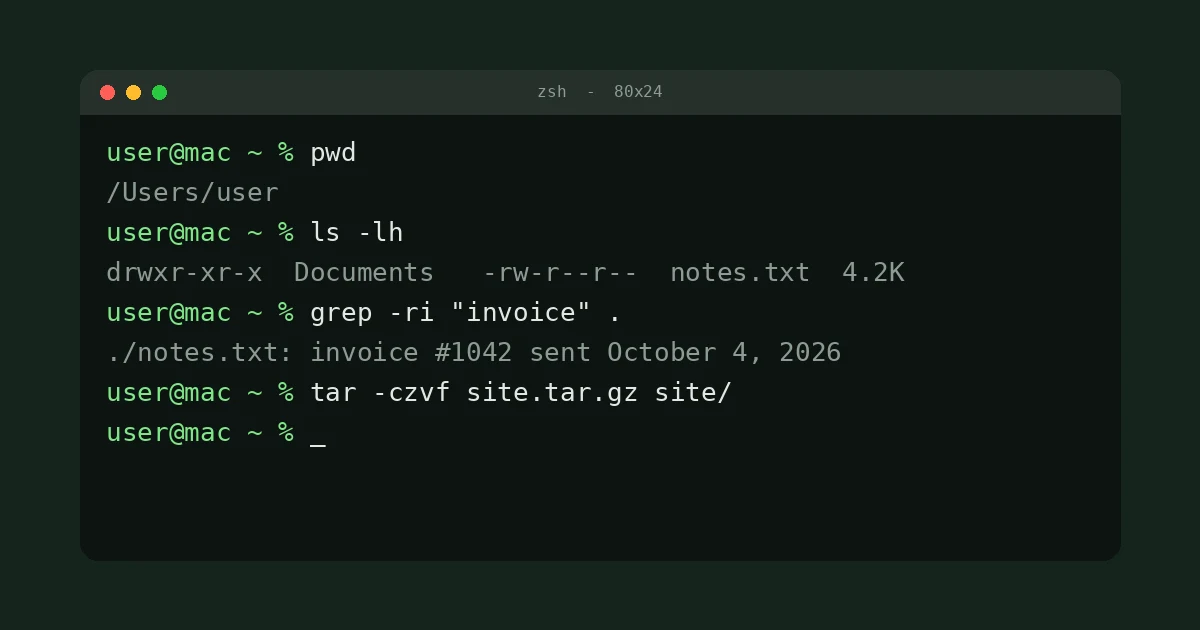
pwd | Prints the folder you’re in right now |
ls | Lists files and folders in the current folder |
ls -la | Lists everything, including hidden files, with details |
ls -lh | Shows file sizes in KB, MB, and GB instead of bytes |
cd Documents | Moves into the Documents folder |
cd .. | Goes up one level |
cd ~ or cd | Jumps to your home folder |
cd - | Returns to the previous folder you were in |
clear | Clears the screen |
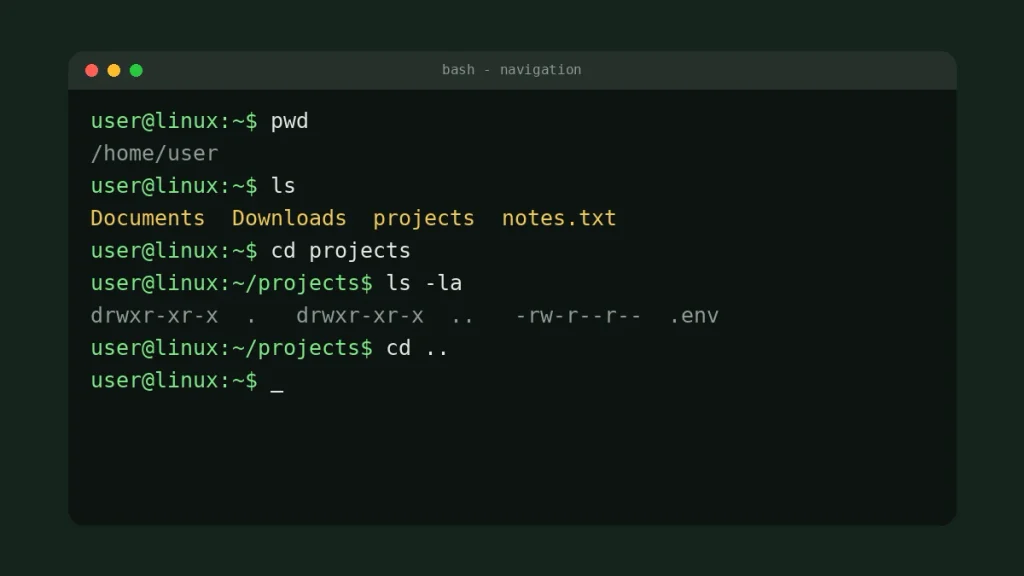
A small tip that helps a lot: folder names with spaces need quotes, like cd "Tax Returns 2025". Or just type the first few letters and press Tab, and the shell fills in the name with the spaces handled for you.
File and Folder Commands
These are the commands you’ll use to create, copy, move, and delete things. They’re fast, and that’s both the appeal and the risk.
| Command | What it does |
|---|---|
touch notes.txt | Creates an empty file (or updates the timestamp of an existing one) |
mkdir projects | Creates a new folder |
mkdir -p work/2026/reports | Creates nested folders in one step |
cp file.txt backup.txt | Copies a file |
cp -R photos photos-backup | Copies a whole folder and everything inside it |
mv file.txt Documents/ | Moves a file into another folder |
mv old.txt new.txt | Renames a file (there’s no separate rename command) |
rm file.txt | Deletes a file permanently |
rm -i file.txt | Asks for confirmation before deleting |
rm -r folder | Deletes a folder and everything in it |
rmdir folder | Deletes a folder only if it’s empty |
One Safety Rule for rm
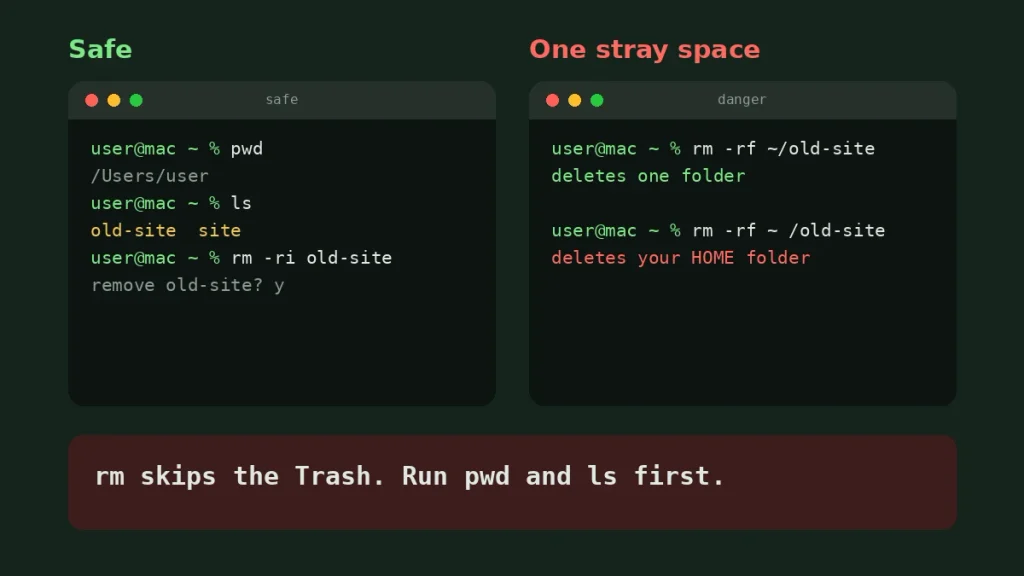
Files you delete with rm don’t go to the Trash or Recycle Bin. There’s no undo. Before you run rm -r or rm -rf, run pwd and ls first so you know exactly what’s in front of you.
Also watch your spaces. rm -rf ~/old-site deletes one folder. Add an accidental space, as in rm -rf ~ /old-site, and you’ve told it to delete your entire home folder. That’s a real mistake people make, usually late at night.
Viewing and Searching Files
You can read and search files without opening an app. This is where the terminal starts to feel faster than clicking around.
| Command | What it does |
|---|---|
cat file.txt | Prints the whole file to the screen |
less file.txt | Opens a scrollable view (press q to quit) |
head -n 20 file.txt | Shows the first 20 lines |
tail -n 20 file.txt | Shows the last 20 lines |
tail -f app.log | Watches a log file live as new lines are added |
grep "invoice" notes.txt | Finds lines containing “invoice” |
grep -ri "invoice" . | Searches every file in this folder and below, ignoring case |
find . -name "*.pdf" | Finds all PDF files under the current folder |
wc -l file.txt | Counts the lines in a file |
Use less instead of cat for anything longer than a screen. cat on a 50 MB log file will flood your window, and you’ll end up hitting Ctrl+C anyway.
Permissions and sudo
Every file has permissions for reading, writing, and running. You’ll mostly touch these when a script won’t run or a file says “Permission denied.”
| Command | What it does |
|---|---|
chmod +x script.sh | Makes a script executable |
chmod 755 script.sh | Owner can read, write, run; everyone else can read and run |
chmod 644 file.txt | Owner can read and write; everyone else can only read |
chown user file.txt | Changes who owns a file (usually needs sudo) |
sudo command | Runs a command as an administrator |
sudo !! | Reruns your last command with sudo |
Treat sudo like a master key. It asks for your account password, and after that it can change anything on the system. If a random website tells you to paste a sudo command you don’t understand, don’t.
Processes and System Info
When your computer feels slow or an app freezes, these commands show what’s running and let you stop it.
topshows live CPU and memory use. Press q to quit.ps auxlists every running process with its ID (PID).ps aux | grep chromefinds the process you’re looking for.kill 1234asks process 1234 to close.kill -9 1234forces it, and should be your last resort because the program gets no chance to save.df -hshows free disk space.du -sh *shows how big each item in the current folder is. Great for finding what’s eating your drive.whoamianduname -aprint your username and system details.
Networking, Downloads, and Compression
| Command | What it does |
|---|---|
ping -c 4 google.com | Tests your connection with 4 pings (without -c it runs until you press Ctrl+C) |
curl -O https://example.com/file.zip | Downloads a file into the current folder |
ssh user@server.com | Logs in to a remote computer |
scp file.txt user@server.com:~/ | Copies a file to a remote computer |
tar -czvf site.tar.gz site/ | Compresses a folder into a .tar.gz file |
tar -xzvf site.tar.gz | Extracts a .tar.gz file |
zip -r site.zip site/ | Creates a .zip file |
unzip site.zip | Extracts a .zip file |
An easy way to remember the tar flags: create or extract, zip it with gzip, verbose, file name comes next.
Redirection and Pipes
This is the part that makes the terminal powerful. You can send one command’s output into a file or into another command.
ls > files.txtsaves the output to a file, replacing what was there.echo "done" >> log.txtadds a line to the end of a file.history | grep sshsends one command’s output into another. Here it finds every ssh command you’ve run.mkdir test && cd testruns the second command only if the first one worked.
Be careful with a single >. Point it at an existing file and that file’s contents are replaced without a warning.
Terminal Keyboard Shortcuts That Save the Most Time
| Shortcut | What it does |
|---|---|
| Tab | Autocompletes file, folder, and command names |
| Up / Down arrow | Scrolls through previous commands |
| Ctrl+R | Searches your command history as you type |
| Ctrl+C | Stops the command that’s running |
| Ctrl+L | Clears the screen (same as clear) |
| Ctrl+A / Ctrl+E | Jumps to the start or end of the line |
| Ctrl+D | Closes the current shell session |
Ctrl+Z, then fg | Pauses a running program, then brings it back |
Mac users, note that these use the Control key, not Command. Command+K in Terminal on a Mac clears the screen and the scrollback. If you want the rest of the Mac’s shortcuts in one place, see our guide to MacBook Pro keyboard shortcuts.
Mac Terminal Commands vs Linux Terminal Commands
Mac and Linux both come from the Unix family, so the basics match. macOS ships BSD versions of many tools while most Linux distributions use GNU versions, which is why some flags behave a little differently.
| Task | Mac | Linux (Ubuntu) |
|---|---|---|
| Install software | brew install wget (Homebrew, a free add-on) | sudo apt install wget |
| Update software | brew upgrade | sudo apt update && sudo apt upgrade |
| Open a folder in the file browser | open . | xdg-open . |
| Copy output to clipboard | pbcopy | xclip (install first) |
| Show network info | ifconfig | ip a |
| Quick help for a command | man ls | ls --help or man ls |
| Keep the computer awake | caffeinate | Depends on the desktop |
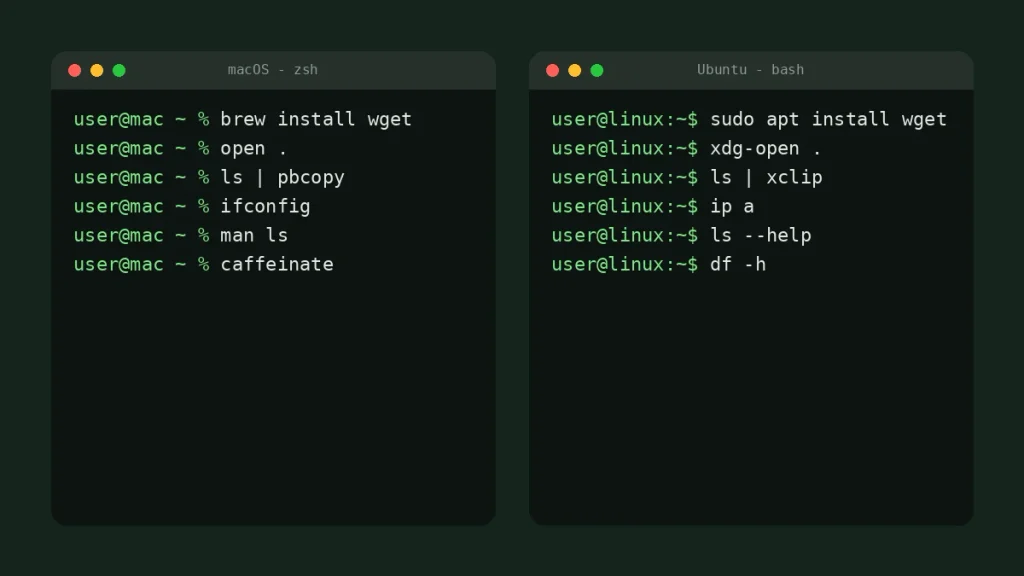
Fedora users swap apt for dnf. And here’s a detail that trips people up: --help works on most Linux commands but often errors out on the Mac versions, so on a Mac, reach for man instead.
What About Windows?
PowerShell understands a handful of these names (ls, cd, pwd, cp, mv, rm, cat) because it maps them to its own commands, but the flags are different and tools like grep aren’t there. The better route is the Windows Subsystem for Linux. Run wsl --install in an administrator PowerShell window, restart, and you get a full Ubuntu terminal. Microsoft’s WSL installation guide walks through it.
How to Get Help Without Leaving the Terminal
Type man followed by any command, like man grep, to read its full manual. Use the arrow keys to scroll, type / plus a word to search, and press q to quit. For the Linux versions of core tools, the GNU Coreutils documentation is the official reference.
Where to Go From Here
Pick three commands from this terminal commands cheat sheet and use them today instead of clicking: cd into a project folder, ls -la to see what’s there, and grep -ri to find something inside it. After a week, add the file commands and Ctrl+R. Bookmark this page so you can come back when you forget a flag.
If you’re starting to write code, pair the terminal with a good editor from our list of the best free code editors for developers. And if you live in spreadsheets too, our Excel shortcuts cheat sheet uses the same idea: learn a few keys, save hours.
Frequently Asked Questions
What are the most basic terminal commands?
The most basic terminal commands are pwd (show your current folder), ls (list files), cd (change folders), mkdir (make a folder), cp (copy), mv (move or rename), rm (delete), and cat (show a file’s contents). Learn these eight first. They cover most everyday tasks on Mac and Linux, and every other command builds on them.
How do I open the terminal on a Mac?
Press Command+Space to open Spotlight, type Terminal, and press Return. You can also open Finder, go to Applications, then Utilities, and double-click Terminal. To keep it handy, right-click its icon in the Dock and choose Keep in Dock. Since macOS Catalina, Terminal uses zsh as its default shell.
Are Mac and Linux terminal commands the same?
Mostly, yes. Commands like ls, cd, cp, mv, grep, and chmod work on both because both systems come from Unix. The differences are in some flags, since macOS uses BSD versions of tools and Linux uses GNU versions, plus package managers (Homebrew on Mac, apt or dnf on Linux) and a few Mac-only commands.
How do I stop a command that’s running in the terminal?
Press Ctrl+C to stop most running commands right away. If a program ignores it, open a second terminal window, find its process ID with ps aux, and run kill followed by that ID. Use kill -9 only as a last resort, because it force-quits the program without giving it a chance to save.
Is rm -rf dangerous?
Yes, rm -rf is one of the riskiest terminal commands. It deletes folders and everything inside them without asking, and the files skip the Trash, so there’s no undo. Always run pwd and ls first to confirm your location, double-check the path for stray spaces, and never run it with sudo unless you fully understand the target.
How do I clear the terminal screen?
Type clear and press Enter, or press Ctrl+L on Mac or Linux. Both wipe the visible screen but keep your command history, so the up arrow still works. On a Mac, Command+K in the Terminal app clears the screen and the scrollback buffer too. In Windows PowerShell, cls and clear both work.