This Excel shortcuts cheat sheet covers the keys that actually save time: Ctrl+Arrow to jump through data, F4 to lock cell references, Alt+= for instant sums, Ctrl+1 to format cells, and Ctrl+; to stamp today’s date. Learn the first ten below and you’ll feel the difference by the end of the week.
Every shortcut here was checked against Microsoft’s official list of Excel keyboard shortcuts, which covers Excel for Microsoft 365, Excel 2024, 2021, 2019, and 2016 on a US keyboard. Mac users, your versions are in their own section further down.
Key Takeaways
- Start with 10 shortcuts, not 100. Ctrl+Arrow, Ctrl+Shift+Arrow, F4, Alt+=, and Ctrl+1 cover most daily work.
- F4 does two jobs: it locks cell references inside a formula and repeats your last action everywhere else.
- On a Mac, Command usually replaces Ctrl, but not always. Control+; still inserts the date.
- Laptop function keys often need the Fn key first, which is the top reason shortcuts seem to stop working.
- Tap Alt on Windows and Excel shows a letter for every ribbon button, so you never have to memorize those.
The 10 Excel Shortcuts to Learn First
If you only bookmark one table, make it this one. These are the keys I’d teach a new analyst on day one, because they replace the mouse moves you make hundreds of times a day.
| Shortcut (Windows) | What it does | Why it matters |
|---|---|---|
| Ctrl+Arrow key | Jumps to the edge of the current data block | Gets you from row 2 to row 48,000 in one keystroke |
| Ctrl+Shift+Arrow key | Selects from the active cell to the edge of the data | Grabs a full column without dragging |
| F4 | Locks a reference ($A$1) or repeats the last action | Fixes formulas that break when copied |
| Alt+= | Inserts a SUM formula | Totals a column in under a second |
| Ctrl+1 | Opens the Format Cells dialog | Every number, border, and alignment option in one place |
| Ctrl+Z / Ctrl+Y | Undo / redo or repeat | Your safety net |
| Ctrl+; | Enters today’s date | A fixed date that won’t change tomorrow |
| Ctrl+T | Turns a range into a table | Filters, banded rows, and formulas that fill themselves |
| Ctrl+Alt+V | Opens Paste Special | Paste values only, formats only, or column widths |
| Ctrl+Page Down / Page Up | Moves to the next or previous worksheet | Flip between tabs without reaching for the mouse |
Excel Keyboard Shortcuts for Moving Around a Sheet
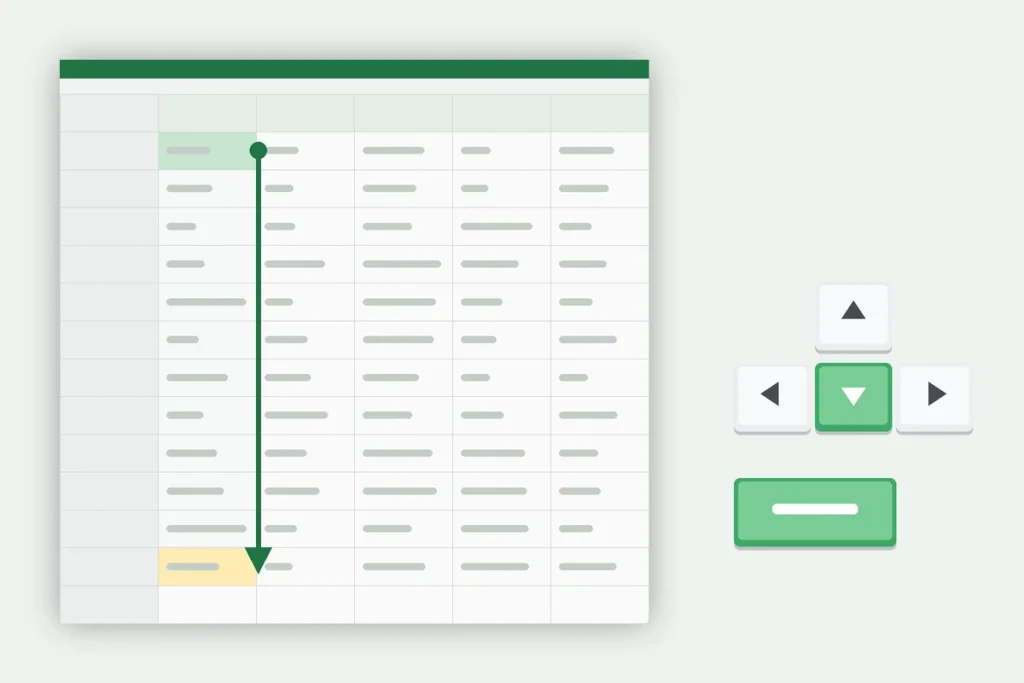
Navigation is where shortcuts pay off fastest. Scrolling through a 10,000-row bank export is slow and imprecise. Ctrl+Down Arrow gets you to the bottom instantly.
| Shortcut | What it does |
|---|---|
| Ctrl+Home | Goes to cell A1 |
| Ctrl+End | Goes to the last used cell on the sheet |
| Ctrl+Arrow key | Moves to the edge of the current data region |
| Page Down / Page Up | Moves one screen down or up |
| Alt+Page Down / Alt+Page Up | Moves one screen right or left |
| Ctrl+G or F5 | Opens Go To, so you can type a cell like Z500 and jump there |
| Ctrl+F | Finds text or numbers on the sheet |
| Ctrl+Page Down / Page Up | Switches to the next or previous sheet |
Here’s a catch most guides skip: Ctrl+Arrow stops at the first blank cell. If your data has gaps, you’ll land halfway down the column and think you’ve hit the end. Glance at the row number before you trust it.
Ctrl+End has its own quirk. It goes to the last cell Excel thinks you used, which can sit far below your real data if you once typed something there and deleted it. Saving and reopening the workbook usually resets it.
Shortcuts for Selecting Rows, Columns, and Ranges
| Shortcut | What it does |
|---|---|
| Shift+Arrow key | Extends the selection by one cell |
| Ctrl+Shift+Arrow key | Extends the selection to the edge of the data |
| Ctrl+Spacebar | Selects the entire column |
| Shift+Spacebar | Selects the entire row |
| Ctrl+A | Selects the current data region; press again for the whole sheet |
| Shift+F8 | Adds a non-adjacent range to your selection |
| Alt+; | Selects only the visible cells in a range |
| Ctrl+Shift+Plus sign | Inserts cells, rows, or columns |
| Ctrl+Minus sign | Deletes the selected cells, rows, or columns |
Alt+; is the one people wish they’d learned years earlier. Filter a customer list down to Texas, copy it, and a plain copy can drag hidden rows along with it. Press Alt+; before Ctrl+C and Excel copies only what you can see.
Selection plus delete is a fast combo too. Press Shift+Spacebar to grab a row, Shift+Down twice to add two more, then Ctrl+Minus. Three rows gone, no right-clicking.
Excel Formula Shortcuts That Save the Most Time
| Shortcut | What it does |
|---|---|
| Alt+= | Inserts a SUM formula for the cells above or to the left |
| F4 | Cycles a selected reference through absolute, mixed, and relative |
| F2 | Edits the active cell with the cursor at the end |
| Shift+F3 | Opens Insert Function |
| Ctrl+` (grave accent) | Shows formulas instead of results |
| Ctrl+’ (apostrophe) | Copies the formula from the cell above |
| Ctrl+Shift+A | Inserts argument names after a function name |
| F9 / Shift+F9 | Recalculates all open workbooks / just the active sheet |
| Ctrl+Shift+U | Expands or collapses the formula bar |
How F4 Works (With a Real Example)
Say column B holds prices and cell E1 holds your state sales tax rate, 6% if you’re in Pennsylvania. In C2 you type =B2*E1 and copy it down. Row 3 now points at E2, which is empty, and every result after the first is zero.
To fix it, click into the formula, put your cursor on E1, and press F4. It becomes $E$1 and stays locked when you copy. Press F4 again to cycle through E$1 (row locked), $E1 (column locked), and back to E1.
Outside a formula, F4 repeats your last action. Fill one cell yellow, click another, press F4, and it turns yellow too. It works for inserting rows and applying borders as well.
Use Ctrl+` to Audit a Sheet
Ctrl+` (the key left of the 1, under Esc) flips the whole sheet to show formulas instead of results. It’s the fastest way to catch a hard-coded number hiding in a column that should be all formulas. Press it again to switch back.
Excel Shortcut Keys for Formatting
| Shortcut | What it does |
|---|---|
| Ctrl+1 | Opens Format Cells |
| Ctrl+B / Ctrl+I / Ctrl+U | Bold / italic / underline |
| Ctrl+5 | Strikethrough |
| Ctrl+Shift+$ | Currency format, two decimals, negatives in parentheses |
| Ctrl+Shift+% | Percentage format, no decimals |
| Ctrl+Shift+! | Number format with comma separator and two decimals |
| Ctrl+Shift+# | Date format |
| Ctrl+Shift+@ | Time format with AM or PM |
| Ctrl+Shift+~ | General format (clears number formatting) |
| Ctrl+Shift+& / Ctrl+Shift+_ | Adds / removes an outline border |
| Ctrl+9 / Ctrl+0 | Hides selected rows / columns |
The number formats are easy to remember once you notice they follow the symbol on each key. The $ sits on 4 and the % sits on 5, so Ctrl+Shift+4 is currency and Ctrl+Shift+5 is percent.
One trap with percentages: 0.06 becomes 6%, but a cell holding 6 becomes 600%. Either type the decimal or apply the format before you enter the numbers.

Data Entry and Editing Shortcuts
| Shortcut | What it does |
|---|---|
| Alt+Enter | Starts a new line inside the same cell |
| Ctrl+Enter | Fills every selected cell with what you typed |
| Ctrl+D / Ctrl+R | Fills down / fills right |
| Ctrl+; / Ctrl+Shift+: | Enters the current date / current time |
| Ctrl+E | Runs Flash Fill |
| Ctrl+Shift+L | Turns filter buttons on or off |
| Shift+F2 | Adds or edits a note |
| Ctrl+K | Inserts a hyperlink |
| Ctrl+Q | Opens Quick Analysis for selected data |
Ctrl+Enter is a quiet favorite. Select 200 blank cells, type “N/A,” press Ctrl+Enter, and all 200 fill at once.
Flash Fill (Ctrl+E) feels like magic the first time. With full names like “Maria Lopez” in column A, type “Maria” in B2, move to B3, and press Ctrl+E. Excel fills every first name down the column. It also works for pulling ZIP codes out of addresses or reformatting phone numbers.
Know the difference between Ctrl+; and =TODAY(). The shortcut stamps a fixed date, while TODAY() updates every time the file opens. Use the shortcut for invoices and logs, and the formula for “days until due” math.
For pasting values only (the most common Paste Special job), press Ctrl+Alt+V, then V, then Enter. Old-school users can still press Alt, E, S, which Microsoft keeps for backward compatibility.
Ribbon Shortcuts: Tap Alt and Follow the Letters
Every ribbon button has a keyboard path, and you don’t have to memorize them. Tap Alt and letters appear over each tab: H for Home, N for Insert, A for Data, M for Formulas, W for View. Press one and the buttons on that tab get letters too.
A few sequences are worth knowing by heart:
- Alt, H, O, I autofits column width to the contents.
- Alt, W, F, F freezes panes above and left of the active cell.
- Alt, H, B opens the borders menu.
- Alt+Q jumps to the Search box, where you can type any command by name.
Press the keys one after another, not all at once. That trips up a lot of people the first time.
Excel Shortcuts for Mac: What Changes
Most Mac shortcuts swap Ctrl for Command, so Command+C, Command+V, Command+Z, Command+S, and Command+1 work the way you’d expect. A handful of everyday ones are different, and these are the ones that catch switchers.
| Action | Windows | Mac |
|---|---|---|
| AutoSum | Alt+= | Command+Shift+T |
| Toggle absolute reference | F4 | Command+T |
| Insert current date | Ctrl+; | Control+; |
| Insert current time | Ctrl+Shift+: | Command+; |
| Jump to edge of data | Ctrl+Arrow | Command+Arrow |
| Select to edge of data | Ctrl+Shift+Arrow | Command+Shift+Arrow |
| Format Cells | Ctrl+1 | Command+1 |
| Strikethrough | Ctrl+5 | Command+Shift+X |
| Fill down | Ctrl+D | Command+D |
| Close workbook | Ctrl+W | Command+W |
On a MacBook, the top row controls brightness and volume by default, so any F-key shortcut needs the fn key held down. If you live in Excel, go to System Settings, then Keyboard, then Keyboard Shortcuts, then Function Keys, and turn on the option to use F1, F2, and the rest as standard function keys.

Why Your Excel Shortcuts Aren’t Working
- Laptop function keys. Many Windows laptops from Dell, HP, and Lenovo default the F-keys to media controls. Hold Fn with the key, or turn on Fn Lock (Fn+Esc on many models).
- You’re still in edit mode. When the cursor is blinking inside a cell, keys like Ctrl+Spacebar behave differently. Press Enter or Esc first.
- Another app grabbed the keys. Screen recorders, chat apps, and Windows language settings can take over certain combos. Ctrl+Shift+0 (unhide columns) is a well-known victim.
- A non-US keyboard layout. Microsoft’s list assumes a US layout, so symbol keys may sit in different spots.
- Excel in a browser. Excel for the web can lose shortcuts like Ctrl+W or Ctrl+N to the browser itself.
How to Make These Shortcuts Stick
Don’t print a 200-shortcut poster. Nobody learns that way. Pick five, put a sticky note on your monitor, and force yourself to use the keyboard for a week, even when the mouse feels faster at first.
The order I’d recommend:
- Week 1, navigation: Ctrl+Arrow, Ctrl+Shift+Arrow, Ctrl+Home, Ctrl+Page Down, Ctrl+Spacebar.
- Week 2, formulas: F4, Alt+=, F2, Ctrl+`, Ctrl+D.
- Week 3, formatting and entry: Ctrl+1, Ctrl+Shift+$, Ctrl+Enter, Ctrl+E, Alt+;.
Want something printable? Microsoft offers a free 50 time-saving Excel shortcuts guide you can keep by your desk. If your team is still deciding between Excel and Google Sheets, our Microsoft 365 vs Google Workspace comparison breaks down the trade-offs. Already working in Sheets? Try our guide to Google Maps formulas for Google Sheets. And if you sign in to Excel with a work or school account, it’s worth taking five minutes to set up Microsoft Authenticator.
Excel Shortcuts FAQ
What are the most useful Excel shortcuts?
The most useful Excel shortcuts are Ctrl+Arrow to jump through data, Ctrl+Shift+Arrow to select ranges, F4 to lock cell references, Alt+= for AutoSum, Ctrl+1 for Format Cells, and Ctrl+Alt+V for Paste Special. Together they replace most of the mouse clicks you make in a typical day of spreadsheet work.
What does F4 do in Excel?
In a formula, F4 turns a selected cell reference like A1 into an absolute reference ($A$1), then cycles through A$1, $A1, and back to A1 with each press. Outside a formula, F4 repeats your last action, such as applying a fill color or inserting a row. On a Mac, use Command+T for references.
What is the shortcut to insert today’s date in Excel?
Press Ctrl+; (Control plus semicolon) to insert today’s date into the active cell, on both Windows and Mac. For the current time, press Ctrl+Shift+: on Windows or Command+; on Mac. These entries stay fixed. If you want a date that updates every time the file opens, use the =TODAY() formula instead.
Why are my Excel shortcuts not working?
The most common cause is laptop function keys set to media controls, so F2, F4, and others need the Fn key. Other causes include being stuck in cell edit mode, another app or Windows setting claiming the same key combination, a non-US keyboard layout, or using Excel in a web browser that intercepts certain shortcuts.
What is the shortcut for Paste Values in Excel?
Copy your cells, then press Ctrl+Alt+V to open Paste Special, press V for Values, and press Enter. That pastes the results without formulas or formatting. The older sequence Alt, E, S, V, Enter also still works. Paste Values is the safest way to share numbers without exposing or breaking your formulas.
Do Excel shortcuts work in Google Sheets?
Many basic ones do, including Ctrl+C, Ctrl+V, Ctrl+Z, Ctrl+B, and Ctrl+Arrow for jumping through data. Others differ or don’t exist, and Excel’s Alt ribbon sequences won’t work the same way. In Google Sheets, press Ctrl+/ (or Command+/ on Mac) to see the full list of Sheets shortcuts.
Your Next Step: Pick Five Shortcuts Today
Open a spreadsheet you use every week and try the Week 1 list right now: Ctrl+Arrow, Ctrl+Shift+Arrow, Ctrl+Home, Ctrl+Page Down, and Ctrl+Spacebar. Keep this Excel shortcuts cheat sheet bookmarked, and come back for the next five once those feel automatic. Most people notice they’re faster within a week.