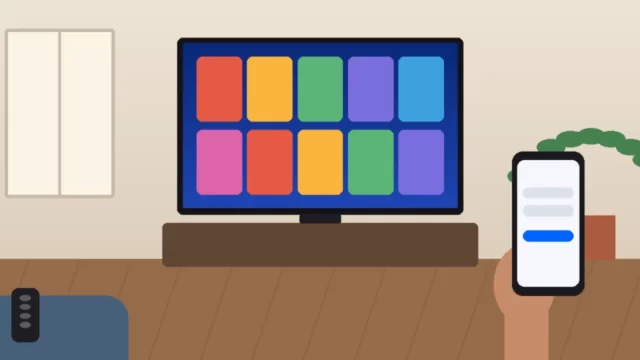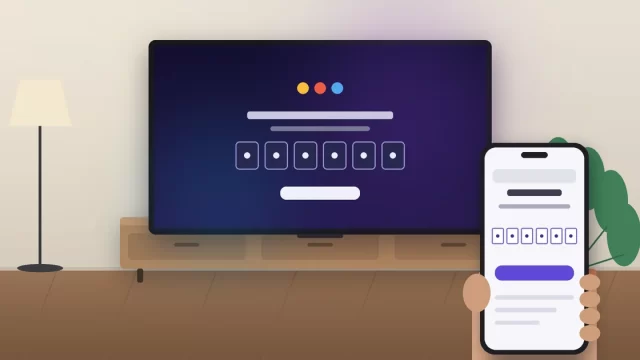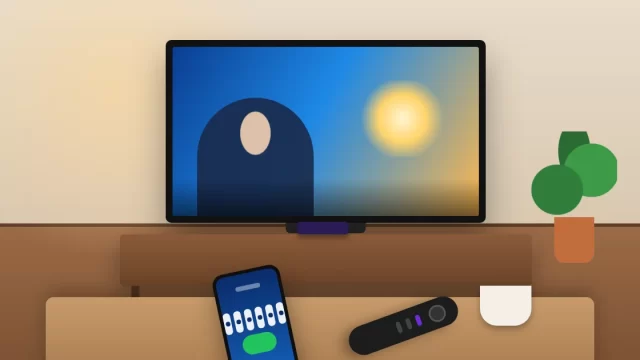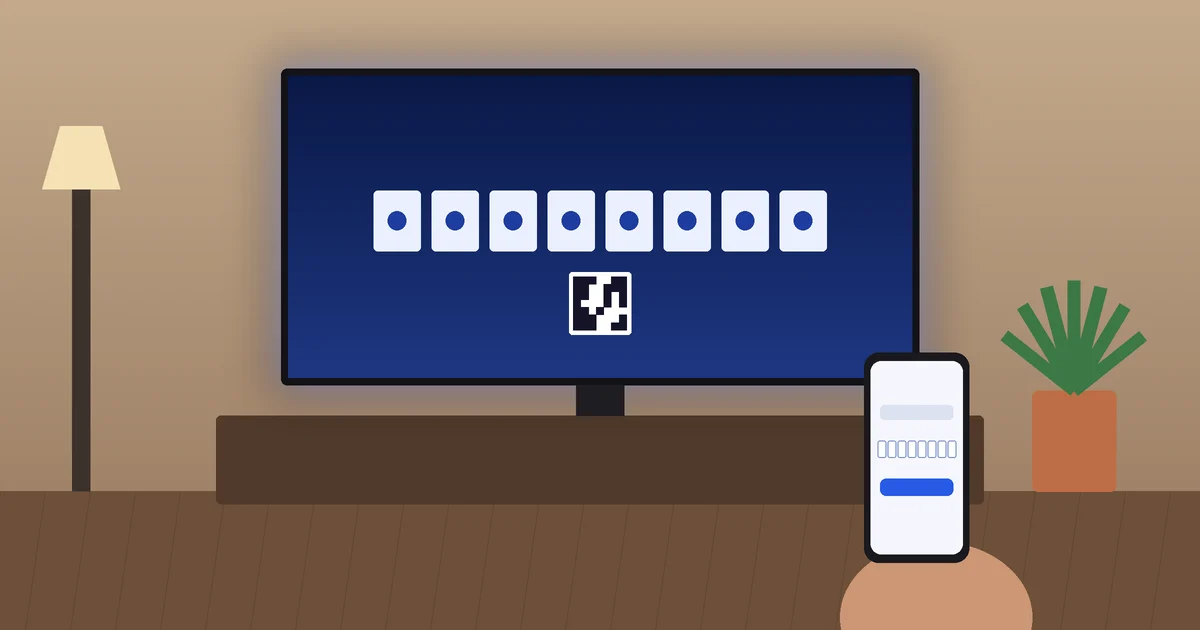
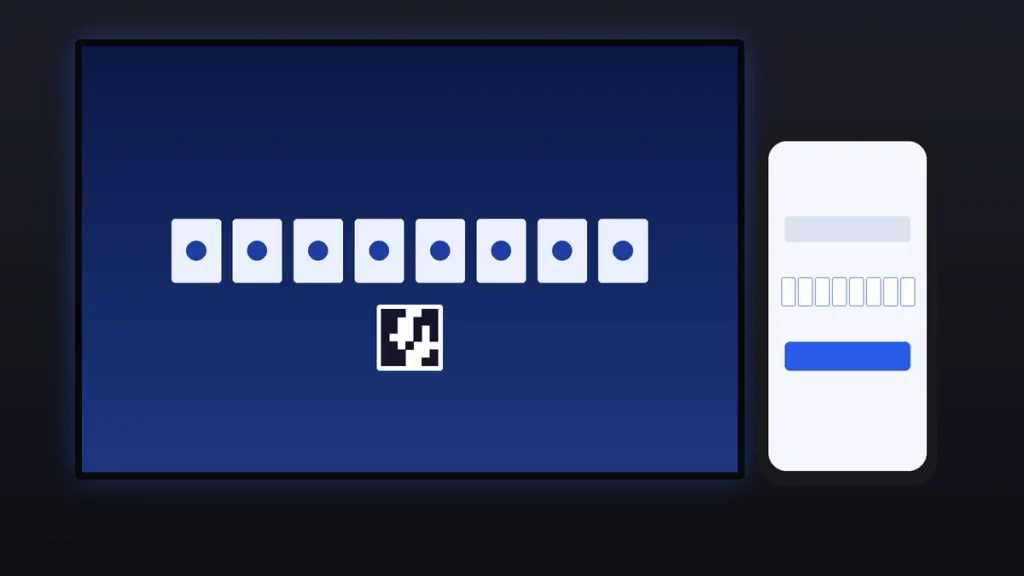
To activate Disney+ on your TV, open the Disney+ app, choose Log In, and note the 8-digit code on the screen. Then go to disneyplus.com/begin on your phone or computer, sign in, and type that code. Your TV refreshes on its own and you’re streaming in under a minute.
That’s the whole process for most people. The rest of this guide covers where to find the app on each TV brand, what to do when the code won’t work, and a few small things that save you a second trip to the couch.
Key Takeaways
- The official activation page is disneyplus.com/begin. Type it yourself and make sure the domain is disneyplus.com.
- You need an active Disney+ subscription before the code will link. Sign up on the website first if you’re new.
- The 8-digit code is temporary. If it expires, select Log In again on your TV for a fresh one.
- Your phone and TV don’t have to be on the same Wi-Fi network for the code to work.
- Hulu content now lives inside the Disney+ app, so one activation covers both if your plan includes Hulu.
[IMAGE 1: how-to-activate-disney-plus-on-tv.webp]
What You Need Before You Activate Disney+
Get these three things lined up first and the activation takes about 60 seconds.
- A Disney+ account with an active plan. The code links a device to an account, not to a free trial waiting to happen. As of October 2026, Disney+ with ads costs $12.49 a month and Premium (no ads) costs $21.49 a month, according to Tom’s Guide’s coverage of the latest price change.
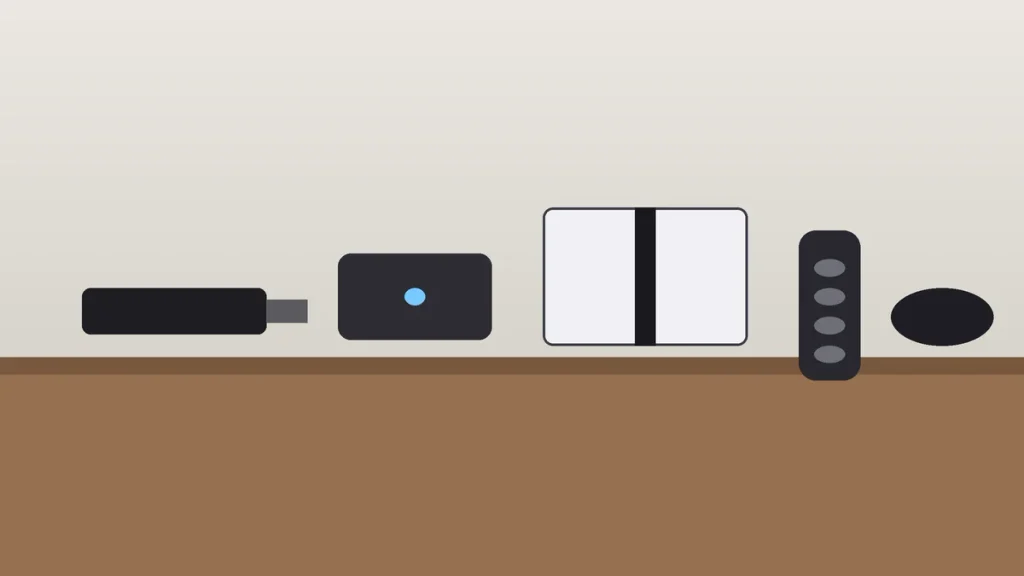
- A supported TV or streaming device. Samsung and LG smart TVs, Roku, Amazon Fire TV, Apple TV (4th generation and later), Google TV, Android TV, Vizio SmartCast, PlayStation and Xbox all run the app.
- A phone, tablet, or computer with a browser. This is where you’ll type the code.
One tip from experience: if you’re new, create the account at disneyplus.com on your laptop before you touch the TV. Some devices let you subscribe through Roku, Amazon, or Apple billing, but then your subscription is managed by that company, which makes cancelling or switching plans more annoying later.
How to Activate Disney+ on Your TV With disneyplus.com/begin
These steps work the same way on nearly every device. Only the first step (finding and installing the app) changes by brand, and that’s covered in the next section.
- Open the Disney+ app on your smart TV, streaming stick, or game console.
- Select Log In. Don’t pick Sign Up unless you still need an account.
- Find the 8-digit code on your TV screen. Many newer versions of the app also show a QR code next to it.
- On your phone or computer, go to disneyplus.com/begin. If your TV shows a QR code, you can simply point your phone camera at it instead.
- Sign in with the email and password on your Disney+ account.
- Enter the 8-digit code exactly as it appears and select Continue.
- Look back at the TV. The app refreshes on its own within a few seconds, asks you to pick a profile, and you’re in.
Prefer not to use a code? Every Disney+ TV app also lets you type your email and password with the remote. It works, it’s just slow. The code method is faster and keeps your password off the big screen where the whole room can see it.
How to Get Disney Plus on a Smart TV or Streaming Device
If the Disney+ app isn’t already on your home screen, here’s where to find it on the devices most Americans own. Once it’s installed, go back to the activation steps above.
| Device | Where to find the Disney+ app |
|---|---|
| Roku and Roku TV | Press Home, open Search (or the Streaming Store), type Disney+, then select Add app |
| Amazon Fire TV and Fire TV Stick | Go to Find, then Search, type Disney+, and select Get or Download |
| Samsung smart TV | Press Home, open Apps, search for Disney+, and select Install |
| LG smart TV | Press Home, open the Apps store (LG Content Store on older models), search Disney+, and install |
| Google TV and Android TV | Open the Apps tab or Google Play Store, search Disney+, and install |
| Apple TV | Open the App Store, search Disney+, and select Get |
| Vizio SmartCast TV | Look in the app row on the SmartCast home screen; older models can cast from your phone instead |
| PlayStation and Xbox | Search Disney+ in the PlayStation Store or Microsoft Store and download it |
Activate Disney+ on Roku
Roku is one of the most popular streaming platforms in American homes, and it’s the one I’d hand to a parent or grandparent. After you add the app, open it from the home screen, choose Log In, and use disneyplus.com/begin. If the app opens to a black screen, restart the Roku from Settings, then System, then Power, then System restart. That usually clears it.
Activate Disney+ on Amazon Fire TV
New apps on a Fire TV Stick land at the end of your app list, not on the main row. Hold the Home button, select Apps, and you’ll find Disney+ there. You can press the menu button (three lines) on it and choose Move to front so it’s easier to reach next time.
Activate Disney+ on Samsung and LG Smart TVs
On many Samsung and LG sets, Disney+ comes preinstalled. If the app feels sluggish or freezes on the login screen, update the TV’s software first. On Samsung, that’s Settings, then Support, then Software Update. On LG, look for Software Update under Support or General in the settings menu, depending on the model year. Older TV firmware is the most common reason the code screen won’t load.
Disney+ Login Code Not Working? Try These Fixes
Most activation problems come down to an expired code or the wrong account. Work through these in order.
- The code expired. Codes only last a few minutes. Back out on your TV, select Log In again, and use the new code right away.
- You typed it wrong. Check for mix-ups like 0 and O, or 1 and I. Enter it exactly as shown, with no spaces.
- You’re signed in to the wrong account. This one catches families constantly. If your browser is logged in to a different Disney account (say, a Disney World or ESPN login), the code links to that account instead. Open a private or incognito window and try again.
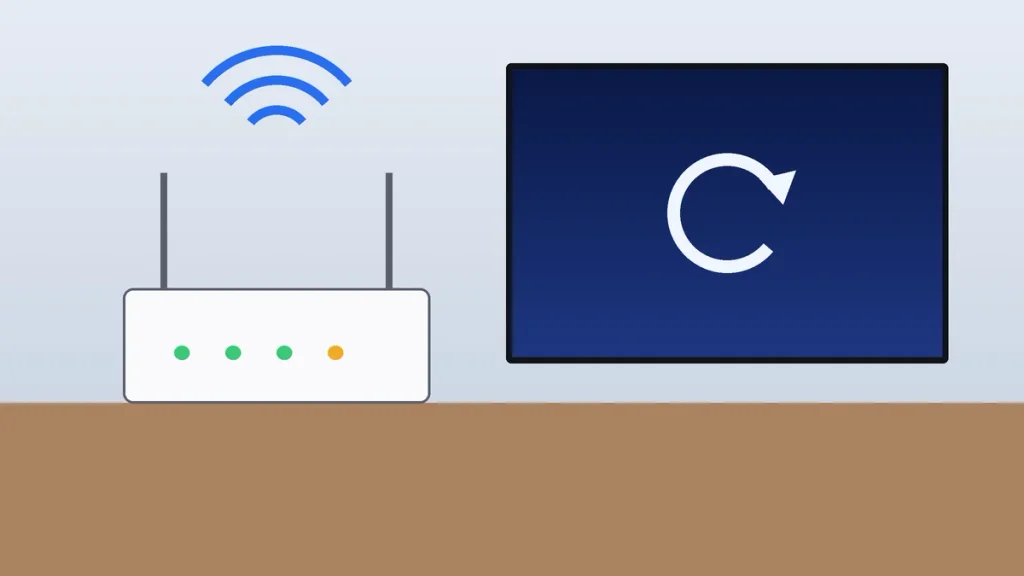
- The TV can’t reach the internet. Open another app like YouTube. If that won’t load either, restart your router and TV.
- The app is outdated. Update the Disney+ app and your TV’s system software, then relaunch.
- Your subscription lapsed. Sign in at disneyplus.com and check Account, then Subscription. A failed card payment will block activation.
If none of that works, uninstall and reinstall the app. Still stuck? The Disney+ Help Center has live chat, and support can see whether your account has hit its device limit.
Watch Out for Fake disneyplus.com/begin Sites
Search “Disney plus begin” and you’ll see plenty of look-alike pages. Some ask you to call a “support number” or pay an activation fee. Disney never charges to activate a device, and the code only goes in on disneyplus.com. The Federal Trade Commission has a helpful page on how to spot tech support scams if someone has already asked you for payment or remote access.
My rule: type disneyplus.com/begin into the address bar yourself, or scan the QR code on your own TV. Don’t click a search ad to get there.
A Few Things to Know After You Activate Disney+ on TV
- You stay signed in. The TV remains linked until you log out, reinstall the app, or reset the device.
- Hulu is in the same app. Disney has folded Hulu into Disney+ and is phasing out the separate Hulu app during 2026, so look for the Hulu section inside Disney+ if your plan includes it.
- Kids get their own profile. Set up a Junior Mode profile so younger kids only see age-appropriate titles. You can also add a profile PIN to your own profile.
- Remove old TVs. Selling or giving away a TV? Go to Account on disneyplus.com and choose Log out of all devices so the next owner isn’t watching on your plan.
If you’re setting up other services on the same TV, our guides on how to activate YouTube TV and how to activate Sling TV use the same code-based process. We also cover activating apps on Roku, Firestick and smart TVs if you need brand-specific screens.
Frequently Asked Questions
How do I activate Disney+ on my TV with a code?
Open the Disney+ app on your TV and select Log In to see an 8-digit code. On your phone or computer, go to disneyplus.com/begin, sign in to your Disney+ account, and enter the code. Select Continue, and your TV will refresh and sign in automatically within a few seconds.
Why is my Disney+ activation code not working?
The most common reasons are an expired code, a typo, or being signed in to the wrong Disney account in your browser. Generate a new code by selecting Log In again on your TV, then enter it right away in a private browser window. Also confirm your subscription is active and your TV is online.
Is disneyplus.com/begin free to use?
Yes. Activating a device at disneyplus.com/begin costs nothing beyond your regular Disney+ subscription. Disney never charges an activation fee or asks you to call a phone number to enter the code. If a website asks for payment to activate your TV, close it, because it isn’t the official Disney+ site.
Can I activate Disney+ on my TV without a phone?
Yes. You can open disneyplus.com/begin on any computer or tablet instead. You can also skip the code entirely by choosing the option to sign in on the TV and typing your email and password with the remote. It takes longer, but it works on every supported smart TV and streaming device.
How many TVs can I use Disney+ on?
Disney+ lets you sign in on many devices with one account, including several TVs, phones, and tablets. The real limit is how many screens can stream at the same time, which depends on your plan. Disney’s Help Center lists the current limits, and you can log out of unused devices from your account page.
Do I need a smart TV to watch Disney+?
No. If your TV has an HDMI port, a streaming device like a Roku, Amazon Fire TV Stick, Google TV Streamer, or Apple TV will add the Disney+ app. A PlayStation or Xbox works too. Plug the device in, install Disney+, and activate it at disneyplus.com/begin like any smart TV.
Your Next Step
Grab your remote, open the Disney+ app, choose Log In, and have your phone ready at disneyplus.com/begin before the code times out. If it doesn’t link on the first try, open a private browser window and make sure you’re signed in to the right account. That single fix solves most activation headaches.