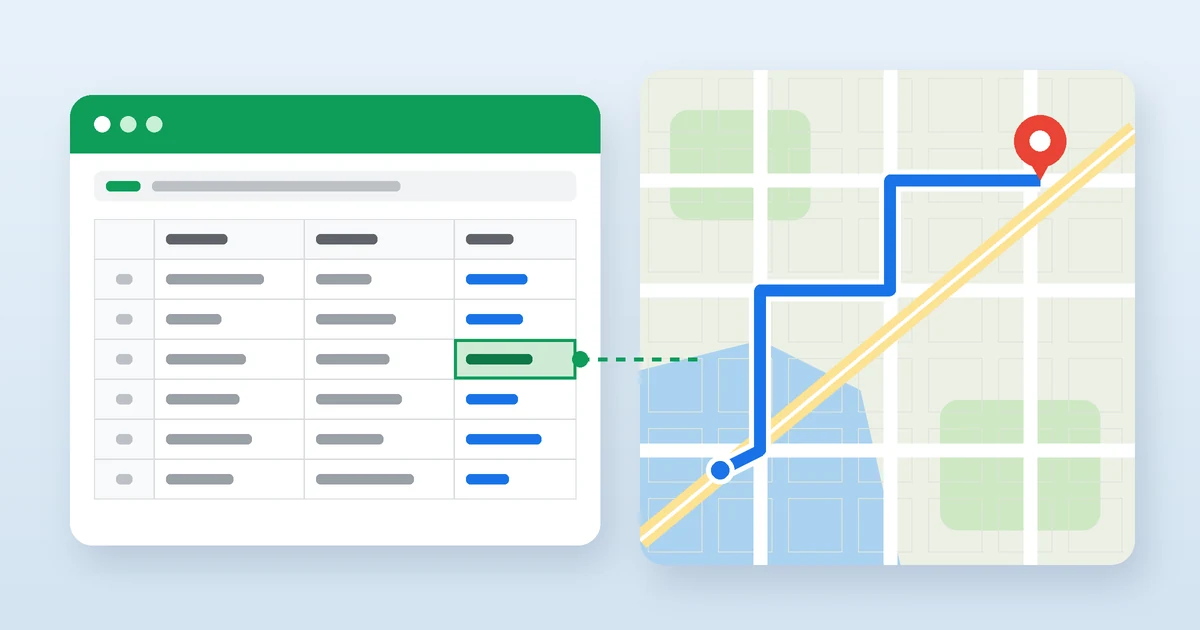
Google Sheets doesn’t come with a built-in Google Maps function, but you can add one in about five minutes. With a short Apps Script, Google Maps formulas for Google Sheets like =GOOGLEMAPS_DISTANCE(“Dallas, TX”, “Austin, TX”) return real driving miles, travel time, ZIP codes, and latitude and longitude right inside your cells. You don’t need a paid API key or any add-on.
I’ve set these up for sales territory sheets, delivery route planning, and plain old mileage logs at tax time. Below you’ll get the full copy-paste code, a few no-code formulas that work without any script, and the daily limits that trip up most people.
[IMAGE 1: google-maps-formulas-google-sheets.webp]
Key Takeaways
- Google Sheets has no native Maps function, but Apps Script’s free built-in Maps service lets you create your own.
- Seven custom formulas cover most needs: distance, travel time, directions, coordinates, reverse geocoding, elevation, and ZIP code.
- Free Gmail accounts get 1,000 lookups per day for each Maps feature, so caching results matters.
- For clickable map links or straight-line distance, regular Sheets formulas work with zero code.
What Are Google Maps Formulas in Google Sheets?
They’re custom functions that call Google Maps from inside a spreadsheet. You type them like any other formula, point them at cells holding addresses, and Sheets fills in the answer. Behind the scenes, each one uses the Maps service that Google includes with Apps Script, the scripting tool already built into every Google account.
Why bother? Because copying addresses into Google Maps one at a time gets old fast. If you’ve got 200 customer addresses and need the drive time from your warehouse in Columbus, Ohio, a formula you drag down the column does in a minute what would otherwise eat your afternoon.
How to Add Google Maps Formulas to Google Sheets
The setup is the same whether you want one formula or all seven. Do it once per spreadsheet.
- Step 1: Open the Google Sheet where you want the formulas.
- Step 2: Click Extensions, then Apps Script. A code editor opens in a new tab, already linked to your sheet.
- Step 3: Delete the empty myFunction placeholder and paste the full code below.
- Step 4: Click the save icon (or press Ctrl + S, Cmd + S on a Mac) and name the project something like “Maps Formulas.”
- Step 5: Go back to your sheet and type =GOOGLEMAPS_ in any cell. The new functions show up in the autocomplete list.
One tip that saves confusion: the script only works in the spreadsheet you opened it from. If you want these formulas in another file, repeat the steps there (or make a copy of a sheet that already has the script).
The Full Apps Script Code
/**
 * Google Maps formulas for Google Sheets.
 * Paste into Extensions > Apps Script, then save.
 */

// Stores results for 6 hours so repeat lookups don't use up your daily quota.
function cached_(key, fn) {
  const cache = CacheService.getDocumentCache();
  const hashed = Utilities.base64Encode(
    Utilities.computeDigest(Utilities.DigestAlgorithm.MD5, key)
  );
  const hit = cache.get(hashed);
  if (hit !== null) return JSON.parse(hit);
  const value = fn();
  cache.put(hashed, JSON.stringify(value), 21600);
  return value;
}

function getRoute_(origin, destination, mode) {
  if (!origin || !destination) throw new Error('Origin and destination are required');
  const travelMode = String(mode || 'driving').toLowerCase();
  return cached_(['route', origin, destination, travelMode].join('|'), function () {
    const response = Maps.newDirectionFinder()
      .setOrigin(origin)
      .setDestination(destination)
      .setMode(travelMode)
      .getDirections();
    if (!response.routes || !response.routes.length) throw new Error('No route found');
    const leg = response.routes[0].legs[0];
    return { meters: leg.distance.value, seconds: leg.duration.value };
  });
}

function geocode_(address) {
  if (!address) throw new Error('Address is required');
  return cached_('geo|' + address, function () {
    const response = Maps.newGeocoder().geocode(address);
    if (!response.results || !response.results.length) throw new Error('Address not found');
    return response.results[0];
  });
}

/**
 * Distance between two places in miles.
 * @param {string} origin Starting address or place name
 * @param {string} destination Ending address or place name
 * @param {string} mode Optional: driving, walking, bicycling, or transit
 * @return {number} Distance in miles
 * @customfunction
 */
function GOOGLEMAPS_DISTANCE(origin, destination, mode) {
  const route = getRoute_(origin, destination, mode);
  return Math.round((route.meters / 1609.344) * 10) / 10;
}

/**
 * Travel time between two places in minutes.
 * @param {string} origin Starting address or place name
 * @param {string} destination Ending address or place name
 * @param {string} mode Optional: driving, walking, bicycling, or transit
 * @return {number} Travel time in minutes
 * @customfunction
 */
function GOOGLEMAPS_DURATION(origin, destination, mode) {
  const route = getRoute_(origin, destination, mode);
  return Math.round(route.seconds / 60);
}

/**
 * Latitude and longitude of an address.
 * @param {string} address Any address or place name
 * @return {string} "latitude, longitude"
 * @customfunction
 */
function GOOGLEMAPS_LATLONG(address) {
  const loc = geocode_(address).geometry.location;
  return loc.lat + ', ' + loc.lng;
}

/**
 * Step-by-step directions between two places.
 * @param {string} origin Starting address or place name
 * @param {string} destination Ending address or place name
 * @param {string} mode Optional: driving, walking, bicycling, or transit
 * @return {string} Directions as one line of text
 * @customfunction
 */
function GOOGLEMAPS_DIRECTIONS(origin, destination, mode) {
  if (!origin || !destination) throw new Error('Origin and destination are required');
  const travelMode = String(mode || 'driving').toLowerCase();
  return cached_(['steps', origin, destination, travelMode].join('|'), function () {
    const response = Maps.newDirectionFinder()
      .setOrigin(origin)
      .setDestination(destination)
      .setMode(travelMode)
      .getDirections();
    if (!response.routes || !response.routes.length) throw new Error('No route found');
    return response.routes[0].legs[0].steps
      .map(function (step) {
        return step.html_instructions.replace(/<[^>]+>/g, ' ').replace(/\s+/g, ' ').trim();
      })
      .join(' > ');
  });
}

/**
 * Street address for a latitude and longitude.
 * @param {number} latitude
 * @param {number} longitude
 * @return {string} Formatted address
 * @customfunction
 */
function GOOGLEMAPS_REVERSEGEOCODE(latitude, longitude) {
  return cached_('rev|' + latitude + ',' + longitude, function () {
    const response = Maps.newGeocoder().reverseGeocode(latitude, longitude);
    if (!response.results || !response.results.length) throw new Error('No address found');
    return response.results[0].formatted_address;
  });
}

/**
 * ZIP code for an address, returned as text.
 * @param {string} address Any address or place name
 * @return {string} ZIP code
 * @customfunction
 */
function GOOGLEMAPS_ZIP(address) {
  const parts = geocode_(address).address_components;
  const zip = parts.find(function (p) { return p.types.indexOf('postal_code') !== -1; });
  return zip ? zip.short_name : 'No ZIP found';
}

/**
 * Elevation of a location in feet above sea level.
 * @param {number} latitude
 * @param {number} longitude
 * @return {number} Elevation in feet
 * @customfunction
 */
function GOOGLEMAPS_ELEVATION(latitude, longitude) {
  return cached_('elev|' + latitude + ',' + longitude, function () {
    const response = Maps.newElevationSampler().sampleLocation(latitude, longitude);
    if (!response.results || !response.results.length) throw new Error('No elevation data');
    return Math.round(response.results[0].elevation * 3.28084);
  });
}
The @customfunction tags are what make the formulas appear in autocomplete with helper text. The caching block at the top is the part most online versions skip, and it’s the reason your sheet won’t hit its daily limit every time it recalculates.
How to Use Each Google Maps Formula
Every formula accepts a typed address in quotes or a cell reference. Cell references are the better habit because you can drag the formula down a whole column.
GOOGLEMAPS_DISTANCE: The Google Sheets Distance Formula
This is the one most people come for. It returns road distance in miles, rounded to one decimal.
- =GOOGLEMAPS_DISTANCE(A2, B2) gives driving miles from the address in A2 to the one in B2.
- =GOOGLEMAPS_DISTANCE(A2, B2, “walking”) switches to walking routes.
- Valid modes are driving, walking, bicycling, and transit. Leave the third argument blank for driving.
Want kilometers instead? Change 1609.344 in the code to 1000.
GOOGLEMAPS_DURATION: Drive Time in Minutes
=GOOGLEMAPS_DURATION(A2, B2) returns the typical travel time in minutes. A result of 95 means about an hour and 35 minutes. It doesn’t factor in live traffic, so treat it as a planning estimate, not a promise to a customer waiting on a delivery.
GOOGLEMAPS_LATLONG: Geocode Addresses in Google Sheets
=GOOGLEMAPS_LATLONG(A2) turns an address into coordinates like “39.96, -82.99.” If you need latitude and longitude in separate columns (for mapping tools or the straight-line formula below), wrap it: =SPLIT(GOOGLEMAPS_LATLONG(A2), “,”).
GOOGLEMAPS_DIRECTIONS: Turn-by-Turn Directions in a Cell
=GOOGLEMAPS_DIRECTIONS(A2, B2) writes out every turn as one line of text, with steps separated by “>”. It’s useful for printable route sheets for drivers or volunteers. Turn on Format, Wrapping, Wrap for that column, or the text will run off the screen.
GOOGLEMAPS_REVERSEGEOCODE: Address From Coordinates
Got GPS points from a field app or a camera? =GOOGLEMAPS_REVERSEGEOCODE(C2, D2) takes latitude in C2 and longitude in D2 and returns the nearest street address.
GOOGLEMAPS_ZIP: Pull a ZIP Code From Any Address
=GOOGLEMAPS_ZIP(A2) fills in a missing ZIP code. It returns the ZIP as text on purpose, so a Boston address keeps the leading zero in 02108 instead of turning into 2108.
GOOGLEMAPS_ELEVATION: Height Above Sea Level
=GOOGLEMAPS_ELEVATION(39.7392, -104.9903) returns elevation in feet for any coordinates, here downtown Denver. Pair it with GOOGLEMAPS_LATLONG and SPLIT if you’re starting from addresses. Hikers, surveyors, and anyone planning a long bike route find this one handy.
| Formula | What It Returns | Example |
|---|---|---|
| GOOGLEMAPS_DISTANCE | Miles between two places | =GOOGLEMAPS_DISTANCE(A2, B2) |
| GOOGLEMAPS_DURATION | Travel time in minutes | =GOOGLEMAPS_DURATION(A2, B2, “transit”) |
| GOOGLEMAPS_LATLONG | Latitude and longitude | =GOOGLEMAPS_LATLONG(A2) |
| GOOGLEMAPS_DIRECTIONS | Step-by-step directions | =GOOGLEMAPS_DIRECTIONS(A2, B2) |
| GOOGLEMAPS_REVERSEGEOCODE | Street address from coordinates | =GOOGLEMAPS_REVERSEGEOCODE(C2, D2) |
| GOOGLEMAPS_ELEVATION | Elevation in feet | =GOOGLEMAPS_ELEVATION(C2, D2) |
| GOOGLEMAPS_ZIP | ZIP code as text | =GOOGLEMAPS_ZIP(A2) |
No-Code Google Maps Formulas (No Apps Script Needed)
Not every task needs a script. Two regular Sheets formulas handle a lot of everyday work.
Clickable Google Maps Links With HYPERLINK
Google publishes a simple URL format for opening Maps searches and directions. Combine it with HYPERLINK and ENCODEURL, and every row gets a one-click link:
- Open a location: =HYPERLINK(“https://www.google.com/maps/search/?api=1&query=”&ENCODEURL(A2), “View map”)
- Get directions: =HYPERLINK(“https://www.google.com/maps/dir/?api=1&origin=”&ENCODEURL(A2)&”&destination=”&ENCODEURL(B2)&”&travelmode=driving”, “Directions”)
These links don’t count against any quota, and they open in the Google Maps app on a phone, which makes them handy for field crews and delivery drivers.
Straight-Line Distance From Coordinates
If you already have coordinates, you can calculate distance between addresses in Google Sheets with plain math. With latitude 1 in C2, longitude 1 in D2, latitude 2 in E2, and longitude 2 in F2:
=3959*ACOS(COS(RADIANS(90-C2))*COS(RADIANS(90-E2))+SIN(RADIANS(90-C2))*SIN(RADIANS(90-E2))*COS(RADIANS(D2-F2)))
The 3959 is Earth’s radius in miles. This gives “as the crow flies” distance, which always comes in shorter than road miles. It’s great for rough sorting, like finding which store is closest to each customer, but use GOOGLEMAPS_DISTANCE when actual driving miles matter.
Apps Script Maps Service Limits You Should Know
The Maps service is free, but it isn’t unlimited. According to Google’s Apps Script quotas page, personal Gmail accounts get 1,000 calls per day each for directions, geocoding, and elevation, while Google Workspace accounts get 10,000 of each. Quotas are per user and reset 24 hours after the first request.
Here’s what actually burns through that limit:
- Recalculation. Sheets reruns custom formulas when you reopen or edit the sheet. Without caching, 300 rows can turn into thousands of calls in a day. The script above caches each answer for 6 hours.
- Dragging formulas past your data. Empty rows still fire calls that return errors. Stop the fill at your last address.
- Lookups that never change. Once you have the results, copy the column and use Edit, Paste special, Values only. That locks the numbers in and stops future calls completely.
Each custom function call also has to finish within 30 seconds. For more than a few thousand rows, a Google Maps Platform API key with a billing account (or a dedicated add-on) is the better fit.
Practical Ways to Use Maps Formulas
The mileage log is the one I recommend starting with. If you drive for work or run a side business, put trip start and end addresses in two columns, use GOOGLEMAPS_DISTANCE for miles, then multiply by the IRS standard mileage rate, which the IRS posts on irs.gov and usually updates every year. Keep in mind the IRS still expects a contemporaneous log with dates and business purpose, so add those columns too.
Other setups that work well:
- Sales territories: drive time from each rep’s home base to every account.
- Real estate: commute minutes from listings to a downtown office or school.
- Event planning: distance from guests’ cities to a wedding venue in Asheville, North Carolina, to decide who needs hotel blocks.
- Data cleanup: filling in missing ZIP codes on a customer list before a mailing.
Troubleshooting Common Errors
- #NAME? The script isn’t saved, the function name is misspelled, or you added the script to a different spreadsheet.
- “No route found” or “Address not found”: The address is too vague. “Springfield” exists in dozens of states, so add the city and state, like “Springfield, IL.”
- Transit returns errors: Many rural and suburban areas have no transit data. Switch to driving.
- “Service invoked too many times for one day”: You hit the daily quota. Wait 24 hours, cache results, or paste values.
- Stuck on “Loading…”: Give it a minute on large sheets. If it never finishes, fill fewer rows at a time.
Frequently Asked Questions
Can Google Sheets calculate the distance between two addresses?
Yes. Google Sheets can’t do it on its own, but a short Apps Script adds a custom formula like =GOOGLEMAPS_DISTANCE(A2, B2) that returns driving miles from Google Maps. It also supports walking, bicycling, and transit. Setup takes about five minutes through Extensions, then Apps Script, and it’s free to use.
Is there a built-in Google Maps function in Google Sheets?
No. Google Sheets doesn’t include a native Google Maps formula. You add one yourself through Apps Script, which has a free built-in Maps service for directions and geocoding. For simple map links, the HYPERLINK and ENCODEURL functions can build clickable Google Maps URLs without writing any code at all.
Are Google Maps formulas in Google Sheets free?
Yes, within daily limits. Apps Script’s Maps service doesn’t need a paid API key. Personal Gmail accounts get 1,000 route lookups and 1,000 geocode calls per day, and Google Workspace accounts get 10,000 of each. Caching results or pasting them as values keeps most sheets well under those limits.
How do I get latitude and longitude in Google Sheets?
Add the GOOGLEMAPS_LATLONG custom function through Apps Script, then type =GOOGLEMAPS_LATLONG(A2) with an address in A2. It returns both coordinates in one cell as “latitude, longitude.” To split them into two separate columns, wrap the formula in SPLIT, like this: =SPLIT(GOOGLEMAPS_LATLONG(A2), “,”).
Why does my Google Maps formula show an error in Google Sheets?
The most common causes are an unsaved script, a misspelled function name, a vague address, or a used-up daily quota. Add the city and state to every address, confirm the script is saved in the same spreadsheet, and paste finished results as values so the sheet stops making new lookups.
How do I add a Google Maps link in Google Sheets?
Use HYPERLINK with Google’s Maps URL format. For an address in A2, enter =HYPERLINK(“https://www.google.com/maps/search/?api=1&query=”&ENCODEURL(A2), “View map”). Clicking the cell opens that location in Google Maps on a computer or phone. No script is needed, and these links never count against any quota.
Related: How to Activate Starlink Mini on an Existing Account
Start With One Column, Then Scale Up
Don’t try to map 2,000 rows on day one. Paste the script, test GOOGLEMAPS_DISTANCE on five addresses you know well, and check the miles against the Google Maps app. Once the numbers look right, fill the rest of the column, then paste the results as values. That one habit keeps you under the free quota and turns your sheet into a fast, reliable route planner.