To set up Microsoft Authenticator, install the free app on your iPhone or Android phone, open your account’s security settings, choose to add an authenticator app, and scan the QR code that appears. Most people finish in about 10 minutes. This guide shows you how to set up Microsoft Authenticator for a personal Microsoft account, a work or school account, and non-Microsoft accounts like Google and Amazon, plus how to back it up so a lost or upgraded phone never locks you out.
Key Takeaways
- The Microsoft Authenticator app is free on the Apple App Store and Google Play. You should never pay for it.
- Setup follows the same pattern everywhere: open your account’s security page, add the app, and scan a QR code.
- Turn on cloud backup right after setup. It’s the step most people skip and later regret.
- Work and school sign-ins use number matching, so you type a two-digit number from your screen into the app.
- Authenticator stopped storing and autofilling passwords in 2025, but it still handles codes, sign-in approvals, and passkeys.
What the Microsoft Authenticator App Does Today
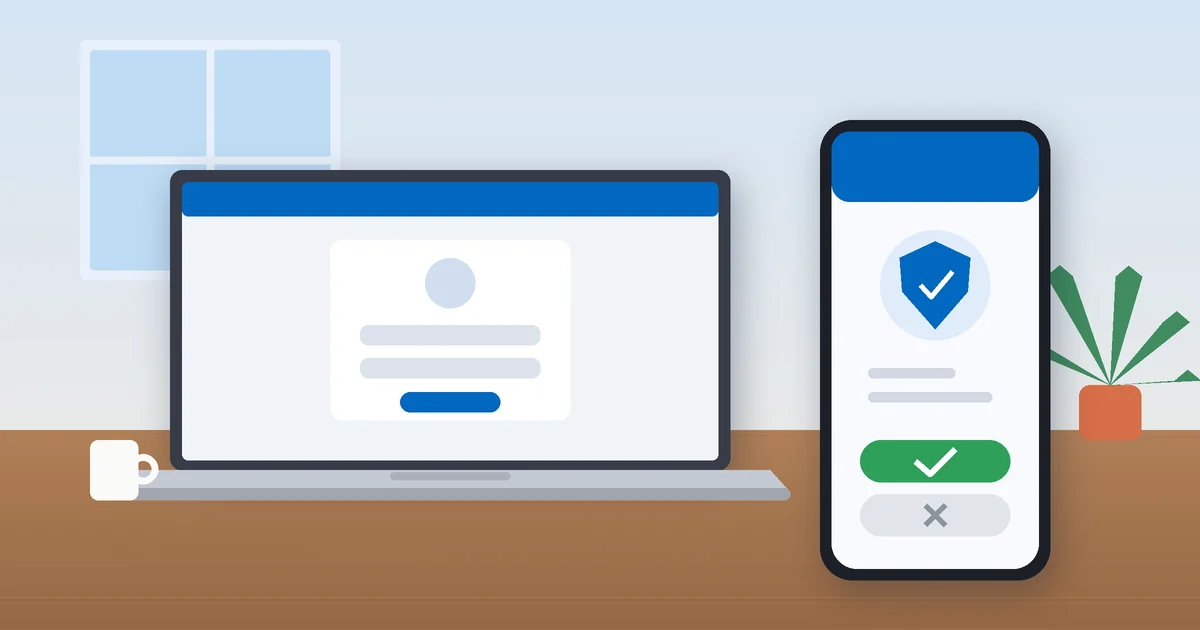
Microsoft Authenticator is a second-factor app. After you type your password, it either sends a notification you approve with Face ID, a fingerprint, or your phone PIN, or it shows a six-digit code that refreshes every 30 seconds. For a personal Microsoft account, you can even drop the password and sign in with an approval alone.
One thing has changed, and a lot of older guides still get it wrong. Microsoft retired the app’s password manager in the summer of 2025, so it no longer saves or autofills passwords. Verification codes, sign-in approvals, and passkeys all still work, and that’s what this guide covers.
What You Need Before You Start
- A smartphone running a current version of iOS or Android.
- Your account password and access to your current verification method (usually a text code or email).
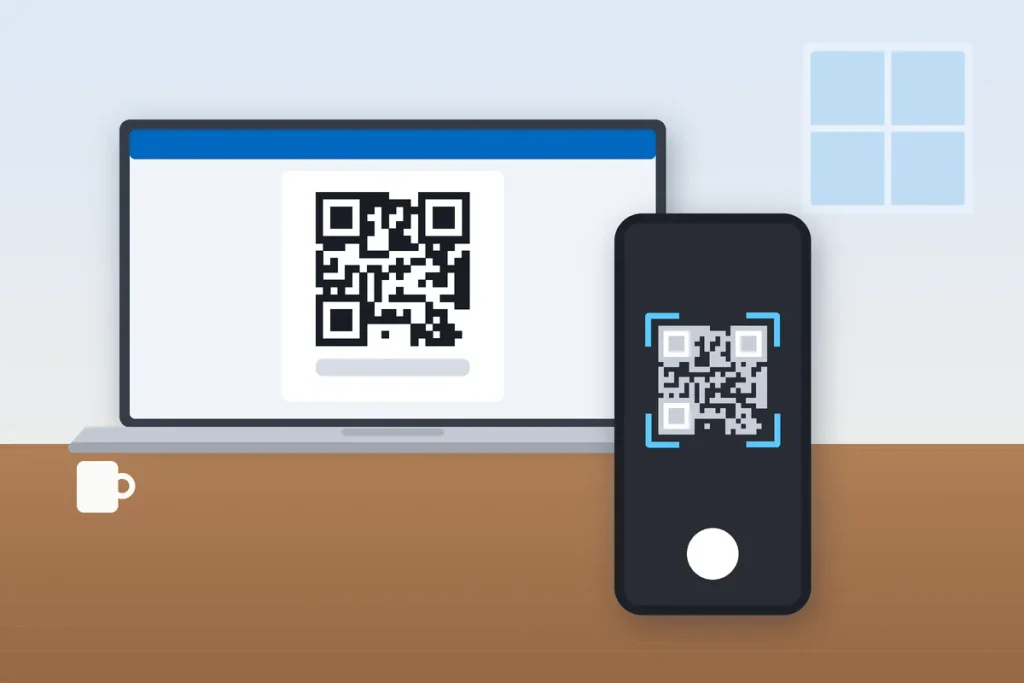
- A second screen, like a laptop or desktop, to display the QR code. Your phone can’t easily scan its own screen.
- Automatic date and time turned on in your phone settings. A clock that’s off by even a minute or two can make codes fail.
- About 10 minutes without interruptions.
If your employer or college sent you here, you may already be seeing a “More information required” screen when you sign in. That’s the same setup flow, just triggered by your IT department.
Step 1: Download the Microsoft Authenticator App
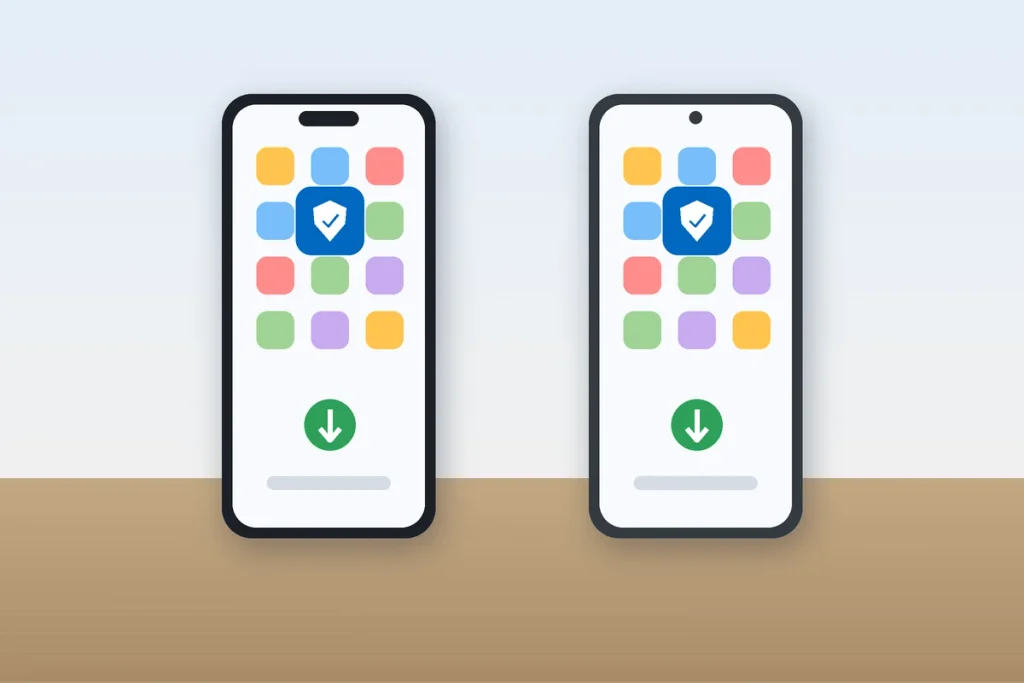
On an iPhone, open the App Store and search for “Microsoft Authenticator.” On Android, use the Google Play Store. Check that the publisher is Microsoft Corporation before you tap install, because lookalike apps do show up in search results. You can also find the official store links on Microsoft’s Authenticator download page.
When the app opens for the first time, allow notifications and camera access. Don’t skip the notifications prompt. Without them, sign-in approvals won’t reach you.
How to Set Up Microsoft Authenticator for a Personal Microsoft Account
A personal Microsoft account is the one you use for Outlook.com, Hotmail, Xbox, OneDrive, or a Microsoft 365 Personal or Family subscription. This is the easiest setup of the three.
Add the account inside the app
- Open Authenticator and tap Add account (or the plus icon at the top).
- Choose Personal account.
- Tap Sign in with Microsoft and enter your email and password.
- Confirm with the code Microsoft sends to your email or phone.
Your account now appears in the app’s list. From here on, sign-ins can be approved right from your phone.
Set up two-step verification
Adding the app doesn’t automatically switch on two-step verification. On a computer, go to account.microsoft.com/security, sign in, and open the option to manage how you sign in. Find Two-step verification and turn it on. While you’re on that page, generate a recovery code and store it somewhere off your phone, like a printed copy in a desk drawer or a password manager.
Optional: go passwordless
On the same page, look for Passwordless account and select Turn on, then approve the prompt in the app. After that, you sign in by tapping approve instead of typing a password. My advice: turn on backup (covered below) before you go passwordless, so your phone isn’t a single point of failure.
How to Add a Work or School Account to Microsoft Authenticator
Most Americans first meet Authenticator through an employer or university that runs Microsoft 365. These accounts are managed by Microsoft Entra ID, and the setup starts on a computer.
- Go to mysignins.microsoft.com/security-info and sign in with your work or school email, or follow the prompt your organization shows you.
- Select Add sign-in method, choose Authenticator app, and click Next until a QR code appears.
- On your phone, open Authenticator, tap the plus icon, choose Work or school account, then Scan a QR code.
- Point the camera at the code on your computer screen.
- Back on the computer, Microsoft sends a test notification. Type the two-digit number shown on your screen into the app and approve.
That two-digit step is called number matching. It stops attackers from tricking you into approving a sign-in you didn’t start. If the QR code expires before you scan it, refresh the page and you’ll get a new one. Some companies also require you to install the Intune Company Portal app, and if so, your IT help desk will tell you.
Adding Google, Amazon, and Other Accounts
Authenticator works with almost any site that offers “authenticator app” two-factor authentication. Google, Amazon, Facebook, Instagram, Dropbox, and many financial apps support it. The steps look like this, using Google as the example:
- In your Google Account, go to Security, then 2-Step Verification, then Authenticator, and choose to set up an authenticator.
- In Microsoft Authenticator, tap the plus icon and pick Other account (Google, Facebook, etc.).
- Scan the QR code, then type the six-digit code from the app back into Google to confirm.
Rename each entry to something clear, like “Google – personal Gmail,” once you have more than three or four accounts.
| Account type | Where setup starts | How you’ll verify |
|---|---|---|
| Personal Microsoft account | account.microsoft.com/security | Push approval, code, or passwordless sign-in |
| Work or school account | mysignins.microsoft.com/security-info | Push approval with number matching, or code |
| Google, Amazon, and others | The site’s security or 2FA settings | Six-digit code that changes every 30 seconds |
Turn On Microsoft Authenticator Backup Right Away
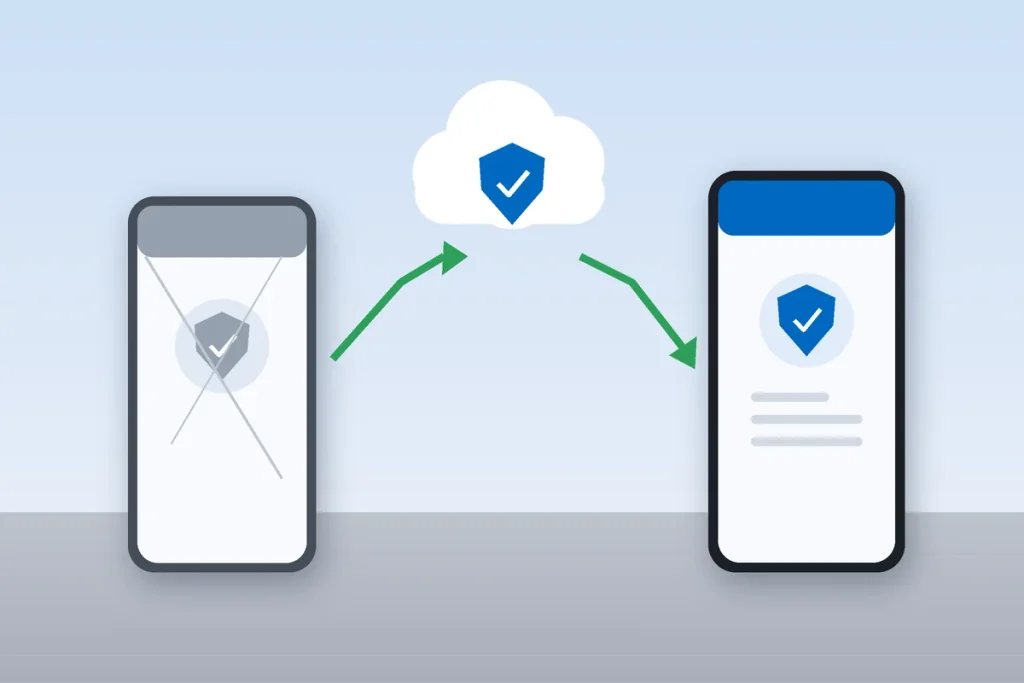
Here’s the part people skip. Without backup, a cracked iPhone or a lost Android phone means rebuilding every account from scratch, and possibly waiting days on account recovery.
- iPhone: Open the app menu, tap Settings, and turn on iCloud Backup. You’ll need to be signed in to iCloud.
- Android: Open the menu, tap Settings, and turn on Cloud backup.
Both versions need a personal Microsoft account to act as your recovery account. Keep in mind that backups don’t cross platforms, so an iPhone backup won’t restore onto an Android phone. Microsoft explains the details on its Authenticator backup support page.
Moving Microsoft Authenticator to a New Phone
Order matters here. Get it wrong and you can lock yourself out.
- On the old phone, confirm backup is on and that the app shows a recent backup.
- Install Authenticator on the new phone, tap Begin recovery, and sign in with the same personal Microsoft account.
- Work and school accounts usually need an extra verification after recovery. Tap each one and follow the prompt, or re-register it at your security info page.
- Test a real sign-in on your most important accounts.
- Only then wipe the old phone or hand it over for trade-in.
That last point catches a lot of people at carrier stores. If the rep offers to factory reset your old phone at the counter during an upgrade, say “not yet” until you’ve tested everything on the new one.
Common Problems and Quick Fixes
- Codes keep getting rejected: Your phone’s clock is probably off. Turn on automatic date and time, then try again.
- No push notifications: Check that notifications are allowed for the app, and that Low Power Mode, battery saver, or a Focus mode isn’t blocking them. Opening the app and pulling down to refresh often surfaces a stuck request.
- QR code won’t scan: Turn up your screen brightness, zoom the browser in, or choose the option to enter the code manually.
- Lost phone and no backup: Use your recovery code for a personal account, or the Microsoft account recovery form at account.live.com/acsr. For a work account, contact your IT help desk.
One security habit worth building: never approve a sign-in request you didn’t start. Attackers sometimes spam approval prompts hoping you’ll tap yes just to make them stop. If one shows up out of nowhere, deny it and change your password. Also turn on App Lock in the app’s settings so nobody can open Authenticator without your face, fingerprint, or PIN. The Cybersecurity and Infrastructure Security Agency (CISA) recommends multifactor authentication for exactly this reason: a stolen password alone shouldn’t be enough to get into your accounts.
Your Next Step: Set It Up Today, Back It Up Tonight
Start with the account that would hurt most to lose, usually your main email, because it’s the key to resetting everything else. Add it to Authenticator, turn on two-step verification, and switch on backup before you put your phone down. Then work through your other accounts one by one. If you’re tightening up your security overall, our guides on how to spot and avoid phishing scams and how to check your credit report for free are good next reads.
Frequently Asked Questions About Microsoft Authenticator
Is Microsoft Authenticator free?
Yes. Microsoft Authenticator is completely free on the Apple App Store and Google Play, with no subscription or in-app purchases. It works for personal Microsoft accounts, work and school accounts, and third-party sites like Google and Amazon. If any app asks you to pay for “Microsoft Authenticator,” it’s not the official Microsoft app.
Can I use Microsoft Authenticator without a Microsoft account?
Yes. You can add Google, Amazon, Facebook, and other accounts that support authenticator apps without ever signing in to Microsoft. The catch is backup. Cloud backup and recovery require a personal Microsoft account, so without one, you’d have to set up every account again by hand if you lose or replace your phone.
What happens if I lose my phone with Microsoft Authenticator?
If backup was on, install Authenticator on your new phone, tap Begin recovery, and sign in with your personal Microsoft account to restore your accounts. Without backup, use each site’s recovery codes or account recovery process. For a work or school account, contact your IT help desk to reset your sign-in methods.
Why is Microsoft Authenticator not sending notifications?
Most of the time, notifications are turned off for the app, or a battery saver, Low Power Mode, or Focus mode is blocking them. Check your phone’s notification settings, make sure you have a data or Wi-Fi connection, and open the app to refresh. Setting your phone’s date and time to automatic also fixes many sign-in errors.
Can I have Microsoft Authenticator on two phones?
Often, yes. Personal and work accounts can usually be registered on more than one device, though some employers limit this. For Google and other code-based accounts, scan the same QR code with both phones during setup. If you skip that step, you’ll need to remove and re-add the account to get it on the second phone.
Does Microsoft Authenticator still save passwords?
No. Microsoft removed password saving and autofill from Authenticator in mid-2025. Passwords you had saved were synced to your Microsoft account and are available in Microsoft Edge, or you could export them to another password manager. Authenticator still handles verification codes, sign-in approvals, and passkeys for your accounts.