To activate Starlink Mini on an existing account, go to starlink.com/activate (or open the Starlink app), enter the Mini’s kit number or serial number, choose Existing Account, sign in with the email you already use, pick a plan, and place the order. Service starts right away. The whole process takes about five minutes if your kit number is handy.
The Mini then appears as its own subscription next to your current dish. That’s the part most people miss: a second device means a second plan and a second monthly charge. Below you’ll find both activation methods, how billing works, which plan fits, and fixes for the errors that come up most.
Key Takeaways
- Use starlink.com/activate or the Starlink app and select “Existing Account” so you don’t create a duplicate login.
- The Mini gets its own service line and its own monthly bill. It doesn’t share your home dish’s plan.
- You need the Mini’s kit number (on the box) or serial number (on the label on the dish).
- A Mini still tied to a previous owner’s account won’t activate until that owner releases it.
- As of mid-2026, Roam plans start at $55 a month for 100GB of data.
What You Need Before You Start
Gather these first. Hunting for a kit number halfway through checkout is how people end up timing out and starting over.
- Your existing Starlink login. Use the exact email on your current account. A different email (even a typo) creates a brand-new account instead of adding the Mini to yours.
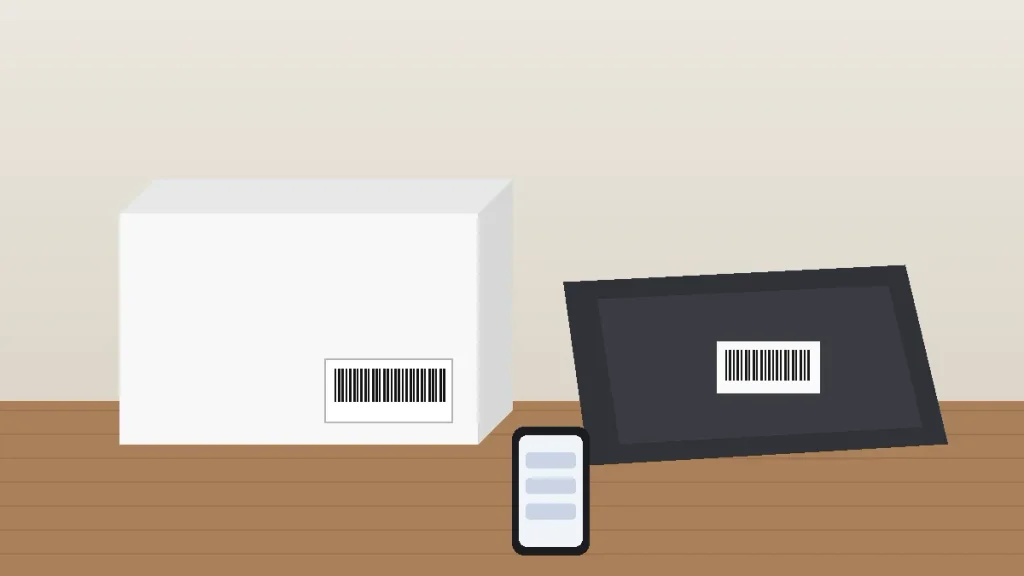
- The Starlink identifier. This is the kit number starting with “KIT” on the shipping box label, or the serial number on the sticker on the back of the dish.
- A payment method. The card on file works, or you can add a new one at checkout.
- A power source. The Mini runs on the included power supply, a 12V to 48V DC source, or a USB-C PD charger rated for 100W. Weaker laptop chargers often cause random reboots.
- A clear view of the sky if you want to test the connection right after activating.
How to Activate Starlink Mini on an Existing Account: Step by Step
There are two ways to do this. The website is fastest when you’re at home. The app is the better pick when you’re already at a campsite with no other internet.
Method 1: Activate at starlink.com/activate
- Go to starlink.com/activate on your phone or computer.
- Enter the Mini’s Starlink identifier (kit number or serial number).
- Select Existing Account and sign in with your current email and password.
- Confirm the service address. For a Roam plan, this is your home address on file. For a fixed plan, it’s where the Mini will stay.
- Choose a service plan for the Mini.
- Review the monthly price and payment method, then click Place Order. Service activates immediately.
- Set the Mini outside, power it on, and give it 15 to 20 minutes on first boot. It may download a software update before it connects.
Method 2: Activate Through the Starlink App
Starlink recommends the app for activation, and it has one big advantage: you don’t need another internet connection.
- Power on the Mini outdoors with a clear sky view.
- Connect your phone to the Mini’s Wi-Fi network, named STARLINK by default.
- Open the Starlink app. It will show that the device has no active account.
- Tap to activate, choose Existing Account, and sign in.
- Pick your plan and place the order.
Starlink gives you one hour of access through the Mini to finish sign-up. If that hour runs out, switch to cell data or another connection and finish at starlink.com/activate.
Does Starlink Mini Share Your Existing Plan?
No. When you add Starlink Mini to your account, it lands on a new service line with its own subscription. Your home dish keeps its plan, and the Mini gets a separate one. You’ll see both listed under Subscriptions in your account dashboard.
Adding the Mini also doesn’t cancel anything. If you bought the Mini to replace an older dish, you have to cancel or change that old subscription yourself. Otherwise you’ll keep paying for both.
One practical tip: rename the Mini’s Wi-Fi network in the app right away (something like “Camp-Mini”). When two Starlinks sit on one account, clear names save a lot of confusion on the billing and support screens.
Which Starlink Roam Plan Should You Pick for the Mini?
Most Mini owners choose a Roam plan, since the whole point of the Mini is that it travels. Here’s how the US Roam tiers stacked up after Starlink’s June 2026 price changes.
| Plan | Monthly Price | High-Speed Data | Best For |
|---|---|---|---|
| Roam 100GB | $55 | 100GB, then slower speeds | Weekend campers, backup internet |
| Roam 300GB | $80 | 300GB, then slower speeds | Part-time RVers who stream |
| Roam Unlimited | $175 | Unlimited | Full-time RVers and remote workers |
My take: the 300GB tier is the sweet spot for most travelers. A couple of hours of HD streaming a night burns through 100GB faster than people expect, and Unlimited only makes sense if the Mini is your main connection. Also note that the 100GB and 300GB plans are limited to your home country, so pick Unlimited if you’re crossing into Canada or Mexico.
The Mini kit itself starts at $199 in the US, and sales tax depends on your state (Oregon, for example, has no sales tax). Prices change often, so confirm the total on the checkout screen before you place the order.

Common Starlink Mini Activation Problems and How to Fix Them
The Mini Is Assigned to Another Account
This is the number one issue with used units from Facebook Marketplace or eBay. Starlink won’t activate a device that’s still assigned to someone else’s account, and the seller can’t “move” it into yours. They have to release it from their account first. Ask the seller to do this before you pay.
You’re Signed In to a Business Account
Starlink doesn’t support activating Residential or Roam plans on a Business account. If your existing account is a Business account, you’ll need to activate the Mini on a separate personal account.
The Country Doesn’t Match Your Account
You can’t activate a Starlink for use in a different country than the one your account was created in. A US account should activate a Mini for US service.
The Identifier Isn’t Recognized
Double-check for mixed-up characters like the letter O and the number 0. If the kit number fails, try the serial number from the dish label instead.
You Accidentally Created a Second Account
This happens when you sign up with a different email. Don’t keep paying for it. Contact Starlink support from your account dashboard and ask them to move the Mini to your main account or cancel the duplicate.
It’s Activated but Won’t Connect
Run the obstruction check in the Starlink app. Trees and RV awnings are the usual culprits. If the Mini keeps rebooting, swap to the included power supply or a 100W USB-C PD source.
Your Next Step
Grab the kit number from the box, go to starlink.com/activate, choose Existing Account, and pick the plan that matches how often you’ll travel. Once it’s live, run the obstruction check from your first campsite so you know exactly where the Mini gets a clean signal. If you’re replacing an older dish, cancel that subscription the same day so you’re not billed twice.
Frequently Asked Questions
Can I add a Starlink Mini to my existing Starlink account?
Yes. Go to starlink.com/activate, enter the Mini’s kit or serial number, choose “Existing Account,” and sign in with your current email. The Mini is added as a new service line with its own subscription, so you can manage it and your home dish from the same dashboard and app.
Does Starlink Mini use the same plan as my home Starlink?
No. Each Starlink device needs its own active service plan, so the Mini gets a separate subscription and a separate monthly charge. Activating it doesn’t change or cancel your home plan. If you’re replacing an older dish rather than adding a second one, cancel or update that old subscription yourself.
How much does it cost to add a Starlink Mini?
As of mid-2026, the Starlink Mini kit starts at $199 in the US, and Roam plans run $55 a month for 100GB, $80 for 300GB, and $175 for unlimited data. Sales tax depends on your state. Prices change often, so confirm the final total on the checkout screen before you place the order.
Where do I find my Starlink Mini kit number?
Look on the shipping box label for a number starting with “KIT,” or check the sticker on the back of the Mini for its serial number. Either one works as the Starlink identifier at starlink.com/activate. Once the Mini is powered on and your phone is on its Wi-Fi, the Starlink app shows it too.
Why won’t my Starlink Mini activate on my account?
The most common reasons are that the Mini is still assigned to a previous owner’s account, you’re signed into a Business account, or the identifier was typed wrong. Starlink also blocks activation for use in a different country than your account’s sign-up country. Fix the cause, then retry at starlink.com/activate.
Can I activate Starlink Mini without Wi-Fi or cell service?
Yes. Power on the Mini outdoors, connect your phone to its “STARLINK” Wi-Fi network, and open the Starlink app. Starlink gives you one hour of access to finish activation without another internet source. If that hour runs out, you’ll need cell data or another connection to complete it online.