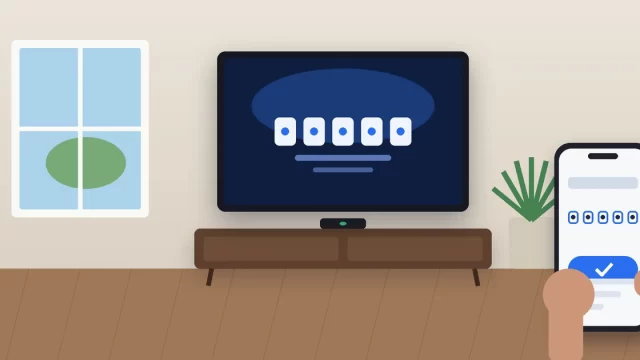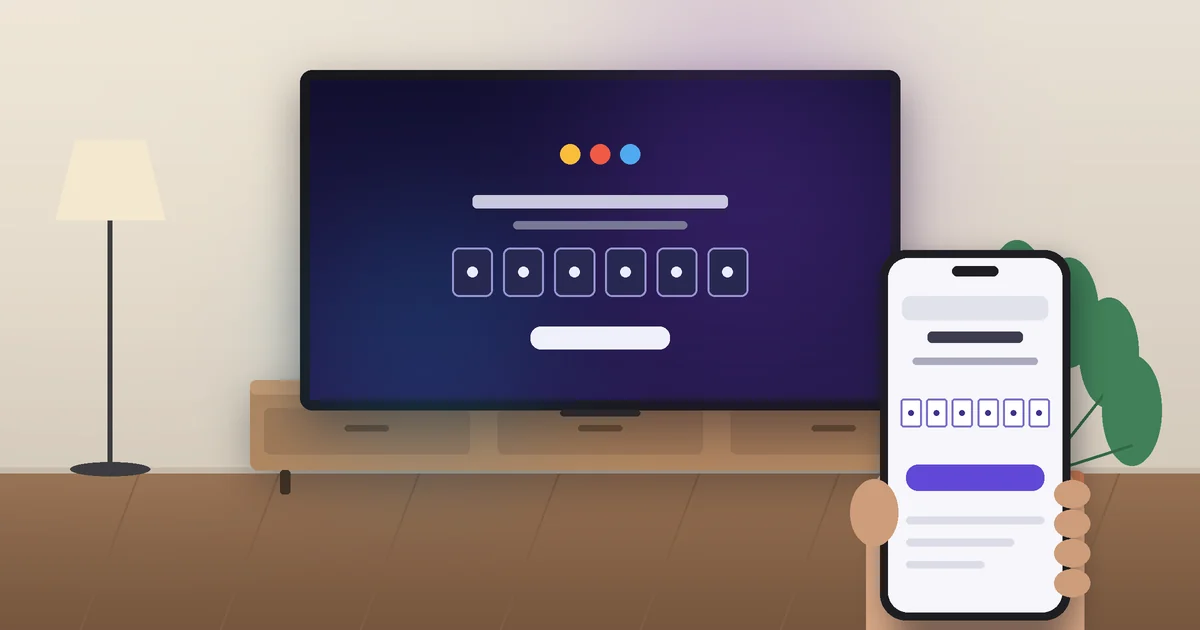
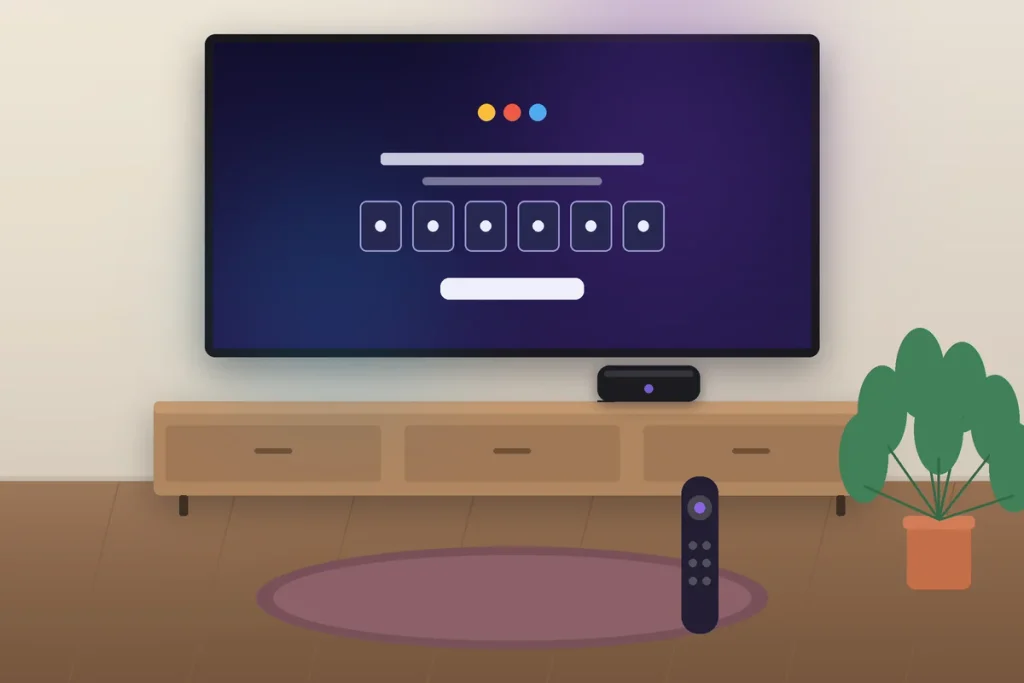
To activate Peacock on a TV, install the Peacock app, open it, and choose Sign In. A short activation code shows up on screen. On your phone or laptop, go to peacocktv.com/tv, sign in to your Peacock account, and type in the code. Your TV refreshes on its own, and you’re ready to watch.
That’s the same process on a Roku, an Amazon Fire TV Stick, and nearly every smart TV. Below you’ll find exactly where the app lives on each device, which older models can’t run it, and how to fix a code that keeps getting rejected (it’s almost always one of three things).
Key Takeaways
- Every TV device uses the same activation page: peacocktv.com/tv.
- You need a paid plan. Since August 18, 2026, Peacock starts at $8.99 a month.
- Codes expire quickly, so keep the TV app open while you type the code on your phone.
- Older hardware may not work. Samsung TVs need to be 2017 or newer, and Vizio SmartCast TVs 2016 or newer.
- Most “invalid code” errors come from an expired code, the wrong account, or a VPN.
What You Need Before You Activate Peacock
Gather these four things first and the whole setup takes about two minutes:
- A Peacock account with an active plan. Peacock stopped offering a free tier to new sign-ups back in 2023.
- A supported TV or streaming device that’s connected to the internet and running current software.
- A phone, tablet, or computer with a web browser to enter the code.
- Your Peacock email and password. If you signed up through Apple, Google, or a cable bundle, use the email tied to that account.
Peacock raised prices on all three plans on August 18, 2026. Here’s what new subscribers pay now, per Peacock’s official plans page:
| Plan | Monthly | Annual | Ads |
|---|---|---|---|
| Select | $8.99 | $89.99 | Yes |
| Premium | $12.99 | $129.99 | Yes |
| Premium Plus | $19.99 | $199.99 | Mostly ad-free |
Existing subscribers see the new rate on their first bill on or after September 17, 2026. If you’re trimming your streaming budget, our guide on how to cancel streaming subscriptions you don’t use can help you make room for it.
How to Activate Peacock on Roku
Roku makes this easy because Peacock is in its official app store. Here are the steps:
- Press Home on your Roku remote and go to Search.
- Type “Peacock” and pick Peacock TV from the results.
- Select Add app (older Roku software says Add channel). The new tile lands at the bottom of your home screen.
- Open Peacock and choose Sign In. A six-character code appears.
- On your phone, go to peacocktv.com/tv, sign in, enter the code, and select Continue.
- Wait a few seconds. The Roku screen refreshes and drops you on Peacock’s home page.
Don’t have an account yet? Roku usually lets you sign up right from the TV and bill the plan to your Roku account. That’s handy, but I’d sign up on peacocktv.com instead. Managing or canceling the plan later is simpler when the billing lives with Peacock.
Check your model first. Peacock supports Roku Streaming Stick models 3600X and later, Roku Express 3900X and later, and Roku TVs 5000X and later, according to Peacock’s supported devices list. Find yours under Settings > System > About.
How to Activate Peacock on Firestick and Fire TV
Peacock works on Fire TV devices running Fire OS 6 or later, which covers almost every Fire TV Stick sold in the last several years. The steps:
- From the Fire TV home screen, select Find (the magnifying glass), then Search. Or hold the Alexa button and say “Peacock.”
- Choose Peacock TV, then Get or Download.
- Open the app and select Sign In to see your activation code.
- On another device, visit peacocktv.com/tv, sign in, and enter the code.
- Pick your profile on the TV, and you’re done.
A small tip from setting up a lot of these: Fire TV buries new apps in the “Your Apps” row. Highlight Peacock, press the Menu button (three lines), and choose Move to pin it near the front.
The same steps work on TVs with Fire TV built in, like Insignia, Toshiba, and Amazon’s own Omni models. To check your Fire OS version, go to Settings > My Fire TV > About.
How to Activate Peacock on a Smart TV
Smart TVs are where people get stuck, because every brand runs a different operating system. Find yours in the table, then follow the matching steps below.
| TV brand or system | Where to get Peacock | Supported models |
|---|---|---|
| Samsung (Tizen) | Apps on the home screen | 2017 and newer |
| LG (webOS) | LG Content Store or Apps | webOS 3.5 and newer |
| Vizio SmartCast | Built-in apps row | 2016 and newer |
| Google TV or Android TV (Sony, TCL, Hisense) | Google Play or Apps tab | Android 5.1 and newer |
| Hisense VIDAA | VIDAA app store | VIDAA 5.0 and newer |
| Roku TV or Fire TV Edition | Follow the Roku or Firestick steps above | See those sections |
Samsung Smart TV
Press Home, go to Apps, and select the search icon. Search “Peacock,” choose Install, then Open. Select Sign In and enter the on-screen code at peacocktv.com/tv.
LG Smart TV
Press Home and open the LG Content Store (newer LG TVs just label it Apps). Search “Peacock,” install it, open it, and activate with the code the same way.
Vizio SmartCast TV
Vizio doesn’t have a traditional app store. Peacock is part of the built-in apps row on SmartCast models, and new apps arrive through system updates. If you don’t see it, run a system update from the settings menu and restart the TV. Older Vizio “VIA” models from before 2016 can’t run Peacock at all.
Google TV and Android TV
Go to the Apps tab or the Google Play Store, search “Peacock,” and select Install. Sony Bravia, TCL, and Hisense Google TV models all follow this path. You can also install it from the Google TV app on your phone.
Older TV that won’t run Peacock? Don’t replace the TV. A basic Roku or Fire TV Stick plugs into any HDMI port and usually costs under $40 (often less during Black Friday sales). Our roundup of the best streaming devices for cord cutters compares the cheapest options.
Peacock Activation Code Not Working? Try These Fixes
If peacocktv.com/tv says your code is invalid, or the TV never refreshes, work through these in order. The first three solve most cases.
1. Get a fresh code
Activation codes time out fast. If you went to find your password or got distracted, back out of the sign-in screen on the TV and select Sign In again to generate a new one. Then enter it right away.
2. Make sure you’re signed in to the right account
This one catches a lot of households. Your browser may auto-fill a spouse’s or roommate’s Peacock login, or an old email you used for a free trial. Sign out on peacocktv.com, sign back in with the account that has the active plan, and try the code again.
3. Turn off your VPN
Peacock is built for US viewers, and VPN traffic often gets flagged. Disconnect any VPN on your phone, computer, and router, then generate a new code.
4. Restart the device and update the app
- Roku: Settings > System > Power > System restart. Then check Settings > System > Software update.
- Fire TV: Settings > My Fire TV > Restart. You can also clear Peacock’s cache under Settings > Applications > Manage Installed Applications.
- Smart TVs: Unplug the TV from the wall for 60 seconds. This clears more than the power button does.
5. Delete and reinstall Peacock
A corrupted install can block sign-in. Remove the app, restart the device, and install it again from the store.
One warning: search results for Peacock activation are full of sites listing “Peacock support” phone numbers that have nothing to do with Peacock. Activation is always free. Never pay anyone or let a stranger remotely access your computer to activate it. For real help, use the official Peacock Help Center. The Federal Trade Commission also explains how to spot tech support scams.
Your Next Step
Grab your remote and your phone, open the Peacock app, and select Sign In. With the code on your TV and peacocktv.com/tv open on your phone, you’ll be watching in under two minutes. If the code fails, get a fresh one and double-check which account you’re signed in to before trying anything else.
Frequently Asked Questions About Activating Peacock
What website do I use to activate Peacock on my TV?
Go to peacocktv.com/tv on a phone, tablet, or computer. Sign in to your Peacock account, then type the activation code shown in the Peacock app on your TV. The same page works for Roku, Fire TV, Samsung, LG, Vizio, and other smart TVs, and your TV should refresh within a few seconds.
Why does Peacock say my activation code is invalid?
The code most likely expired, was typed wrong, or was entered while you were signed in to a different Peacock account. A VPN can also cause the error. Go back to the TV app, select Sign In to get a new code, turn off any VPN, and enter it right away on peacocktv.com/tv.
Is Peacock free on Roku or Firestick?
No. The Peacock app is free to download, but watching requires a paid plan. Peacock ended its free tier for new users in 2023. As of August 18, 2026, plans cost $8.99 a month for Select, $12.99 for Premium, and $19.99 for Premium Plus, with cheaper annual options available.
Do I need to enter a Peacock code every time I watch?
No. You only enter an activation code the first time you set up Peacock on a device, or after you sign out, reset the app, or reinstall it. Once activated, your Roku, Fire TV, or smart TV stays linked to your account, so Peacock opens straight to your profiles.
Why can’t I find the Peacock app on my smart TV?
Your TV is probably too old or needs a software update. Peacock supports Samsung TVs from 2017 on, Vizio SmartCast TVs from 2016 on, and LG TVs with webOS 3.5 or later. Update the TV’s software first. If it still doesn’t appear, a Roku or Fire TV Stick is the easiest fix.