To allocate more RAM to Minecraft, open the Minecraft Launcher, click Installations, hover over your profile, click the three dots, and choose Edit. Then click More Options and change -Xmx2G in the JVM Arguments box to a higher number, such as -Xmx4G for 4 GB. Hit Save, launch the game, and you’re done. That’s how to allocate more RAM to Minecraft in under a minute.
That’s the whole fix for most players. The rest of this guide covers how much memory you should actually give the game, how to do it in CurseForge, Modrinth, and Prism Launcher, how to raise the limit on a server, and the mistakes that make performance worse instead of better.
Key Takeaways
- The official launcher gives Minecraft Java only 2 GB by default, which is fine for vanilla but tight for mods and shaders.
- Change the -Xmx value in JVM Arguments to allocate more RAM to Minecraft (for example, -Xmx6G for 6 GB).
- Most players do best with 4 to 6 GB. Big modpacks usually want 6 to 10 GB.
- Always leave at least 4 GB for Windows or macOS. Giving the game too much can cause stutter.
- Bedrock Edition (Windows, Xbox, PlayStation, Switch, phones) manages memory on its own, so there’s nothing to change.
Do You Actually Need More RAM for Minecraft?
Not always. Before you allocate more RAM to Minecraft, know what it does. RAM is the game’s working space for loaded chunks, entities, textures, and mod data. When that space runs out, Java pauses the game to clean up memory, and you feel it as a hitch every few seconds. Run out completely and the game crashes.
Here are the signs it’s time to allocate more RAM to Minecraft:
- Your modpack crashes on the loading screen or shows java.lang.OutOfMemoryError in the crash report.
- The game freezes for a second at a regular rhythm, especially while flying or exploring new terrain.
- You added a high-resolution texture pack or shaders and the game got noticeably choppier.
- The memory meter in the F3 screen sits above 85% and keeps spiking toward 100%.
What more RAM won’t fix: low FPS caused by a weak graphics card or CPU. If you’re playing vanilla on default settings and your frame rate is low, giving the game 8 GB won’t change much. That’s a graphics settings problem, not a memory one.
How to Check Minecraft RAM Usage In Game
Press F3 while playing (on some laptops it’s Fn + F3). Look at the top right corner for a line like Mem: 82% 1680/2048MB. The second number is your current limit. If you just tried to allocate more RAM to Minecraft and raised it to 4 GB and this line still says 2048MB, your change didn’t take, usually because you edited a different installation than the one you launched.
How Much RAM Should You Allocate to Minecraft?
Start by checking how much memory your computer has. On Windows 11, go to Settings > System > About and read Installed RAM. On a Mac, open the Apple menu > About This Mac and look at Memory.
Mojang’s own guidance helps you allocate more RAM to Minecraft without starving your PC. Its Minecraft Java Edition system requirements list 8 GB of system RAM as the minimum with a dedicated graphics card (12 GB with integrated graphics) and 16 GB as recommended. That’s total system memory, not what you hand to the game. The game only needs a slice of it.
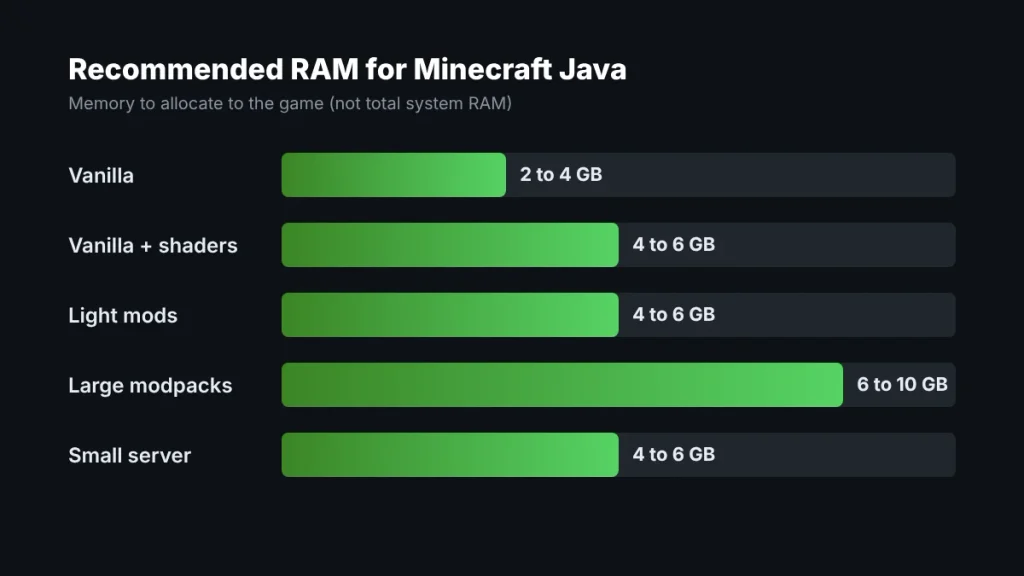
Use this table as a starting point when you allocate more RAM to Minecraft:
| How you play | RAM to allocate | Example JVM value |
|---|---|---|
| Vanilla, default settings | 2 to 4 GB | -Xmx4G |
| Vanilla with shaders or high render distance | 4 to 6 GB | -Xmx6G |
| Light mods (under 50 or so) | 4 to 6 GB | -Xmx5G |
| Large modpacks (150+ mods) | 6 to 10 GB | -Xmx8G |
| Small server for 2 to 5 friends | 4 to 6 GB | -Xmx6G |
My rule of thumb: never give the game more than half your total RAM on an 8 GB machine, and always leave at least 4 GB free for the operating system, Discord, and the browser tab with the wiki open. On a 16 GB PC, 6 to 8 GB for Minecraft is the sweet spot. On 32 GB, you can go to 10 or 12 GB for a huge modpack, but you rarely need more.
Can You Allocate Too Much RAM to Minecraft?
This surprises a lot of people. Java cleans up unused memory through a process called garbage collection. Give the game a giant pool, like 16 GB for vanilla, and garbage piles up longer before each cleanup, which can lead to bigger pauses. You’ll often get smoother play at 6 GB than at 16 GB. The smart way to allocate more RAM to Minecraft is to give the game what it needs plus some headroom, then stop.
How to Allocate More RAM to Minecraft in the Official Launcher
This is the fastest way to allocate more RAM to Minecraft. It works on Windows 10, Windows 11, and macOS with the official Minecraft Launcher. It applies to Java Edition only.
- Open the Minecraft Launcher and select Minecraft: Java Edition in the left sidebar.
- Click the Installations tab at the top.
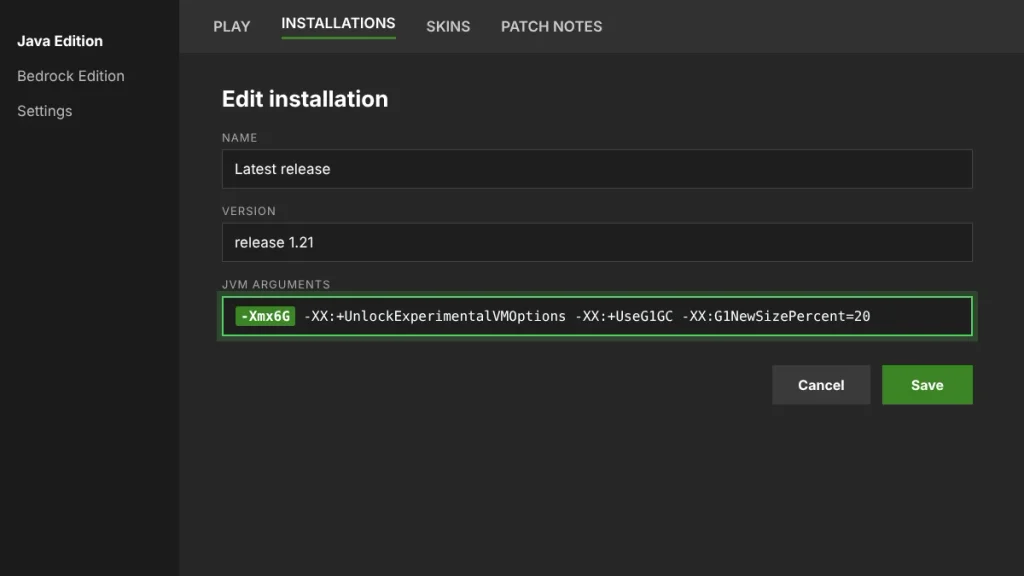
- Hover over the installation you play (for example, Latest release, or your Fabric or Forge profile), click the three dots, and choose Edit.
- Click More Options at the bottom of the Edit Installation window.
- Find the JVM Arguments field. It starts with -Xmx2G.
- Change only the number. For 6 GB, it becomes -Xmx6G.
- Click Save, then press Play.
Here’s what the full line typically looks like after you change it to 6 GB. Everything after the first value is the launcher’s default tuning, so leave it alone:
-Xmx6G -XX:+UnlockExperimentalVMOptions -XX:+UseG1GC -XX:G1NewSizePercent=20 -XX:G1ReservePercent=20 -XX:MaxGCPauseMillis=50 -XX:G1HeapRegionSize=32MA few details that trip people up:
- G means gigabytes and M means megabytes. -Xmx6G and -Xmx6144M are the same thing.
- No space between -Xmx and the number. -Xmx 6G will stop the game from launching.
- Each installation has its own setting. If you play a Forge profile and a vanilla profile, edit both.
Allocate More RAM to Minecraft in CurseForge, Modrinth, and Prism Launcher
If you play modpacks, you’re probably not using the official launcher’s settings at all. To allocate more RAM to Minecraft modpacks, use the launcher’s own memory slider. Each modpack launcher has one, and that slider overrides anything you set in the Minecraft Launcher. This is the most common reason people say “I changed it and nothing happened.”
CurseForge App
Open the CurseForge app, click the gear icon for Settings, choose Minecraft, and scroll to Java Settings. Drag the Allocated Memory slider to your target, such as 8192 MB for a big modpack. To allocate more RAM to Minecraft for just one pack, open that modpack’s Profile Options and turn off the option to use the system memory settings.
Modrinth App
Open Settings and find the default instance options for Java and memory, then move the Memory allocated slider. For a single modpack, open the instance, go to its settings, and adjust memory there instead.
Prism Launcher
Go to Settings > Java and set Maximum memory allocation. To change one instance only, right-click it, choose Edit, open Settings > Java, and check the box to override the global memory settings.
Modpack pages on CurseForge and Modrinth often list a recommended RAM amount. When you allocate more RAM to Minecraft modpacks, go with that number first. Pack authors test their own packs far more than anyone else.
How to Allocate More RAM to a Minecraft Server
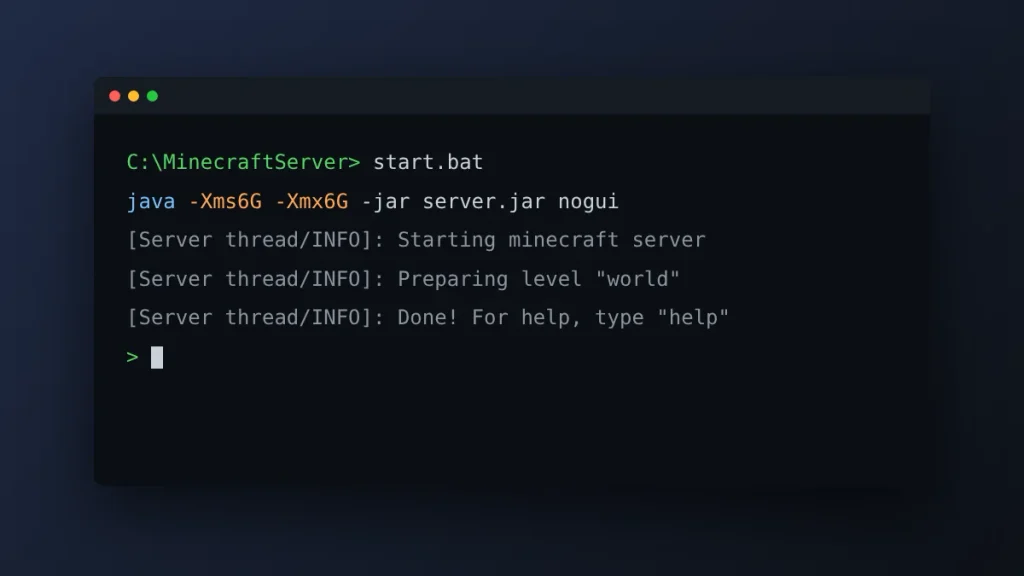
To allocate more RAM to a Minecraft server, change its startup command. A self-hosted server reads its memory limit from the command you use to start it. Put the server .jar in its own folder, create a text file in that folder, paste the line below, and save it as start.bat (Windows). Swap server.jar for your actual file name.
java -Xms6G -Xmx6G -jar server.jar nogui
pause
On macOS or Linux, save the same command (without the pause line) as start.sh, then run chmod +x start.sh once in Terminal to make it executable.
-Xms is the starting memory and -Xmx is the maximum. On a dedicated server, setting them to the same value is a common practice because the server grabs its memory once instead of growing into it. The nogui flag skips the server’s control window, which saves a little memory too.
Forge Servers Use a Different File
Newer Forge servers (Minecraft 1.17 and later) start through a run script that reads memory settings from a file called user_jvm_args.txt. Open that file, add a line like -Xmx6G, and save. Editing run.bat directly is usually unnecessary.
Hosted Servers
If you rent a server from a hosting company, memory is tied to your plan, so you can’t raise it with a command. You’ll need to upgrade to a plan with more RAM in the host’s control panel.
Problems When You Allocate More RAM to Minecraft (and Fixes)
“Could not reserve enough space for object heap.” You asked for more memory than Java can give. Lower the -Xmx value. If you set a custom Java path in the installation settings, make sure it points to a 64-bit Java, since 32-bit Java can’t use more than roughly 1.5 GB. The official launcher bundles its own Java, so the default setting is usually the safest.
The game won’t launch after you allocate more RAM to Minecraft. It’s almost always a typo, like a missing dash or an extra space. Reset the field to -Xmx2G and try again with a small change.
Still laggy with plenty of RAM. Lower render distance to 12 chunks, close Chrome, and try a performance mod like Sodium (for Fabric). For modded setups, our guide on how to install Minecraft mods on Windows walks through adding performance mods safely.
If you want to see exactly what the -Xmx and -Xms options do, Oracle’s official Java command documentation covers every memory flag in detail.
Frequently Asked Questions
How much RAM should I allocate to Minecraft?
For vanilla Minecraft Java, allocate 2 to 4 GB. With shaders or a light mod setup, 4 to 6 GB works well. Large modpacks with 150 or more mods usually need 6 to 10 GB. Always leave at least 4 GB free for your operating system and background apps so the whole computer doesn’t slow down.
Is 8 GB of RAM enough for Minecraft?
Yes, 8 GB of total system RAM runs vanilla Minecraft and light mods well. Allocate 3 to 4 GB to the game and leave the rest for Windows or macOS. Mojang lists 8 GB as the minimum with a dedicated graphics card. For large modpacks, 16 GB of system RAM is a more comfortable setup.
Can you allocate more RAM to Minecraft Bedrock Edition?
No. Minecraft Bedrock Edition on Windows, Xbox, PlayStation, Nintendo Switch, and mobile manages its own memory, and there’s no setting to change it. RAM allocation only applies to Java Edition. To improve Bedrock performance, lower render distance, turn off fancy graphics, and close other apps running in the background.
Does allocating more RAM increase FPS in Minecraft?
Usually not by itself. More RAM stops memory-related stutter and crashes, especially with mods and texture packs, but frame rate mostly depends on your graphics card and CPU. If vanilla Minecraft runs at low FPS with 4 GB allocated, adjust video settings or install a performance mod like Sodium instead of adding memory.
What happens if you allocate too much RAM to Minecraft?
Allocating too much RAM to Minecraft can starve your operating system, which causes system-wide slowdowns, and it can lengthen Java’s garbage collection pauses, which shows up as stutter. If you request more than your computer has free, the game may not launch at all. Stick to roughly half your system RAM or less.
How do I allocate more RAM to Minecraft on a Mac?
On a Mac, the steps match Windows. Open the Minecraft Launcher, go to Installations, click the three dots next to your profile, and choose Edit. Click More Options and change the -Xmx value in JVM Arguments, such as -Xmx4G. Check your total memory first under Apple menu, then About This Mac.
Your Next Step
You now know how to allocate more RAM to Minecraft in every major launcher. Open the Minecraft Launcher right now, check how much RAM your PC has, and set your JVM Arguments to -Xmx4G for vanilla or -Xmx6G to -Xmx8G for mods. Launch the game, press F3, and confirm the new limit shows up next to Mem. If it does, play for 20 minutes and watch the meter. Steady below 80% means you managed to allocate more RAM to Minecraft the right way. New to the game? Start with our Minecraft for beginners guide next.