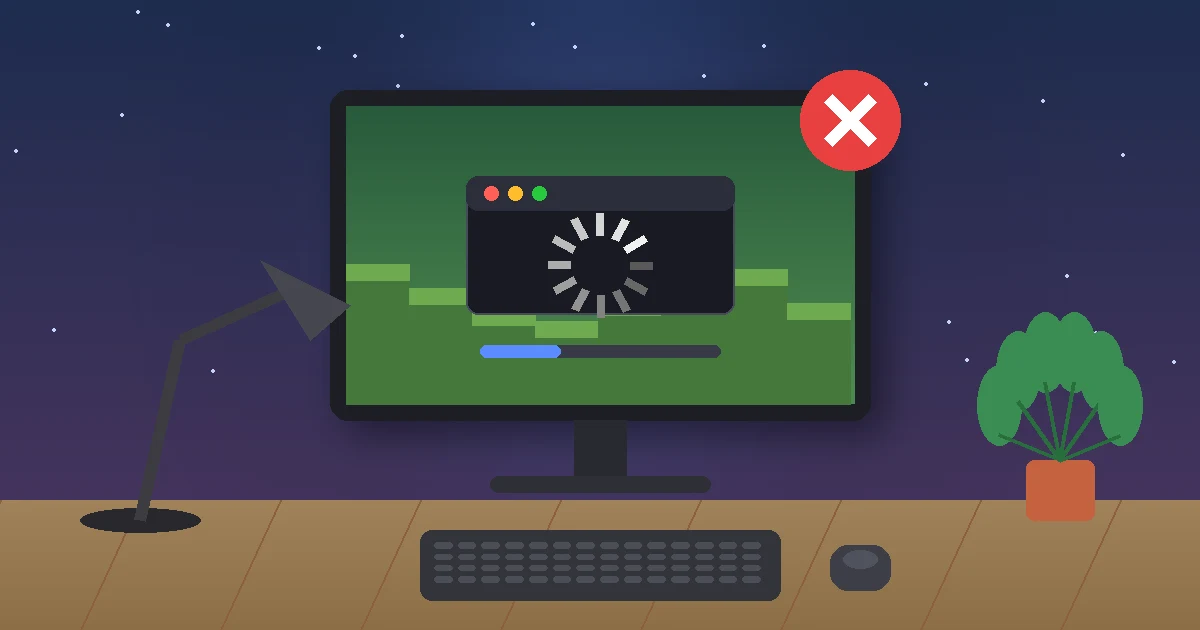
If you’re dealing with Minecraft not opening on your PC, the fix is usually one of three things: a stuck background process, broken Microsoft Gaming Services, or an outdated graphics driver. Start by ending every Minecraft and Java process in Task Manager, then repair the launcher in Windows Settings. That combo solves most cases in under five minutes.
Still stuck with Minecraft not opening? Work through the fixes below in order. They’re arranged from fastest to most involved, and they cover the Minecraft Launcher, Java Edition and Bedrock Edition (Minecraft for Windows) on Windows 10 and Windows 11.
Key Takeaways
- End stuck javaw.exe and launcher processes before anything else. A hidden instance blocks new launches.
- Repairing the launcher and reinstalling Gaming Services fixes most Microsoft Store and Xbox app installs.
- Java Edition 26.1 and later needs Java 25, but the official launcher bundles it. You don’t need to install Java yourself.
- Mojang raised the Java Edition requirements in 2026, including a Vulkan 1.3 capable GPU, so old drivers now cause more launch failures.
- Back up your saves folder before you reinstall anything.
Why Is Minecraft Not Opening on Your PC?
When it comes to Minecraft not opening, the symptom tells you a lot about the cause. A launcher that never appears points to Windows or Gaming Services. A launcher that opens but closes the moment you hit Play points to Java, drivers, or mods. Here’s the quick map I use:
| What you see | Likely cause | Try first |
|---|---|---|
| Nothing happens when you click the icon | Hidden process still running, or a corrupted launcher | Fix 1, then Fix 2 |
| Microsoft Store or Gaming Services page opens instead | Gaming Services missing or broken | Fix 3 |
| Launcher opens, game closes after you press Play | Graphics driver, mods, or memory settings | Fix 5 and Fix 6 |
| “Minecraft not responding” on Windows 11 | Antivirus scanning, low RAM, or corrupted files | Fix 7 and Fix 8 |
| Endless loading or sign-in loop | Store cache or Xbox services | Fix 4 |
How to Fix Minecraft Not Opening: 9 Proven Fixes
Restart your PC once before you start. I know it sounds lazy, but pending Windows updates lock files the launcher needs, and a restart clears them. If Minecraft is still not opening afterward, go down this list.
1. End Stuck Minecraft and Java Processes
A ghost process is the number one reason for Minecraft not opening after a crash. When the launcher crashes, it often leaves a copy running in the background. Windows sees that copy and refuses to open a second one, so clicking the icon does nothing. Press Ctrl + Shift + Esc to open Task Manager, then end anything named Minecraft, Minecraft Launcher, or javaw.exe.
Prefer the command line? Run this in Command Prompt:
taskkill /F /IM javaw.exeIf it says no process was found, that’s fine. It just means a stuck process isn’t why Minecraft is not opening, so move to the next step.
2. Repair or Reset the Minecraft Launcher
Windows has a built-in repair tool for Store apps, and it’s the single most effective fix for a Minecraft launcher not opening. Go to Settings > Apps > Installed apps, find Minecraft Launcher, click the three dots, and choose Advanced options. Click Repair first.
No luck? Come back and click Reset. Reset clears the launcher’s app data and signs you out, but it doesn’t touch your worlds in the .minecraft folder.
3. Update or Reinstall Gaming Services
If you bought the game through the Microsoft Store or Xbox app, broken Gaming Services is a very common cause of Minecraft not opening. The launcher depends on a background app called Gaming Services. When it breaks, you’ll often see the Store open to a Gaming Services page instead of the game. First, open Microsoft Store, go to Library, and click Get updates. Update Minecraft Launcher, the Xbox app, and Gaming Services.
If that doesn’t work, reinstall it. Right-click Start, choose Terminal (Admin) or Windows PowerShell (Admin), and run these two commands one at a time:
Get-AppxPackage Microsoft.GamingServices | Remove-AppxPackage -AllUsers
start ms-windows-store://pdp/?productid=9MWPM2CQNLHN
The second command opens the Gaming Services page in the Store. Install it, restart your PC, and check whether Minecraft is still not opening. This only reinstalls the service. Your worlds and account stay put.
4. Clear the Microsoft Store Cache
A corrupted Store cache is a quieter cause of Minecraft not opening. It can leave the launcher stuck on loading or looping back to the sign-in screen. Press Win + R, type the command below, and press Enter. A blank window opens for about 10 seconds, then the Store relaunches on its own.
wsreset.exe5. Update Your Graphics Driver
This one matters more in 2026 than it used to. Mojang updated the official Java Edition system requirements and now lists a GPU that supports Vulkan 1.3 with at least 2 GB of VRAM. An old driver may not expose the features the game expects, so it closes before the window ever appears. In my experience, this is the top cause of Minecraft not opening on PCs that haven’t had a driver update in a year or more.
Skip Windows Update for this and go straight to the source:
- NVIDIA: GeForce drivers page or the NVIDIA app
- AMD: AMD Software: Adrenalin Edition from amd.com/support
- Intel: Intel Driver & Support Assistant
Got a gaming laptop? Make sure Minecraft runs on the dedicated GPU. In Settings > System > Display > Graphics, set the Minecraft Launcher and javaw.exe to High performance. Plenty of “it won’t launch” laptops are just stuck on weak integrated graphics.
6. Remove Mods and Reset Launcher Profiles
Mods built for an older version are a classic reason Minecraft Java won’t launch after an update. Open the launcher, go to Installations, and launch the plain “Latest release” profile with no mod loader. If that works, the problem is a mod, not your PC. Our guide on how to install Minecraft mods on Windows covers matching mod and game versions.
If even the vanilla profile fails, your profile file may be corrupted. Rename it so the launcher builds a fresh one (you’ll need to re-create custom installations afterward):
ren "%appdata%\.minecraft\launcher_profiles.json" launcher_profiles.old7. Check Your Antivirus
Third-party antivirus tools sometimes quarantine a launcher file or block Java from starting. Temporarily pause real-time protection (Norton, McAfee, Bitdefender and similar), then try launching. If the game opens, antivirus was the reason for Minecraft not opening. Add the Minecraft Launcher folder and your .minecraft folder as exclusions, and turn protection back on right away.
8. Repair Corrupted Windows Files
If other games misbehave too, Windows itself may be the reason Minecraft is not opening. Open Command Prompt as administrator and run these two commands. Each can take 10 to 20 minutes, so let them finish.
DISM /Online /Cleanup-Image /RestoreHealth
sfc /scannow
9. Back Up Your Worlds and Reinstall the Launcher
Reinstalling is the last resort for Minecraft not opening, not the first. Before you uninstall, copy your Java worlds somewhere safe. Press Win + R, type %appdata%\.minecraft, and copy the saves folder to your desktop or a USB drive. Then uninstall Minecraft Launcher from Installed apps, restart, and download a fresh copy from Minecraft.net or the Microsoft Store.
Minecraft Java Won’t Launch? Java-Specific Fixes
A lot of old advice tells you to install Java from Oracle. Don’t. The official launcher downloads and manages its own Java runtime. Java Edition 26.1 (released March 24, 2026) moved the game to Java 25, and the launcher handles that switch for you automatically.
Where Java does cause Minecraft not opening:
- Too much RAM allocated. If you set the JVM arguments to something like -Xmx12G on a 16 GB PC, Windows can run short and the game quits instantly. Go to Installations > Edit > More options and set it back to -Xmx4G, which matches the newer default.
- Third-party launchers. CurseForge, Prism and similar launchers may point at an older Java install. Set them to Java 25 for version 26.1 and newer, or Java 21 for 1.20.5 through 1.21.11.
- Old modpacks. A pack built for 1.21 won’t run on a 26.x profile. Match the pack to its exact game version.
Minecraft Bedrock Not Opening on Windows
Bedrock (sold as Minecraft for Windows) leans even harder on Microsoft’s services. If you’re seeing Minecraft not opening only in Bedrock, focus on Fixes 3 and 4 first, then check these:
- Open the Xbox app and make sure you’re signed in with the same Microsoft account that bought the game.
- Confirm the date, time and time zone are set automatically in Settings > Time & language. A wrong clock breaks license checks.
- On a kid’s account, Microsoft Family Safety app limits can block the game outright. If Minecraft is not opening only on a child’s account, check there first. Our walkthrough on how to set up parental controls on Xbox shows where those limits live.
Does Your PC Meet the 2026 Minecraft Requirements?
Mojang’s updated Java Edition specs aren’t a hard block. Older PCs can still try to launch the game. But if your machine sits below the minimum, crashes, freezes and Minecraft not opening at all get much more likely.
| Component | Minimum (1080p, 30 FPS, Fast) | Recommended (1080p, 60 FPS, Fancy) |
|---|---|---|
| Operating system | 64-bit Windows | 64-bit Windows 11 |
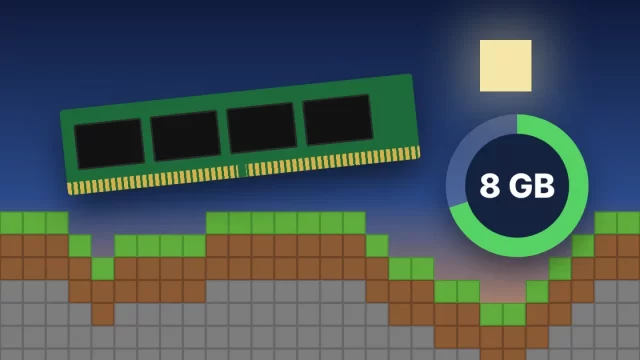
| Memory | 8 GB with a dedicated GPU, 12 GB with integrated graphics | 16 GB |
| Processor | 4-core CPU | Stronger modern CPU |
| Graphics | Vulkan 1.3 capable, 2 GB VRAM | 6 GB VRAM |
New to the game, or setting it up for a family member? Our Minecraft for beginners guide walks through setup from scratch.
When to Contact Minecraft Support
If you’ve worked through every fix and Minecraft is still not opening, it’s time to hand it off. Open a ticket through Minecraft Help’s support form. Include your Windows version, which edition you play, and any error code you saw. Java players should also attach the latest log from %appdata%\.minecraft\logs, because support can’t do much without it.
Frequently Asked Questions
Why is my Minecraft launcher not opening on Windows 11?
The most common causes are a hidden launcher process still running, a broken Gaming Services install, or a corrupted Microsoft Store cache. End Minecraft and javaw.exe in Task Manager, repair the launcher under Settings, Apps, Installed apps, then reinstall Gaming Services through PowerShell if the launcher still won’t open.
Do I need to install Java to fix Minecraft not opening?
No. The official Minecraft Launcher downloads and manages its own Java runtime, including Java 25 for version 26.1 and newer. Installing Java separately rarely fixes a launch problem. You only need your own Java install if you use a third-party launcher, run a server, or install mod loaders from a .jar file.
Will reinstalling Minecraft delete my worlds?
Uninstalling the launcher usually leaves your Java worlds in the .minecraft saves folder, but don’t count on it. Before you reinstall, press Win + R, open %appdata%\.minecraft, and copy the saves folder to another drive. That takes a minute and guarantees you won’t lose a world you spent months building.
Why does Minecraft close right after I press Play?
An instant close after pressing Play usually means an outdated graphics driver, incompatible mods, or too much RAM assigned in the JVM arguments. Update your GPU driver from NVIDIA, AMD or Intel, launch a vanilla profile with no mods, and set the memory argument back to -Xmx4G before trying again.
How do I fix Minecraft not responding on PC?
A “not responding” message usually comes from low available memory, antivirus scans, or corrupted system files. Close browsers and other heavy apps, pause third-party antivirus to test, and run DISM and sfc /scannow as administrator. If the game only freezes on large worlds, lower render distance to 8 to 12 chunks.
Get Back Into Your World
Here’s the short version. Kill stuck processes, repair the launcher, reinstall Gaming Services, and update your graphics driver. Those four steps fix the large majority of cases where Minecraft is not opening on a PC. If Minecraft is not opening even after all nine fixes, contact support with your logs. Either way, back up your saves folder today, even if everything’s working, so a future reinstall is a 10 minute chore instead of a disaster. Then bookmark this page for the next time the launcher acts up.