To install Minecraft mods on Windows, you need three things: Minecraft: Java Edition, a mod loader (Fabric, NeoForge, or Forge) that matches your game version, and the mod files themselves. You install the loader, drop the mod .jar files into your mods folder, and launch the game with the loader’s profile. The first setup takes about 10 minutes, and adding more mods later takes seconds.
I’ve set up modded Minecraft on more family PCs than I can count, and nearly every “my mods won’t load” problem comes down to one of four mistakes. This guide walks you through the exact steps to install Minecraft mods on Windows 10 and Windows 11, then shows you how to avoid those mistakes.
Key Takeaways
- Mods only work on Minecraft: Java Edition. The Bedrock version (“Minecraft for Windows”) uses add-ons instead.
- Fabric is the easiest loader for beginners because its Windows installer doesn’t need Java installed separately.
- Your mods folder lives at %appdata%\.minecraft\mods, and every mod must match your loader and game version exactly.
- Download mods only from Modrinth or CurseForge, never from reupload sites.
- Most crashes come from version mismatches or a missing dependency like Fabric API.
What You Need Before You Install Minecraft Mods on Windows
Start by checking which edition you own. If you bought Minecraft on minecraft.net for PC, you have both Java Edition and Bedrock in the official Minecraft Launcher. Only Java Edition supports real mods. Bedrock, sold as “Minecraft for Windows,” uses add-ons from the in-game Marketplace, and nothing in this guide applies to it.
Here’s your checklist:
- Minecraft: Java Edition on a Microsoft account, opened through the official Minecraft Launcher.
- The game version you want to mod, launched at least once so its files exist on your PC.
- One mod loader: Fabric, NeoForge, or Forge.
- Java 25 only if you use the Forge or NeoForge installer. Minecraft 26.1 and newer require Java 25, and those installers don’t use the launcher’s built-in copy.
- A backup of your worlds. Copy the saves folder somewhere safe before you add anything.
One tip that saves a lot of headaches: pick your Minecraft version based on the mods you want, not the other way around. Popular mods often take a few weeks to update after a new release drops, so the newest version isn’t always the best choice for a modded game.
Fabric vs. NeoForge vs. Forge: Which Minecraft Mod Loader Should You Use?
A mod loader is the small program that sits between Minecraft and your mods and loads them when the game starts. Each mod is built for a specific loader, so a Fabric mod won’t run on Forge, and you can’t mix them in one install.
| Mod loader | Best for | Windows installer | Needs Java installed? |
|---|---|---|---|
| Fabric | Beginners, performance mods, fast updates | .exe | No |
| NeoForge | Big content mods and modpacks on modern versions | .jar | Yes (Java 25 for 26.x) |
| Forge | Older versions like 1.12.2 and 1.20.1, classic modpacks | .jar | Yes |
My recommendation: if the mods you want are available for Fabric, use Fabric. It installs faster, updates quickly, and the Windows installer is a normal .exe file. Choose NeoForge when a specific mod you love only exists there, which is common for large tech and magic mods.
How to Install Minecraft Mods on Windows With Fabric
This is the method I suggest for most people who want to install Minecraft mods on Windows for the first time. Close Minecraft and the launcher completely before you start.
Step 1: Launch Your Target Version Once
Open the Minecraft Launcher, pick the version you want under Installations, and click Play. Load into the main menu, then quit. This downloads the base game files the loader needs.
Step 2: Download the Fabric Installer
Go to the official Fabric installer page and click Download for Windows. According to the official Fabric documentation, the .exe version uses the Java that comes with the official launcher, so you don’t need to install Java yourself.
Step 3: Install the Fabric Profile
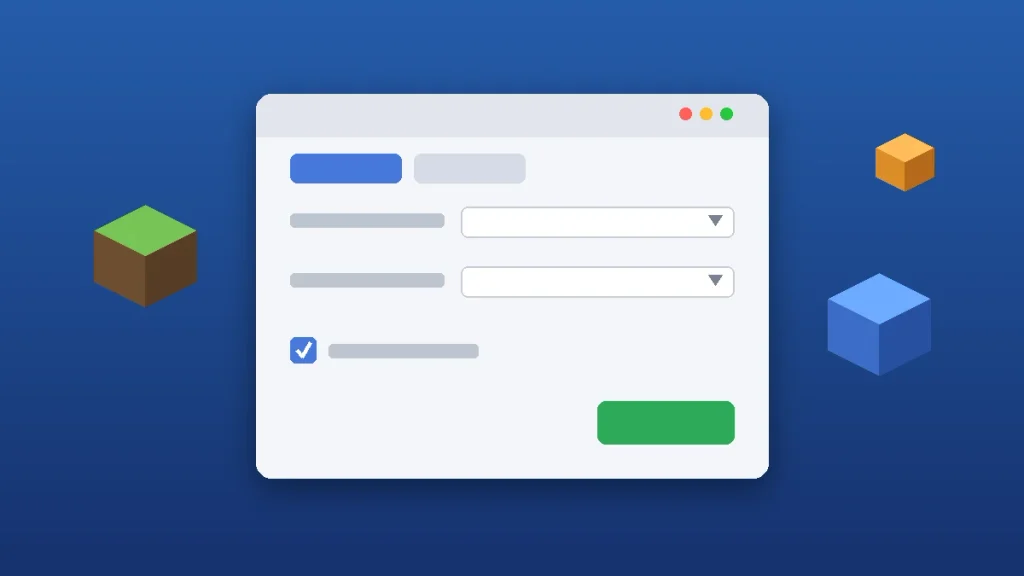
Run the installer. Leave the Client tab selected, choose your Minecraft version from the dropdown, keep the latest loader version, and make sure Create profile is checked. Click Install. You’ll see a success message in a few seconds.
Step 4: Open Your Mods Folder
Press Windows key + R to open the Run box, paste the path below, and press Enter.
%appdata%\.minecraftLook for a folder named mods. If it isn’t there, right-click, choose New > Folder, and name it mods (all lowercase). Fabric also creates it the first time you launch the Fabric profile.
Step 5: Add Fabric API and Your Mods
Most Fabric mods depend on Fabric API, so download it first from Modrinth or CurseForge for your exact game version. Then download the mods you want. Every file should end in .jar. Drag them straight into the mods folder. Don’t unzip them, and don’t put them in subfolders.
Step 6: Launch the Fabric Profile
Open the Minecraft Launcher, click the version dropdown next to Play, choose the profile that starts with fabric-loader, and click Play. If you also install the Mod Menu mod, you’ll get a Mods button on the title screen that lists everything that loaded.
How to Install Forge or NeoForge Mods on Windows
The process is nearly the same, with one extra step: Java. The Forge and NeoForge installers are .jar files, so Windows needs Java installed to open them. For Minecraft 26.1 and newer, that means Java 25. I use the free Eclipse Temurin build from Adoptium. During setup, turn on the options to set JAVA_HOME and associate .jar files.
To confirm it worked, open Command Prompt and run:
java -versionThe first number after “version” should be 25 for current releases. Then follow these steps:
- Download the installer for your exact game version from neoforged.net or the official Forge files site. Skip the ad links and click the real installer button.
- Double-click the .jar, select Install client, confirm the path points to your .minecraft folder, and click OK or Proceed.
- Drop your NeoForge or Forge mods into %appdata%\.minecraft\mods.
- Pick the new NeoForge or Forge profile in the launcher and click Play.
If double-clicking opens the .jar as a zip file, another program grabbed the file association. Right-click the installer, choose Open with, and select Java(TM) Platform SE binary.
Where to Download Minecraft Mods Safely
Mods are code that runs on your PC, so where you get them matters as much as how you install Minecraft mods on Windows. Stick to two sites:
- Modrinth: clean interface, open source, and easy filters for loader and version.
- CurseForge: the largest library, especially for older Forge mods and big modpacks.
Avoid sites that reupload mods with “download now” buttons and pop-ups. They often bundle adware, and they’re never the official source. Even trusted platforms aren’t perfect. In June 2023, a malware strain nicknamed “fractureiser” was found in a batch of compromised mods on CurseForge and Bukkit, and both platforms responded by tightening their review process. Keep Microsoft Defender on, check that a mod has a real download history and recent updates, and be careful with brand-new uploads from unknown authors.
The Easy Way: Use a Mod Manager
If dragging files around sounds tedious, a mod manager is the fastest way to install Minecraft mods on Windows. The CurseForge app, the Modrinth App, and Prism Launcher all let you create a separate instance, pick a loader, and install mods with one click. They pull in required dependencies automatically and keep each modpack in its own folder, so your vanilla worlds stay untouched.
For kids or anyone who plays several modpacks, I honestly think a manager is the better choice. The manual method is still worth learning, though, because it teaches you how the pieces fit together when something breaks.
Give Minecraft More RAM for Modded Play
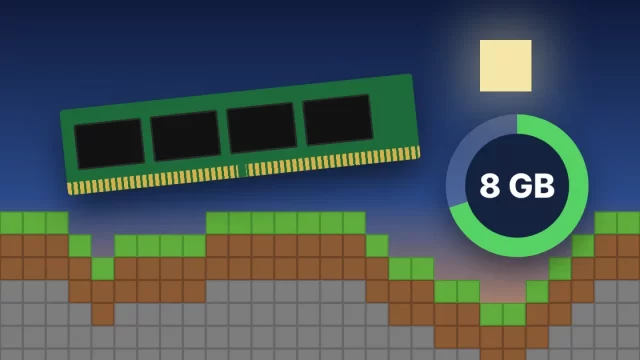
Once you install Minecraft mods on Windows in any real number, memory becomes the next bottleneck. The official launcher gives Java Edition 2 GB of memory by default, which is fine for a handful of mods but tight for big packs. To raise it, open the launcher, go to Installations, hover over your modded profile, click the three dots, and choose Edit > More Options. In the JVM Arguments box, change the first value:
-Xmx6GReplace only the existing -Xmx2G text and leave the rest alone. As a rough guide, 4 GB covers 20 to 40 light mods, and 6 to 8 GB suits large modpacks. Don’t give it more than half your system RAM. On a 16 GB laptop, 6 GB is a sensible ceiling.
Minecraft Mods Not Working? Quick Fixes
When Minecraft mods fail to load, check these in order. They solve the vast majority of problems:
- Version mismatch: a mod built for 26.2 won’t load on 26.3. Match the game version exactly.
- Wrong loader: a NeoForge mod in a Fabric profile does nothing. Check the loader tag on the download page.
- Missing dependency: Fabric API is the usual culprit. Read the “Dependencies” section on each mod page.
- Wrong profile: if you launch the plain “Latest release” profile, your mods won’t load. Pick the loader profile.
- Two conflicting mods: remove half of them, test, and repeat until you find the one causing the crash.
For crashes, open %appdata%\.minecraft\logs\latest.log or the newest file in the crash-reports folder. Search for the word “mod” near the top of the error. The file usually names the exact mod that failed.
Start Small, Then Build Your Modded World
Now you know how to install Minecraft mods on Windows the right way. Back up your saves, pick one loader, and start with one or two mods, like Sodium for better frame rates or JourneyMap for a minimap. Once they load cleanly, add more a few at a time. If you’re new to the game, read our Minecraft for beginners guide before you install a big content pack.
Frequently Asked Questions
Can you install mods on Minecraft Bedrock for Windows?
No, Bedrock Edition doesn’t support traditional mods. “Minecraft for Windows” uses add-ons, which you get from the in-game Marketplace or as .mcaddon and .mcpack files that open with a double-click. Add-ons can change mobs, items, and textures, but they’re more limited than Java Edition mods, which can add entirely new systems to the game.
Is it safe to download Minecraft mods?
Mods are generally safe when you download them from Modrinth or CurseForge and choose projects with a solid download history and recent updates. Avoid reupload sites, sketchy ad-heavy pages, and files that end in .exe instead of .jar. Keep Microsoft Defender turned on and scan anything you’re unsure about before adding it to your mods folder.
Where is the Minecraft mods folder on Windows?
The default Minecraft mods folder on Windows is C:\Users\YourName\AppData\Roaming\.minecraft\mods. The quickest way there is to press Windows key + R, type %appdata%\.minecraft, and press Enter. If you don’t see a mods folder, create one yourself or launch your Fabric, Forge, or NeoForge profile once and it appears automatically.
Do Minecraft mods work in multiplayer?
Client-side mods like minimaps, shaders, and performance mods work on most servers, though some servers ban certain ones. Content mods that add blocks, mobs, or items must be installed on both the server and every player’s game, using the same loader and versions. Most modded servers share a modpack so everyone matches exactly.
Why are my Minecraft mods not showing up?
Your Minecraft mods usually don’t show up because you launched the wrong profile, the mod targets a different game version, or it was built for another loader. Confirm you picked the Fabric, Forge, or NeoForge profile in the launcher, check each mod’s version tag, and make sure required dependencies like Fabric API are also in your mods folder.