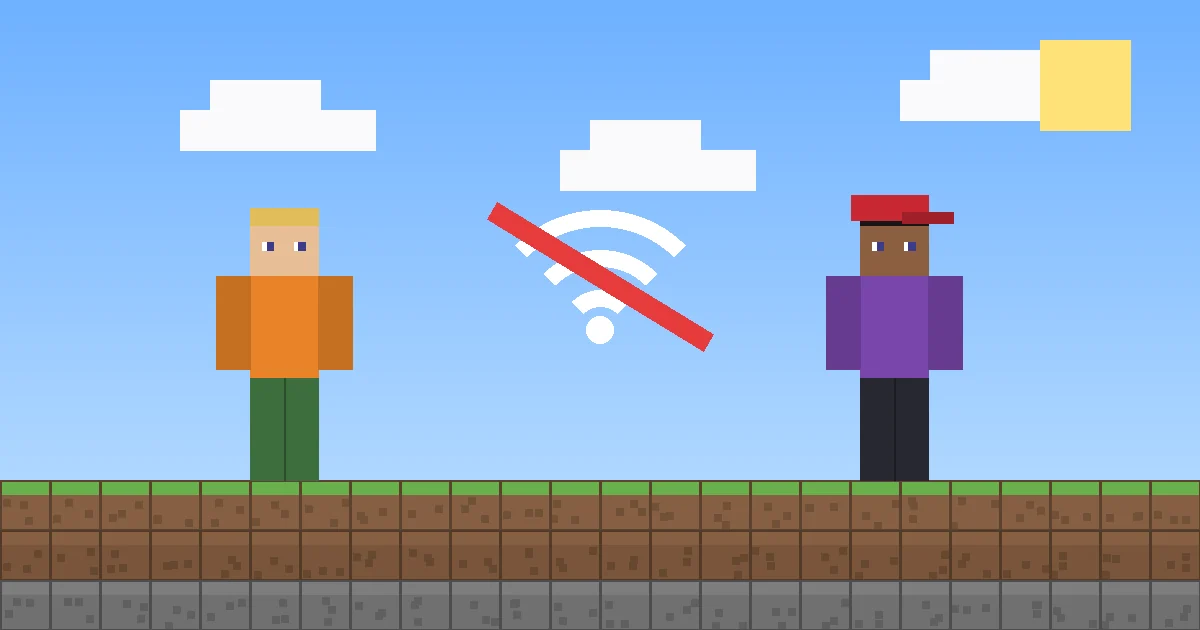
When Minecraft multiplayer is not working, the cause is almost always one of four things: a blocked setting in your Microsoft account, mismatched game versions, a firewall blocking Minecraft, or a router that won’t let the connection through. Start with the account setting. It fixes the gray “Multiplayer is disabled” button in seconds, and it’s the most common reason players get locked out.
Below is every fix for Minecraft multiplayer not working, in the order I’d try them, with notes on whether each applies to Java or Bedrock.
Key Takeaways
- The “Multiplayer is disabled” error is fixed by setting You can join multiplayer games to Allow in your Xbox privacy settings.
- You and your friends must run the same edition and the same version. Java and Bedrock can’t join each other without a special server plugin.
- Windows Firewall often blocks Java Edition after you click Cancel on the first network prompt.
- Hosting from home needs TCP port 25565 (Java) or UDP port 19132 (Bedrock) forwarded on your router.
- Starlink and T-Mobile Home Internet use CGNAT, which blocks home hosting. Use Realms or a hosted server instead.
Why Is Minecraft Multiplayer Not Working?
The error message is your best clue. Match it below and jump to the fix that fits.
| What you see | Most likely cause | Go to |
|---|---|---|
| Multiplayer button grayed out, or “Multiplayer is disabled. Please check your Microsoft account settings.” | Xbox privacy setting set to Block | Fix 1 |
| “Outdated client,” “Outdated server” or “Incompatible client” | Version mismatch | Fix 2 |
| “Connection timed out” or “Unable to connect to world” | Firewall, router or host offline | Fixes 3 to 5 |
| Friend’s LAN world never shows up | Different networks, guest Wi-Fi or LAN visibility off | Fix 6 |
| Can’t join a Realm or play online on a console | Missing subscription or clubs setting | Fix 7 |
Quick Checks When Minecraft Multiplayer Is Not Working
These take under five minutes and solve more cases than you’d expect.
- Restart the game and your device. Fully quit Minecraft, then reboot.
- Turn off your VPN. VPNs and “gaming accelerators” often break Minecraft connections.
- Check the service status. When Xbox services are down, Bedrock multiplayer, Realms and sign-ins all fail. Check the official Xbox status page first.
- Try a big public server. If that works but your friend’s world doesn’t, the problem is on their end.
- Sign out and back in. This refreshes your account permissions.
Fix 1: Turn On Multiplayer in Your Microsoft Account
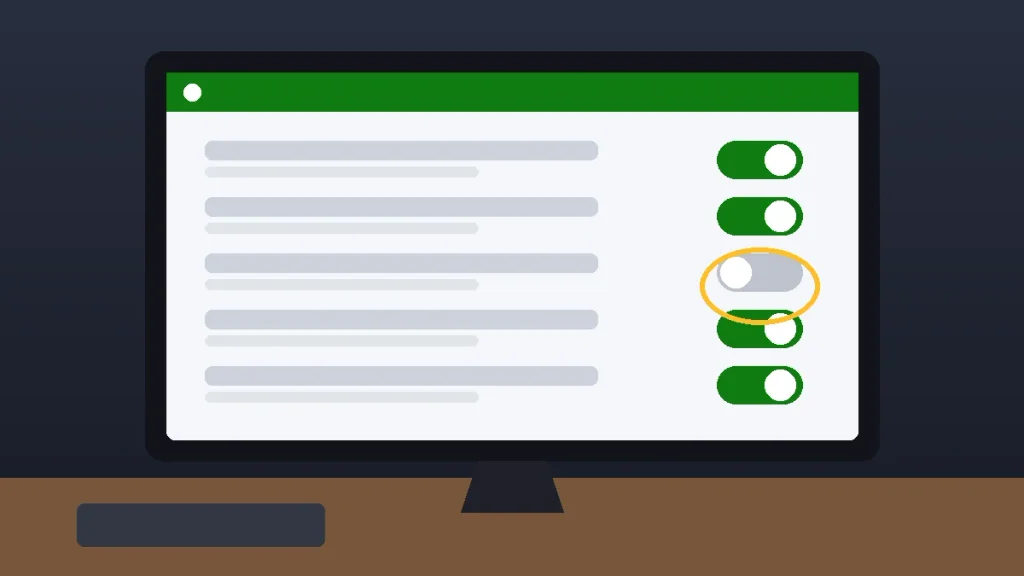
If your Minecraft multiplayer is not working and the button is grayed out, this is your fix. Every copy of Minecraft, Java included, runs on a Microsoft account, and that account has an Xbox privacy setting that can block all online play. It doesn’t matter that you’ve never owned an Xbox.
- Go to account.xbox.com/settings in any browser and sign in with the account you use for Minecraft.
- Open the Xbox Series X|S, Xbox One, and Windows 10 devices Online Safety tab.
- Set You can join multiplayer games to Allow.
- For Bedrock crossplay with friends on other consoles or phones, also set You can join cross-network play to Allow.
- For Realms, set You can create and join clubs to Allow.
- Click Submit at the bottom. If you leave the page without submitting, nothing saves.
Close Minecraft completely, then reopen it. The change sometimes takes effect instantly, but Microsoft’s own support answers note it can take a few hours to reach every service, so don’t panic if it isn’t live in the first five minutes.
If It’s a Child Account
Accounts belonging to kids under 18 are controlled by the parent in Microsoft Family Safety, and the child can’t change these settings on their own. A parent needs to sign in, pick the child’s profile under Privacy & online safety, and allow multiplayer there. Minecraft’s own guide on managing multiplayer access for a child account walks through each screen. My advice: allow multiplayer but set chat to friends only.
Fix 2: Match Your Game Edition and Version
This is the most common reason you can’t join a friend’s Minecraft world. Java Edition and Bedrock Edition are separate games that can’t connect to each other. If your friend plays on an Xbox and you play Java on a PC, you won’t see each other. The only exception is a Java server running the Geyser plugin.
Java Edition
Your client version must match the server. Open the Minecraft Launcher, click Installations, then New installation, and pick the exact version your server or friend is running.
Bedrock Edition
Bedrock players need to be on the same current version, and there’s no version picker. Update through the Microsoft Store on Windows, the console’s store, or the App Store and Google Play. A friend with automatic updates turned off is a classic culprit.
Modded Servers
A modded server needs the same mod loader (Fabric or Forge) and the same mod versions on your end. One mismatched mod is enough to get you kicked during login. If you’re setting this up for the first time, see our guide on how to install Minecraft mods on Windows.
Fix 3: Allow Minecraft Through Windows Firewall
When Minecraft multiplayer is not working on a Windows PC and Minecraft can’t connect to a server, check Windows Defender Firewall. The first time Java Edition goes online, Windows shows a prompt. If someone clicked Cancel, Minecraft stays blocked.
- Open the Start menu, type Allow an app through Windows Firewall, and open it.
- Click Change settings (you’ll need admin rights).
- Find every javaw.exe entry. It’s often labeled OpenJDK Platform binary or Java(TM) Platform SE binary. For Bedrock, find Minecraft.
- Check both the Private and Public boxes, then click OK.
Using Norton or McAfee? Add the same exception inside that program’s firewall instead.
Fix 4: Reset Your Network Settings on Windows
If you get “Connection timed out” on every server and Minecraft multiplayer is not working anywhere, reset your PC’s network stack. Open Command Prompt as an administrator (search cmd, right-click, choose Run as administrator) and run these commands one at a time:
ipconfig /flushdns
ipconfig /release
ipconfig /renew
netsh winsock reset
netsh int ip reset
Restart your PC afterward. The Winsock reset doesn’t fully apply until you reboot.
Fix 5: Check Your NAT Type and Port Forwarding
If you’re hosting and friends can’t join your world or home server, your router is probably refusing incoming connections.
Check Your NAT Type
On an Xbox, go to Settings, then General, then Network settings, and look at the NAT type. Open is what you want. Strict will block most hosting. On Windows, search for Xbox Networking in Settings to see the same test. Turning on UPnP in your router often moves you to Open.
Forward the Right Port
Forward the port for your edition to your PC’s local IP address. Getting the protocol wrong is the mistake I see most. A Bedrock server with TCP forwarded instead of UDP won’t work.
| Edition | Default port | Protocol |
|---|---|---|
| Java Edition | 25565 | TCP |
| Bedrock Edition | 19132 (19133 for IPv6) | UDP |
Most US routers open at 192.168.1.1 or 192.168.0.1 in your browser. AT&T gateways typically use 192.168.1.254, and Xfinity customers manage port forwarding inside the Xfinity app rather than a web page. Make sure the port in your server file matches what you forwarded:
# Java Edition server
server-port=25565

# Bedrock Dedicated Server uses these instead
# server-port=19132
# server-portv6=19133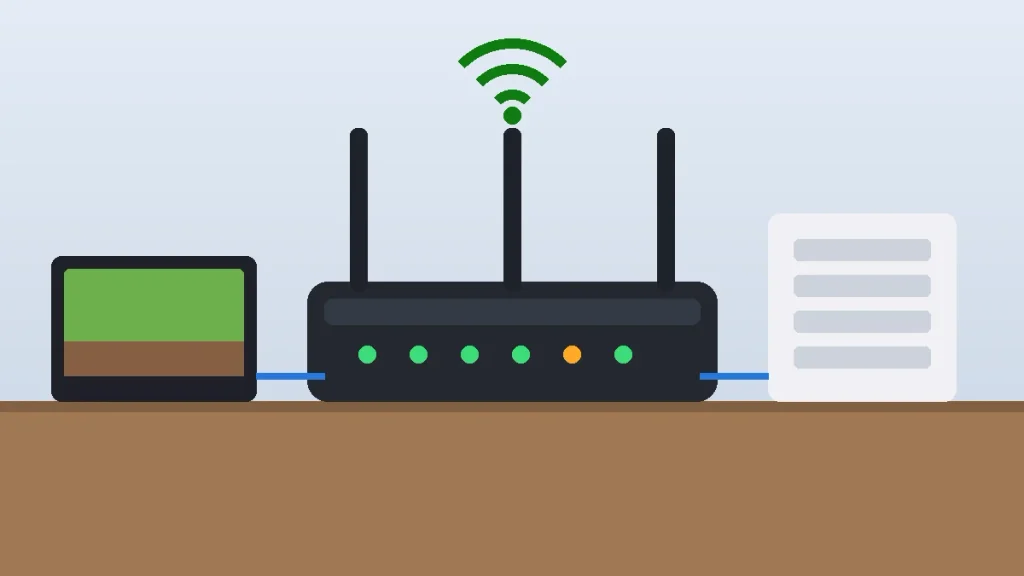
When Your Internet Provider Is the Problem
Some home internet services share one public IP address across many customers, a setup called CGNAT. Starlink residential plans and T-Mobile 5G Home Internet both work this way, and no amount of port forwarding gets around it. If that’s you, skip home hosting. A Minecraft Realm or a paid server host gives your friends an address that actually works.
Fix 6: LAN World Not Showing Up
LAN play only works on the same home network. In Java Edition, the host presses Esc, clicks Open to LAN, then Start LAN World. In Bedrock, the host opens world settings, goes to Multiplayer, and turns on Visible to LAN Players.
Still invisible? Check these:
- One device is on guest Wi-Fi, which isolates devices from each other.
- The Windows network is set to Public, which hides your PC from local devices. Switch it to Private in Settings, then Network & internet.
Fix 7: Consoles, Realms and Subscriptions
On consoles, online multiplayer usually needs the platform’s paid membership: Xbox Game Pass Essential (or a higher tier) on Xbox, PlayStation Plus on PlayStation, and Nintendo Switch Online on Switch. If your membership lapsed, you’ll see Minecraft multiplayer not working with only a vague error.
Realms are separate. You need an active Realms subscription to host one, but invited friends join free. If a friend can’t join your Realm, have them confirm the clubs setting from Fix 1 is set to Allow and that they’re on the latest version.
Still Not Working? Here’s What to Try Next
If Minecraft multiplayer is still not working after every fix, try these:
- Plug your PC or console into the router with an Ethernet cable to rule out weak Wi-Fi.
- Unplug your router and modem for 60 seconds.
- Reinstall Minecraft if the game itself is acting strangely. Our guide on how to fix Minecraft not opening on PC covers clean reinstalls.
- Contact the official Minecraft Help Center with your exact error message and edition.
Frequently Asked Questions
Why does Minecraft say multiplayer is disabled?
Minecraft shows “Multiplayer is disabled” when your Microsoft account’s Xbox privacy setting blocks online games. Sign in at account.xbox.com/settings, open the Online Safety tab, set “You can join multiplayer games” to Allow and click Submit. For child accounts, a parent must change this setting through Microsoft Family Safety.
Why can’t I join my friend’s Minecraft world?
The most common reasons are different editions or versions, a blocked multiplayer setting, or a firewall on the host’s computer. Confirm you’re both on Java or both on Bedrock, update to the same version, and make sure the host allowed Minecraft through Windows Firewall. LAN worlds also require both players on the same home network.
Can Java and Bedrock players play together?
Not directly. Java Edition and Bedrock Edition use different network protocols, so they can’t join each other’s worlds or Realms. The workaround is a Java server running the Geyser plugin, which translates connections for Bedrock players. Bedrock players on Xbox, PlayStation, Switch, mobile and Windows can play together natively.
What port does Minecraft multiplayer use?
Minecraft Java Edition servers use TCP port 25565 by default. Bedrock Edition servers use UDP port 19132, plus UDP 19133 for IPv6 connections. When port forwarding for a home server, match both the number and the protocol. Forwarding TCP for a Bedrock server is a common mistake that blocks every player from connecting.
Do I need to pay to play Minecraft multiplayer?
On PC and mobile, joining servers and LAN worlds is free once you own the game. On consoles, online play usually requires Xbox Game Pass Essential, PlayStation Plus or Nintendo Switch Online. Hosting a Realm needs a Realms subscription, but friends you invite can join without paying anything extra.
How long does it take for Xbox privacy changes to apply?
Many players see the change right away after restarting Minecraft. However, Microsoft support notes that multiplayer permission changes can take several hours to apply across all services. If the setting shows Allow but Minecraft still blocks you, sign out of the game, sign back in, and give it a few hours.
Get Back Into Your Friend’s World Tonight
Start with Fix 1 and Fix 2. Between the Xbox privacy toggle and a version mismatch, you’ve covered the majority of cases where Minecraft multiplayer is not working, and both take under five minutes. Only move on to firewall and router changes if those two check out. New to the game or setting up a first world with friends? Our Minecraft for beginners guide covers everything else you’ll want to know.