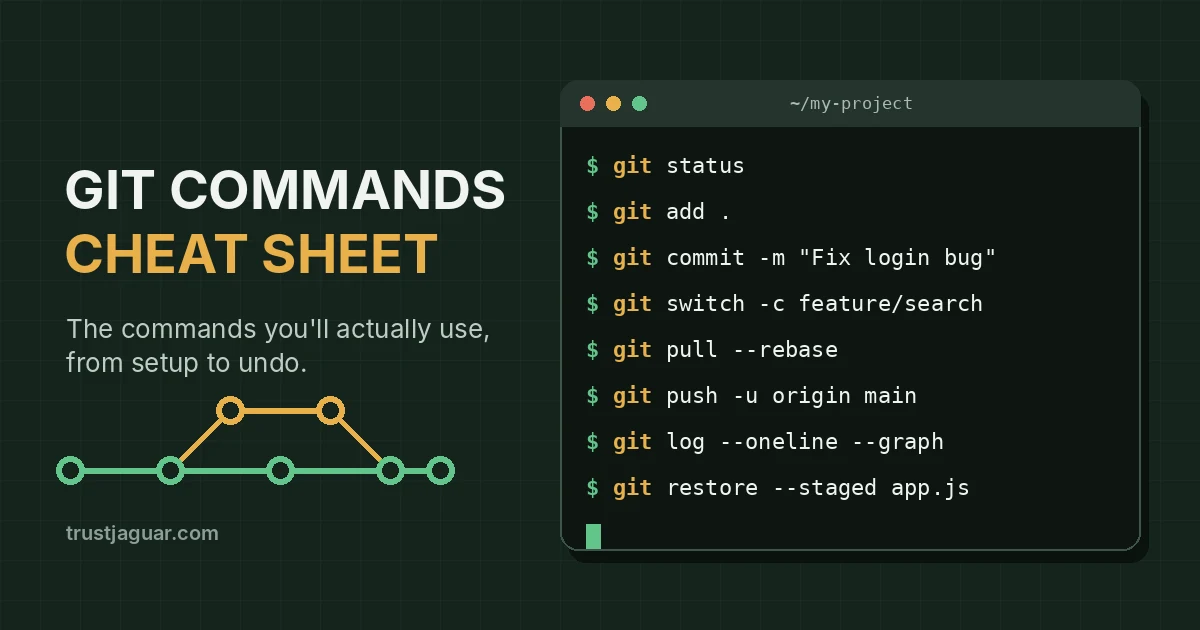
This Git commands cheat sheet covers the commands that handle nearly all day-to-day work: setting up a repository, saving changes, branching, syncing with GitHub, and undoing mistakes. If you only memorize five, make them git status, git add, git commit, git pull, and git push. Everything below is grouped by task, with a plain-English note on what each command does and when it can bite you.
Key Takeaways
- Run
git statusbefore and after almost everything. It tells you exactly where your changes are. - Use
git switchandgit restore(added in Git 2.23) instead of the overloadedgit checkout. - Already pushed? Undo with
git revert, notgit reset. - Pick
git push --force-with-leaseover--forceso you never wipe out a teammate’s work. git reflogcan bring back “lost” commits, usually for 30 days or more.
Before You Start: Install and Check Git
Open a terminal and type git --version. If you see a version number, you’re set. If not, here’s the quickest install path for each system:
- Mac: Running
git --versionon a Mac without Git prompts you to install Apple’s Command Line Developer Tools, which include Git. Homebrew users can runbrew install gitfor a newer version. - Windows: Download Git for Windows from the official Git downloads page. It comes with Git Bash, a terminal where every command in this guide works as written.
- Linux: Use
sudo apt install giton Ubuntu or Debian, orsudo dnf install giton Fedora.
New to the command line itself? Our terminal commands cheat sheet for Mac and Linux covers cd, ls, and the other basics you’ll use alongside Git.
Git Setup and Configuration Commands
Do this once per computer. Git stamps your name and email on every commit, so get it right before your first one.
| Command | What it does |
|---|---|
git config --global user.name "Jane Doe" | Sets the name attached to your commits |
git config --global user.email "jane@example.com" | Sets the email attached to your commits |
git config --global init.defaultBranch main | Makes new repos start on a branch called main (Git 2.28 or later) |
git config --global core.editor "code --wait" | Opens VS Code instead of Vim for commit messages |
git config --list | Shows every setting currently in effect |
One small thing that saves headaches later: use the same email your GitHub account uses (or GitHub’s private noreply address). Otherwise your commits won’t link to your profile and won’t count on your contribution graph.
Basic Git Commands for Everyday Work
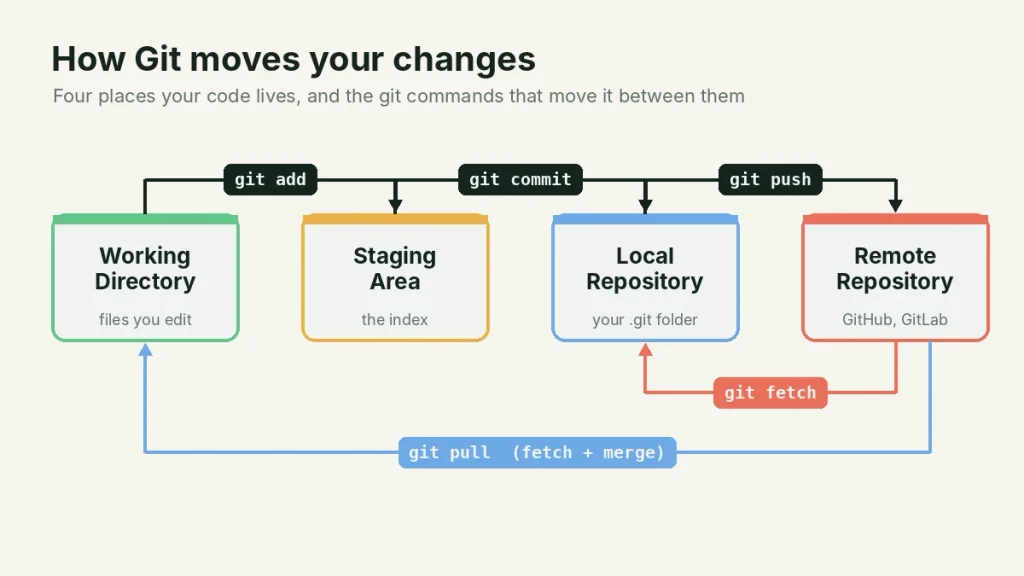
Git tracks your code in three local places: the working directory (the files you edit), the staging area (changes you’ve picked for the next commit), and the local repository (your saved history). Most basic Git commands just move changes from one place to the next.
Start or Copy a Repository
| Command | What it does |
|---|---|
git init | Turns the current folder into a new Git repository |
git clone <url> | Downloads a full copy of a remote repository, history included |
git clone <url> my-folder | Clones into a folder name you choose |
Stage and Commit Changes
| Command | What it does |
|---|---|
git status | Shows changed, staged, and untracked files |
git status -s | Same thing, in a compact one-line-per-file view |
git add app.js | Stages one file |
git add . | Stages everything in the current folder and below |
git add -p | Walks you through each change so you stage only what you want |
git diff | Shows edits you haven’t staged yet |
git diff --staged | Shows what’s staged and about to be committed |
git commit -m "Fix login bug" | Saves staged changes with a message |
git commit -am "Update styles" | Stages and commits changes to tracked files in one step |
git rm old-file.js | Deletes a file and stages the deletion |
git mv old.js new.js | Renames a file and stages the rename |
Two habits from years of code review. First, use git add -p instead of git add . when you can. Reviewing each chunk catches the stray debug line or leftover API key before it lands in history. Second, know that git commit -am skips brand-new files. If you created a file, you still need git add for it.
Git Branch Commands
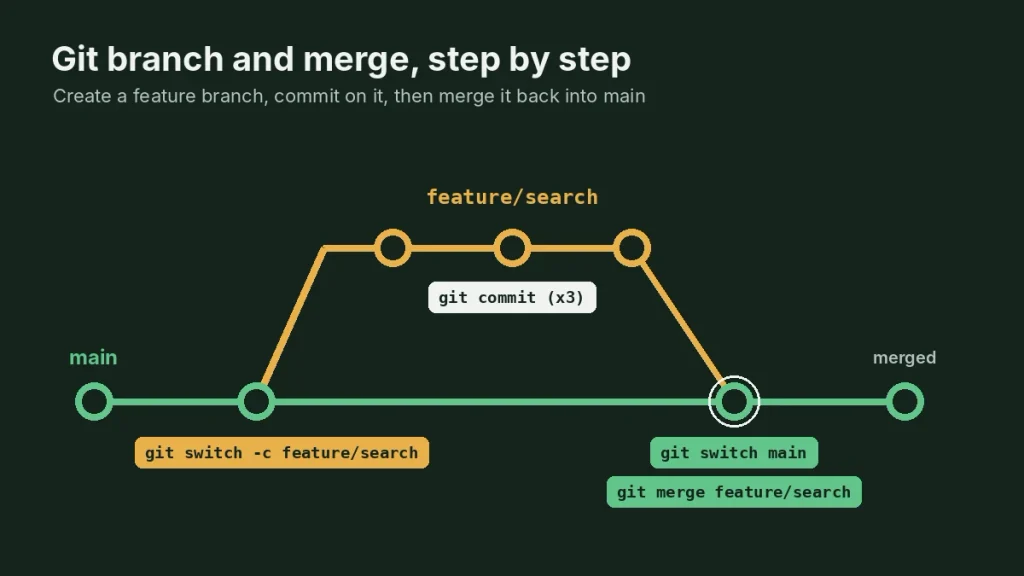
Branches let you build a feature or fix a bug without touching the main line of code. Create one for every piece of work, even small ones. It costs nothing, and it keeps main deployable.
| Command | What it does |
|---|---|
git branch | Lists local branches (the current one has an asterisk) |
git branch -a | Lists local and remote branches |
git switch feature/search | Moves to an existing branch |
git switch -c feature/search | Creates a new branch and moves to it |
git switch - | Jumps back to the branch you were just on |
git branch -m new-name | Renames the current branch |
git branch -d feature/search | Deletes a branch that’s already merged |
git branch -D feature/search | Force-deletes a branch, merged or not |
git merge feature/search | Merges that branch into the one you’re on |
git rebase main | Replays your branch’s commits on top of the latest main |
Merge or rebase? My rule is simple. Rebase your own feature branch onto main before opening a pull request, because it gives reviewers a clean, straight history. Never rebase commits that other people have already pulled, because rebasing rewrites them and your teammates’ copies will no longer match.
Working With GitHub and Remote Repositories
A remote is a copy of your repository hosted somewhere else, usually GitHub, GitLab, or Bitbucket. By convention, the main remote is named origin.
| Command | What it does |
|---|---|
git remote -v | Lists remotes and their URLs |
git remote add origin <url> | Connects a local repo to a remote |
git fetch | Downloads new commits without changing your files |
git pull | Fetches and merges remote changes into your branch |
git pull --rebase | Fetches and replays your local commits on top, with no merge commit |
git push | Uploads your commits to the remote |
git push -u origin feature/search | Pushes a new branch and sets it to track the remote |
git push --force-with-lease | Overwrites the remote branch only if nobody else pushed since your last fetch |
git push origin --delete feature/search | Deletes a branch on the remote |
If git push rejects your GitHub password, that’s expected. GitHub stopped accepting account passwords for Git operations on August 13, 2021. Use a personal access token, an SSH key, or the GitHub CLI (gh auth login), which sets up credentials for you in about a minute.
Inspect History: git log, git show, and git blame
| Command | What it does |
|---|---|
git log | Full commit history for the current branch |
git log --oneline --graph --all | Compact history of every branch, drawn as a tree |
git log -p app.js | Every change ever made to one file |
git log --author="Jane" | Commits by one person |
git show <hash> | Details and changes for a single commit |
git diff main feature/search | Compares two branches |
git blame app.js | Shows who last changed each line, and in which commit |
git log --oneline --graph --all is long enough that most developers alias it. Run git config --global alias.lg "log --oneline --graph --all" and from then on, git lg does the job.
Git Undo Commands: Fix Mistakes Safely
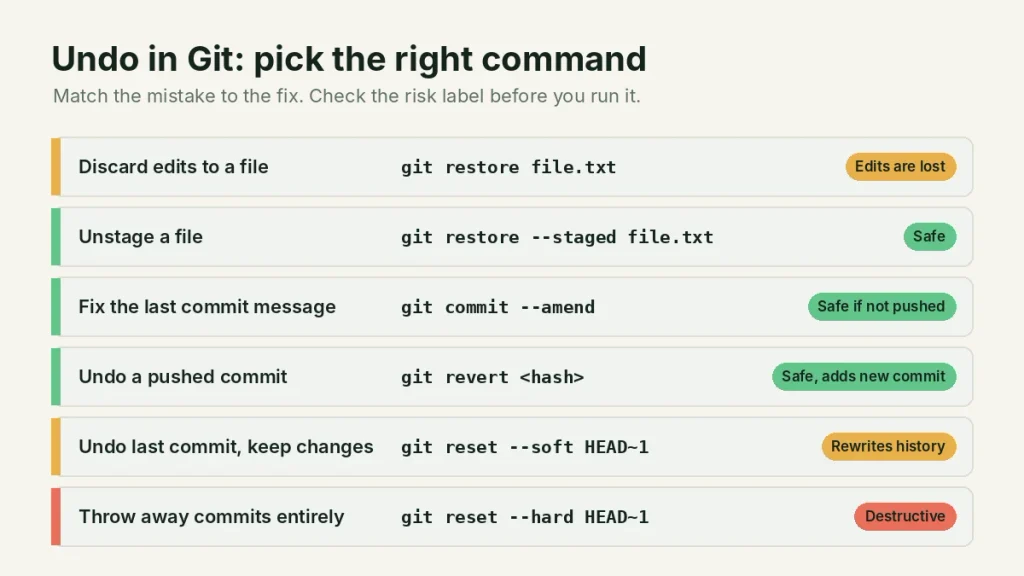
Almost everything in Git can be undone. The question that decides which command to use is whether you’ve already pushed. If the commit is only on your machine, you can rewrite history freely. If it’s on GitHub and others may have pulled it, use git revert.
| Situation | Command | OK after pushing? |
|---|---|---|
| Throw away unsaved edits to a file | git restore app.js | Local only (edits are gone for good) |
| Unstage a file but keep the edits | git restore --staged app.js | Yes |
| Fix the last commit message or add a forgotten file (stage it first) | git commit --amend | No |
| Undo the last commit, keep changes staged | git reset --soft HEAD~1 | No |
| Undo the last commit, keep changes unstaged | git reset HEAD~1 | No |
| Delete the last commit and its changes | git reset --hard HEAD~1 | No |
| Reverse a commit that’s already on GitHub | git revert <hash> | Yes |
| Find a commit you “lost” after a reset | git reflog | Yes |
| Preview, then delete untracked files | git clean -n, then git clean -fd | Local only |
Treat git reset --hard and git clean -fd with respect. They delete uncommitted work, and Git can’t bring that back. Committed work is different. Even after a hard reset, git reflog lists where your branch pointed before, and Git keeps those entries for 30 days or more by default. Find the hash, then run git reset --hard <hash> to get back to it.
Stash, Tag, and Other Handy Commands
| Command | What it does |
|---|---|
git stash | Shelves uncommitted changes so you can switch tasks |
git stash -u | Stashes untracked files too |
git stash list | Shows saved stashes |
git stash pop | Restores the latest stash and removes it from the list |
git stash apply stash@{1} | Restores a specific stash and keeps it saved |
git tag -a v1.0.0 -m "First release" | Creates an annotated tag for a release |
git push origin --tags | Pushes your tags to the remote |
git cherry-pick <hash> | Copies one commit onto your current branch |
git rm --cached .env | Stops tracking a file without deleting it from your disk |
Set up a .gitignore file on day one. At minimum, list .env, node_modules/, and, on a Mac, .DS_Store. If a secrets file already slipped into a commit, git rm --cached stops tracking it, but the old commit still holds the value, so rotate that password or API key right away.
Git Commands List: The 10 to Memorize First
If this Git commands cheat sheet feels like a lot, start here. These ten cover a typical workday:
git statusto see where things standgit add -pto stage changes carefullygit commit -m "message"to save a snapshotgit switch -c branch-nameto start new workgit pull --rebaseto get your team’s latest changesgit pushto share your commitsgit log --oneline --graphto see recent historygit stashto park work in progressgit restoreto discard or unstage changesgit revertto safely undo a pushed commit
Where to Go From Here
The fastest way to make these stick is to break something on purpose. Make a throwaway folder, run git init, commit a few files, create a branch, merge it, then try every undo command in the table above. Ten minutes of that beats an hour of reading. When you want the full details on any command, the official Git reference documentation and the free Pro Git book are the most reliable sources. And if you’re still choosing where to write your code, our guide to the best free code editors for developers covers editors with Git built right in.
Frequently Asked Questions
What are the basic Git commands?
The basic Git commands are git init or git clone to start, git status to check changes, git add to stage files, git commit to save a snapshot, and git push and git pull to sync with a remote like GitHub. Add git switch for branches and git log for history, and you can handle most everyday work.
What is the difference between git fetch and git pull?
git fetch downloads new commits from the remote but leaves your files and current branch untouched, so you can review changes first. git pull runs a fetch and then immediately merges (or rebases, with –rebase) those changes into your branch. Use fetch when you want to look before you combine anything.
How do I undo my last commit in Git?
If you haven’t pushed, run git reset –soft HEAD~1 to undo the commit and keep your changes staged, or git reset HEAD~1 to keep them unstaged. If the commit is already on GitHub, run git revert followed by the commit hash. That creates a new commit reversing it without rewriting shared history.
What is the difference between git switch and git checkout?
git checkout does several jobs, including changing branches and restoring files, which makes mistakes easy. Git 2.23 split those jobs into two clearer commands: git switch changes branches and git restore restores files. Both checkout styles still work, but switch and restore are easier to read and harder to misuse, especially for beginners.
How do I delete a branch in Git locally and remotely?
To delete a local branch that’s already merged, run git branch -d branch-name. Use git branch -D to force-delete one that isn’t merged. To delete the same branch on GitHub or another remote, run git push origin –delete branch-name. You can’t delete the branch you’re on, so switch away first.
Is Git the same as GitHub?
No. Git is free, open-source version control software that runs on your own computer and tracks changes to files. GitHub is a website, owned by Microsoft, that hosts Git repositories online and adds pull requests, issues, and team tools. You can use Git without GitHub, and GitLab and Bitbucket offer similar hosting.