To deploy Laravel on cPanel, upload your project to a folder outside public_html, point your domain at Laravel’s public folder, create a MySQL database, fill in a production .env file, and run Composer and Artisan from cPanel’s Terminal. That’s the whole job. The details below are what separate a clean launch from an afternoon of 500 errors.
I’ve moved plenty of Laravel apps onto shared hosting, and the same three mistakes show up every time: the wrong PHP version, the whole project dumped inside public_html, and a forgotten database setting. This guide covers all of them, plus the fixes when something breaks.
Key Takeaways
- To deploy Laravel on cPanel with Laravel 13, you need PHP 8.3 or newer. Set it per domain in cPanel’s MultiPHP Manager before you upload anything.
- Keep the Laravel project outside public_html. Only the public folder should be reachable from the web.
- New Laravel apps default to SQLite, so switch DB_CONNECTION to mysql in your production .env.
- Run composer install, php artisan migrate –force and php artisan optimize in cPanel Terminal.
- Add one cron job for the scheduler and keep APP_DEBUG=false on the live site.
What You Need Before You Deploy Laravel on cPanel
Check four things with your host first. If any are missing, a Laravel cPanel deployment gets much harder than it needs to be.
- The right PHP version. Your hosting account has to offer the PHP version your Laravel release requires (see the table below).
- SSH or Terminal access. cPanel’s Terminal only appears if your host gives your account shell access, according to cPanel’s official Terminal documentation. Ask support to turn it on if you don’t see it under Advanced.
- Composer. Most cPanel servers include it. Type composer -V in Terminal to confirm.
- A MySQL or MariaDB database and a domain with an SSL certificate.
| Laravel version | Minimum PHP | Status in late 2026 |
|---|---|---|
| Laravel 13 | PHP 8.3 | Current release (launched March 2026) |
| Laravel 12 | PHP 8.2 | Security fixes only, until February 24, 2027 |
| Laravel 11 and older | PHP 8.2 or lower | End of life, upgrade before launching |
Can You Run Laravel on Shared Hosting Without SSH?
Technically, yes. You’d build the vendor folder on your own computer, upload everything through File Manager, and import the database with phpMyAdmin. It works, but every update turns into a 50 MB upload and you can’t run Artisan commands. If your Laravel shared hosting plan has no Terminal, you can still deploy Laravel on cPanel, but I’d honestly switch plans or hosts before launch.
Step 1: Set the Right PHP Version in MultiPHP Manager
The first move when you deploy Laravel on cPanel is the PHP version. Open Software > MultiPHP Manager, tick your domain, pick PHP 8.3 or 8.4, and click Apply. cPanel’s MultiPHP Manager documentation notes that EasyApache 4 supports PHP 8.1 through 8.5, but your host decides which versions are actually installed.
Here’s the catch almost nobody mentions. MultiPHP Manager changes the PHP version your website uses, not the version Terminal uses. Composer and Artisan run on the command-line PHP, which is often older. Check it:
Terminal
php -v
ls /opt/cpanel/ | grep ea-php
If php -v shows an older version, call the right binary directly, for example /opt/cpanel/ea-php83/root/usr/bin/php. You’ll use that full path for Artisan and cron jobs later.
Step 2: Prepare Your Laravel App Locally
Before you deploy Laravel on cPanel, build your front-end assets on your own computer. Shared hosts rarely give you Node.js, and a missing build folder causes the famous “Vite manifest not found” error. Then zip the project without the heavy folders.
Local terminal
npm run build
zip -r laravel-app.zip . -x "node_modules/*" "vendor/*" ".env" ".git/*" "storage/logs/*"
Leaving out vendor keeps the zip small, because Composer rebuilds it on the server. Leaving out .env stops your local passwords from reaching production. If you edit code before uploading, any of the best free code editors for developers will handle a Laravel project well.
Step 3: Upload Files Outside public_html
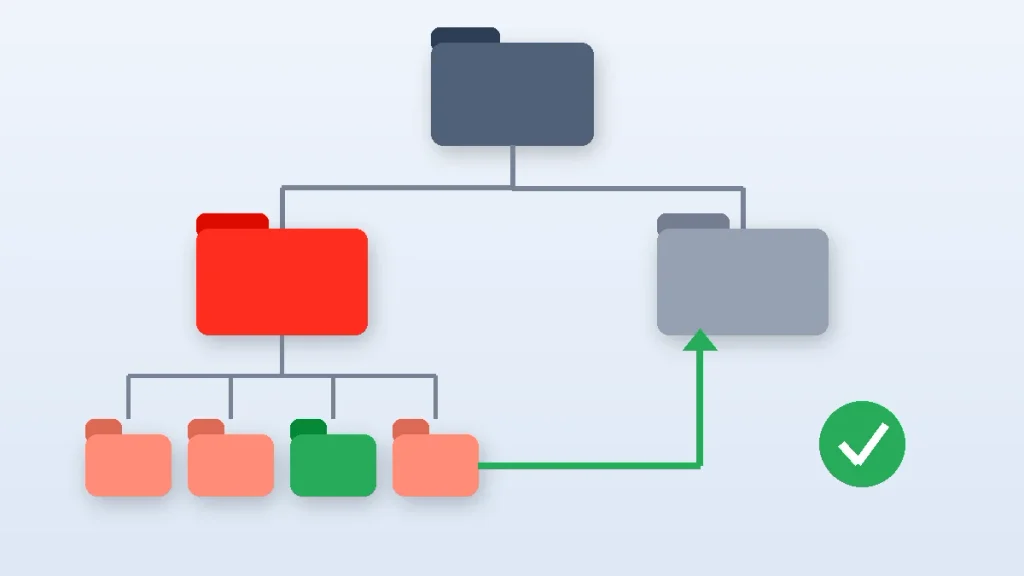
In File Manager, go to your home directory (the folder that contains public_html), upload the zip, and extract it into a new folder such as laravel-app. Your structure should look like this:
Folder structure
/home/username/
├── laravel-app/        <- the whole Laravel project
│   ├── app/
│   ├── bootstrap/
│   ├── public/         <- the only folder visitors should reach
│   ├── storage/
│   └── .env
└── public_html/
Why not just extract into public_html? Because then your .env file, with your database password and app key, sits inside the web root. The official Laravel deployment guide warns against serving the app from the project root for exactly this reason.
Step 4: Point Your Domain to the Laravel Public Folder
This is the step that decides whether your site works. You have three ways to connect the domain to the Laravel public folder in cPanel. Pick the first one your host allows.
Option A: Change the Document Root (Best for Addon Domains and Subdomains)
Go to Domains, click Manage next to the domain, and set the document root to laravel-app/public. Save, and you’re done. On many hosts, though, the primary domain’s root is locked to public_html, which is where Option B comes in.
Option B: Swap public_html for a Symlink (Best for the Main Domain)
Rename the old public_html and replace it with a symbolic link to Laravel’s public folder. Back up anything in public_html first.
Terminal
cd ~
mv public_html public_html_backup
ln -s ~/laravel-app/public ~/public_html
This is my default for main domains. Laravel stays untouched, so future updates are just a pull or an upload into laravel-app. If you’re not comfortable with commands like mv and ln, keep our terminal commands cheat sheet for Mac and Linux open in another tab.
Option C: Move the Public Files and Edit index.php (Last Resort)
If symlinks aren’t allowed, copy everything inside laravel-app/public (including the hidden .htaccess) into public_html. Then open public_html/index.php and point the paths at your project folder:
public_html/index.php
<?php

use Illuminate\Foundation\Application;
use Illuminate\Http\Request;

define('LARAVEL_START', microtime(true));

if (file_exists($maintenance = __DIR__.'/../laravel-app/storage/framework/maintenance.php')) {
    require $maintenance;
}

require __DIR__.'/../laravel-app/vendor/autoload.php';

$app = require_once __DIR__.'/../laravel-app/bootstrap/app.php';

$app->handleRequest(Request::capture());
The downside: every time you rebuild assets, you have to copy public/build into public_html again. Skip the popular trick of dropping the whole app in public_html with a rewrite rule into /public. If that .htaccess ever fails, your .env is one URL away from anyone.
Step 5: Create the MySQL Database
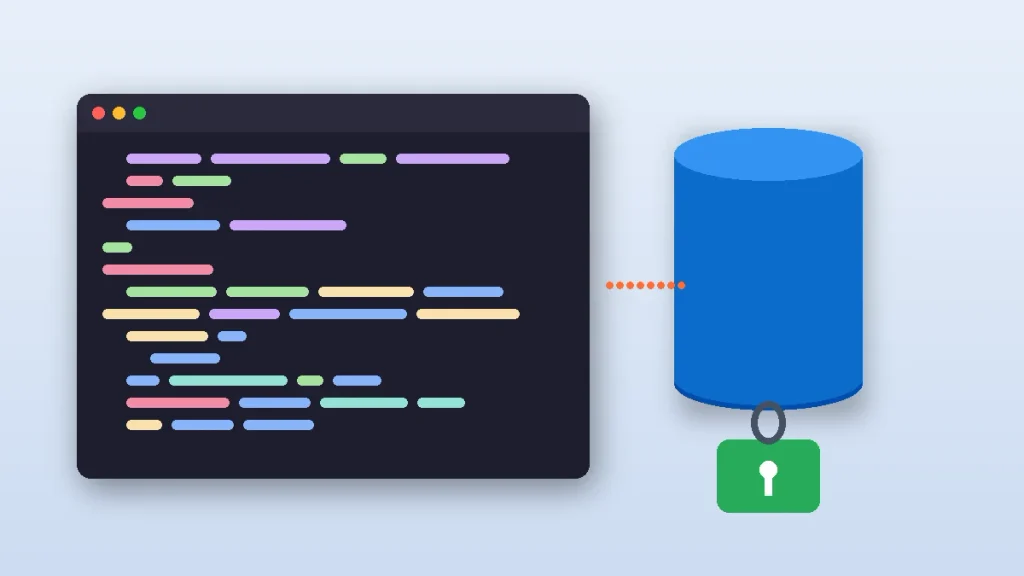
Almost every app you deploy Laravel on cPanel with needs a database. Open Databases > MySQL Database Wizard. Create a database, create a user with a strong password, and grant that user All Privileges. cPanel adds your account name as a prefix, so a database you call shop actually becomes something like username_shop. Copy the full names, not the short ones.
Moving an existing site? Export the database from your local machine and import the .sql file through phpMyAdmin. For a new app, you’ll create the tables with migrations in Step 7.
Step 6: Configure the Laravel .env File for Production
In File Manager, enable “Show Hidden Files” in Settings, copy .env.example to .env inside laravel-app, and edit these lines. This file is where most failed attempts to deploy Laravel on cPanel go wrong.
.env
APP_NAME="Your App"
APP_ENV=production
APP_DEBUG=false
APP_URL=https://yourdomain.com

DB_CONNECTION=mysql
DB_HOST=localhost
DB_PORT=3306
DB_DATABASE=username_shop
DB_USERNAME=username_shopuser
DB_PASSWORD=your-strong-password

SESSION_DRIVER=database
CACHE_STORE=database
QUEUE_CONNECTION=database
Two things trip people up here. First, new Laravel projects ship with DB_CONNECTION=sqlite, so if you forget to change it, your app quietly ignores MySQL. Second, sessions and cache use the database by default, which means the site throws errors until migrations create those tables. Leave APP_KEY empty; the next step fills it in.
Step 7: Run Composer and Artisan in cPanel Terminal
This is where you actually deploy Laravel on cPanel, so take it one command at a time. Open Advanced > Terminal, accept the warning, and run these commands. Swap in the full ea-php path from Step 1 if your command-line PHP is too old.
Terminal
cd ~/laravel-app
composer install --no-dev --optimize-autoloader
php artisan key:generate
php artisan migrate --force
php artisan storage:link
php artisan optimize
The –force flag is required because Laravel refuses to run migrations in production without it. storage:link makes uploaded files in storage/app/public visible on the web. And php artisan optimize caches your config, routes, and views, which gives shared hosting a noticeable speed bump.
If you get a Composer error about the PHP platform version, run it with the right binary instead, for example /opt/cpanel/ea-php83/root/usr/bin/php /opt/cpanel/composer/bin/composer install –no-dev. The Composer path can vary by host, so check with which composer.
Step 8: Fix Folder Permissions
Permissions are a frequent reason people can’t deploy Laravel on cPanel cleanly. Laravel needs to write to storage and bootstrap/cache. On cPanel, PHP usually runs as your own user, so standard permissions are enough:
Terminal
cd ~/laravel-app
find storage bootstrap/cache -type d -exec chmod 755 {} \;
find storage bootstrap/cache -type f -exec chmod 644 {} \;
Never use 777. Many cPanel servers block scripts in world-writable folders and return a 500 error, so 777 often makes things worse, not better.
Step 9: Set Up Cron Jobs for the Scheduler and Queues
If your app uses scheduled tasks, add one cron job under Advanced > Cron Jobs that runs every minute:
Cron command
cd /home/username/laravel-app && /opt/cpanel/ea-php83/root/usr/bin/php artisan schedule:run >> /dev/null 2>&1Shared hosts don’t allow long-running processes like Supervisor, so queue workers need a workaround. Schedule queue:work –stop-when-empty inside Laravel’s scheduler, and it will process jobs each minute and exit. For a contact form or order emails, that’s plenty.
Step 10: Turn On HTTPS and Test the Site
Open Security > SSL/TLS Status and run AutoSSL for your domain. Most hosts include it free. Once the padlock shows up, make sure APP_URL starts with https so links and asset URLs match.
Then test like a visitor would: load the homepage, log in, submit a form, and upload a file. Check storage/logs/laravel.log for anything new. A quiet log is the best sign you managed to deploy Laravel on cPanel correctly.
How to Update Your Laravel Site After You Deploy Laravel on cPanel
Updates are where a good setup pays off. If your code is on GitHub, clone it into laravel-app the first time, then each release looks like this:
deploy.sh
cd ~/laravel-app
php artisan down
git pull origin main
composer install --no-dev --optimize-autoloader
php artisan migrate --force
php artisan optimize:clear
php artisan optimize
php artisan up
Since the build folder isn’t usually in Git, upload your fresh public/build after running npm run build locally. Need a refresher on pulls, branches, and tags? Our Git commands cheat sheet covers the ones you’ll use daily.
Common Laravel cPanel Deployment Errors and Fixes
Even careful developers hit a snag the first time they deploy Laravel on cPanel. Here’s what each error usually means and how to clear it.
| What you see | Likely cause | Fix |
|---|---|---|
| 500 Internal Server Error | Wrong PHP version, bad permissions, or missing vendor folder | Check storage/logs/laravel.log, confirm MultiPHP version, rerun composer install |
| Folder listing or 403 Forbidden | Domain points to laravel-app instead of public | Fix the document root or symlink (Step 4) |
| “No application encryption key” | APP_KEY is empty | Run php artisan key:generate, then php artisan optimize |
| “Vite manifest not found” | public/build wasn’t uploaded | Run npm run build locally and upload the build folder |
| Images upload but show 404 | No storage link | Run php artisan storage:link |
| .env changes do nothing | Config is cached | Run php artisan optimize:clear, then optimize again |
That last one catches experienced developers too. Once config is cached, Laravel stops reading .env until you clear and rebuild the cache.
FAQ About Deploying Laravel on cPanel
Can I deploy Laravel on cPanel shared hosting?
Yes. Laravel runs well on cPanel shared hosting as long as your plan offers the required PHP version, Composer, and Terminal or SSH access. Keep the project outside public_html, point the domain at the public folder, and use cron jobs instead of long-running queue workers. Most small business sites and blogs run fine this way.
Why does my Laravel site show a 500 error on cPanel?
A 500 error usually means the wrong PHP version, missing vendor files, an empty APP_KEY, or bad folder permissions. Open storage/logs/laravel.log first, since it names the real problem. Then confirm the PHP version in MultiPHP Manager, rerun composer install, and set storage and bootstrap/cache folders to 755.
How do I remove “public” from a Laravel URL in cPanel?
Point the domain’s document root at the laravel-app/public folder in cPanel’s Domains section, or replace public_html with a symlink to that folder. Either way, visitors see yourdomain.com without “/public” in the address. Avoid moving the entire project into public_html, because it can expose your .env file.
Do I need SSH to deploy Laravel on cPanel?
You don’t strictly need it, but it saves hours. Without SSH or cPanel Terminal, you must build the vendor folder locally, upload everything through File Manager, and import the database by hand. You also lose Artisan commands like migrate and optimize. Ask your host to enable shell access before you start.
What PHP version does Laravel 13 need on cPanel?
Laravel 13 requires PHP 8.3 or newer, and PHP 8.4 is a solid choice in 2026. Set it per domain in cPanel’s MultiPHP Manager. Remember that Terminal may use a different PHP version, so run php -v and use the full ea-php path for Composer, Artisan, and cron jobs if needed.
Ready to Launch? Here’s Your Next Step
Before you touch any files, log in to cPanel and check two things: the PHP versions in MultiPHP Manager and whether Terminal appears under Advanced. If both are there, you can deploy Laravel on cPanel in about 30 minutes by following the steps above in order. Bookmark this page for your first update, because the deploy script in that section is the part you’ll reuse every week.
Building something that mixes a CMS and Laravel? See how Pollora runs WordPress inside Laravel before you choose your stack.