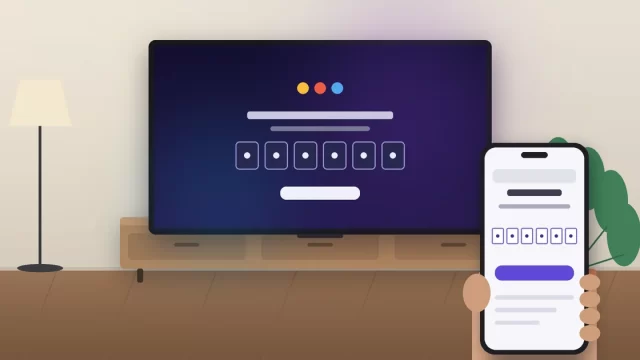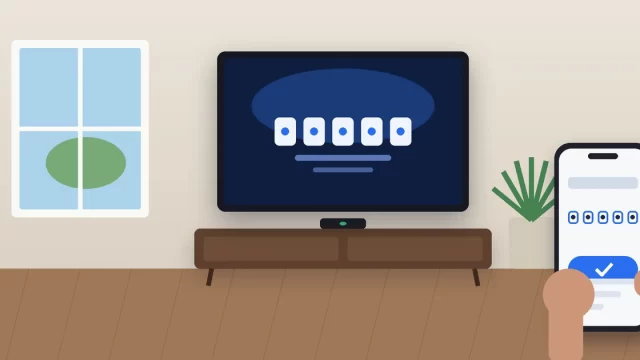
To activate YouTube TV, open the YouTube TV app on your TV, choose Sign in, and note the code on screen. Then go to tv.youtube.com/start on your phone or computer, sign in with the Google account that pays for YouTube TV, and enter the code. Your TV refreshes on its own a few seconds later.
When everything cooperates, the whole process takes about two minutes. When it doesn’t, it’s almost always one of four things: an expired code, the wrong Google account, a work or school account, or an outdated app. This guide covers the setup and every common fix.
Key Takeaways
- The only official activation page is tv.youtube.com/start. Google never charges a fee or asks you to call a number to activate.
- Sign in with the same Google account that holds your YouTube TV plan.
- Activation codes expire quickly. If one fails, get a fresh code.
- Work and school Google accounts usually can’t be used. Use a personal Gmail account.
- You can sign out of a lost or old TV remotely from your Google Account.
What You Need Before You Start
- An active YouTube TV membership (or a free trial, if one is offered). The Base Plan runs $82.99 a month, according to Cord Cutters News, but check tv.youtube.com for current pricing.
- A personal Google account, the one you signed up with.
- A supported device, such as Roku, Fire TV, Apple TV, Google TV, a recent Samsung, LG, or Vizio smart TV, or an Xbox or PlayStation.
- A phone, tablet, or computer with a web browser. It doesn’t need to be on the same Wi-Fi as your TV.
One thing that trips people up: YouTube TV and the regular YouTube app are different. If you go to youtube.com/activate, you’ll link free YouTube, not your live TV subscription. Make sure you’re in the app called YouTube TV.
How to Activate YouTube TV at tv.youtube.com/start
These steps match Google’s official YouTube TV Help Center and work the same on nearly every device.
Step 1: Install and open the YouTube TV app. Search for “YouTube TV” in your device’s app store, install it, and open it.
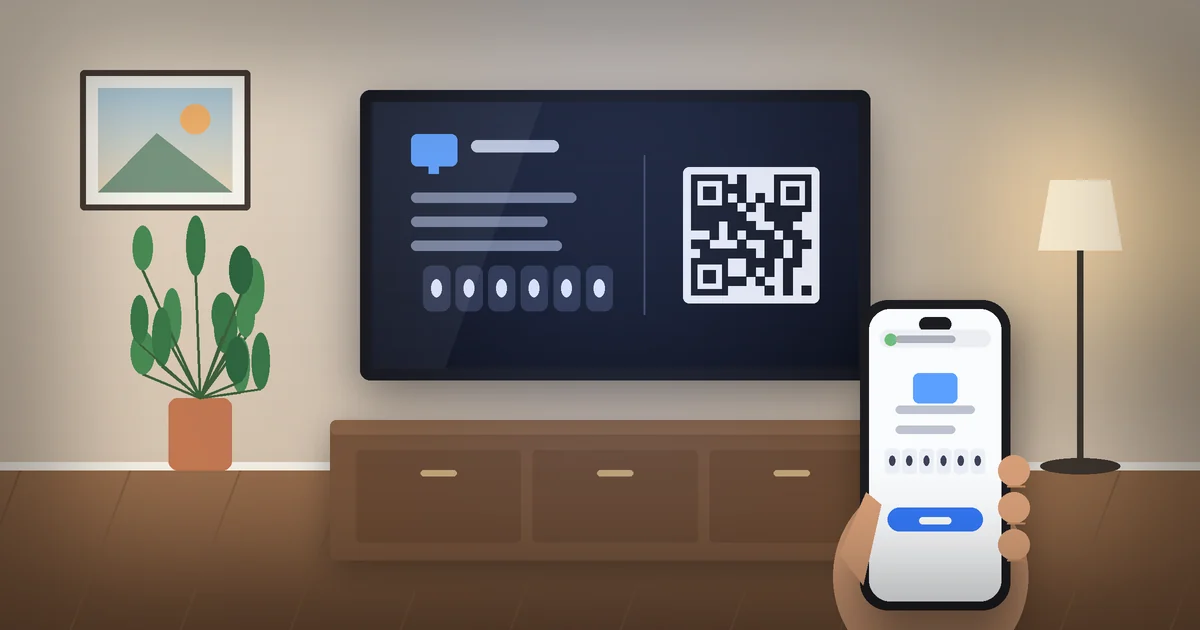
Step 2: Select Sign in. You’ll see a QR code and a short activation code. Leave this screen open. If you back out, the code changes.
Step 3: Go to tv.youtube.com/start. Type it into a browser on your phone or computer, or just scan the QR code with your phone’s camera.
Step 4: Enter the activation code. Type it exactly as shown, then tap Continue. Watch for look-alike characters like 0 and O, or 1 and I.
Step 5: Choose your account and select Allow. Pick the Google account linked to your YouTube TV plan and tap Allow. Your TV refreshes within seconds. You’re done.
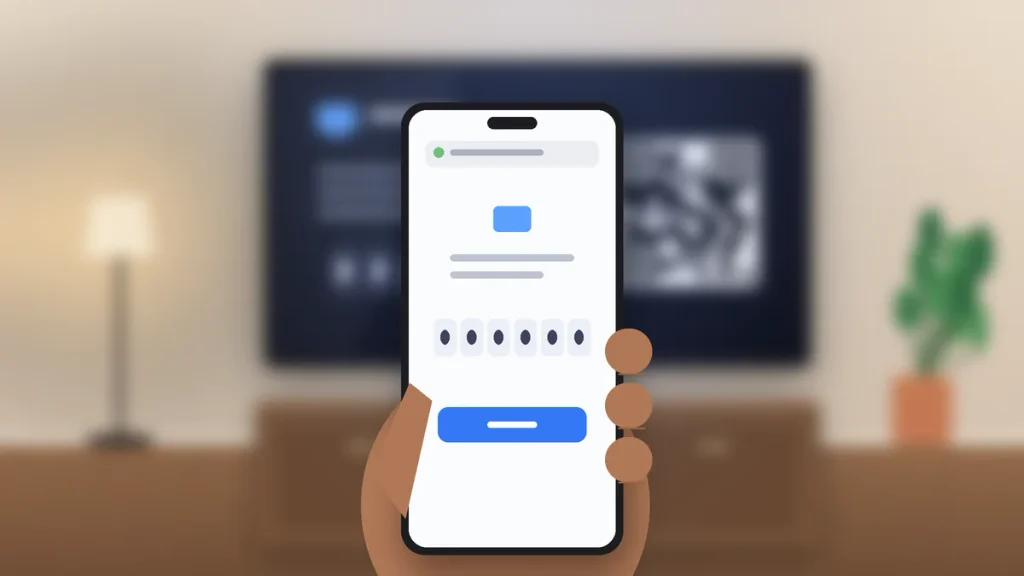
No phone handy? On the TV’s sign-in screen, choose Sign in with your remote and type your Google email and password with the on-screen keyboard. It’s slower, and two-step verification will still need your phone.
Where to Find the YouTube TV App on Popular Devices
| Device | Where to get the app | Quick tip |
|---|---|---|
| Roku | Roku Streaming Store | Restart the Roku if the app freezes on the code screen. |
| Amazon Fire TV | Search bar or Appstore | Voice search with the Alexa remote is fastest. |
| Apple TV | App Store | May offer to sign in using your iPhone. |
| Google TV / Android TV | Google Play Store | Often preinstalled. |
| Samsung TV | Apps on Smart Hub | Update the TV software if it won’t install. |
| LG TV | LG Content Store | Older models may not be supported. |
| Vizio TV | SmartCast app row | Some models use casting instead. |
| Xbox / PlayStation | Microsoft Store / PlayStation Store | Turn off any VPN first. |
If your TV isn’t supported, a $30 to $50 streaming stick is usually the cheapest and most reliable fix.
YouTube TV Code Not Working? Try These Fixes
The code expired. Codes only last a few minutes. Press Back on your remote, reopen the sign-in screen, and enter the new code right away.
You used the wrong Google account. This is the most common problem, especially on shared laptops. Switch to the account that pays for YouTube TV, or use a private browser window to force a clean sign-in.
You see “you can’t sign in to YouTube TV with this account.” You’re likely using a work or school account. Switch to your personal Gmail.
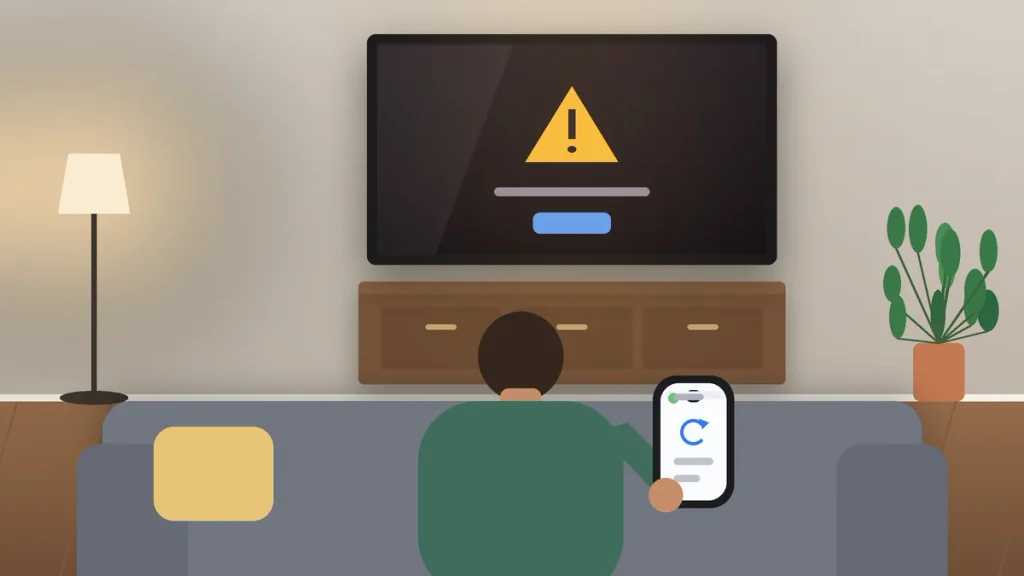
The app is outdated or glitching. Update the app and your TV’s software. Then unplug the TV for 60 seconds, since standby “off” doesn’t fully reset it. Still stuck? Reinstall the app.
A VPN is blocking you. YouTube TV checks your location, so turn off any VPN and try again.
Watch Out for Fake Activation Sites
Search for “tv youtube com start enter code” and you’ll find pages that look official but aren’t. Some show a “support” phone number or ask for card details. Close them.
Activation is free and happens only at tv.youtube.com/start. The Federal Trade Commission warns that tech support scams often pose as big brands, so if anyone asks for payment to activate, report it at ReportFraud.ftc.gov.
How Your Home Area Works After You Sign In to YouTube TV on TV
The first time you watch on a TV, YouTube TV uses that location as your home area, which sets your local ABC, CBS, FOX, and NBC stations. So activate your main home TV first.
You can watch on mobile while traveling. Google may ask you to check in from home now and then to keep your local channels. If you move, you can update your home area in settings, but only a limited number of times.
How to Sign Out of YouTube TV on a TV
- On the TV: Open the YouTube TV app, go to your profile, and choose Sign out.
- Remotely: Go to myaccount.google.com/permissions, find YouTube TV, and select Remove access. Handy for a lost or sold TV.
Frequently Asked Questions
How do I enter a code for YouTube TV on my TV?
Open the YouTube TV app on your TV and select Sign in to see a code. On your phone or computer, go to tv.youtube.com/start, sign in with the Google account that has your YouTube TV plan, type the code, and tap Continue. Then select Allow, and your TV will refresh and start playing within seconds.
Why is my YouTube TV activation code not working?
The code has most likely expired, since codes only last a few minutes. Press Back on your remote, reopen the sign-in screen for a fresh code, and enter it right away. Also confirm you’re signed in to the correct personal Google account, not a work or school account, and that the app is fully updated.
Is tv.youtube.com/start legit?
Yes. tv.youtube.com/start is Google’s official activation page for YouTube TV, and it’s free to use. Be careful with look-alike websites that show up in search results with phone numbers or payment forms. Google never charges an activation fee or asks you to call a technician to link your TV.
Is tv.youtube.com/start the same as youtube.com/activate?
No. tv.youtube.com/start links your paid YouTube TV live TV subscription to a device. youtube.com/activate links the regular, free YouTube app. If you entered a code at youtube.com/activate and still can’t see live channels, you activated the wrong app. Open the YouTube TV app instead and use its code.
How many TVs can I activate YouTube TV on?
You can sign in on as many supported devices as you like, but the Base Plan limits how many streams play at the same time, typically three per household. One subscription also supports up to six family member accounts, each with its own DVR library and recommendations. Check your plan details for current limits.
Can I activate YouTube TV without a smartphone?
Yes. Choose Sign in with your remote on the TV’s sign-in screen and type your Google email and password with the on-screen keyboard. You can also enter the code at tv.youtube.com/start from any computer browser. If your account uses two-step verification, you’ll still need your phone or a backup code to finish.
Related: How to Activate Sling TV at Sling.com/activate
You’re Set Up. Here’s What to Do Next
Once your main TV is activated, create a household profile for each family member so DVR recordings and recommendations stay separate. Then add your favorite shows to your Library so they record automatically. If a second TV gives you trouble, a fresh code and the right Google account fix it nine times out of ten.