The fastest way to install Node.js on Windows 11 is to download the LTS installer from nodejs.org, run it with the default settings, and then type node -v in a new terminal to confirm it worked. The whole thing takes about five minutes, and npm (the Node package manager) comes bundled, so there’s nothing extra to set up.
That said, there are three good ways to do it, and the right one depends on what you’re building. Below I’ll walk through each method, show you which version to pick in late 2026, and cover the handful of errors that trip up almost everyone the first time.
Key Takeaways
- Pick the LTS version. As of October 28, 2026, that’s Node.js 26, supported through April 2029.
- The official .msi installer is the simplest way to install Node.js on Windows 11, and it adds Node and npm to your PATH automatically.
- Use winget if you prefer one command, or nvm-windows if you need to switch between Node versions.
- Always open a new terminal after installing, or Windows won’t find the node command.
Which Node.js Version Should You Install?
Node.js ships two kinds of releases: Current (newest features, shorter support) and LTS (Long Term Support, the stable track). For almost everyone, LTS is the right call. Tutorials, frameworks like Next.js and Express, and hosting providers all test against it first.
Node.js 26 moved into Active LTS on October 28, 2026 and is scheduled to get security fixes until April 2029, according to the official Node.js release schedule on GitHub. Here’s how the supported lines stack up right now:
| Version | Status (October 2026) | End of Life | Who it’s for |
|---|---|---|---|
| Node.js 26 | Active LTS | April 2029 | New projects, beginners, most developers |
| Node.js 24 | Maintenance LTS | April 2028 | Existing apps that haven’t upgraded yet |
| Node.js 22 | Maintenance LTS | April 30, 2027 | Legacy projects only, plan your upgrade |
One more thing worth knowing: Node.js 26 is the last release under the old “even numbers become LTS” pattern. Starting with Node.js 27 (due April 2027), every major version will become LTS each October.
Before You Install Node.js on Windows 11
You need very little to get started:
- Windows 11 (Home or Pro) with an admin account, since the installer asks for permission.
- About 200 MB of free disk space for Node and npm (much more if you add the optional build tools).
- Your processor type. Most PCs are x64, but Surface Pro and Copilot+ laptops with Snapdragon chips need the ARM64 installer. Check under Settings > System > About > System type.
If you already have an older Node.js on this PC and plan to use nvm-windows (Method 3), uninstall the old copy first. Two installs fighting over PATH is the most common cause of “wrong version” headaches.
Method 1: Install Node.js on Windows 11 With the Official Installer
This is the method I recommend for beginners and for anyone who just needs Node working today. It’s the simplest way to install Node.js on Windows 11: point-and-click, and the installer handles PATH for you.
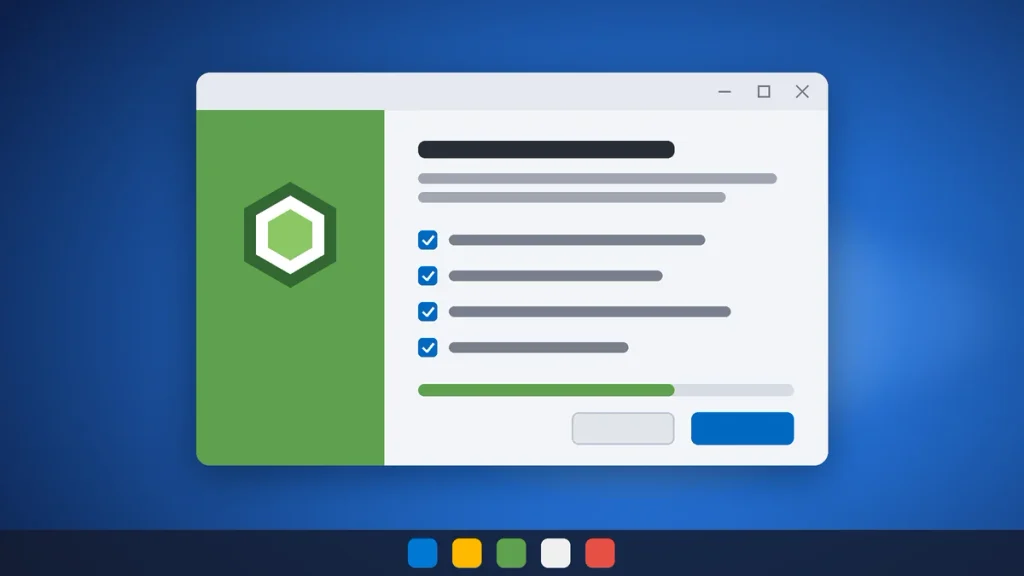
Step 1: Download the Windows installer
Go to the official Node.js download page, make sure LTS is selected, and download the Windows Installer (.msi) for x64 (or ARM64 if that’s your system type). Only download Node.js from nodejs.org. Third-party “download mirrors” are a common way to pick up bundled adware.
Step 2: Run the setup wizard
Double-click the .msi file, accept the license, and keep the default install folder, C:\Program Files\nodejs\. On the Custom Setup screen, leave every feature turned on. “Add to PATH” is the one that matters most.
Step 3: Decide on “Tools for Native Modules”
Near the end, you’ll see a checkbox to automatically install the tools for native modules. This pulls in Chocolatey, Python, and the Visual Studio Build Tools so npm can compile packages written in C++. It’s a big download and can take a while.
My advice? Leave it unchecked for now. Most beginner projects never need it, and you can install those tools later if a package asks for them.
Step 4: Finish and open a fresh terminal
Click Install, approve the User Account Control prompt, then click Finish. Now close any terminal windows you already had open. Windows only reads the updated PATH when a new terminal starts, so open a new one with Win + X and choose Terminal.
Method 2: Install Node.js With winget (One Command)
Windows 11 comes with winget, Microsoft’s built-in package manager. If you like the command line, this is the quickest way to install Node.js on Windows 11. Open Terminal and run:
winget install -e --id OpenJS.NodeJS.LTSwinget downloads the same official installer from nodejs.org and runs it for you. Accept the source agreement the first time, approve the admin prompt, and you’re done. To see which version the package will install before you run it, use winget show OpenJS.NodeJS.LTS.
Heads-up: the winget package can lag a few days behind nodejs.org right after a new LTS release. If winget show still lists the previous LTS, either wait a bit or grab the .msi from Method 1.
Later, updating takes one line:
winget upgrade OpenJS.NodeJS.LTSMethod 3: Use nvm-windows to Manage Multiple Node Versions
If you work on more than one project, you’ll eventually hit an app that needs Node 24 while your new project wants Node 26. A version manager solves that, and it’s the cleanest way to install Node.js on Windows 11 when you juggle projects. On Windows, the popular choice is nvm-windows (a separate project from the nvm used on Mac and Linux).
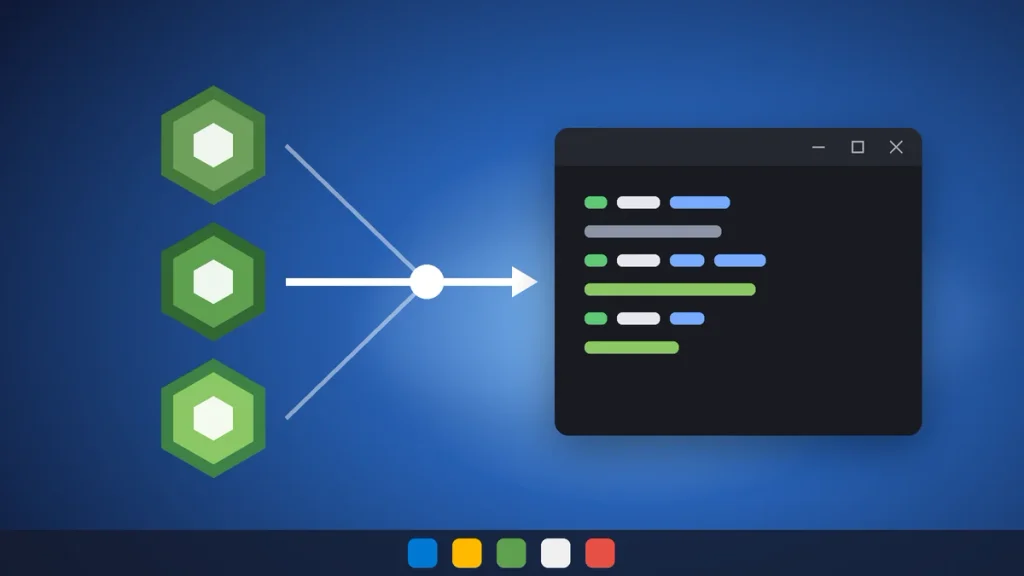
Install nvm-windows and Node.js LTS
First, uninstall any existing Node.js from Settings > Apps > Installed apps. Then install nvm-windows, close the terminal, and open a new one as administrator (right-click Terminal and choose Run as administrator):
winget install CoreyButler.NVMforWindows

# Close this window, open a new admin terminal, then:
nvm install lts
nvm list
nvm list shows the exact version number it just installed. Activate it with nvm use plus that number:
nvm use 26.13.0Swap in whatever version nvm list printed. The admin window matters here because nvm-windows switches versions by creating a symlink, and Windows restricts symlinks for standard accounts. Need an older version for a client project? Run nvm install 24, then nvm use with that version, and switch back anytime.
How to Verify Node.js and npm Are Installed
Whichever method you used to install Node.js on Windows 11, test it in a new terminal window:
node -v
npm -v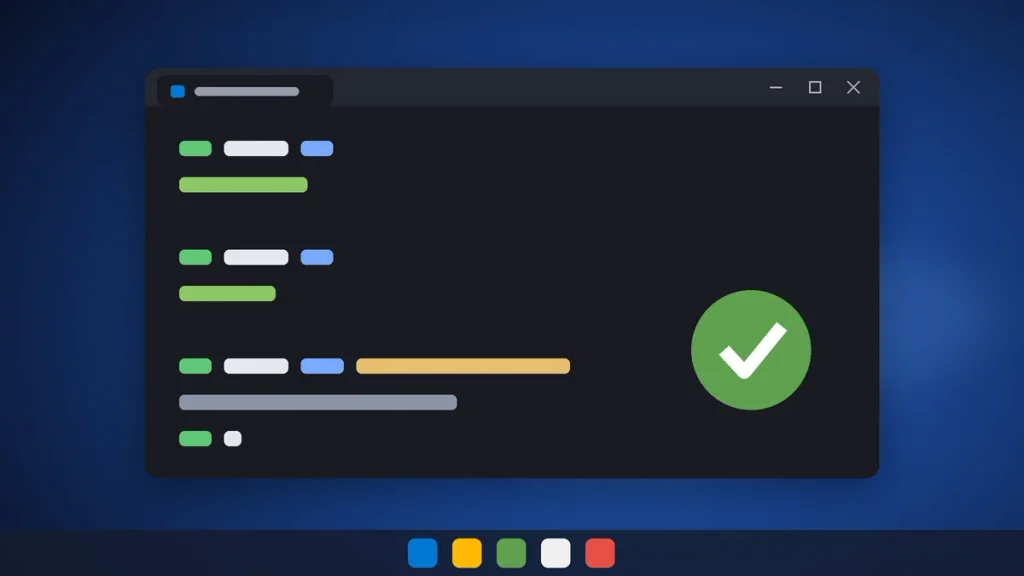
You should see a version like v26.13.0 for Node and a separate version number for npm. If both print, the install worked. For a real test, run a tiny script:
console.log(`Node ${process.version} is running on ${process.platform}`);Save that as hello.js, then run node hello.js from the same folder. It should print your Node version and win32 (that’s what Node calls every Windows platform, even 64-bit Windows 11).
Fix Common Node.js Errors on Windows 11
After you install Node.js on Windows 11, these are the three problems I see most often, along with the fixes that actually work.
“node is not recognized as an internal or external command”
Nine times out of ten, you’re using a terminal that was open before the install. Close it and open a new one. Still broken? Run where.exe node. If nothing comes back, open Edit the system environment variables from the Start menu, click Environment Variables, and make sure C:\Program Files\nodejs\ is listed under Path. A restart fixes the stubborn cases.
“npm.ps1 cannot be loaded because running scripts is disabled”
This one is PowerShell’s execution policy, not Node. Windows 11 blocks unsigned scripts by default, and npm uses a small .ps1 wrapper. Run this once for your account:
Set-ExecutionPolicy -Scope CurrentUser -ExecutionPolicy RemoteSignedRemoteSigned lets local scripts run while still requiring downloaded scripts to be signed. Microsoft explains the options on its PowerShell execution policies page.
Wrong version shows up after installing
If node -v shows an old version, you probably have two copies installed (say, an old .msi plus nvm-windows). Uninstall Node.js from Installed apps, delete the leftover C:\Program Files\nodejs folder if it’s still there, and reinstall using one method only.
How to Update or Uninstall Node.js on Windows 11
To update, the easiest path is to download the newer LTS .msi and run it over your existing install. Your global npm packages stay put. winget users can run winget upgrade OpenJS.NodeJS.LTS, and nvm-windows users just install the new version and switch with nvm use.
To uninstall completely, remove Node.js from Settings > Apps > Installed apps, then delete the npm and npm-cache folders inside %AppData% and %LocalAppData%. Those folders hold global packages and cached downloads that the uninstaller leaves behind.
Once Node is running, you’ll want a good editor. Our roundup of the best free code editors for developers covers VS Code and its best alternatives. And since you’ll likely sign up for GitHub and npm accounts next, take two minutes to set up Microsoft Authenticator for two-factor sign-in.
Frequently Asked Questions
Does installing Node.js also install npm?
Yes. When you install Node.js on Windows 11 with the official installer or winget, npm is included automatically. You don’t need a separate download. Run npm -v in a new terminal to confirm it’s there. You can update npm itself later with npm install -g npm@latest if a project needs a newer release.
Should I install the LTS or Current version of Node.js?
Install the LTS version unless you have a specific reason not to. LTS releases get bug fixes and security patches for years, and most frameworks and hosting platforms test against them first. As of October 28, 2026, the Active LTS line is Node.js 26, which is supported through April 2029.
Is Node.js free to use on Windows 11?
Yes, Node.js is completely free and open source under the MIT license, including for commercial work. There’s no paid version, trial, or subscription. Always download it from nodejs.org or install it through winget, because third-party download sites sometimes bundle adware with the installer and charge for something that costs $0.
Why does Windows say node is not recognized after installing?
Usually the terminal was already open during the install, so it never picked up the updated PATH. Close every terminal window and open a new one. If the error continues, check that C:\Program Files\nodejs\ appears in your Path environment variable, then restart your PC. Running where.exe node shows whether Windows can find it.
Do I need WSL to run Node.js on Windows 11?
No. Node.js runs natively on Windows 11, and the official installer works fine for learning, scripting, and most web development. WSL (Windows Subsystem for Linux) is helpful if you deploy to Linux servers or use tools that expect a Linux shell, but it’s optional. Beginners can safely skip it and add it later.
How do I check which version of Node.js I have?
Open Terminal, Command Prompt, or PowerShell and type node -v, then press Enter. Windows prints the installed version, such as v26.13.0. Type npm -v to check npm separately. If you use nvm-windows, run nvm list to see every installed version, with an asterisk marking the one currently active.
Your Next Step After Installing Node.js
If you only need to install Node.js on Windows 11 for one project, use the official LTS installer, open a fresh terminal, and confirm with node -v. If you’re juggling projects, take ten extra minutes to set up nvm-windows now; it saves you from reinstalling later. Then create a project folder, run npm init -y, and start building. That first package.json file is where every Node project begins.