
To set up parental controls on Xbox, create a free child account in your Microsoft family group, sign that account in on the console, and then manage screen time, game ratings, spending, and chat from the free Xbox Family Settings app on your phone. Plan on about 20 minutes from start to finish.
The controls work on Xbox Series X, Xbox Series S, and Xbox One, and most of them also follow your child onto a Windows PC. Below is the exact order I’d do it in, plus the settings worth changing on day one and a few loopholes kids find fast.
Key Takeaways
- Every Xbox parental control runs through your child’s own Microsoft account, so that account has to exist first.
- The free Xbox Family Settings app (iPhone and Android) handles screen time, content filters, spending, and chat in one place.
- Set the content filter by ESRB age rating, and use “Ask to buy” so nothing gets purchased without your approval.
- Protect your own profile with a 6-digit passkey, or your child can simply sign in as you.
- Check the weekly activity report and adjust limits as your kid gets older.
What You Need to Set Up Parental Controls on Xbox
Get these four things ready and the setup goes quickly:
- Your Microsoft account. This is the adult account you already use on the Xbox or for Outlook, Office, or Windows.
- A phone with the Xbox Family Settings app. It’s free in the Apple App Store and Google Play.
- Your child’s real birth date. Microsoft uses it to apply age-based defaults automatically.
- The console, powered on and online. Settings sync from Microsoft’s servers, so an offline console won’t pick up changes.
One tip from experience: if your child already has an account, use it rather than starting over. Their game saves, Minecraft worlds, and purchases are tied to it.
Step 1: Create a Family Group and Child Account
The family group is the backbone of every Xbox parental control. Here’s how to build it from your phone:
- Open the Xbox Family Settings app and sign in with your adult Microsoft account.
- Tap Add a family member, then choose Create a new account for your child (or add their existing email if they have one).
- Enter your child’s name, a new email address, and their birth date.
- Approve the consent screen. For children under 13, Microsoft asks for verified parental consent, which is required under the federal Children’s Online Privacy Protection Act (COPPA).
Prefer a computer? You can do the same thing at account.microsoft.com/family. Microsoft’s Xbox family hub also explains every setting. Both routes create the same family group, and changes made in one show up in the other.
Step 2: Add Your Child’s Account to the Xbox
Now get that account onto the console so the rules have something to enforce.
- Press the Xbox button on the controller to open the guide.
- Go to Profile & system > Add or switch > Add new.
- Sign in with your child’s new account email and password.
- To confirm, open Settings > Account > Family settings > Manage family members. Your child should be listed there.
Step 3: Set Xbox Screen Time Limits
Xbox screen time limits are where most parents start, and the app makes them easy to tweak later.
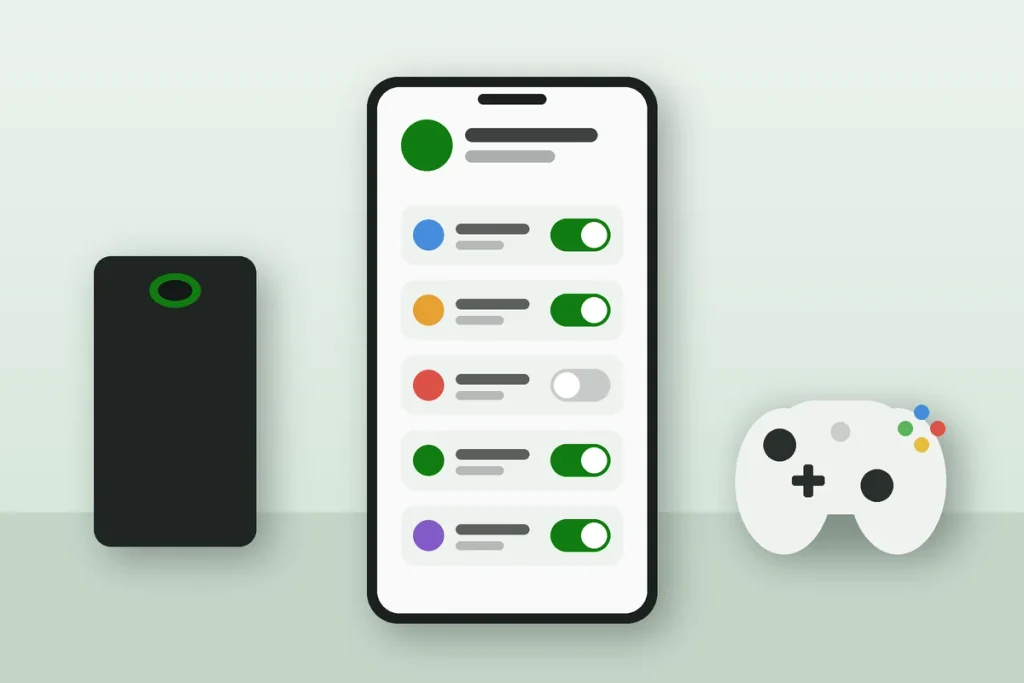
- In the Xbox Family Settings app, tap your child’s name, then Screen time.
- Turn screen time on and pick a daily allowance for each day of the week.
- Set the hours when the console can be used, such as 4 p.m. to 8 p.m. on school nights.
The clock only runs while your child is signed in, and it stops when they sign out. When time is nearly up, they get a warning on screen. If they want more, they can send a request, and you’ll get a notification to approve or deny it from wherever you are.
My suggestion: give a little more on weekends and less on school nights, and treat the first two weeks as a trial. Kids push back less when they know the limits will be reviewed. If you also want limits on one specific game (say, Fortnite but not a learning game), you can set per-app and per-game limits through the Microsoft Family Safety app or account.microsoft.com/family.
Step 4: Turn On Xbox Content Restrictions
Xbox content restrictions block games and apps above an age rating you choose. In the app, tap your child’s name, go to Content restrictions, and pick an age. Xbox uses the ratings from the Entertainment Software Rating Board (ESRB), the same ones printed on game boxes in US stores.
| ESRB rating | What it means | Typical fit |
|---|---|---|
| E (Everyone) | Suitable for all ages | Young kids, ages 5 to 9 |
| E10+ (Everyone 10+) | Some cartoon or mild violence, mild language | Ages 10 to 12 |
| T (Teen) | Violence, crude humor, some strong language | Ages 13 and up |
| M (Mature 17+) | Intense violence, blood, strong language | Ages 17 and up |
| AO (Adults Only 18+) | Adult content | Adults only |
If your child tries to open something above the limit, they can ask for an exception, and you approve or decline it. That’s handy when Fortnite (rated T) feels fine for your 11-year-old even though the label says 13 and up. Look the game up on ESRB.org first. The “rating summary” there tells you exactly what earned the rating.
The same setting can filter websites in the Microsoft Edge browser on the console, which most parents forget is even there.
Step 5: Control Spending With Xbox Purchase Approval
Surprise charges are the number one complaint I hear from parents. Fix it with three settings:
- Ask to buy. In the app, tap your child’s name, then Spending, and turn on purchase approval. Every game, add-on, or in-game currency purchase now needs your OK.
- An allowance instead of a card. Add a set amount, like $10 or $20, to your child’s Microsoft account balance. When it’s gone, it’s gone. Xbox gift cards from Target, Walmart, or Best Buy work well here too.
- A passkey on your own profile. On the console, go to Settings > Account > Sign-in, security & passkey and create a 6-digit passkey. Then set your profile to require it for sign-in and purchases.
That last one matters more than people think. All the controls in this guide only apply to your child’s account. If your profile signs in automatically, your kid can just switch to it.
Step 6: Manage Chat, Friends, and Online Multiplayer
In your child’s settings in the app (or Settings > Account > Privacy & online safety on the console), you control who your child can talk to and play with. The key options are:
- Multiplayer: allow or block online play entirely.
- Communication: let them chat with everyone, friends only, or no one, for both voice and text.
- Friend requests: require your approval before anyone gets added.
- Cross-network play: decide whether they can play with people on PlayStation, Switch, or PC in games like Fortnite and Rocket League.
For most kids under 13, “friends only” with parent-approved friend requests is the sweet spot. They still get to play with classmates, but strangers can’t message them. Also teach your child how to report and block a player. Press the Xbox button, find the player in the recent players list, and choose Report or Block.
Step 7: Check Activity Reports Every Week
Turn on activity reports in the app to get a weekly summary of what your child played, for how long, and what they tried to buy. It takes two minutes to read on a Sunday night. Use it to spot patterns, like a single game eating up every hour, and to start a conversation rather than a fight.

Recommended Xbox Parental Control Settings by Age
There’s no perfect formula, but this is a sensible starting point most families can adjust from:
| Setting | Ages 6 to 9 | Ages 10 to 12 | Ages 13 to 16 |
|---|---|---|---|
| Content rating | E | E10+ | T (M by request) |
| Purchases | Ask to buy | Ask to buy | Allowance |
| Chat | Off | Friends only | Friends only |
| Multiplayer | Blocked or friends | Allowed | Allowed |
| Friend requests | Parent approves | Parent approves | Review weekly |
Common Problems and Quick Fixes
The settings aren’t working on the console
Make sure your child is signed in to their own profile, not a guest or yours. Then restart the console fully by holding the power button for 10 seconds so it pulls the latest settings.
My child is playing on a guest account
Look for Signed-out content restrictions in the console’s settings (it sits under System on most dashboard versions). Set it to block games and apps when nobody is signed in.
My child’s account was created years ago with a fake birthday
It happens all the time. If the account thinks your kid is an adult, it can’t be managed as a child. Remove it from the family group and work through Microsoft Support to correct the age, or create a new child account.
Start With These Three Settings Tonight
If you only have ten minutes, do this: add your child to your family group, turn on Ask to buy, and put a passkey on your own profile. Those three steps stop surprise charges and keep the rest of your rules from being bypassed. Then set screen time and chat limits this weekend, and sit down with your kid to explain them. Rules they understand get followed far more often than rules that just appear.
Frequently Asked Questions
Can I set parental controls on Xbox without the app?
Yes. You can manage every Xbox parental control from a web browser at account.microsoft.com/family, or directly on the console under Settings, Account, Family settings. The app is simply faster for daily tasks like approving extra screen time or purchase requests, since you get instant notifications on your phone.
Is the Xbox Family Settings app free?
Yes, the Xbox Family Settings app is completely free on iPhone and Android. You don’t need Game Pass or any paid subscription to use it. All you need is an adult Microsoft account, a child account in your family group, and an Xbox Series X, Series S, or Xbox One console that’s connected to the internet.
How do I stop my child from buying games on Xbox?
Turn on Ask to buy in the Spending section of the Xbox Family Settings app, so every purchase needs your approval. Then add a 6-digit passkey to your own profile and require it for purchases. Without the passkey, a child can switch to your profile and buy anything using the card saved on it.
Can kids get around Xbox parental controls?
Some try. The most common workarounds are signing in to a parent’s profile that has no passkey, playing as a guest, or creating a new account with a fake birthday. Close those gaps with a passkey on your profile, signed-out content restrictions on the console, and a quick look at which profiles are on the console every few weeks.
At what age can a child have their own Xbox account?
A child can have an Xbox account at any age, as long as a parent creates it in a Microsoft family group. For kids under 13, federal COPPA rules require parental consent before Microsoft collects their data. Microsoft applies stricter default privacy and content settings to younger accounts automatically based on the birth date entered.
Do Xbox parental controls work on a Windows PC too?
Yes. Because the controls are tied to your child’s Microsoft account, screen time limits, content filters, and spending rules also apply when they sign in to a Windows 10 or Windows 11 PC. You can use one shared schedule across Xbox and PC so switching devices doesn’t reset their time.