To run Python code in Visual Studio Code, install Python, add Microsoft’s Python extension, pick your interpreter, then open a .py file and click the Run button in the top-right corner. That’s the whole loop, and on a decent internet connection it takes about 10 minutes from a blank computer.
The setup is where most beginners get stuck, not the coding. Below I’ll walk through each step on Windows, Mac, and Linux, show you four different ways to run Python code in Visual Studio Code, and fix the errors that trip up almost everyone the first time.
Key Takeaways
- To run Python code in Visual Studio Code, you need three free things: VS Code, Python 3, and the official Python extension from Microsoft.
- The fastest way to run a file is the Run (play) button in the top-right corner of the editor.
- Press Shift+Enter to run only the line or block you’ve selected.
- Most “it won’t run” problems come from VS Code using the wrong Python interpreter.
- Create a virtual environment for every project so packages don’t clash.
What You Need Before You Run Python Code in Visual Studio Code
VS Code is a code editor, not a Python installation. It doesn’t ship with Python, so it needs to find a copy of Python on your machine before anything will run. Here’s the full shopping list, and none of it costs a cent.
| Tool | What it does | Cost | Where to get it |
|---|---|---|---|
| Visual Studio Code | The editor where you write and run code | $0 | code.visualstudio.com |
| Python 3 | The interpreter that actually runs your code | $0 | python.org/downloads |
| Python extension (Microsoft) | Adds the Run button, IntelliSense, and debugging | $0 | VS Code Extensions view |
If you’re still deciding on an editor, our roundup of the best free code editors for developers compares VS Code with the main alternatives. For Python beginners, though, VS Code is my default pick.
Step 1: Install Python on Your Computer
Before you can run Python code in Visual Studio Code, grab the current Python 3 release. As of October 2026 that’s Python 3.15, but anything from the last few versions works fine for learning.
On Windows
Go to python.org/downloads. The Windows page now offers the Python install manager alongside the traditional installer, and either one works. If you use the traditional installer, check the box that says Add python.exe to PATH on the very first screen. Skipping that box is the single most common reason Python “isn’t recognized” later.
On a Mac
Download the macOS installer from python.org, or use Homebrew if you already have it. Don’t rely on whatever Python came with Apple’s developer tools, since it’s usually an older version. On a Mac you’ll type python3, not python. After that, you run Python code in Visual Studio Code on a Mac exactly the same way as on Windows.
On Linux
Most distributions, including Ubuntu, already include Python 3. On Ubuntu you’ll want the venv package too, so you can create virtual environments later.
Open a terminal and confirm the install worked:
# Windows
py --version

# macOS
python3 --version

# Ubuntu: add venv support
sudo apt install python3-venv
You should see something like Python 3.15.0. New to the command line? Our terminal commands cheat sheet covers the basics in a few minutes.
Step 2: Install the Python Extension in VS Code
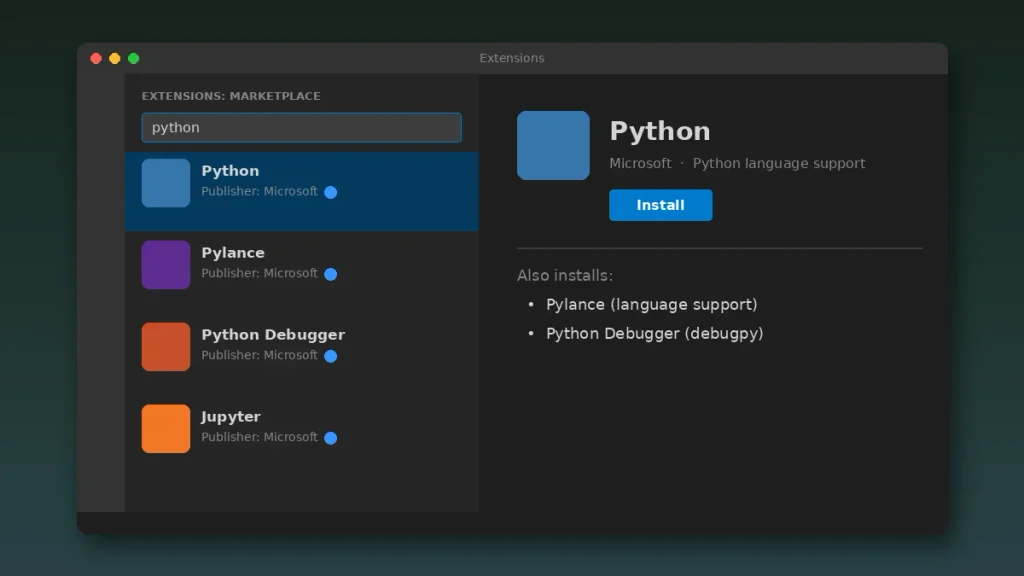
Open VS Code and press Ctrl+Shift+X (Cmd+Shift+X on a Mac) to open the Extensions view. Search for Python and install the one published by Microsoft. It has a blue verified checkmark and the highest install count in the results, so it’s easy to spot. Skip the lookalikes.
The official Python extension also pulls in two helpers automatically: Pylance for autocomplete and error checking, and Python Debugger for stepping through code. You don’t need to install those separately. This extension is what lets you run Python code in Visual Studio Code with a single click.
Step 3: Select the Right Python Interpreter
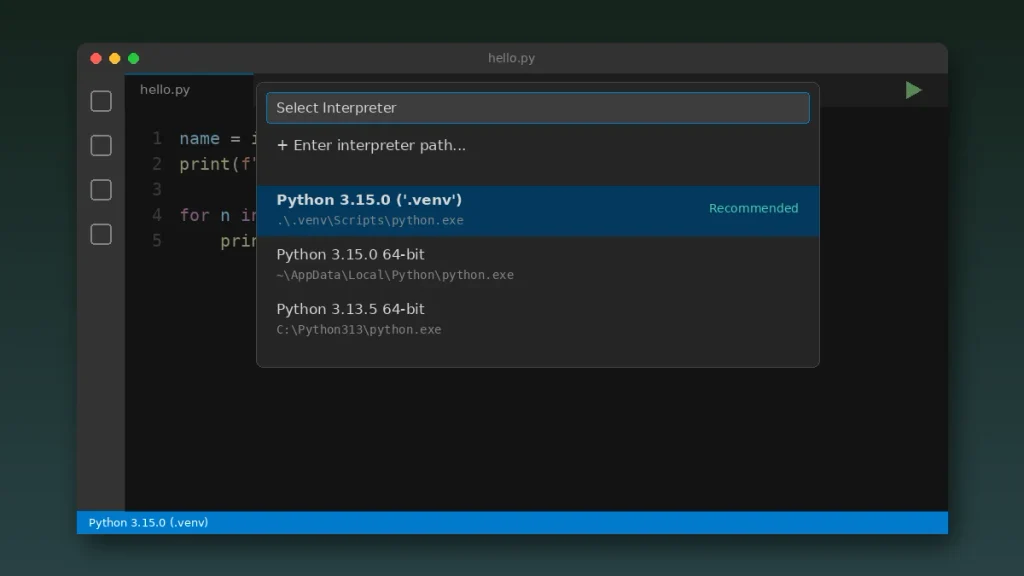
An interpreter is the specific copy of Python that VS Code uses. Many computers end up with two or three of them, and picking the wrong one causes most of the headaches people hit when they try to run Python code in Visual Studio Code.
Press Ctrl+Shift+P (Cmd+Shift+P on Mac) to open the Command Palette, type Python: Select Interpreter, and choose the version you just installed. Once a Python file is open, the selected version also shows in the status bar at the bottom right, and you can click it to switch anytime.
Step 4: Create and Run Your First Python File
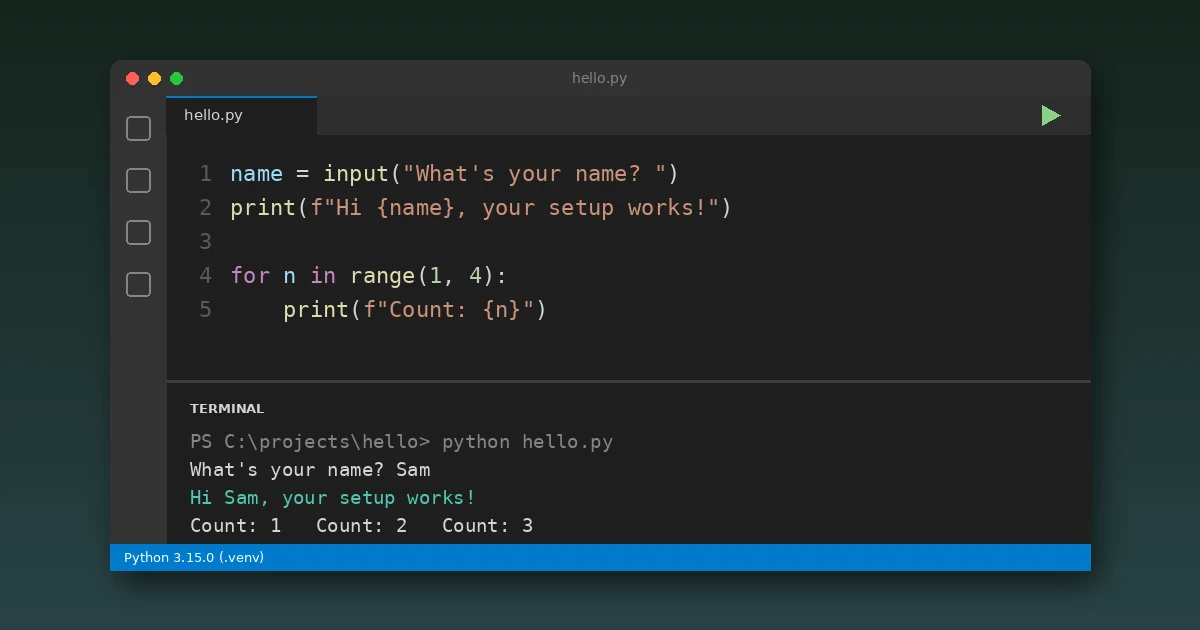
Use File > Open Folder and open a project folder rather than a single loose file. VS Code works best with folders, because that’s where it stores your interpreter choice and settings. Create a new file named hello.py (the .py extension matters) and paste this in:
name = input("What's your name? ")
print(f"Hi {name}, your Python setup works!")

for n in range(1, 4):
    print(f"Count: {n}")
Save the file with Ctrl+S. Now pick any of these methods to run Python code in Visual Studio Code.
Option 1: Click the Run Button
Look for the triangle play icon in the top-right corner of the editor and click Run Python File. VS Code opens the integrated terminal at the bottom and runs your script there. It’s the simplest way to run Python code in Visual Studio Code, and the one I use 90% of the time.
Option 2: Right-Click and Run in Terminal
Right-click anywhere inside the editor and choose Run Python > Run Python File in Terminal. It does the same thing as the button, and it’s handy if you’ve hidden the editor toolbar.
Option 3: Run a Selection With Shift+Enter
Highlight a few lines and press Shift+Enter. VS Code sends just those lines to an interactive Python terminal. It’s great for testing one function without running the whole script.
Option 4: Type the Command Yourself
Open the terminal with Ctrl+` (the backtick key, left of the 1 key) and run the file by name. Knowing this matters, because it’s exactly how you’ll run scripts on servers later.
# Windows
python hello.py

# macOS and Linux
python3 hello.py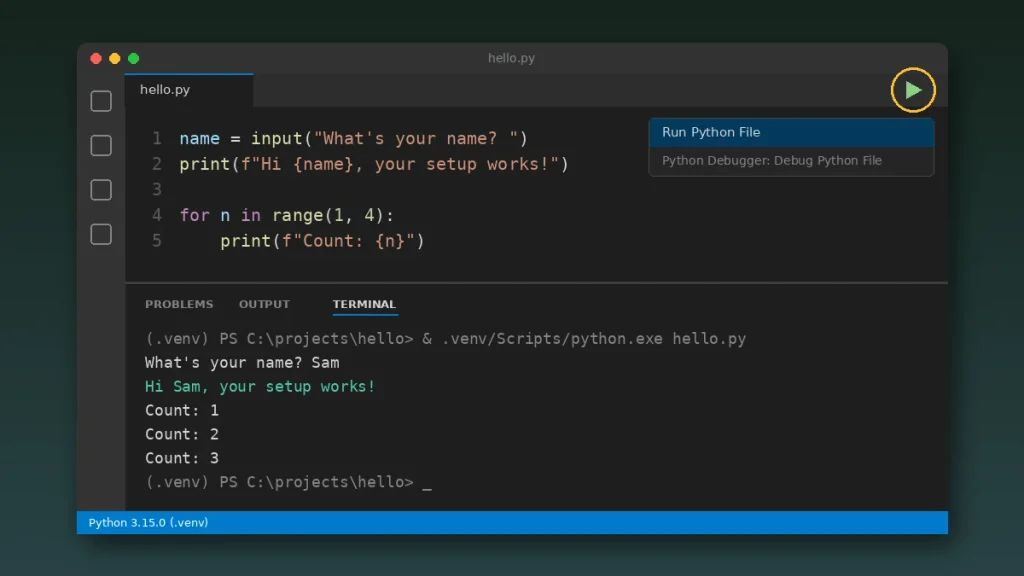
Here’s a quick comparison of every way to run Python code in Visual Studio Code:
| Method | Shortcut | Best for |
|---|---|---|
| Run button | Click the play icon | Running the whole file |
| Right-click menu | Run Python File in Terminal | Same as the button, from inside the editor |
| Run selection | Shift+Enter | Testing a few lines |
| Terminal command | Ctrl+` then python hello.py | Passing arguments, learning real workflows |
| Debugger | F5 | Finding bugs line by line |
How to Debug Python in VS Code
Once you can run Python code in Visual Studio Code, debugging is the next skill worth learning. Running a script tells you that something broke. Debugging tells you why. Click in the margin to the left of a line number to set a red breakpoint, then press F5 and choose Python File if VS Code asks for a configuration.
The script pauses at your breakpoint, and the left sidebar shows every variable’s current value. Use F10 to step over a line, F11 to step into a function, and Shift+F5 to stop. If you want to run without the debugger attached, Ctrl+F5 does that. Learning these four keys early will save you hours of guessing with print statements.
Use a Virtual Environment for Each Project
A virtual environment is a private copy of Python for one project, with its own packages. Without one, every library you install lands in the same global spot, and sooner or later two projects need different versions of the same package.
The easy way: open the Command Palette and run Python: Create Environment, choose Venv, and pick your interpreter. VS Code creates a .venv folder and switches to it automatically, so every time you run Python code in Visual Studio Code for that project, it uses those packages. You can also do it by hand:
# Windows
py -m venv .venv
.venv\Scripts\activate

# macOS and Linux
python3 -m venv .venv
source .venv/bin/activate

# Then install packages into the environment
python -m pip install requests
If you track projects with Git, add .venv to your .gitignore file. Our Git commands cheat sheet walks through that along with the other everyday commands.
Run Python Code in Visual Studio Code as Notebook-Style Cells
Data folks love Jupyter notebooks, and running Python in VS Code this way works well. Install the Jupyter extension from Microsoft, then either open an .ipynb file or add # %% markers to a normal .py file. Each marker starts a cell with its own Run Cell link above it.
# %%
prices = [19.99, 4.50, 12.25]

# %%
total = sum(prices)
print(f"Total: ${total:.2f}")
This gives you notebook-style experimenting while keeping a plain .py file that plays nicely with Git.
Fixing Common Errors When You Run Python Code in Visual Studio Code
These are the problems I see most often when people first try to run Python code in Visual Studio Code, along with the fix for each.
- “python is not recognized as an internal or external command.” Python isn’t on your Windows PATH. Rerun the installer, choose Modify, and enable the PATH option, or just use py instead of python. Restart VS Code afterward so it picks up the change.
- Typing python opens the Microsoft Store. Windows has a shortcut that hijacks the command. Go to Settings > Apps > Advanced app settings > App execution aliases and turn off the two Python entries.
- ModuleNotFoundError after you installed the package. You installed it into a different interpreter. Check the version in the status bar, then install with python -m pip install from the VS Code terminal so it goes to the right place.
- “Running scripts is disabled on this system.” PowerShell is blocking venv activation. Run Set-ExecutionPolicy -ExecutionPolicy RemoteSigned -Scope CurrentUser once, then try again.
- input() just hangs. You’re probably using the third-party Code Runner extension, which runs code in the read-only Output panel by default. Use the official Run button instead, or turn on Code Runner’s “Run In Terminal” setting.
- No Run button at all. The file isn’t saved as .py yet, or the Python extension is disabled. Save the file and check the Extensions view.
Microsoft’s own Python tutorial for VS Code is worth bookmarking for anything beyond these basics.
Your Next Step: Build Something Small
Once hello.py runs, the setup work is done for good. Make a new folder for a tiny project, like a tip calculator or a script that renames files, create a virtual environment for it, and set one breakpoint so you get comfortable with F5. You’ll know how to run Python code in Visual Studio Code without thinking about it after a week of doing exactly that.
Frequently Asked Questions
Is VS Code good for Python beginners?
Yes. VS Code is one of the best free options for beginners because it gives you autocomplete, error highlighting, a one-click Run button, and a visual debugger without the weight of a full IDE. It also scales with you, so the same editor works for school assignments, data analysis, and professional web projects later.
Do I need to install Python separately for VS Code?
Yes. VS Code is only an editor and doesn’t include Python. Download Python 3 from python.org (or use Homebrew on a Mac), then install Microsoft’s Python extension in VS Code. The extension finds your Python installation automatically, and you can confirm or change it with the Python: Select Interpreter command.
What is the shortcut to run Python in VS Code?
To run Python code in Visual Studio Code by keyboard, press Shift+Enter to run selected lines, F5 to run the file with the debugger, and Ctrl+F5 to run it without debugging. You can also click the play icon in the top-right corner. To open the integrated terminal and type commands yourself, press Ctrl and the backtick key together.
Why is my Python code not running in VS Code?
When you can’t run Python code in Visual Studio Code, the usual causes are a missing Python installation, Python not added to your PATH, the wrong interpreter selected, or a file not saved with the .py extension. Open the Command Palette, run Python: Select Interpreter, choose the correct version, save your file, and try the Run button again.
Is Visual Studio Code free?
Yes. Visual Studio Code is completely free for personal and commercial use on Windows, macOS, and Linux. The Python, Pylance, Python Debugger, and Jupyter extensions from Microsoft are free as well. You only pay if you choose optional extras, such as a paid AI coding assistant subscription, which you don’t need to run Python.
What’s the difference between Visual Studio and Visual Studio Code?
Visual Studio is Microsoft’s full IDE, built mainly for C#, .NET, and C++ work on Windows. Visual Studio Code is a lighter, free code editor that runs on Windows, Mac, and Linux and handles Python through extensions. For learning and writing Python, VS Code is the one most developers choose.