The fastest way to speed up a slow Mac is to restart it, quit the apps eating your memory in Activity Monitor, and free up storage so your startup disk has room to breathe. Those three steps fix most sluggish Macs in under 15 minutes. If your Mac is still dragging after that, the rest of this guide walks you through every fix worth trying, in the order I’d try them.
I’ve fixed a lot of slow Macs, from 2017 Intel MacBook Pros to new M4 MacBook Airs. The cause is rarely mysterious: a full drive, a memory-hungry browser, or background apps you forgot about. Here’s how to speed up a slow Mac without paying for a “cleaner” app.
Key Takeaways
- Restart first. A Mac that’s been sleeping for weeks often feels faster after one clean restart.
- Check Activity Monitor. The Memory Pressure graph tells you in seconds whether you need fewer apps or more RAM.
- Keep free space. Aim for at least 20GB free (more is better) so macOS can handle swap files and updates.
- Trim login items and browser tabs. These two quietly slow down more Macs than anything else.
- Skip paid cleaner apps. Everything you need to speed up a slow Mac is already built into macOS.
Why Is My Mac So Slow? Find the Cause First
Spend two minutes figuring out what kind of slow you’re dealing with. A Mac that’s slow at startup has a different problem than one that stutters only when Chrome is open, and matching symptom to cause is the smartest way to speed up a slow Mac.
Apple’s support guide for a Mac that runs slowly names the usual culprits: low disk space, apps that need more memory than you have, incompatible apps, and disk errors. Here’s how they show up.
| What you notice | Likely cause | Fix to try first |
|---|---|---|
| Spinning beach ball when switching apps | Low memory (RAM) | Quit apps, close tabs, check Memory Pressure |
| Slow everything, plus “disk almost full” warnings | Low storage | Free up storage on Mac |
| Takes minutes to become usable after login | Too many login items | Trim Login Items |
| Fans loud, MacBook hot, sluggish under load | Heat or a runaway process | Find the CPU hog in Activity Monitor |
| Slow only for a day or two after an update | Spotlight and Photos indexing | Leave it plugged in and wait |
| Only websites feel slow | Wi-Fi or browser, not the Mac | Test your connection, trim extensions |
How to Speed Up a Slow Mac in 12 Steps
Work through these in order. The early steps are quick, free, and solve the problem most of the time. Save the later ones for a Mac running slow even after the basics.
1. Restart Your Mac (Not Just Sleep It)
Most of us close the lid and never shut down. That’s fine for days, but after a few weeks, leftover processes and memory leaks pile up. Choose Apple menu > Restart and uncheck “Reopen windows when logging back in” so you start clean.
It sounds too simple, but a proper restart is the cheapest way to speed up a slow Mac.
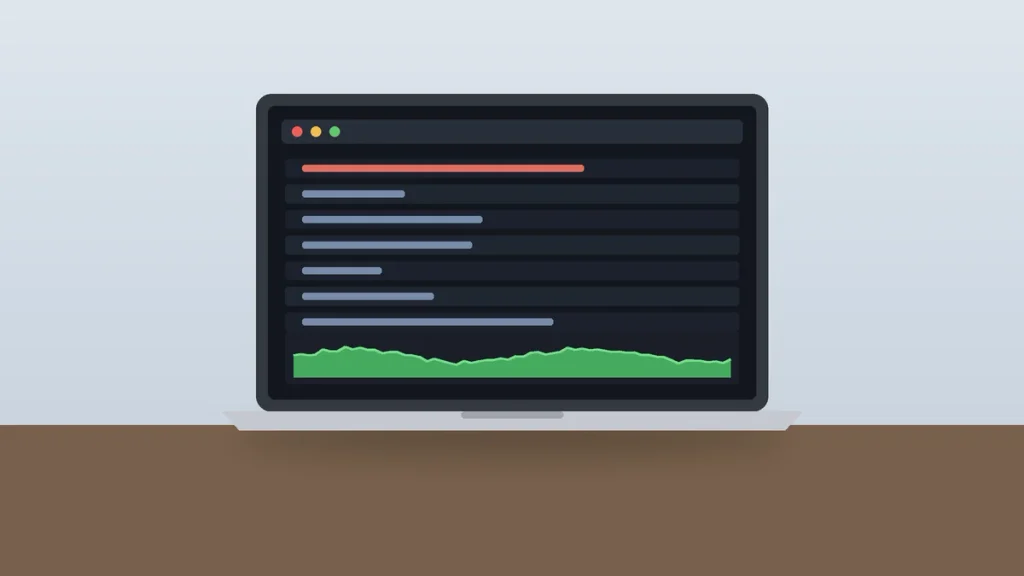
2. Use Activity Monitor to Find What’s Hogging Your Mac
Open Activity Monitor (press Command + Space, type “Activity Monitor,” and hit Return). This is where you stop guessing.
- CPU tab: Sort by “% CPU.” Anything above 80% for minutes while you’re not using it is a problem. Select it and click the stop (X) button.
- Memory tab: Check the Memory Pressure graph at the bottom. Green is fine. Yellow means your Mac is juggling. Red means close apps now, or you need more RAM for how you work.
- Swap Used: Several gigabytes all day means your Mac is borrowing storage as slow, fake memory.
One thing that trips people up: on Intel Macs, kernel_task can use a lot of CPU. That’s macOS slowing things down to cool the processor, so the fix is a cooler Mac (clear vents, hard surface), not quitting the process.
3. Free Up Storage on Mac
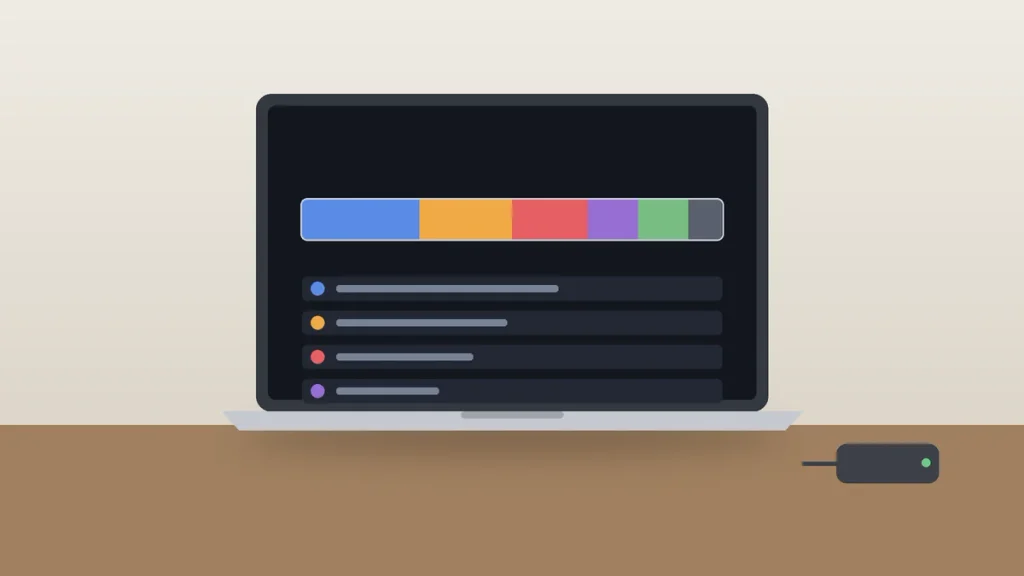
A nearly full drive is the most common reason I see for a Mac running slow. macOS needs free space for swap files, caches, and updates, so clearing room is often the biggest single way to speed up a slow Mac.
Go to Apple menu > System Settings > General > Storage to see what’s using your space. My go-to cleanup list:
- Turn on Store in iCloud if you pay for iCloud+.
- Turn on Empty Trash Automatically to clear items after 30 days.
- Sort Downloads by size and delete old .dmg and .pkg installers.
- Remove apps you haven’t opened in months.
- Check iOS Files for old iPhone backups, which can easily take up 50GB or more.
My rule of thumb: keep at least 20GB free, ideally 10% to 15% of the drive. On a 256GB Mac, move your photo library or video projects to an external SSD from Samsung, SanDisk, or WD.
4. Cut Login Items and Background Apps
Every app that launches at login steals memory and slows startup. Go to System Settings > General > Login Items & Extensions.
- Under Open at Login, select anything you don’t need the moment you sign in and click the minus (-) button.
- Under Allow in the Background, switch off helpers for apps you rarely use. Printer utilities and game launchers are common offenders.
I’d keep only a password manager, your cloud storage app, and maybe a VPN. Everything else can open when you click it.
5. Tame Your Web Browser
Your browser is probably the heaviest app on your Mac. Each tab uses its own memory, and 40 tabs in Chrome can eat several gigabytes.
- Close tabs you aren’t using. Bookmark them instead.
- Remove unused extensions (Safari > Settings > Extensions, or chrome://extensions).
- In Chrome, turn on Memory Saver under Settings > Performance so inactive tabs release memory.
Honestly, if you use a MacBook Air or any Mac with 8GB of RAM, switching from Chrome to Safari is one of the easiest ways to speed up a slow Mac. Safari tends to go easier on memory and battery.
6. Update macOS and Your Apps
Updates fix performance bugs, not just security holes, so staying current helps speed up a slow Mac. Go to System Settings > General > Software Update, then check the App Store’s Updates tab.
Quick note on compatibility: macOS 27 Golden Gate runs only on Apple silicon Macs (M1 and later). Intel Macs top out at macOS Tahoe 26. See Apple’s guide to keeping your Mac up to date.
7. Give It a Day After a Big Update
If the slowdown started right after a major macOS update, don’t panic. Spotlight re-indexes your drive and Photos re-scans your library, which can take a day. You’ll see mds_stores or photoanalysisd near the top of Activity Monitor. Leave the Mac plugged in and awake overnight, and it usually settles down.
8. Turn Off Low Power Mode and Visual Effects
On a MacBook, check System Settings > Battery > Low Power Mode. It caps performance, so set it to “Never” when you need full speed.
On older Macs, translucent menus and animations take a toll. Go to System Settings > Accessibility > Display and turn on Reduce transparency and Reduce motion. It’s noticeable on an older Intel MacBook.
9. Start Up in Safe Mode
Safe Mode loads macOS with only the basics, skips third-party login items, and clears some caches. If your Mac is fast in Safe Mode, a third-party app or extension is the problem.
- Apple silicon: Shut down. Press and hold the power button until you see “Loading startup options.” Select your startup disk, hold Shift, and click “Continue in Safe Mode.”
- Intel: Restart and immediately hold the Shift key until the login window appears.
Apple has full steps in its guide to starting your Mac in safe mode. Restart normally to leave Safe Mode.
10. Run Disk Utility First Aid
Disk errors can make a Mac stall when it opens or saves files. Open Disk Utility, select your startup disk, and click First Aid. If it finds problems it can’t repair, back up with Time Machine right away.
11. Run Apple Diagnostics for Hardware Problems
Still slow? Rule out hardware. On Apple silicon, shut down, hold the power button until startup options appear, then press Command + D. On Intel, restart and hold D. You’ll get a reference code to share with Apple Support.
12. Reinstall macOS or Plan Your Upgrade
A clean reinstall from macOS Recovery fixes deep software problems, but back up first. If your Mac is slow even after that, the hardware is the limit.
RAM on Apple silicon Macs can’t be upgraded later. If you constantly see red Memory Pressure, buy at least 16GB next time.
Apple Silicon vs. Intel: What’s Different When Your Mac Is Slow
Some classic advice no longer applies. Here’s what changes when you try to speed up a slow Mac with an M-series chip versus an older Intel model.
| Fix | Apple silicon (M1 and later) | Intel Mac |
|---|---|---|
| Reset SMC | Not needed, a restart does it | Yes, steps vary by model |
| Reset NVRAM | Not needed, handled automatically | Option + Command + P + R at startup |
| Safe Mode | Hold power button, then Shift | Hold Shift at restart |
| Upgrade RAM | Not possible | Possible on some older models |
| Latest macOS | macOS 27 Golden Gate | macOS Tahoe 26 is the last |
Do You Need an App to Speed Up a Slow Mac?
For most people, no. Many “Mac cleaner” apps pushed through pop-ups are adware, and the legitimate ones mostly repeat what Storage settings and Activity Monitor do for free. You don’t need to pay anyone to speed up a slow Mac. The one add-on I’d consider is a disk-space viewer like GrandPerspective or DaisyDisk, which maps your biggest folders so you can free up storage on Mac faster.
Once your Mac is back to speed, our MacBook Pro keyboard shortcuts cheat sheet saves more time. The terminal commands cheat sheet for Mac shows how to check disk usage from Terminal.
Frequently Asked Questions
Why is my Mac so slow all of a sudden?
A sudden slowdown usually comes from one app using too much CPU or memory, a nearly full drive, or a recent macOS update that’s still indexing. Open Activity Monitor and sort by % CPU and Memory to spot the culprit. If you just updated, give your Mac a day plugged in to finish background work.
How do I clean up my Mac to make it faster?
Go to System Settings, then General, then Storage, and follow Apple’s recommendations. Empty the Trash, delete old files from Downloads, remove unused apps, and clear old iPhone backups. Then trim Login Items and close extra browser tabs. Together, these free memory and disk space, which is how you speed up a slow Mac for free.
Does restarting a Mac make it faster?
Yes, often. A restart clears memory, ends stuck background processes, and applies pending updates. Macs that only sleep for weeks tend to build up leftover processes that slow things down. Restarting once a week is a simple habit, and it’s the first thing to try when you want to speed up a slow Mac.
How much free space should a Mac have?
Apple doesn’t publish an exact number, but a good rule of thumb is at least 20GB free, and ideally 10% to 15% of your drive. macOS uses free space for swap memory, caches, and updates. When space runs low, apps slow down and major updates may refuse to install.
Is 8GB of RAM enough for a Mac in 2026?
For email, web browsing, and documents, 8GB on an Apple silicon Mac is workable. If you keep dozens of browser tabs open, edit photos or video, or run Apple Intelligence features alongside other apps, 16GB is a better fit. Check Activity Monitor: frequent yellow or red Memory Pressure means you need more RAM.
Start With the 15-Minute Fix
Here’s your plan for today. Restart your Mac, open Activity Monitor and quit anything hogging memory, then head to Storage settings and clear at least 20GB. That alone is how to speed up a slow Mac for most people. Still dragging tomorrow? Work down the list from Safe Mode to Apple Diagnostics, and you’ll know whether it’s a software hiccup or a Mac ready to retire.